How to Fix High CPU Usage from wp-cron.php and wp-admin-ajax.php (Heartbeat, Real Cron, and Plugin Checks)
Table of Contents
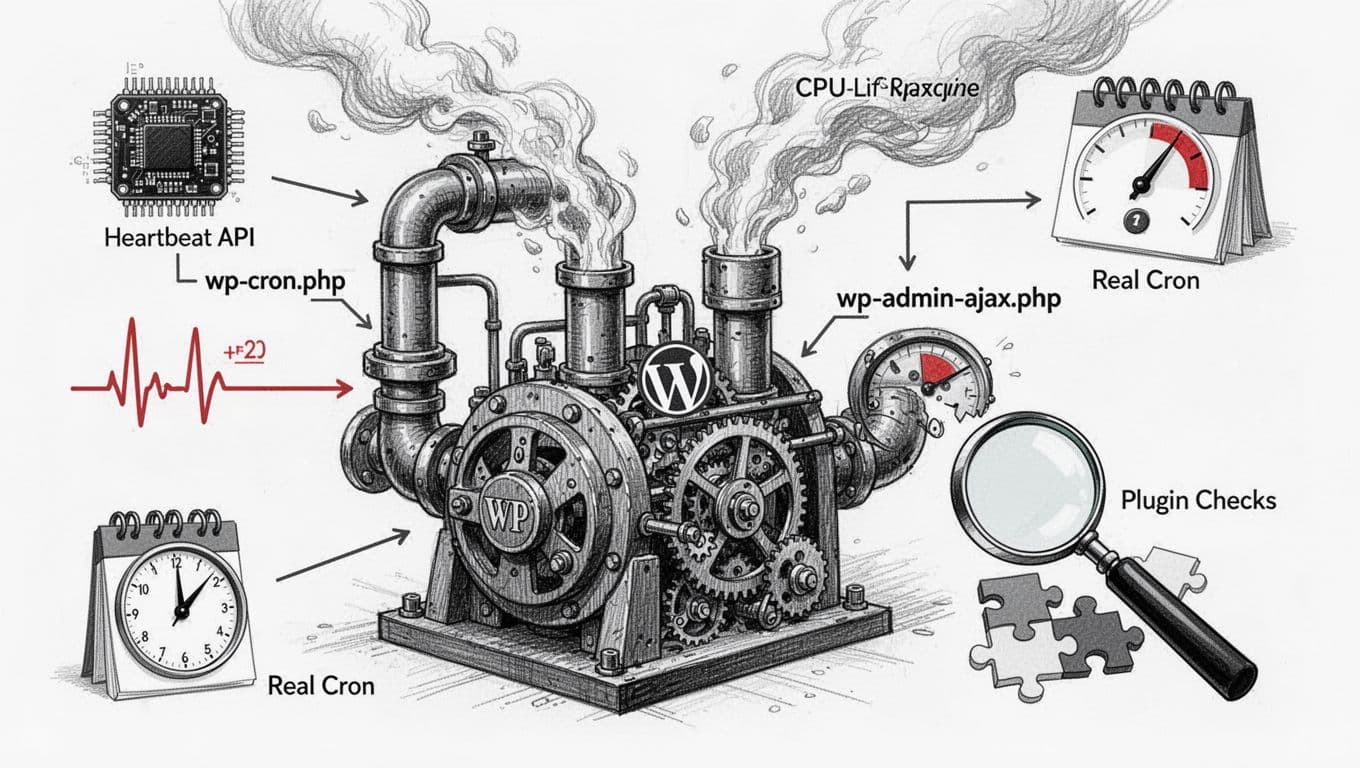
The first time I saw wp-cron.php and wp-admin-ajax.php causing high CPU usage, it felt like my site was “idling” at full throttle. No traffic spike, no big launch, just a server fan that wouldn’t quit.
If you’re trying to fix high CPU WordPress issues, these two endpoints are often the loudest culprits. The tricky part is they’re not “bad” files. They’re plumbing. When a plugin misbehaves, or Heartbeat runs too often, the plumbing starts hammering your CPU like a water line with air in it.
In 2026, most sites are on WordPress 6.x, often paired with a recent PHP version such as 8.2 or 8.3 and PHP-FPM on managed hosting. That stack is fast, but it also makes the resource consumption from request storms very visible. These issues can quickly drain server resources even on modern stacks. Let’s calm things down without breaking scheduling, autosaves, or ecommerce sessions.
Confirm which endpoint is burning CPU (and when)
Before I change anything, I want proof. wp-cron.php and wp-admin-ajax.php can spike CPU for different reasons, and the fix depends on timing.
Here’s the quick mental model I use:
| Symptom I see | Usual source | What it means |
|---|---|---|
CPU jumps with traffic, lots of POST /wp-cron.php | WP-Cron | Cron is firing on page loads (traffic-dependent) |
CPU steady high even with low traffic, POST /wp-admin/admin-ajax.php | Heartbeat API or plugin AJAX | Browser-to-server “pulse” or plugin polling |
| Spikes only when I’m logged in | Heartbeat in wp-admin | Editor autosave, post locks, dashboard widgets |
Recommended: check access logs first
On Apache, I look at the domain access log (often in cPanel). On Nginx, it’s usually a vhost access log. On LiteSpeed server, logs might be checked in the WebAdmin console or dedicated access logs. I search for the endpoints and count frequency. Bad bots can sometimes target these endpoints, contributing to the load.
A simple, host-agnostic habit: filter by time window. If you see admin-ajax.php every 15 seconds per open browser tab, you’ve found the heartbeat rhythm. You can also use browser developer tools, specifically the network tab, to monitor ajax requests live.
If you want a second opinion from a host guide, xneelo has a clear explanation of why POST requests to WP-Cron can create load, and what changes reduce it: high server load from wp-cron.php POST requests.
Optional: validate at the process level
On a VPS, I’ll also peek at PHP-FPM activity. When admin-ajax.php is the problem, I often see many short PHP workers. When WP-Cron is the problem, I see bursts that line up with page hits.
Different stacks show the same pain in different places:
- Shared hosting: you’ll hit CPU limits quickly, and the host may throttle you.
- VPS: you’ll see load average climb, then slow queries and timeouts.
- PHP-FPM: lots of concurrent workers can amplify small polling problems.
- Apache prefork: concurrency can get expensive faster than you expect.
If your site also feels slow end-to-end, I usually pair CPU fixes with basic performance cleanup. This guide helps with the rest of the bottlenecks: 7 simple ways to speed up WordPress.
Tame wp-admin-ajax.php by controlling Heartbeat (without breaking editing)
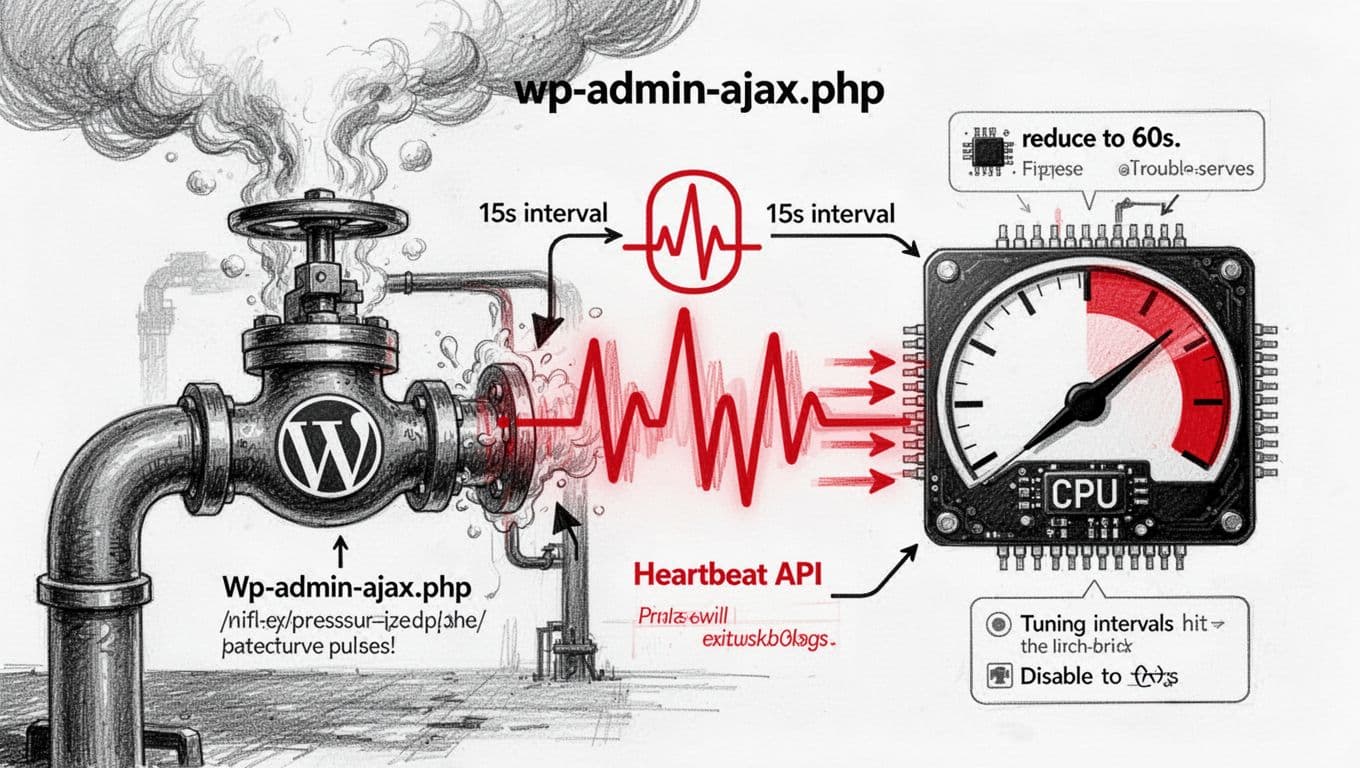
The WordPress Heartbeat API keeps a quiet pulse while you’re logged in. It handles auto-saving posts, managing post revisions, post locks, session checks, and sometimes plugin features. The default interval can be as low as 15 seconds on some screens, and plugins can add more payload.
The goal is rarely “disable it everywhere.” The goal is “slow it down where it’s noisy.”
Recommended: reduce Heartbeat frequency in wp-admin
If you’re using a performance plugin that supports Heartbeat control, such as a caching plugin like WP Rocket or a Heartbeat Control plugin, start there. WP Rocket’s documentation lays out what Heartbeat affects and where it runs: control the WordPress Heartbeat API.
Safe default I like:
- Dashboard: reduce to 60 seconds
- Post editor: keep enabled, but reduce if your site is heavy
- Frontend: disable Heartbeat unless you know you need it to save server resources (many sites don’t)
Why I’m careful with the editor: turning Heartbeat off in the editor can break autosave and post locking. That’s how you end up overwriting someone’s work, which is the worst kind of “performance win.”
Recommended: stop accidental “heartbeat storms”
This is the boring fix that works more often than people admit:
- Log out when you’re done. Heartbeat stops.
- Close extra wp-admin tabs. Each tab can pulse.
- Ask your team to avoid leaving the editor open all day.
I once watched CPU drop just by having an editor stop camping on the post screen in five tabs. No server tweaks required.
If you want a real-world discussion from other admins, this thread captures the common “don’t stay logged in all day” advice and why it matters: Heartbeat API CPU usage on admin pages.
Optional: check for plugin-driven AJAX polling
Not every admin-ajax.php hit is Heartbeat. Some plugins poll for updates (stats, chat widgets, security scans, inventory sync). Complex page builders and certain REST API calls can increase the volume of ajax requests.
What I do:
- Temporarily switch to a default theme.
- Disable non-essential plugins in batches (staging site if possible).
- Watch whether
admin-ajax.phpfrequency drops.
If the spike only happens on the frontend, check for:
- Live search, filtering, “recent views,” and related product widgets
- Analytics dashboards embedded for admins
- Security plugins doing frequent remote lookups
A quick side note: if you’re also fighting heavy JavaScript, that can lead to extra admin work and more AJAX churn. Cleaning up scripts helps overall responsiveness, even if it’s not the root CPU cause: eliminate render-blocking resources.
Fix wp-cron.php high CPU with a real cron (and audit scheduled events)
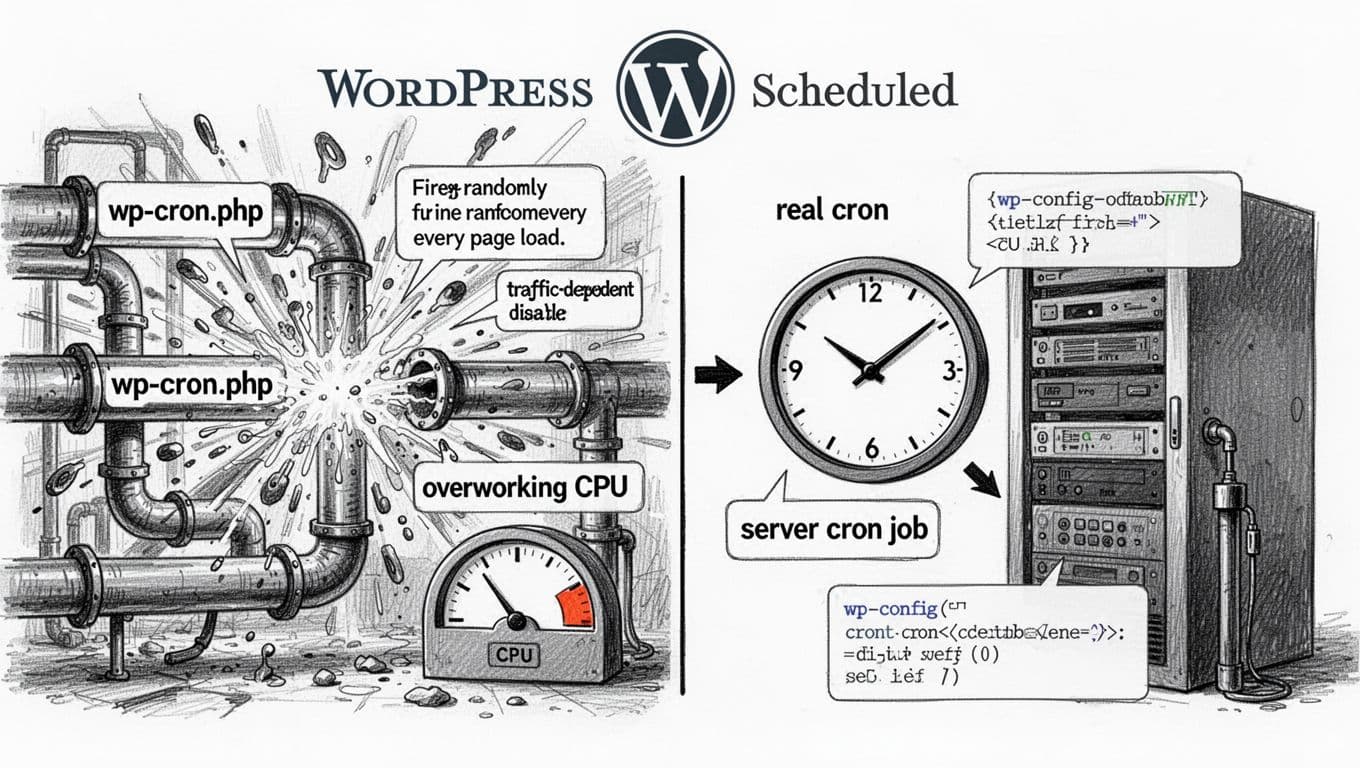
WP-Cron is “fake cron.” It runs when someone visits your site. That means higher traffic can mean more cron checks, including common tasks like plugin update checks managed by wp-cron.php, and on some setups it means overlapping runs.
The cleaner approach is to disable WP-Cron and replace it with a real cron job that runs on a schedule (every 5 minutes is a solid starting point).
Kinsta explains the logic and the steps clearly here: disable WP-Cron for faster performance.
Recommended: disable WP-Cron (the WordPress trigger)
In wp-config.php, add this line above “That’s all”:
define('DISABLE_WP_CRON', true);
That stops WordPress from triggering cron on page loads. Your scheduled posts and plugin tasks will still work once you add a real cron below.
Recommended: add a real cron job (safe defaults)
Pick one of these methods, depending on what your host supports.
- Cron that hits wp-cron.php via HTTPS (works on most hosts)
Run every 5 minutes:*/5 * * * * curl -sS https://example.com/wp-cron.php?doing_wp_cron >/dev/null 2>&1
- Cron that runs WordPress via WP-CLI (best on VPS, avoids HTTP)
Run every 5 minutes:*/5 * * * * cd /path/to/public && wp cron event run --due-now --quiet
On shared hosting, WP-CLI might not be available. In that case, the curl approach is usually fine.
Optional: find the plugin that scheduled “too much”
After moving to real cron, if CPU is still high, I audit scheduled events. The usual pattern is a plugin scheduling jobs too frequently, or a job failing and retrying.
A practical workflow:
- List events (WP-CLI):
wp cron event list - Look for intervals like
every_minuteor unusually frequent custom schedules. - If one hook dominates, trace it to the plugin and adjust settings (backup frequency, sync intervals, email digests, uptime checks).
- Run due events once to clear backlog:
wp cron event run --due-now
If you’re on shared hosting without WP-CLI, a cron management plugin can help you view schedules from inside wp-admin, but I still prefer WP-CLI on a VPS because it’s faster and doesn’t add more admin-ajax noise.
Beyond Cron
While fixing WP-Cron tackles a key CPU hog, your site’s overall speed also depends on full page caching, object cache, preloading, image optimization, and a CDN. Pair these server-side fixes with a caching plugin for even better results.
For another hosting-side perspective on WP-Cron resource usage, Exabytes has a straightforward support note: resolve WP-CRON high resource usage.
Conclusion
When I’m trying to fix high CPU WordPress problems tied to wp-cron.php and wp-admin-ajax.php, I treat it like calming two different machines. Heartbeat needs a slower pulse, not a flatline, and WP-Cron needs to stop waking up on every visit.
Start with logs, tune Heartbeat where it’s loud, then switch to a real cron with a 5-minute schedule. These steps help reduce high CPU usage and manage resource consumption, especially for anyone on shared hosting. After that, plugin checks become simple because the noise floor drops, and the real offender stands out fast. In summary, optimizing wp-cron.php and wp-admin-ajax.php is key to fix high CPU WordPress issues. If you want, tell me your hosting type (shared or VPS) and whether you’re on Apache or Nginx, and I’ll map the safest default settings to your stack.