
How To Use WP-CLI Search Replace Safely With Serialized Data
Table of Contents

With SSH access, the cursor blinks like a streetlight at 2 a.m. I’ve done plenty of WordPress moves, HTTP to HTTPS swaps, and update URLs, but WP-CLI command wp search-replace still makes me slow down.
Because here’s the truth: most of the time, search and replace is easy. The scary part is when WordPress has your values packed into serialized arrays in the WordPress database. One wrong replace, and a perfectly healthy site wakes up with missing settings, broken widgets, or a theme that “forgets” its options.
In this post, I’ll walk through the way I run wp search-replace with serialized data in mind, using dry runs, tight scoping, and a rollback plan I can trust.
Serialized data is why reckless replacements break sites
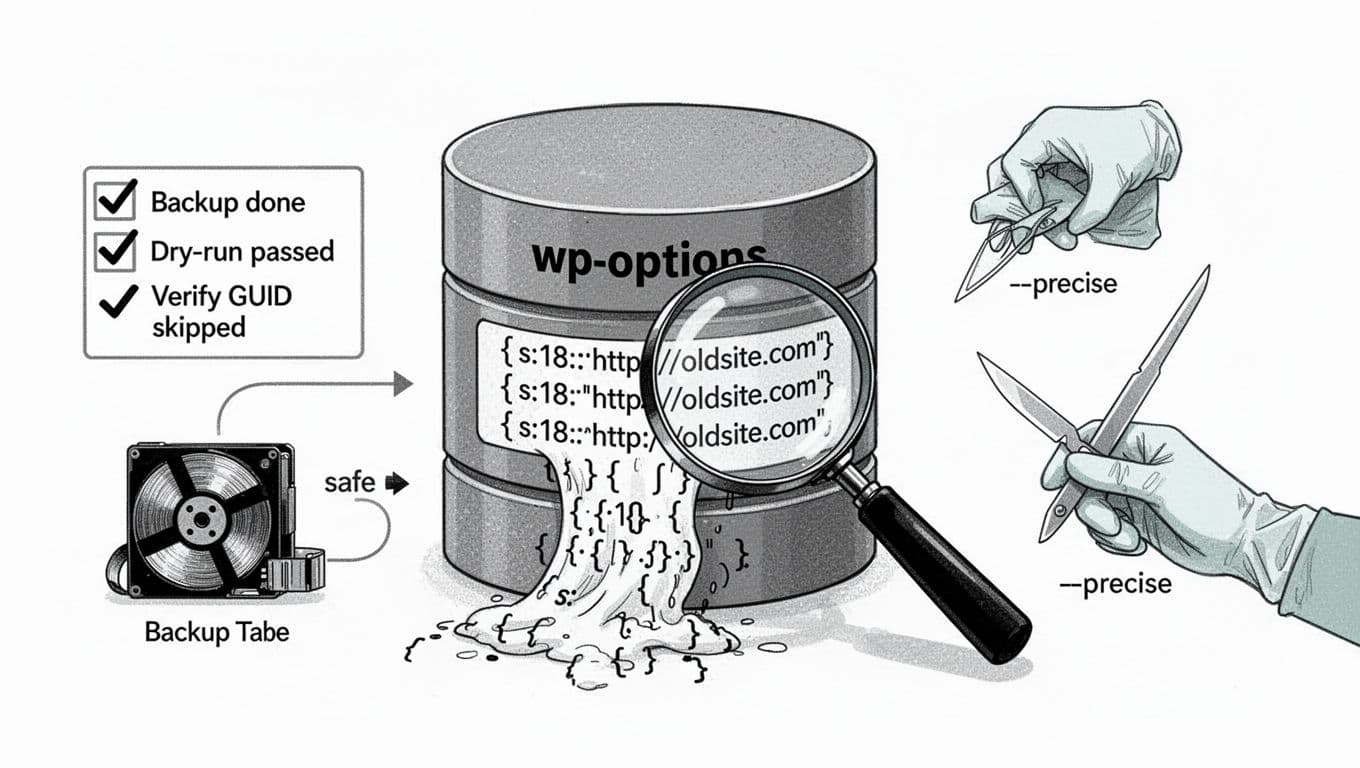
wp_options being inspected before changes.PHP serialized data is the format WordPress uses, packing arrays (and sometimes objects) into a single database field. You’ll see strings that look like a:1:{s:3:"url";s:18:"https://example.com";}. Those s:18 markers indicate the string length, and they matter. If a tool changes the URL during an improper search and replace but doesn’t update the string length, the data structure breaks, and the unserialize step fails later, leading to corrupted data. Then WordPress can’t read the value, even though the row still “looks” normal in phpMyAdmin.
That’s why I avoid raw SQL replacements for anything beyond plain text fields I fully understand. I stick with WP-CLI because it’s designed to handle common serialized data cases, using the maybe_unserialize function to process these strings correctly, and it gives me safety rails like --dry-run and --precise. If you want to see every option available straight from the source, the best reference is the official WP-CLI search-replace command documentation.
One more trap: objects inside serialized data. Some plugins stash complex objects in wp_options. When I suspect that, I add --recurse-objects so the replace walks through object properties instead of skipping them.
Gotcha I’ve learned the hard way: if you change a serialized value without fixing lengths (or without recursing objects), the breakage often shows up later, not during the replace.
My “surgical prep” before I touch wp-cli search-replace
Before I replace anything, I set the room. That means staging first, backups second, and scope third. Skipping any of these is how late-night database migrations turn into long weekends.
First, I clone the site to create a staging site. If you need a simple workflow for that, I like having a repeatable cloning process, similar to this step-by-step WordPress cloning guide so I’m never testing on the production site by accident.
Next, I backup database from the command line, right before the operation: wp db export pre-search-replace.sql. This produces an SQL file. For bigger moves, I also take a file backup or a host snapshot. The database export is the minimum, because it’s my fastest rollback.
Then I figure out what I’m replacing, and where. A domain swap can touch posts, options, widgets, Elementor data, SEO plugin settings, and more. Still, I don’t start with “replace everywhere.” I start with the smallest set of database tables that makes sense, and expand only if the dry run looks clean.
A few scope rules I follow:
- I prefer
--all-tables-with-prefixover--all-tablesbecause it avoids unrelated tables in the same database. - I skip the GUID column almost every time.
- I avoid
--regexunless I have a strong reason and a staging proof.
If you’re doing a full site move and you’re weighing tools, it can help to compare plugin-based options too, especially for large media libraries. SmartWP has a solid roundup of WordPress migration plugins when you want a non-CLI fallback.
Never replace GUIDs. I always add
--skip-columns=guid. GUIDs aren’t meant to be updated, and changing them can cause feed and syncing problems.
The safe wp-cli search-replace workflow I actually run
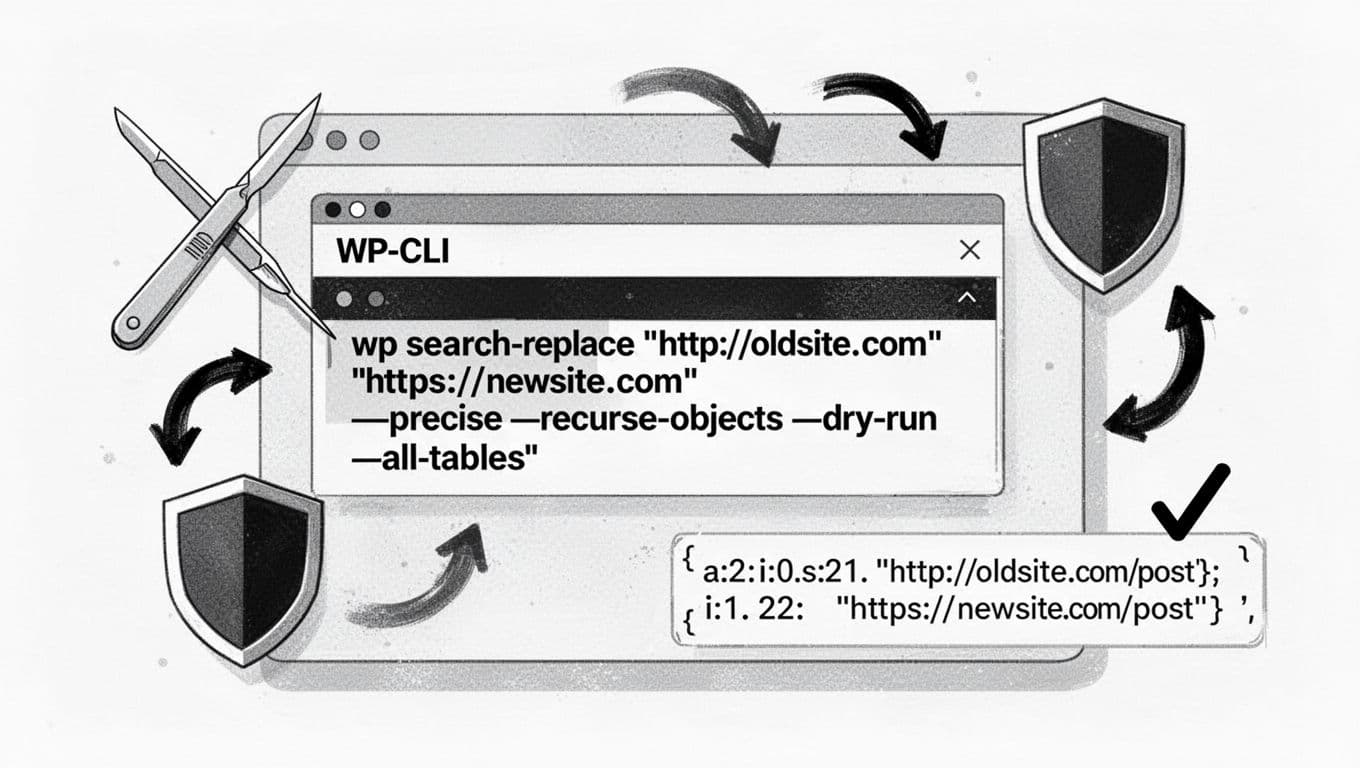
--precise and --recurse-objects.When I’m ready to update URLs, I run the WP-CLI command wp search-replace in two passes: a dry run, then the real run, with the same flags. This search-replace operation targets the WordPress database safely. The goal is boring output. Boring output means I sleep.
- Dry run with tight scope
I start with the most common URL swap, and I keep it inside WordPress tables:
wp search-replace 'http://oldsite.com' 'https://newsite.com' --dry-run --precise --recurse-objects --all-tables --skip-columns=guid --report-changed-only --format=table
Suggest using --report-changed-only to keep the output clean. If I only want to hit specific database tables first, I narrow it more:
wp search-replace 'oldsite.com' 'newsite.com' --dry-run --precise --recurse-objects --tables=wp_posts,wp_postmeta --skip-columns=guid --report-changed-only --format=table
Note that --precise is key for handling serialized data, while regular expressions require omitting it.
- Real run (only after a clean dry run)
I re-run the samewp search-replacecommand without--dry-run:
wp search-replace 'http://oldsite.com' 'https://newsite.com' --precise --recurse-objects --all-tables --skip-columns=guid --report-changed-only --format=table
- Verify like a skeptic
Right after, I spot-check the usual suspects:
wp option get homeandwp option get siteurlwp search-replace 'oldsite.com' 'oldsite.com' --dry-run --all-tables --skip-columns=guid --report-changed-only --format=table(a “no-op” search and replace scan to see what’s still lurking)- Front-end checks for menus, widgets, and the customizer
If I’m on a multisite install, I add --network (or site context) so I don’t miss a subsite. Hosts with strict environments sometimes document extra constraints too, so I keep this VIP search-replace guidance bookmarked as a reminder that platforms can add rules.
Finally, if anything looks off, I don’t “try a few more replaces.” I roll back: wp db import pre-search-replace.sql. Clean slate, then I adjust scope and try again.
For extra background on how the command is maintained and what’s changing, the search-replace command repository is a useful reference when you’re debugging odd behavior.
Conclusion
When I use the WP-CLI command wp search-replace through the command line interface with serialized data in mind, I treat this search and replace operation like careful surgery on the WordPress database. I work on staging first, I always use the --export flag for a quick backup database, and I don’t skip the dry run to avoid corrupted data. Then I keep the scope tight, use --precise and --recurse-objects when it matters, and I never touch GUIDs. If you build that routine once, migrations stop feeling like a gamble and start feeling repeatable.