How I Disable WordPress User Enumeration
Table of Contents
Even with strong passwords, most break-in attempts don’t start with a password. They start with the admin username.
That’s why WordPress user enumeration bothers me so much. If a bot can pull valid usernames from your site, it already has half the login puzzle. From there, brute force attacks get a lot easier.
When I harden a WordPress site, this is one of the first leaks I close. The fix is usually simple, but the right method depends on how your site works.
Why WordPress user enumeration is a real WordPress security gap
WordPress user enumeration happens when someone can discover valid usernames from public parts of your site. The classic example is URL manipulation like ?author=1. On many sites, that request redirects to author archives and exposes the username.
That’s not the only path, though. Public REST API user endpoints, author sitemap such as wp-sitemap.xml that bots target specifically, comment markup, and oEmbed API data can leak names too. If you want a quick look at the most common paths, this breakdown of common enumeration vectors is a useful reference.
Right now, WordPress core still doesn’t shut this off by default. So if you haven’t blocked it yourself, there’s a good chance it’s still open.
I think of it like hiding your house key but leaving your street address on the front gate. A username alone isn’t enough to log in, but it saves attackers time, and bots love shortcuts.
The easiest fix I use on most sites
For most site owners, I start with a plugin to prevent user enumeration. It’s the fastest path, and it usually covers more than one leak.
Plugins like Stop User Enumeration or All In One Login can block ?author= scans, limit public user data in the REST API, hide login hints, and log bad requests. This makes it much harder to identify users. I like this approach on client sites because it’s easy to maintain later. If someone else manages the site after me, they can usually find the setting in a minute.
The main downside is plugin overlap. If you already run a security plugin or web application firewall, you may already have similar protection. I always check before piling on another plugin, because duplicate rules can create odd behavior.
If your site needs public author pages, block the scan route, not the whole archive.
That matters on multi-author sites. If writers need author bios and archive pages, a blanket shutdown can break something useful. In that case, I block numeric scans and public user endpoints, while keeping intentional author pages alive.
If you want the least risky option, this is usually it. It’s simple, broad, and easy to roll back.
How I disable it with code when I want more control
Before I touch code, I make a backup and test on staging. A tiny typo in the wrong file can lock you out or trigger a server error.
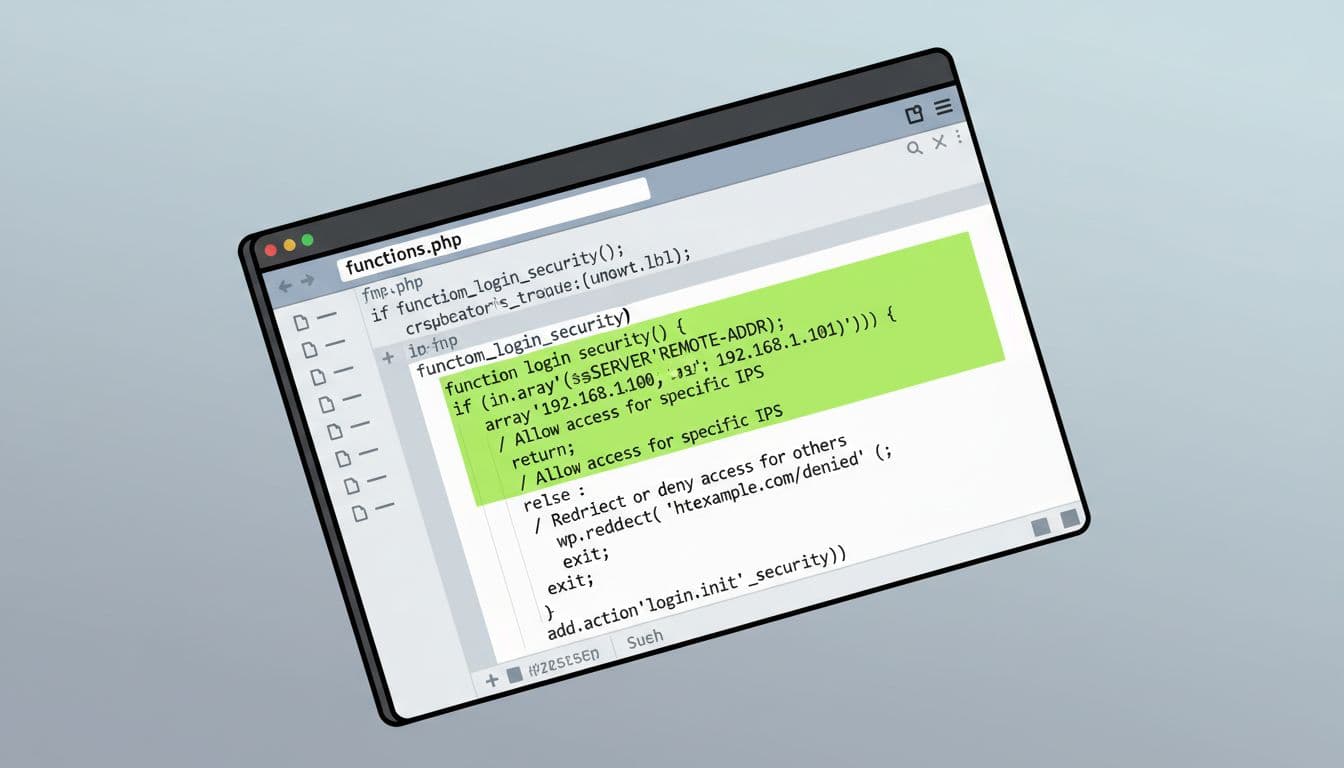
If I only need to stop author-ID scans for wordpress user enumeration, I add a small rule in a site-specific plugin or child theme. The logic is simple: hook into template_redirect, check isset($_GET['author']) && is_numeric($_GET['author']), then send visitors away with wp_safe_redirect(home_url(), 301); exit; or stop the request with a 403.
I prefer a site plugin over functions.php, because theme updates can wipe theme edits. Still, if functions.php is the only place you’re comfortable using, it works as long as you use a child theme and keep a backup close by.
The upside here is control. I can block the exact pattern I want and keep the rest of the site untouched. The downside is that code only covers what I remember to block. If usernames still show in the JSON response at /wp-json/wp/v2/users via the REST API, I need another rule or a plugin setting to handle that too. Similarly, monitor XML-RPC as another vector for brute force attacks.
That REST API point matters in 2026. Some sites still expose author data there. If you run a headless setup, custom app, or front-end feature that relies on the API, test carefully before restricting it.
Using .htaccess to stop scans earlier
On Apache servers, I like .htaccess because it can stop the bad request before WordPress even loads, filtering every HTTP request at the server level. That’s leaner, and it cuts noise early.
The basic pattern is an Apache rewrite check like RewriteCond %{QUERY_STRING} ^author=([0-9]*)$ [NC], followed by a redirect or deny rule. If you want a server-focused example, this .htaccess approach shows the idea clearly.
I use this method when I want speed and minimal plugin load. However, it comes with more risk. A bad .htaccess edit can throw a 500 error fast. Because of that, I only change it when I have file access, a fresh backup, and a way to undo the edit right away.
If your server uses Nginx, the same idea still applies, but the rule belongs in your server config instead. As a server-side alternative to .htaccess for blocking repetitive probes, fail2ban works well too.
How I test the fix without breaking the site
After I add a plugin rule or code change, I test it in a simple order:
- I back up the database and files, or I work on staging first.
- I visit
/?author=1in a private window and check the login form for descriptive errors, like those revealing users on invalid password attempts. - I confirm it redirects safely or returns a 403, not
/author/username/. - I check
/wp-json/wp/v2/usersto see if public user data still appears. - I log in and verify that author pages, author boxes, and editor features still work.
I also run WPScan to verify the fix holds up. That last step matters more than people think. I’ve seen site owners block enumeration, then wonder why author pages vanished or a theme widget stopped pulling writer data, harming user privacy.
I also watch logs for repeated probes or excessive login attempts. If a bot keeps hammering ?author= requests, I’d rather see it blocked at the firewall or banned after repeated tries.
WordPress user enumeration isn’t flashy, but it removes an easy win for attackers; it cuts off paths to social engineering and credential stuffing. That’s why I fix it early, even on small blogs.
If you haven’t tested /?author=1 or your login form on your site yet, do that today. A five-minute check can close a real gap before someone else finds it. For final lines of defense, add two-factor authentication to block unauthorized access.