How To Set Up WordPress Uptime Monitoring With Instant Alerts
Table of Contents
I treat my production WordPress sites like a little shop on a quiet street. Most nights, nothing happens. Then, once in a while, a light flickers, the door won’t open, and customers turn around without telling you why.
That’s why I rely on wordpress uptime monitoring with instant alerts. Real-time alerts are essential for protecting website availability. Not because I love dashboards, but because I hate guessing. When a site goes down at 2:07 AM, I want a message that tells me what failed, where it failed, and what to do next.
Maintaining high uptime is crucial for protecting your search engine rankings and ensuring a positive user experience. In this guide, I’ll walk through the exact setup I use: solid checks, multi-location confirmation, HTTPS and TLS expiration monitoring, and fast alerts via email plus SMS, push, Slack or Teams, and webhooks.
Start with a monitoring plan that won’t waste your sleep
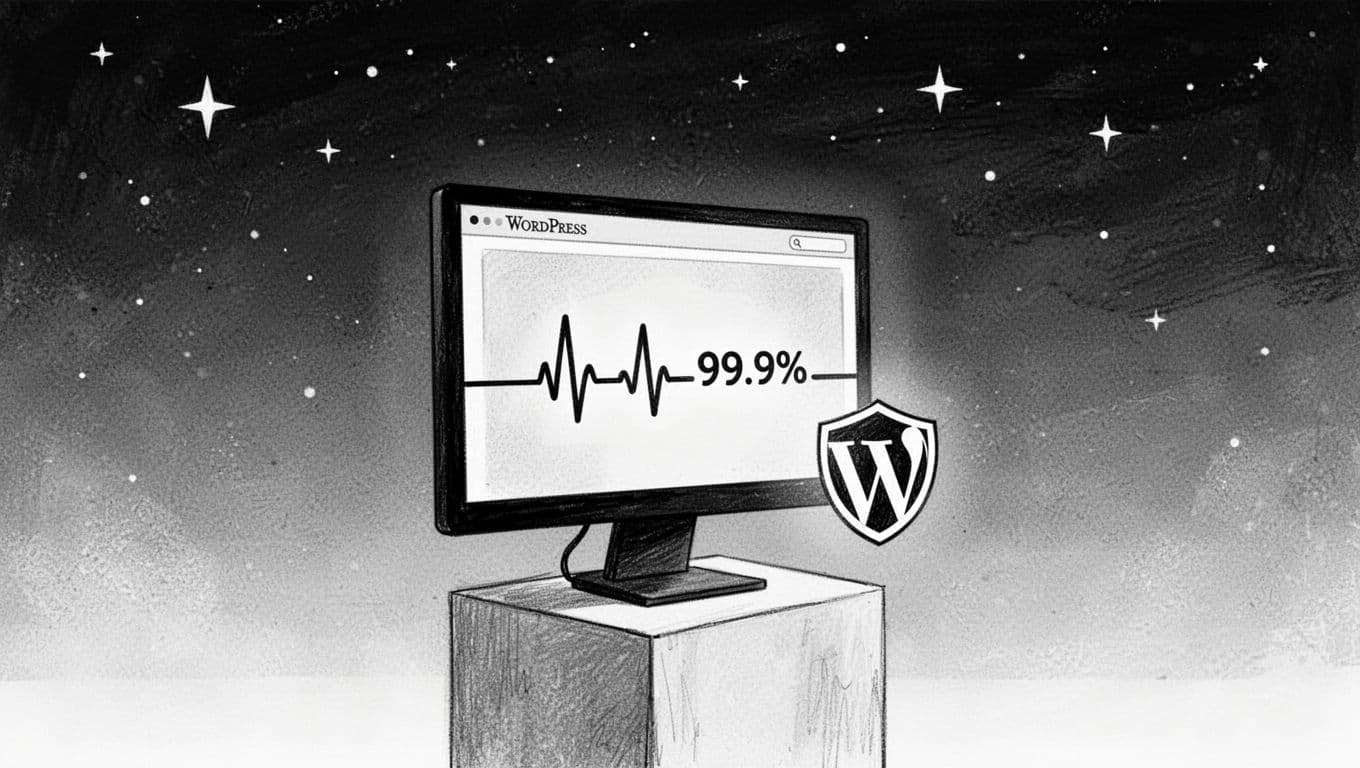
Before I set up any tool, I decide what “down” means for this specific site. A home page that returns HTTP 200 can still be broken. On the other hand, a brief 30-second blip might not justify waking anyone up.
Here’s how I frame it:
- Business-critical pages first: Home page, top landing page, checkout or booking page, and a login-protected flow if you have members. These directly impact user experience.
- One “app-level” check: I like a keyword check that looks for a stable piece of text (site name in the header, or “Add to cart” on a product page). It catches white-screen failures and theme crashes that still return successful HTTP status codes like 200.
- Your success target: Many small sites aim for a 99.9% uptime percentage monthly. If you’re running ads or campaigns, you may want tighter.
- Who owns the alert: If it’s just you, keep it simple. If it’s a team, define on-call and backup.
If downtime is frequent, I also look upstream. Hosting, DNS, plugins (especially plugin conflicts), and other factors are the usual suspects, so I keep a short list of “known risk” changes. If you’re shopping for stability, choosing managed WordPress hosting is a key factor in improving performance monitoring and overall reliability; this roundup of recommended WordPress hosts is a good starting point for comparing uptime guarantees and support.
Checkpoint: I can name (1) the URLs I’ll monitor, (2) what counts as a real incident, and (3) who gets notified first.
Configure uptime checks that catch real problems (not noise)

WordPress uptime monitoring helps track server uptime and response time trends without the clutter. Most monitoring tools follow the same pattern: you create a “monitor,” choose a check type, set an interval, and pick alert channels. Popular services like Uptime Robot, Pingdom, Jetpack Monitor, or ManageWP Worker all offer these core features. So I keep my setup tool-agnostic.
My baseline settings (the ones I trust in 2026)
- Create an HTTPS monitor for your home page.
Use the canonical URL (the one you want in Google), follow redirects, and include SSL certificate monitoring. - Set the monitoring interval to 60 seconds for money pages, 3 to 5 minutes for everything else.
Faster checks find issues sooner, but they can cost more. Note that monitoring response time is a key part of modern performance monitoring for SEO. - Turn on multi-location monitoring (at least 3 regions).
This cuts false alarms caused by a single network hiccup. - Require confirmation: 2 to 3 failed checks before alerting to eliminate false positives.
I also enable a quick retry (for example, 2 retries spaced 10 seconds apart). - Add a keyword or page content check on a critical page.
Pick something stable, not rotating headlines. - Enable TLS and certificate expiry alerts (30 days, 7 days, 1 day).
Expired certs feel like “down” to visitors. - Add a heartbeat monitor for scheduled jobs, if you rely on them.
For example, after a backup or sync finishes, have it ping a unique heartbeat URL. Even a simpleGETrequest works.

If you ever need a quick manual sanity check during an incident, I keep this bookmarked: SmartWP’s free uptime checker tool. It’s not continuous monitoring, but it answers the “is it just me?” question fast.
A single failed check is a whisper. Two regions failing is a knock on the door. Three regions failing is the alarm.
For extra context on common monitor types (HTTP, keyword, SSL, heartbeat) and how they fit together, I like this WordPress uptime monitoring guide because it maps features to real failure modes.
Checkpoint: I have at least one HTTPS check, one keyword check, TLS expiry alerts, multi-location confirmation, and sensible retry rules.
Set up instant alerts that reach me fast (and don’t spam my team)
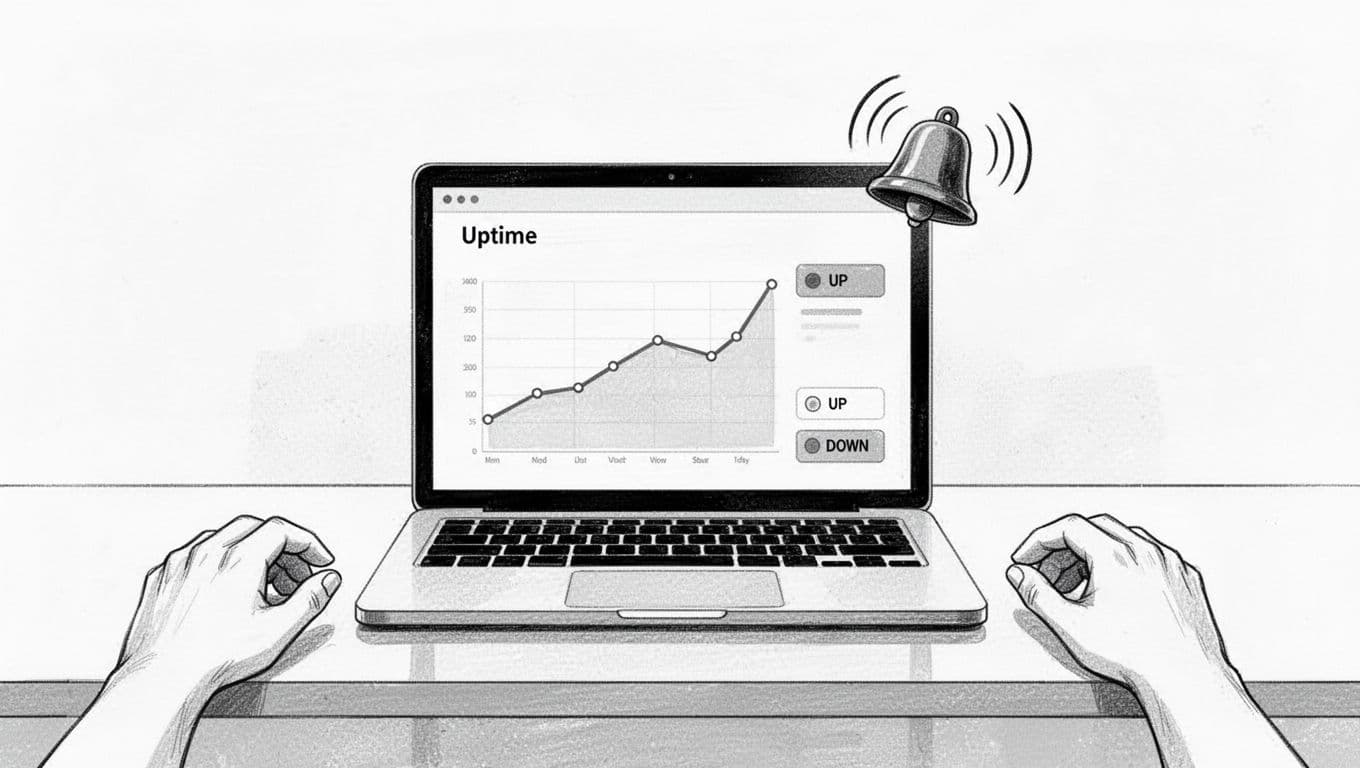
Alerts should behave like a good night watch radio: short, clear, and routed to the right person. I always set up email and SMS alerts plus at least one other “wake me up” channel.
Here’s the mix that works best for most small teams:
| Alert channel | What I use it for | Why it helps |
|---|---|---|
| All incidents and recoveries | Great paper trail, easy to search | |
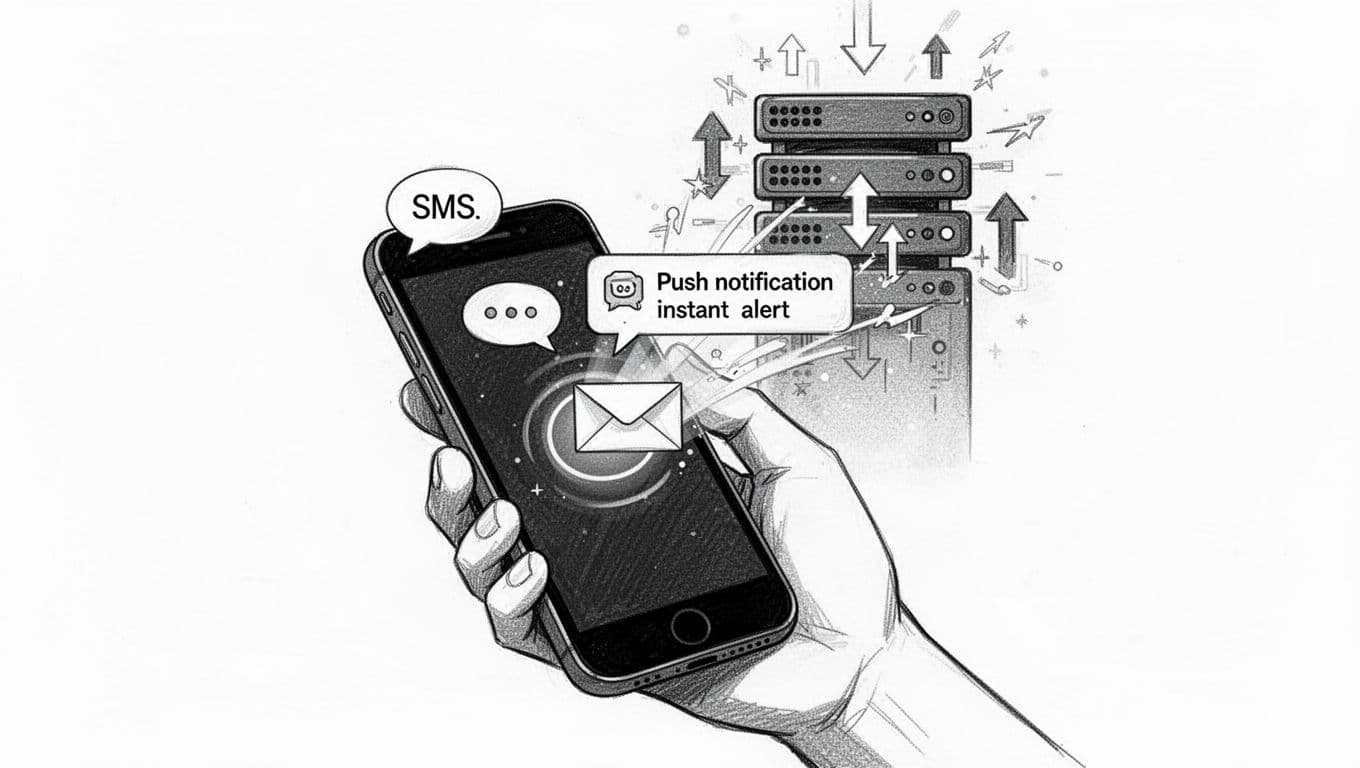
| SMS | Confirmed downtime only | Hard to miss, even on bad Wi-Fi |
| Push notifications | Domain expiry tracking, TLS expiry, warnings, maintenance reminders | Quick glance, less intrusive than SMS |
| Transaction monitoring | Track checkout flows and user journeys | Catches business-critical issues early |
| Slack integration or Teams | Team visibility and handoffs | Keeps chatter in one place |
| Webhooks | Auto-create tickets, trigger runbooks | Turns alerts into actions |
A simple escalation path (that avoids alert fatigue)
I set it up like this:
- Step 1 (immediate): Email + Slack/Teams for “down” and “up.”
- Step 2 (after 2 to 3 minutes down): SMS to the on-call person.
- Step 3 (after 10 minutes down): SMS to backup contact, plus a webhook to open a ticket.
If you need ideas for integrations and notification options, this overview of uptime monitoring tools in 2026 is a helpful reference for what’s common now (including Slack, webhooks, and mobile apps).
Status pages and incident workflow, even for small sites
When an outage hits, people ask the same question: “Is it fixed yet?” A basic public status page offers transparency and reduces support emails fast. Some monitoring platforms include this, and it’s worth using if your site supports customers. For an example of how monitoring and status pages connect in bigger WordPress setups, see UptimeRobot on WordPress VIP.
Separately, I keep a short incident checklist. It includes steps like checking database connectivity issues, high PHP memory usage, or spikes in error frequency. During a late-night incident, I don’t want to think. I want to follow steps. Also, I try to keep plugins lean because fewer moving parts means fewer surprises. If you’re auditing what you run, this list of must-have WP plugins helps narrow the field.
Privacy and security for alerts (don’t leave keys lying around)
Most monitoring services need API keys for Slack, SMS gateways, or webhooks. I store those keys in the platform’s secret store if it has one. Otherwise, I use a password manager and rotate them.
- Use least privilege tokens (only what’s needed for alerts).
- Turn on 2FA for downtime monitoring accounts.
- Separate “owner” access from “viewer” access for clients.
If an attacker gets your alert integrations, they can silence you. Treat alert access like production access.
Test alerts without taking your site down
I never “test” by breaking production. Instead, I do one of these:
- Trigger the tool’s built-in “send test notification.”
- Point a monitor at a harmless URL that returns 404 on purpose, then switch it back.
- Use a keyword check on a staging page, then temporarily change the text to force a fail.
- Schedule a short maintenance window, then confirm alerts pause and resume correctly.
Checkpoint: I’ve received a test email, an SMS or push, a Slack/Teams message, and I’ve validated my webhook fires once (not 10 times).
Conclusion
When I set up WordPress uptime monitoring the right way, I sleep better because I know the alarms are meaningful. Multi-location checks cut noise, TLS monitoring prevents avoidable outages, and clear alert routing keeps the right people in the loop. Set up your WordPress uptime monitoring, test every channel, and write a tiny runbook for the next 2:07 AM moment. Because WordPress uptime monitoring is about more than just a heartbeat, it protects website availability, improves response time, and safeguards search engine rankings. Then ask yourself one last thing: if the alert hits tonight, will I know exactly what to do in the first five minutes?