
How to Add Two-Factor Authentication to WordPress in 2026
Table of Contents
The first time I turned on two-factor authentication for a client site, I felt great for about ten minutes. Then I pictured the worst-case scene: a lost phone, a locked-out admin, and a launch day ticking closer.
That’s the real story of Two-Factor Authentication in 2026. It’s not just adding a second code. It’s setting a sentry at the gate with an extra layer of security, then making sure you still have a spare key hidden somewhere safe.
In this guide, I’ll walk you through a plugin-agnostic setup for WordPress security that won’t trap you outside your own site. Then I’ll share a few reputable Two-Factor Authentication plugin options, plus recovery code habits and lockout tips that actually hold up under pressure.
Pick the right 2FA method (so the gatekeeper is tough, not annoying)

WordPress still doesn’t ship with built-in 2FA (a popular form of multi-factor authentication), so in practice you add two-factor authentication with a plugin. Before you install anything, decide what “second factor” you want guarding your login.
For most WordPress admins, TOTP authenticator apps are the sweet spot. They generate a rotating 6-digit one-time password, even offline. I’ve had good experiences with Google Authenticator, Microsoft Authenticator, and Authy. TOTP is simple to roll out across teams, and it doesn’t depend on cell coverage.
Email codes can work for low-risk users, but they’re only as strong as your email security. SMS verification is widely considered weaker than authenticator apps, mainly because phone numbers can be hijacked.
In 2026, passkeys and security keys are more common too. If your team can handle them, they’re excellent. Still, I don’t start there on typical small business sites because rollout is harder, and “harder” is where mistakes happen.
My rule: choose the method that your least-technical admin will still use correctly on a tired Monday morning.
A safe rollout plan (staging first, recovery codes before enforcement)
If I can test on a staging site, I do. A staging site is like running the fire drill without smoke. If you don’t have one, at least do this during a low-traffic window, and enable automatic backups first.
Here’s the rollout flow that keeps me out of trouble:
- Create a backup admin account (a real human, not “admin2”). Use a unique email address you control.
- Enable 2FA on a test user first, not your main admin.
- Confirm recovery codes work before enforcing anything site-wide.
- Roll out by user roles, starting with Administrators, then Editors.
- Document emergency access for your team or clients (where recovery codes live, who holds them, what to do if a device is lost).
Warning: Don’t enforce 2FA for all admins until at least two admins have working 2FA and saved backup codes. Locking out the last admin is the fastest way to turn “security” into downtime.
Also, pair 2FA with basic login hygiene. Rate limiting and a firewall reduce brute force attacks on login attempts, which means fewer lockouts and fewer panicked messages.
If you’re already reviewing security tools, I keep a running list of best WordPress security plugins with 2FA so you can compare WP 2FA plugin options that fit your stack.
Set up authenticator apps in WordPress (generic steps that work with most plugins)
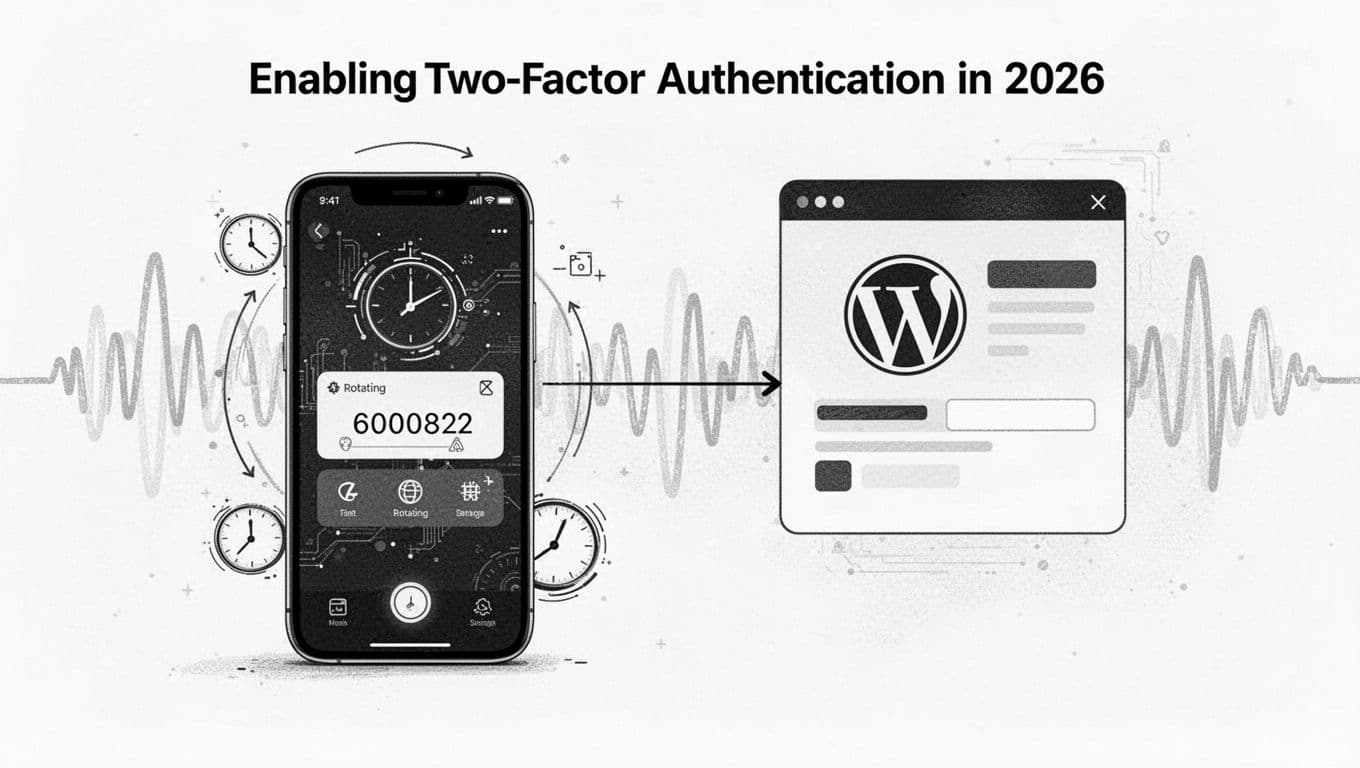
Most Two-Factor Authentication plugins feature a Setup Wizard with the same pattern, even if the menus look different. I like to do the first setup sitting at a desk, with my phone charged, and no browser extensions messing with the login screen.
The typical Two-Factor Authentication Setup Wizard steps look like this:
- Install your chosen 2FA plugin and activate it.
- Go to your WordPress user profile (often under Users, then Profile).
- Find the Two-Factor Authentication or Login Security section.
- Choose Authenticator App (TOTP).
- The plugin displays a QR code; scan the QR code with your authenticator app.
- Enter the current 6-digit One-Time Password to confirm pairing.
- Log out, then log back in to test the full flow.
Right after that test, I open an incognito window and repeat the login once more. That second run catches silly stuff like cached sessions or password manager autofill quirks.
If your site uses WooCommerce, membership plugins, or a custom login page, test those entry points too. Some plugins hook only into /wp-login.php unless configured.
Recovery codes and emergency access (my lockout-proof habits)
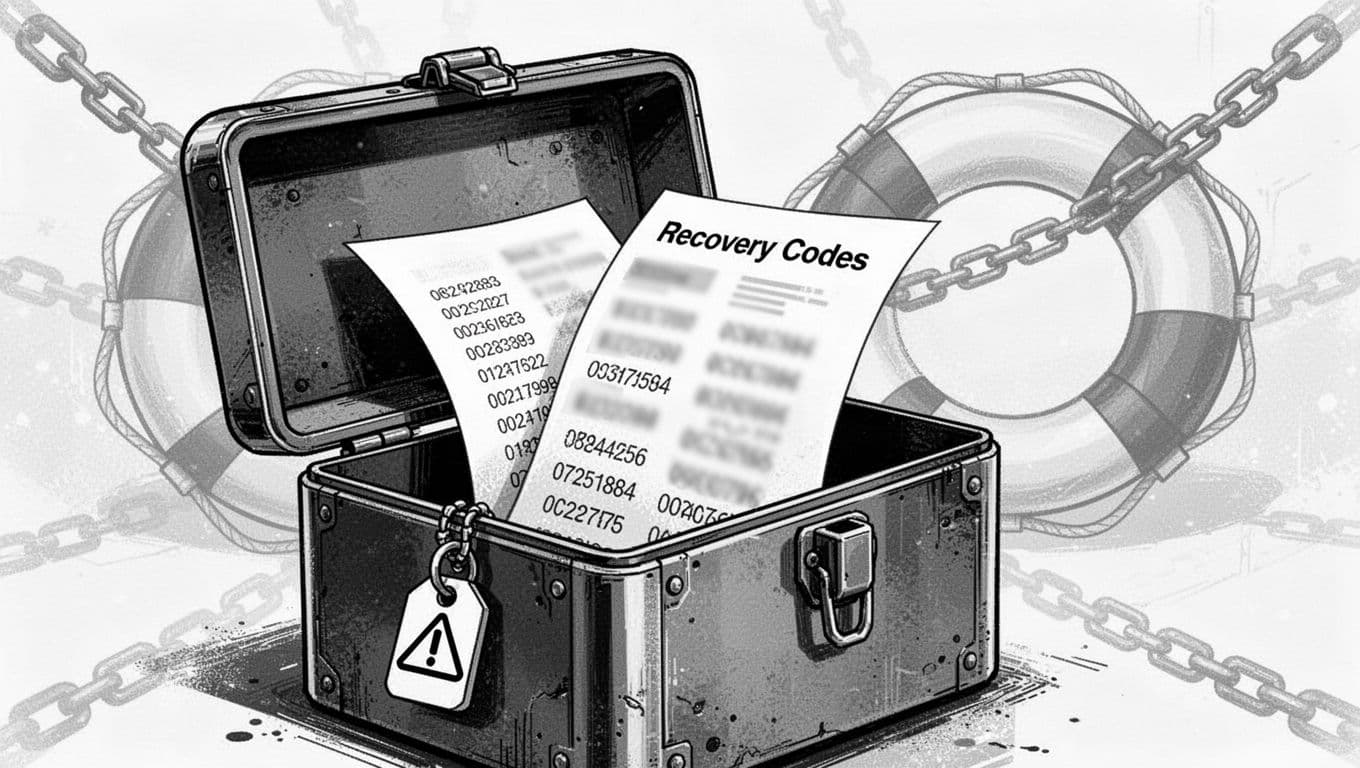
Recovery Codes are the quiet lifeboat you hope you never board. Still, when you need them, you really need them.
Once a plugin generates Backup Codes, I do two things:
- Store one copy offline (printed and locked away).
- Store one copy in a Password Manager that’s protected by its own strong sign-in (and ideally its own 2FA).
I avoid putting Backup Codes in plain notes apps, shared drives, or team chat. That’s like leaving a spare key under the doormat.
Treat Recovery Codes like cash. Limit who can touch them, and know where they are before an emergency.
Now, my plan if I’m Locked Out of WordPress. If I lose access to the authenticator device and Backup Codes, I work through this order:
- Use the backup admin account (you made one, right?).
- Ask hosting support to help with account ownership checks and access restoration if needed.
- As a last resort, access Recovery Mode or disable the 2FA plugin by temporarily renaming its folder using Access via FTP or file manager (then fix the root cause and re-enable).
That last step is blunt, but it’s better than abandoning a site.
Reliable 2FA plugins worth considering in 2026 (and what I like about them)

I prefer boring, well-maintained plugins for security. Fancy features don’t help if the basics are shaky.
Here’s a quick comparison of reliable WP 2FA Plugin options to narrow the field:
| Plugin | What I like | Tradeoff to watch |
|---|---|---|
| Two-Factor | Solid options (TOTP via Google Authenticator or Authy, email, backup codes, U2F), simple per-user setup | Less “policy” control without extra tooling |
| WP 2FA Plugin | The WP 2FA Plugin’s strong policy controls, supports hardware keys and passkey-style flows on some setups | More settings, takes longer to roll out |
| Wordfence Login Security | Great if you already run Wordfence Security with its Malware Scanner, good QR setup and backup codes | Extra features can feel heavy if you only want 2FA |
| SecureAuth Authenticator 2FA | Lightweight TOTP approach, easy onboarding | Narrower feature set by design |
If you want a broader scan of what’s popular, Pressidium keeps a helpful roundup of WordPress 2FA plugin options. As a Managed WordPress Hosting provider, Pressidium prioritizes SSL Certificates alongside other security infrastructure. I use lists like that to spot trends, then I still test on staging before deciding.
Security Best Practices: Do this now (the short checklist I follow every time)
- Create a backup admin and confirm you can log in.
- Enable 2FA for one test user first.
- Generate and store backup codes (offline plus password manager).
- Enforce 2FA for admins, then expand slowly.
- Write down the emergency plan so future you isn’t guessing.
Conclusion
A WordPress login without Two-Factor Authentication is a door with one lock, and bots launch brute force attacks on that handle all day. With Two-Factor Authentication, you add a second key and a sentry, but you also take responsibility for safe access.
Set it up on staging if you can, save recovery codes before enforcing rules to avoid getting locked out of WordPress, and never leave yourself with a single admin. After that, Two-Factor Authentication fades into the background, which is exactly what good WordPress security should do.