How to Roll Back a WordPress Plugin Update Without Breaking Your Site
Table of Contents
A bad plugin update can make a WordPress site feel like a house with one loose floorboard, then suddenly the whole hallway creaks. I’ve had updates break layouts, block logins, and knock out forms. The fix is often simple, but only if I slow down first.
In this guide, I’ll walk through a safe WordPress plugin rollback to restore your site to the previous version after a problematic plugin update. We’ll start by accessing the WordPress dashboard, then cover backups and staging to post-rollback testing. If you follow the order, you can undo the update without turning a small problem into a bigger one.
When a plugin rollback is the right move
As part of troubleshooting WordPress, I don’t roll back a plugin the second I see a glitch. First, I confirm that the update actually caused it. If the issue started right after the plugin update, that’s a strong clue. If I updated three plugins, changed my WordPress theme, and cleared a cache at the same time, I pause and sort out what changed.
A rollback makes sense when a plugin update causes a clear problem, like a broken page builder, a failed checkout, missing styles, or a dashboard error. It also helps when the site worked fine before the update and the plugin developer hasn’t shipped a fix yet.
Still, I treat a rollback as a temporary fix, not a permanent home. Rolling back to a stable version restores functionality, but older plugin versions can miss security patches or compatibility fixes. So I roll back to restore the site, then I look for the real long-term answer, which might be a newer patch, a settings change, or a replacement plugin.
Roll back to stabilize the site, not to forget about the problem.
If the site is throwing critical errors, showing a white screen of death, or breaking something tied to money, like checkout or bookings, I don’t guess. I contact my host or developer right away. Fast help matters more than pride when customers are involved.
What I do before I touch the plugin
Before I change anything, I make a WordPress backup of both files and the database. That way, if the rollback goes sideways, I can undo my undo. If your host offers snapshots or one-click backups, use them. If not, a backup plugin or host file download is still better than hope.
I also prefer to test on a staging site first. If you don’t already have one, this guide to create a WP staging site is a good place to start.
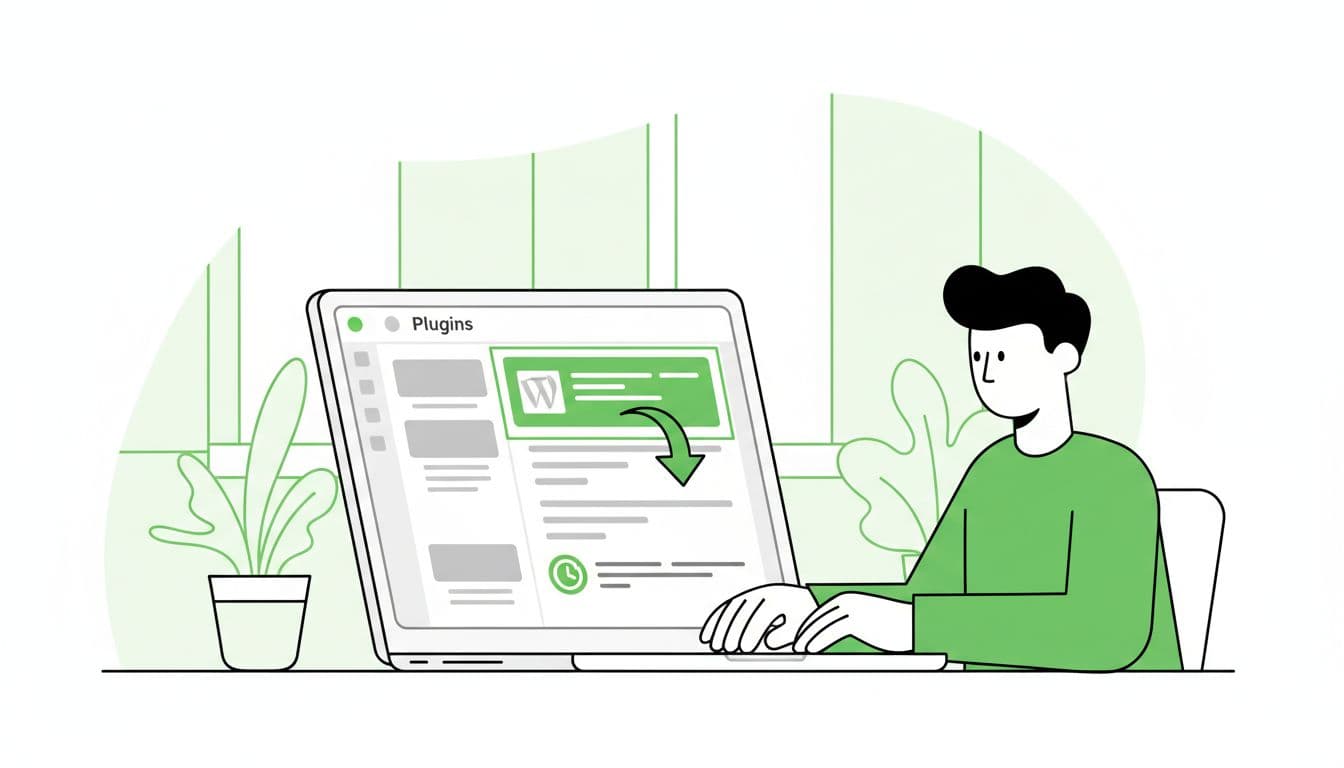
Next, I write down the plugin name, current version, and the last version that worked. That sounds small, but it saves time later when you revert to previous version. I also check the plugin changelog and support notes, especially after you update plugins. Sometimes the “bug” is really a new requirement, like a higher PHP version or a changed setting.
Then I make sure I can reach the site another way if WP-Admin fails. File Manager, SFTP, or hosting support can save the day when the dashboard won’t load. For beginners, that backup access is like keeping a spare house key under the mat.
If you want a quick visual refresher before touching a live site, this short rollback video tutorial gives a simple overview of the flow.
How I do a WordPress plugin rollback safely
The safest method depends on the plugin. For free plugins from the WordPress.org repository, I usually use WP Rollback. For premium plugins, I perform a manual rollback by downloading the older ZIP file from the vendor account and replacing the files.
Here’s the process I follow:
- Back up first. I create a fresh backup, even if the host already made one overnight. A new backup matches the site’s current state.
- Try the rollback on staging. If the staging copy works after the downgrade WordPress plugin process, I repeat the same steps on the live site. If not, I keep testing without risking visitors.
- Use the right rollback method. For repository plugins, WP Rollback is the easiest path. For premium plugins, I get the older version directly from the plugin seller as a ZIP file. I never download random ZIP files from unknown sites.
- If wp-admin is broken, deactivate plugins manually. I rename the plugin folder using an FTP client or cPanel File Manager to access the root directory and plugin folder. If I’m comfortable with the command line, I may use WP-CLI commands for WordPress updates instead.
- Install the older version and reactivate it. Then I check the exact page or feature that broke before, especially after recent update plugins. I change one thing at a time, because mixed changes hide the real cause.
I avoid restoring the whole site unless the damage is broad. A full restore can wipe out recent orders, comments, or edits. That’s why I like targeted advice like this plugin downgrade guide, which explains why a focused rollback is often the better move.
The biggest mistakes I see are simple: skipping the backup, testing on the live site first, rolling back the wrong plugin, and changing several plugins in one sitting. When I keep the process boring and methodical, it works.
What I test after the rollback
Once the older version is active, I don’t assume the job is done. I test like I’m checking a bridge after a repair. It may look fine from far away, but I want to know it holds weight.
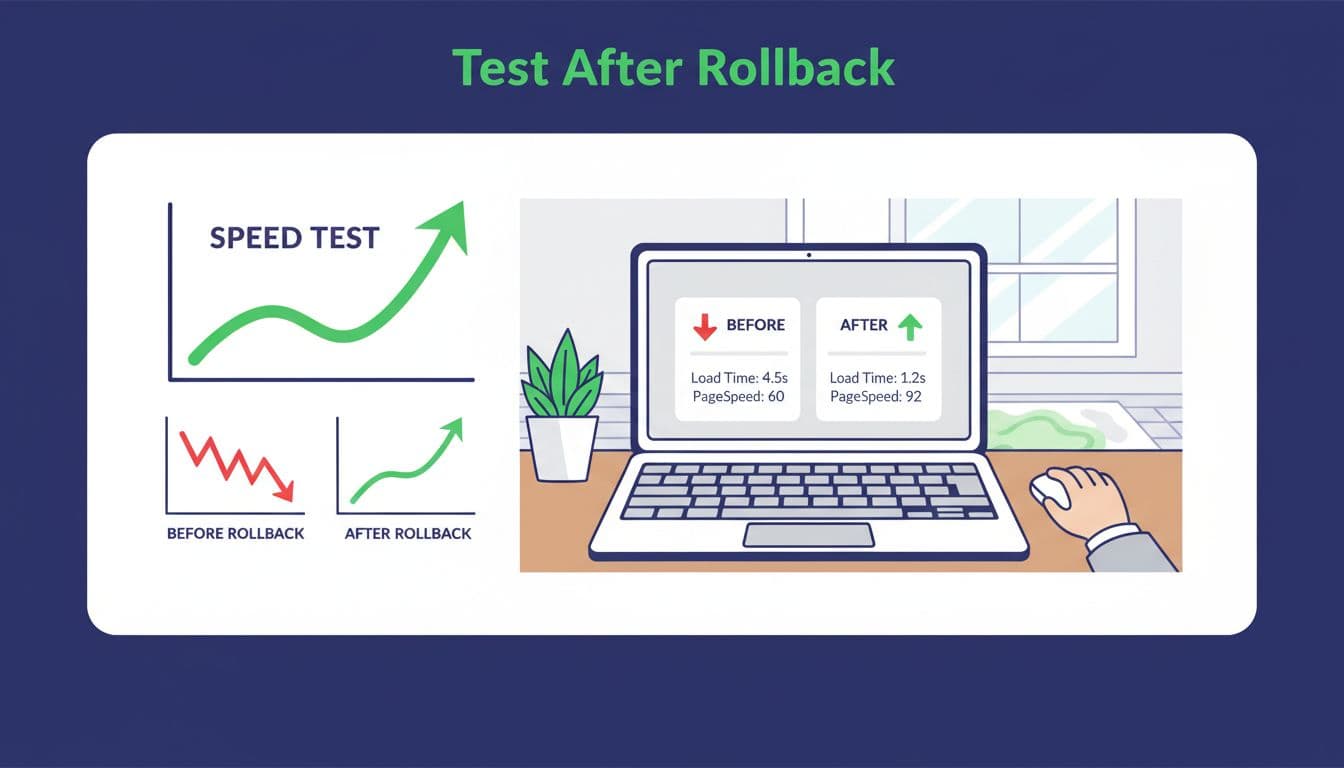
I usually check these areas first:
- Front-end pages: Home, landing pages, and any page that looked broken
- Forms and checkout: Contact forms, carts, bookings, and payments
- Login and admin: User login, plugin settings, and page editing
- Cache layers: Plugin cache, server cache, and CDN cache
- Mobile view: Layout, spacing, and buttons on a phone
If the site still acts strange, I clear all caches and test again in a private browser window. After that, I look for plugin conflicts. A plugin update may fail because of PHP version changes, another plugin, or a theme issue. If issues persist, a full database restore is the ultimate safety net. Good hosting can help a lot here, especially when it includes staging and solid backups, so I pay close attention to hosts that offer those basics well.
If the rollback fixed the problem, I leave notes for myself. I write down the plugin version, what broke, and what solved it. Then I turn off automatic updates for that plugin for now, watch for the next patch, and test again later. For developers, version control is a more advanced alternative.
Final thoughts
A safe WordPress plugin rollback isn’t about moving fast. It’s about backing up, testing in staging, using the right previous version, and checking the site after. If the issue touches payments, memberships, or a site you can’t access, bring in your host or developer early. A calm WordPress plugin rollback to a stable version beats a rushed rescue every time.