How to Upgrade WordPress to PHP 8.4 Safely (My 2026 Flight Plan)
Table of Contents
If upgrading to PHP 8.4 feels like swapping an engine mid-flight, you’re not wrong. One small mismatch between PHP 8.4 and a plugin, and your WordPress site can go from smooth cruising to a white screen in seconds.
The good news is that upgrade WordPress PHP 8.4 can be low-stress (for security patches and improved website performance) if you treat it like Mission Control. You don’t “flip the switch” first. You rehearse, log everything, and keep a rollback lever within arm’s reach.
As of March 2026, the latest stable version of PHP 8.4 is a reasonable target for your WordPress site, but WordPress beta support is still described as “beta” in some contexts, which is a fancy way of saying, “test your exact site, not someone else’s.”
Preflight checks before I touch PHP
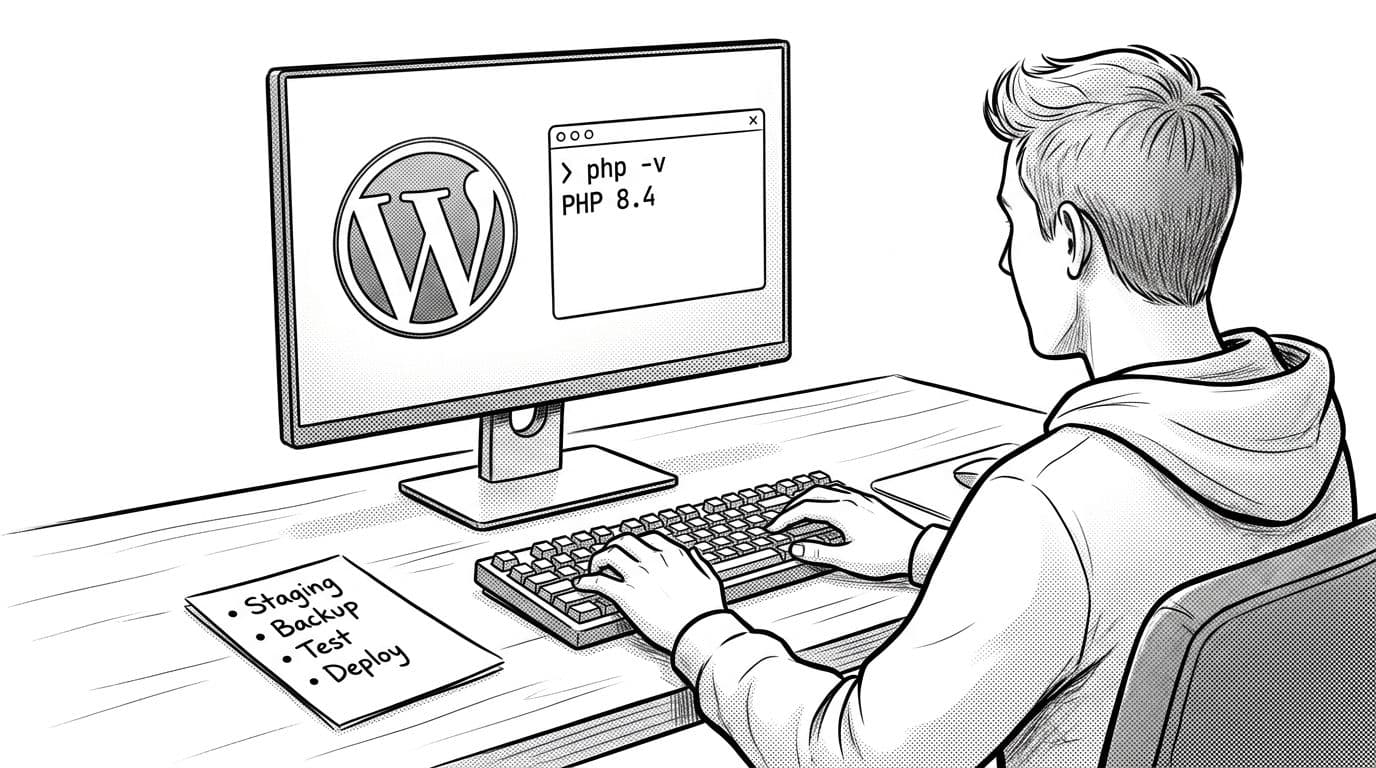
First, I figure out what PHP version I’m really upgrading. “PHP version” can mean the CLI, the web server, or PHP-FPM. So I check the PHP version both places.
- On the server: run
php -v. - In WordPress: I use site health in the WordPress dashboard, or I follow this guide to view your site’s PHP version.
Next, I bring WordPress up to the latest stable version. PHP upgrades expose old code, including potential vulnerabilities in outdated themes and plugins. So I update core files, themes and plugins first, then I confirm the site still works on the current PHP version.
If you manage sites with SSH access, doing updates in bulk is faster (and you get clearer errors). This is where I lean on WP-CLI update commands like wp core update, wp plugin update --all, and wp theme update --all.
I also check the “unknowns,” meaning themes and plugins that haven’t been updated in a long time and may be at end of life, plus custom code like mu-plugins and that one theme function nobody wants to touch. If I need a broader refresher on what tends to break and why, I skim a hosting provider’s notes like PHP 8.4 and WordPress upgrade considerations and then I come back to testing my exact stack.
My preflight checklist stays short on purpose:
- Core is current, and database updates are done.
- All themes and plugins updated, and anything abandoned gets replaced.
- A staging environment exists, and it matches production closely.
- Error logging is ready, so I can see problems quickly.
- Rollback is possible, including a quick PHP version downgrade option.
Once those are green, I move to the rehearsal environment.
Build a staging site that behaves like production
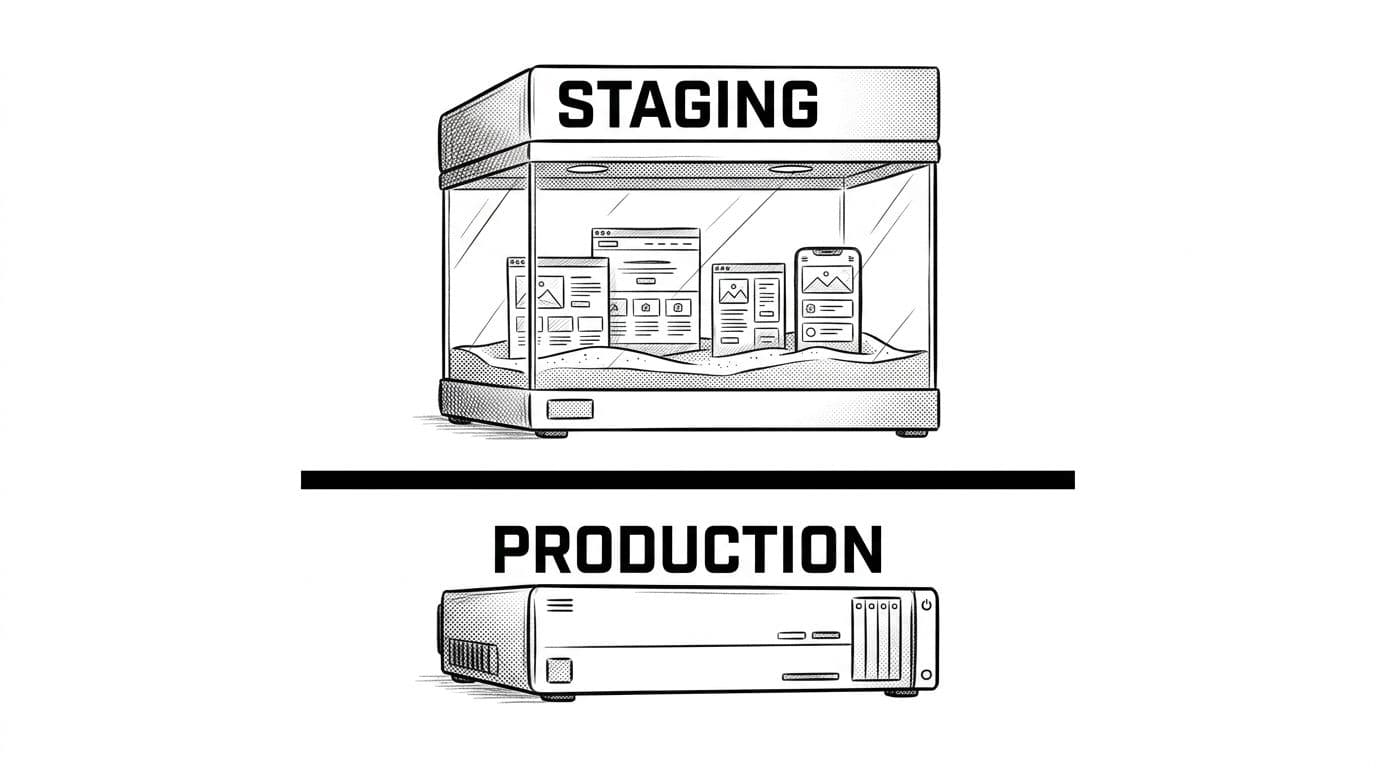
The staging environment is where I earn my confidence. I want the same WordPress version, same themes and plugins, same theme, and a database copy that includes real content patterns (forms, memberships, carts, page builders, whatever you run) for your WordPress site.
If your host provides one-click staging, use it. If not, a manual clone works fine. The point is sameness.
A few staging rules keep me out of trouble:
- I block indexing (search engines don’t need your rehearsal; it protects search engine optimization).
- I disable outbound email where possible, or reroute it.
- I turn off payment gateways, webhooks, and any automation that could fire.
- I protect staging with a password, at least basic auth.
Then I run a quick “user journey” test on staging before changing to PHP 8.4. I pick 5 minutes of actions that represent money or trust, while monitoring website performance and fast loading times.
For example, I’ll log in, submit a form, add to cart, check out in sandbox mode to verify WooCommerce compatibility, and upload an image. If something is already flaky, PHP 8.4 will not make it nicer.
I also set up visibility before the switch. In wp-config.php, I enable debug mode so errors don’t vanish into the void:
define('WP_DEBUG', true);define('WP_DEBUG_LOG', true);define('WP_DEBUG_DISPLAY', false);
Now WordPress writes to wp-content/debug.log for error logs on many setups. In addition, I watch server logs (common locations include a PHP-FPM error log, or the web server error log). Your host control panel often exposes these too.
When staging is stable and logging is ready, I’m ready for the actual PHP 8.4 rehearsal.
T-minus zero: switch your PHP version to 8.4, test, monitor, and keep rollback ready
Take a real backup (and prove it’s usable)
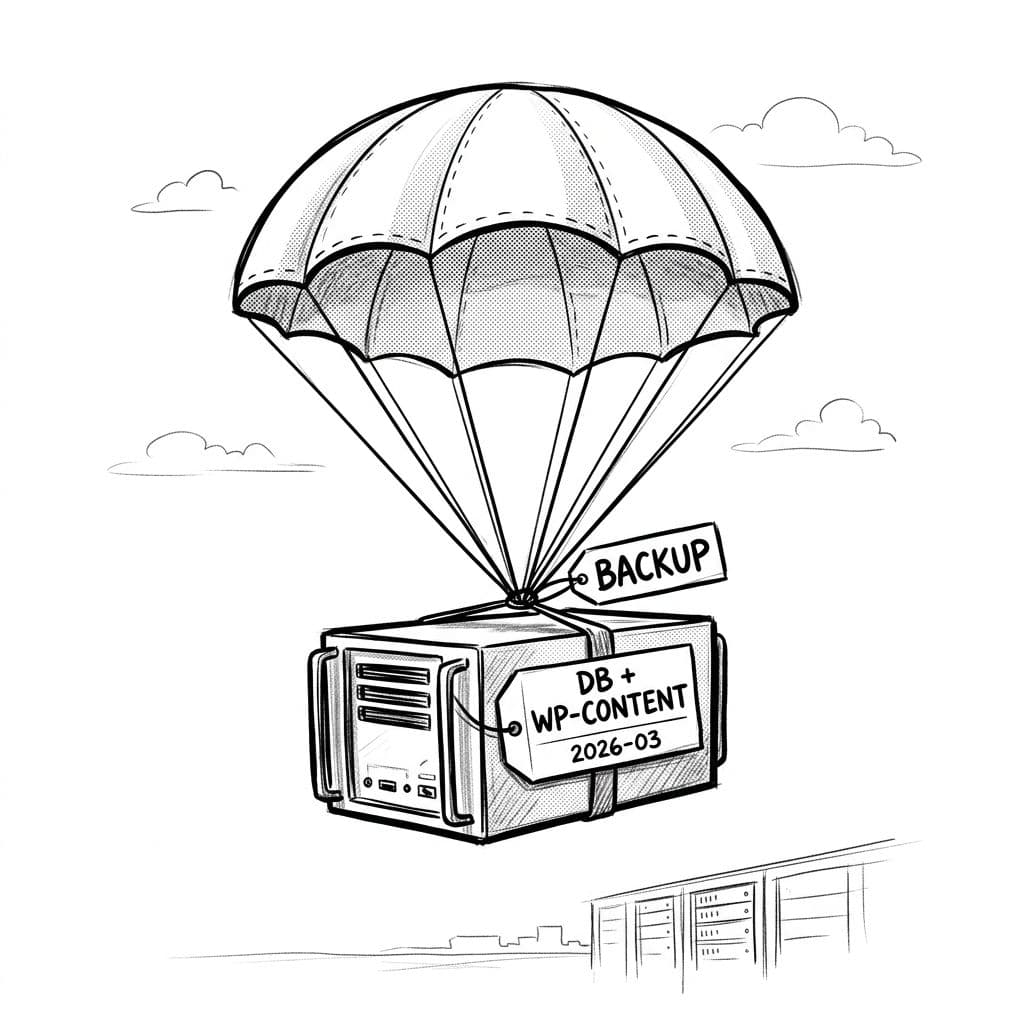
I never start a PHP upgrade without two things: a database backup and a file backup (at least wp-content, plus wp-config.php). Always backup your website first to protect against vulnerabilities and potential data breaches from a failed PHP version switch.
With WP-CLI, I’ll run wp db export and then download that SQL file somewhere safe. For files, I either create a ZIP archive or rely on a host snapshot, but I still like to grab wp-content myself. It’s the part that changes most. Your hosting provider may offer automated options, but verifying the backup yourself ensures it’s usable.
Scan for compatibility trouble before the switch
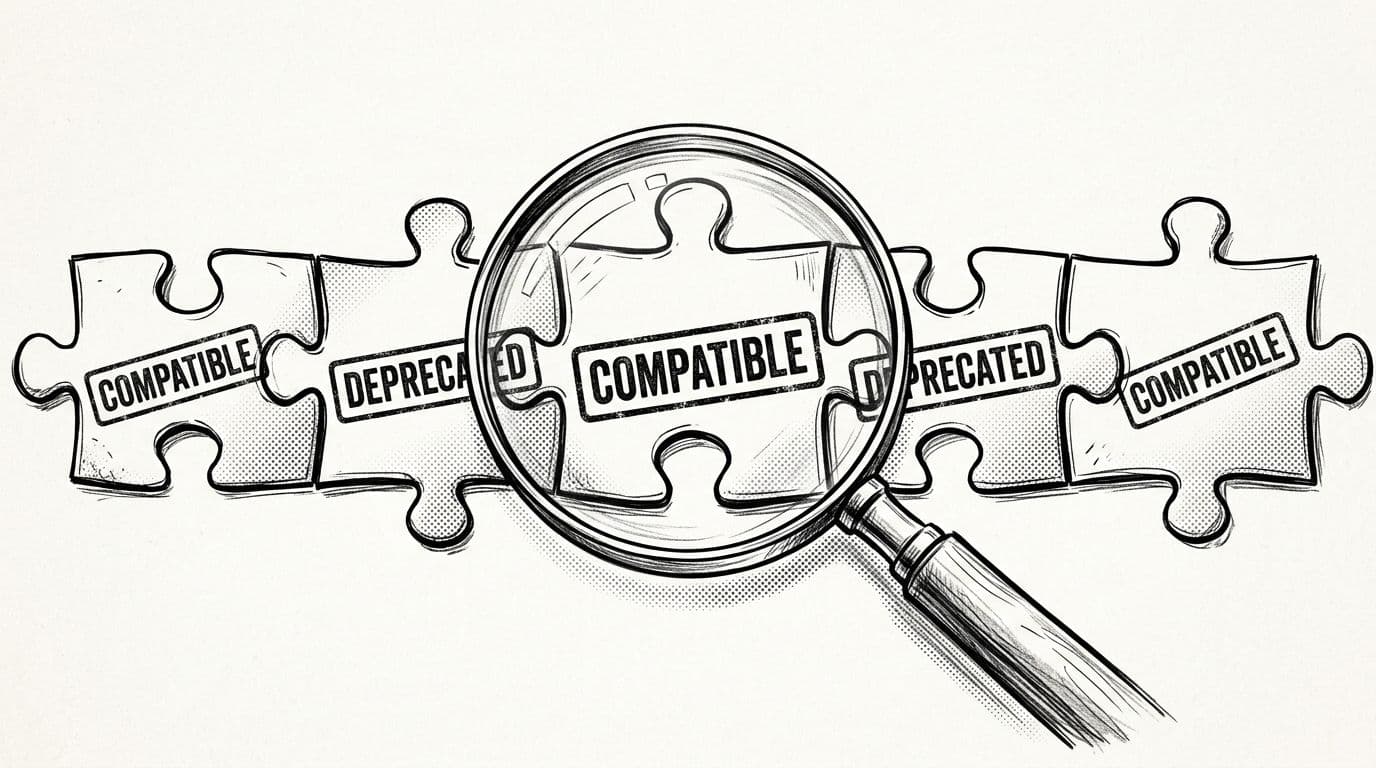
On staging, switch your PHP version to PHP 8.4 using your hosting provider’s control panel, server config, or deployment tooling (managed WordPress hosting often simplifies this). Then load the site and let it complain. Run a PHP compatibility checker to scan themes and plugins for issues upfront.
What I’m watching for:
- Fatal errors (site won’t load)
- Admin pages that hang or crash
- Deprecation warnings that flood logs
- AJAX failures (media library, editors, checkout flows)
For deeper checks, consult a PHP migration guide or PHP test driver. If you want a practical checklist for PHP 8.x upgrades (including OPcache and server tuning angles), this hosting write-up is a solid companion: PHP 8.x upgrade checklist. I still treat it as reference material, not a substitute for testing, especially around plugin compatibility.
Here’s my staging-to-production runbook, in order:
- Rehearse on staging with PHP 8.4 until logs stay quiet.
- Record what changed, including plugin versions and PHP settings.
- Pick a maintenance window for production (low traffic, support available).
- Backup your website on production right before the change.
- Switch production PHP version to 8.4, then test the same “user journey.”
- Monitor logs and uptime for the next hour, then again the next day.
Risk: A single incompatible plugin can trigger a fatal error right after the PHP switch.
Why this matters: PHP changes happen below WordPress, so the site can fail before you can even log in, exposing vulnerabilities or data breaches.
Rollback: If anything critical breaks, I revert the PHP version to 8.3 first, then fix forward on staging.
One more survival trick I keep handy: if wp-admin is dead due to a plugin and the WordPress dashboard won’t load, I disable plugins without it.
When I hit a white screen, I’ll run
wp plugin deactivate --all(if WP-CLI still works). If not, I rename the plugin folder via SFTP so WordPress can’t load it.
If you want extra context on how PHP 8.4 lines up with newer WordPress releases, this article is a useful read (even if you don’t match versions exactly): updating WordPress and PHP 8.4 notes.
Conclusion
Upgrading PHP on your WordPress site doesn’t need drama, but it does need discipline. I keep it safe by rehearsing on staging, logging everything, and treating rollback as a first-class feature when you upgrade WordPress PHP 8.4. If you do that, moving to PHP 8.4 feels less like a leap and more like a controlled landing, with boosted website performance as the reward.