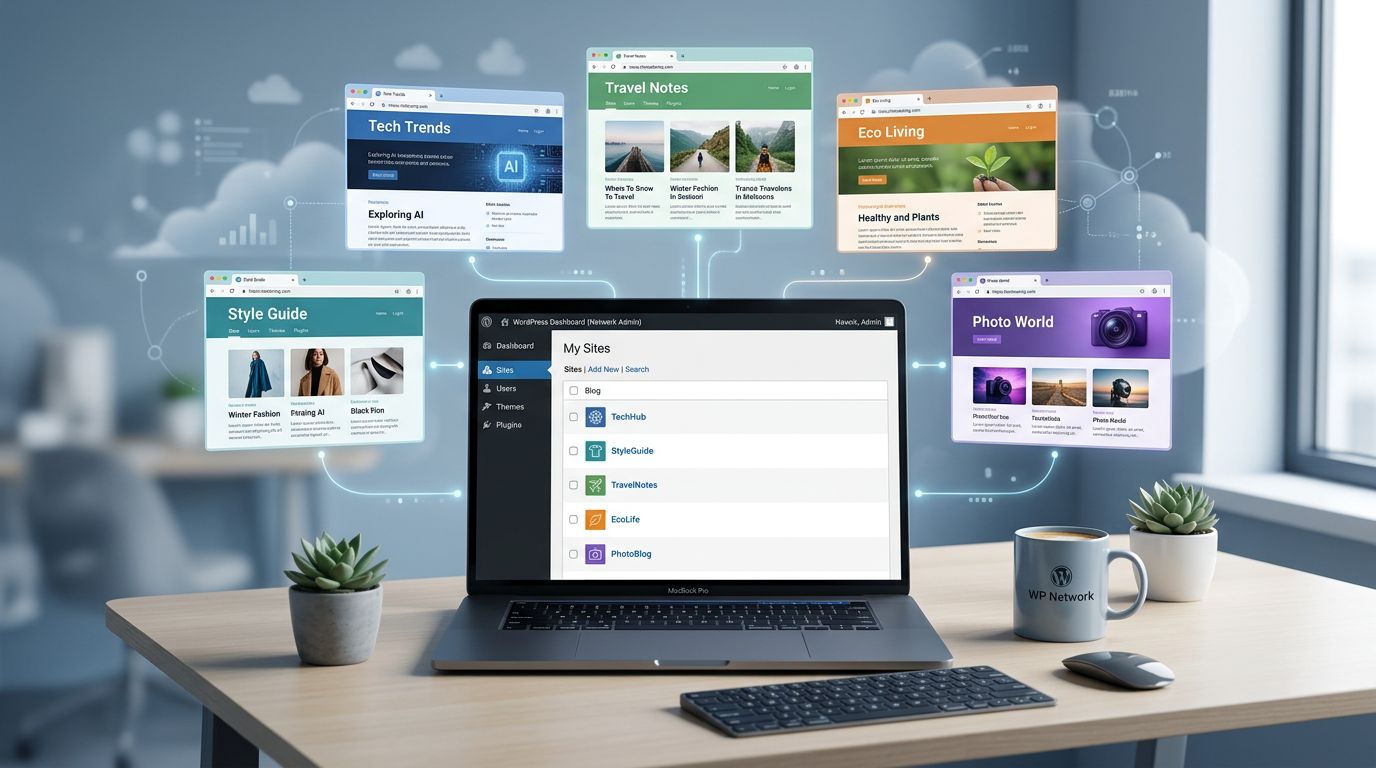
WordPress Multisite Setup Guide for Bloggers Managing Multiple Sites
Table of Contents
Managing five blogs shouldn’t feel like carrying five backpacks. I hit that wall a couple years ago, when I was juggling different niches, different themes, and a calendar full of updates. I didn’t need more ideas, I needed fewer logins.
That’s where WordPress multisite setup clicks. A multisite network turns a single installation into a small constellation of individual sites, all controlled from one “network hub.” You still get separate dashboards and content, but updates and theme management happen in one place. In this guide, I’ll walk you through the exact setup flow I use, plus the gotchas that cause most headaches.
First, make sure Multisite fits your blog “constellation”
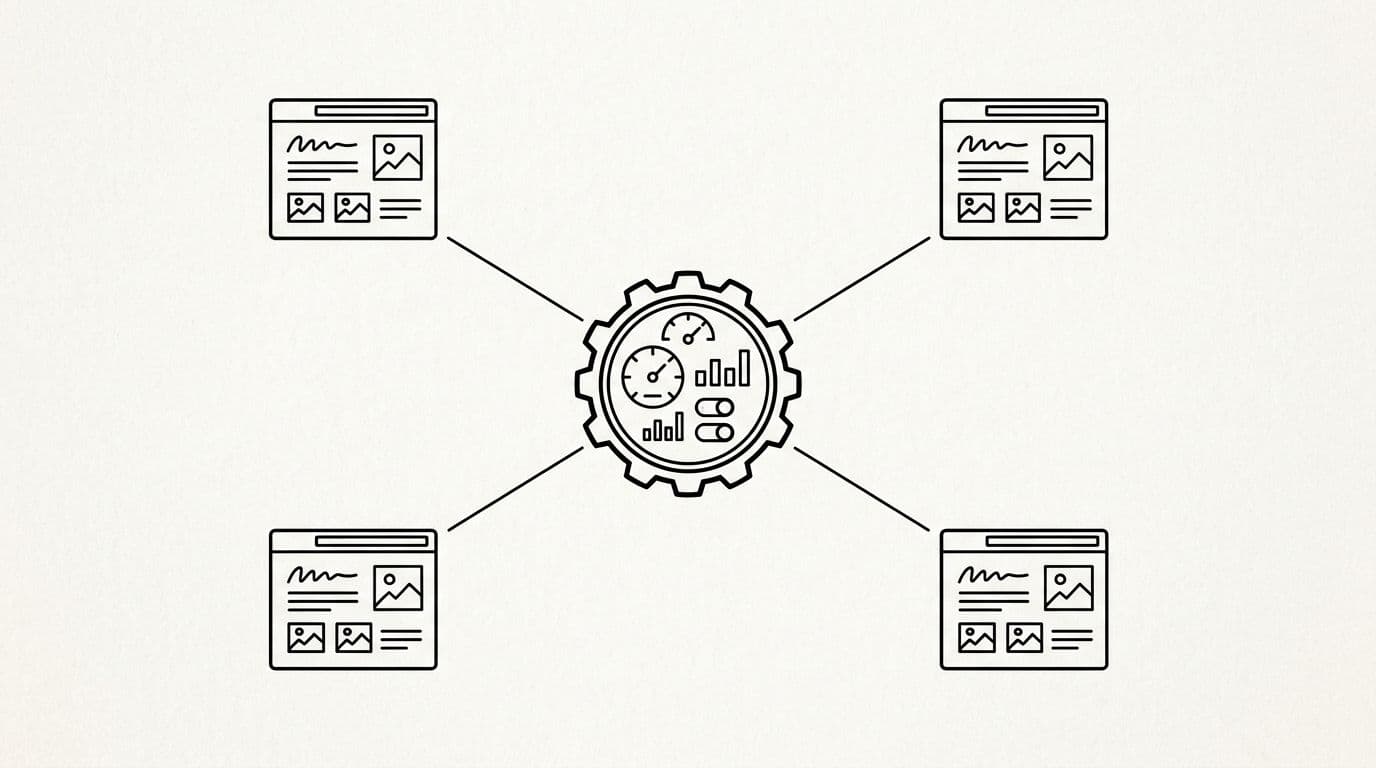
A multisite network is perfect when your subsites share a similar stack. For example, if I run a food blog subsite, a recipe membership subsite, and a travel blog that all use the same core plugins, the multisite network saves time and server resources. I can install a theme once, then enable it across the network. I can also update plugins once, instead of repeating the same task five times.
On the other hand, a multisite network can feel cramped if each subsite needs totally different plugins, custom server rules, or different PHP versions. Also, some plugins behave differently on a multisite network, especially anything tied to logins, redirects, caching, or membership.
Here’s the quick way I decide:
| Question | Multisite usually wins when… | Separate installs usually win when… |
|---|---|---|
| Updates | I want one update cycle | Each site has its own change pace |
| Themes/plugins | I reuse the same set | Each site needs a unique stack |
| Team access | Super Admin oversees shared user roles network-wide | Site Admins need strict isolation between sites |
| Risk | I can test changes carefully | I need failures isolated by default |
If you’re still fuzzy on the tradeoffs, I like reading a second opinion from a plugin company that supports a lot of WordPress setups, like Gravity Forms’ multisite guide.
One last reality check: a multisite network is one WordPress install. If that install breaks, everything feels it. That doesn’t mean “don’t do it,” it means “treat updates like grown-up work.”
WordPress multisite setup, step by step (the exact order I use)
Before you touch anything, do a quick preflight. It takes five minutes and can save you hours.
- Perform a backup of files and database (don’t skip this).
- Confirm you have SSL working on the main domain.
- Disable caching temporarily if your host or plugin caches aggressively.
- Check your permalink structure (Settings → Permalinks) so it’s not set to Plain.
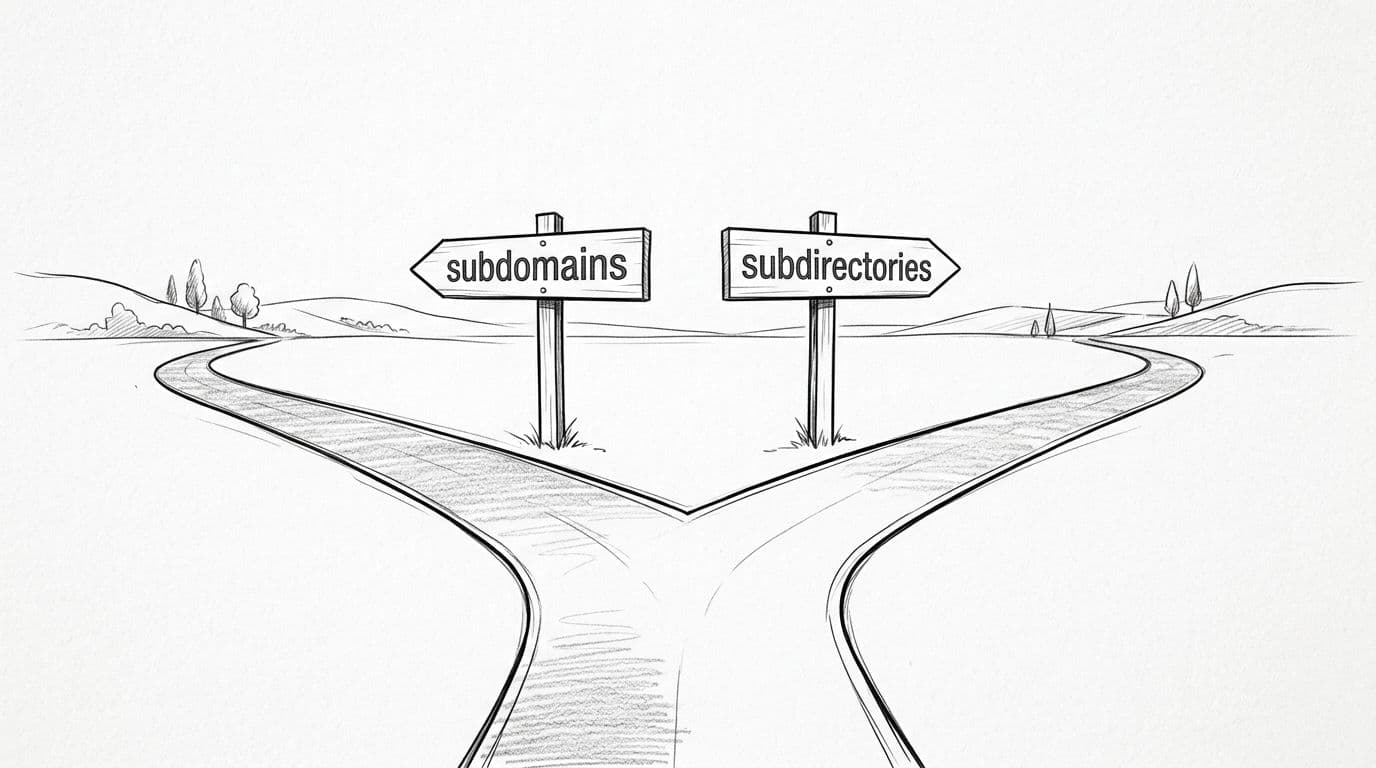
Next, choose your network address style:
- Subdirectories:
example.com/site1/(often simplest for bloggers starting fresh). - Subdomains:
site1.example.com(common for bigger networks, but needs DNS work).
Then I follow this setup sequence:
- Using your FTP client, open
wp-config.phpand adddefine('WP_ALLOW_MULTISITE', true);as the specific PHP constant (place it above the line that says “That’s all”). - In your dashboard, go to Tools → Network Setup.
- Pick subdomains or subdirectories, set the Network Title, and confirm the admin email.
- Click Install. WordPress will generate new database tables, then show you two sets of lines to add, one for
wp-config.phpand one for rewrite rules (often in the.htaccessfile on Apache, or your server config on Nginx). - Add those lines exactly as shown, then log back in.
- Open My Sites → Network Admin → Sites in the network dashboard, then add your first site.
Gotcha: Switching between subdomains and subdirectories later is painful, because URLs, rewrites, and cookies can all change. I only change it when I’m ready for a full migration weekend.
After that, I set up themes and plugins the “network way.” In Network Admin → Themes, I network enable the themes I want available. In Network Admin → Plugins within the network dashboard, I only network activate plugins that truly should run everywhere.
If you want another walkthrough to compare your steps, BlogVault’s multisite setup article does a good job calling out where beginners get stuck.
Domain mapping, SSL, and the gotchas that trip bloggers
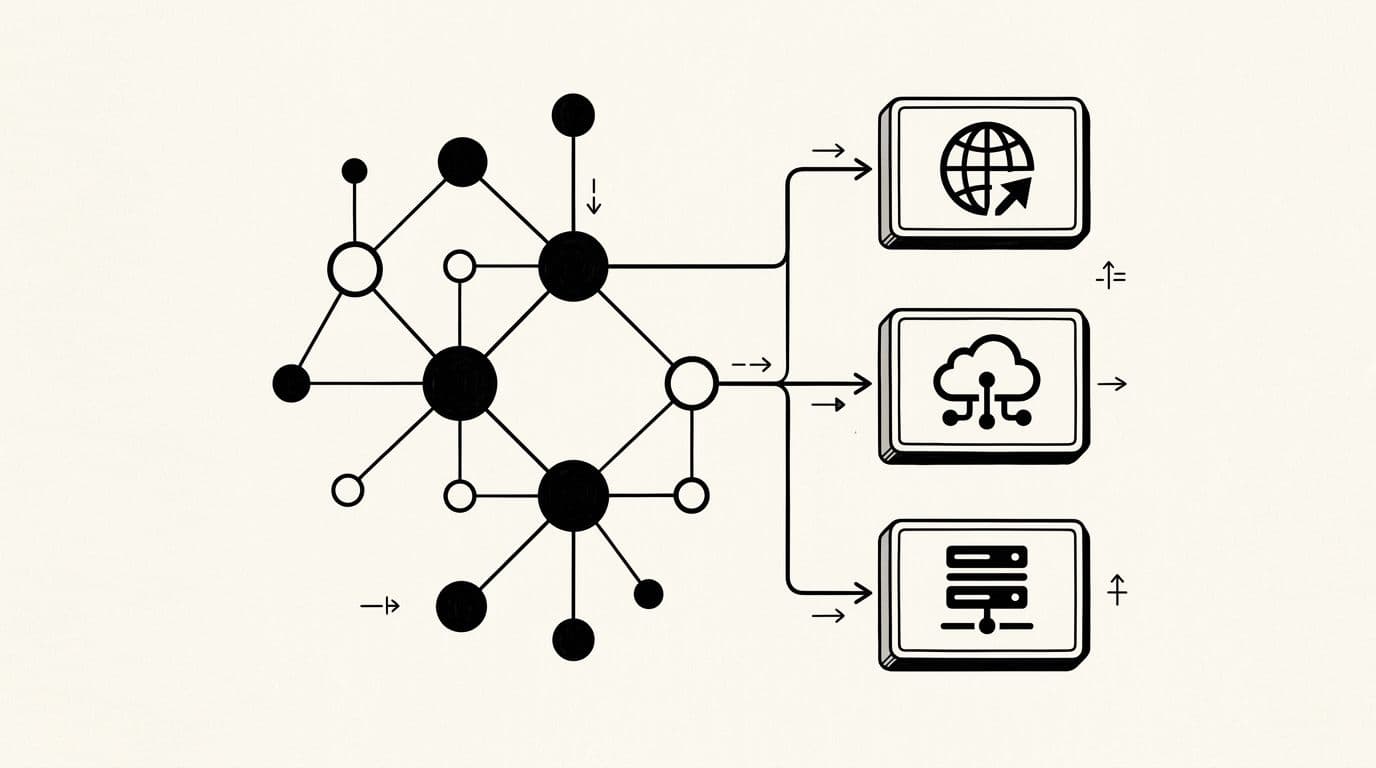
Once the network runs, most bloggers want custom domains per site. For example, I might keep the network on hubsite.com, then map one site to myfoodblog.com and another to mynichetools.com.
The clean approach for domain mapping starts in DNS:
- Point each custom domain (or subdomain) to the same server IP as the network.
- If you chose subdomains, you’ll often need a wildcard DNS record (
*.example.com) or wildcard subdomain setup so new subsites work without extra DNS edits.
Then comes SSL. Every mapped domain needs a valid certificate, because WordPress admin cookies and logins behave better on HTTPS. If you see login loops after domain mapping on subsites, I check three things first: SSL validity, mixed content, and caching. For deeper troubleshooting, inspect wp-config.php for cookie paths and .htaccess for rewrite rules. Clearing browser cookies sounds basic, yet it fixes a surprising number of “Multisite hates me” moments.
Permalinks are another sneaky one. After adding a new subsite, I open that individual site’s dashboard from the network admin and re-save its permalinks settings once. It “flushes” rewrite rules the simple way.
Finally, watch for plugin conflicts. Anything that rewrites URLs, manages redirects, adds cookie banners, or forces canonical URLs can behave differently per site. That’s why I prefer enabling plugins per site unless I’m sure.
If you’re deciding where to host a network, I’ve found it helps to read host-specific Multisite notes, like Contabo’s guide to multisite hosting, then compare that advice to what your host supports (especially SSL, backups, and server-level caching).
The day-to-day workflow that keeps a Multisite network sane
A multisite network feels best when you treat it like a small newsroom. I keep one Super Admin account for network work, such as tweaking registration settings and overseeing site registration; then I use Site Admin or editor accounts for each site. This clear distinction between the Super Admin user role, with its network-wide permissions, and the Site Admin user role, limited to specific sites, keeps everything sane, because only a Super Admin can change settings across the entire multisite network.
For maintenance, I do the same loop each time on the individual sites:
- Backup
- Update on staging (if the network makes money)
- Update on production during a quiet window
- Spot-check logins, permalinks (including .htaccess rewrites), and a few key pages on each site
When I’m managing several sites, clicking around wp-admin gets old fast. That’s why I often handle updates with WP-CLI, especially when I need to update core, plugins, and themes in one session. If you want the exact commands and a safe routine, this guide on streamlining multisite updates with command line is the playbook I keep coming back to.
One more thing: don’t network-activate “nice-to-have” plugins. Every extra plugin is one more possible conflict across all sites. I keep the network lean, then add site-specific tools only where they earn their keep.
Conclusion
A good WordPress multisite setup makes subsites feel like one organized home, not a cluttered storage unit. Start by choosing the right structure, follow the built-in Network Setup steps in order, then take domain mapping and SSL seriously. After that, your results depend on habits: careful updates, minimal network-wide plugins, and a simple workflow you repeat every time.
If you’re building your multisite network this month, what’s your biggest goal, fewer updates, easier publishing, or cleaner branding across sites?