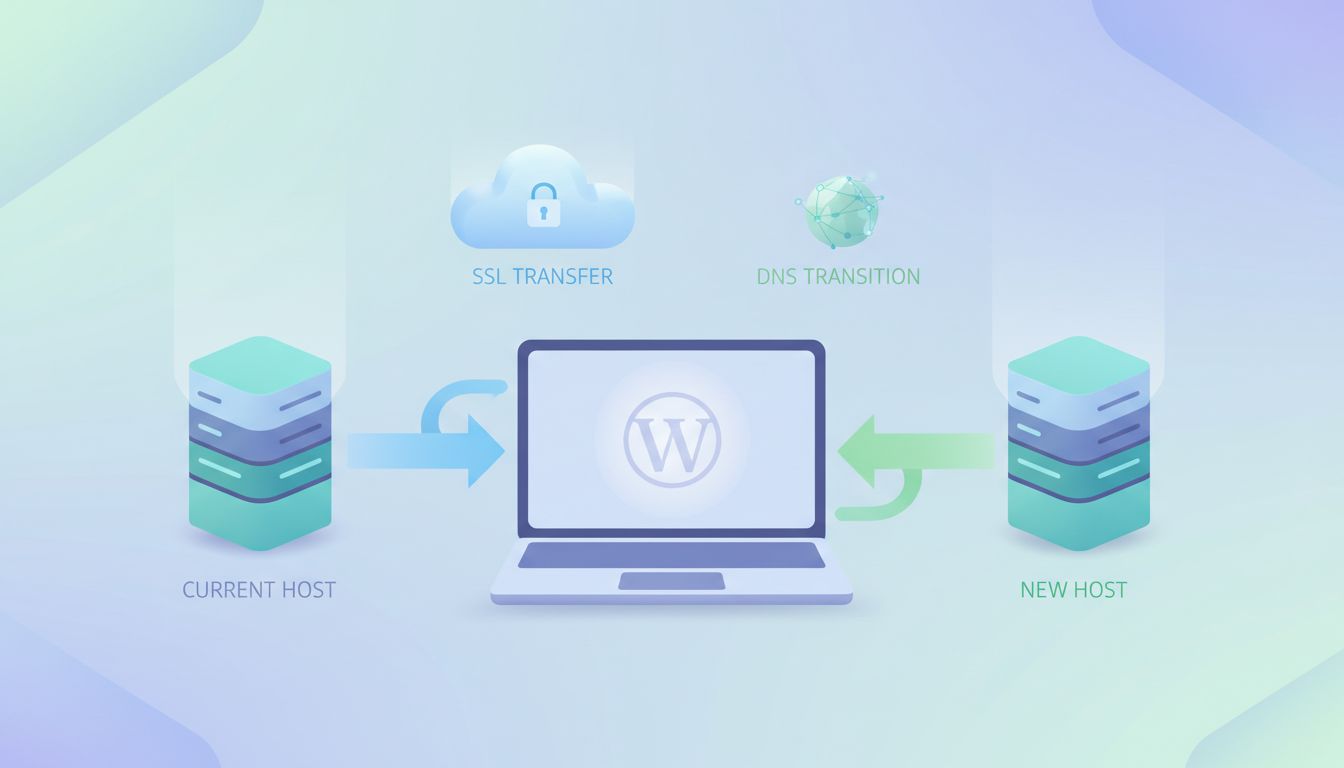
How to Move a WordPress Site to a New Host Without Downtime (DNS, SSL, and Final Sync)
Table of Contents
The first time I did a WordPress site migration without downtime, I still felt my stomach drop at the DNS step. It’s like swapping tires while the car keeps moving. The trick is simple, though: I don’t “move” the live site, I build a second copy, test it, then flip traffic over when I’m ready.
In this guide, I’ll walk through the two paths I actually use (migration plugin or manual/WP-CLI), plus the parts that usually cause trouble: DNS timing, SSL, and the final sync so you don’t lose orders, form entries, or comments. This process helps protect your SEO rankings.
Set up the move so DNS changes don’t cause downtime (or email drama)
Before I copy a single file, I decide what “no downtime” means for this site. For a brochure site, losing a comment isn’t the end of the world. For WooCommerce or a membership site, I plan a short content freeze and a tight final sync window.
Here’s the prep that makes the cutover boring (which is the goal):
1) Lower DNS TTL values ahead of time.
If I control DNS, I reduce the TTL values for the records I’ll change (usually A, AAAA, and sometimes CNAME). I do this 24 to 48 hours before cutover. A common choice is 300 seconds. If your DNS provider won’t go that low, 600 is still fine. Lower TTL values don’t force instant propagation, but they reduce how long old answers stick in caches during DNS propagation.
2) List the DNS records that must not change.
Most downtime stories I hear aren’t “web” downtime, they’re email breakage. So I write down and keep these DNS records as-is:
MXrecords (mail routing)TXTrecords forSPF,DKIM, andDMARC- Any provider verification records (Google Workspace, Microsoft 365, etc.)
3) Decide what record you’re switching.
For a typical host move to a new host, I’m switching:
- Apex domain (
example.com):AandAAAAto the new host IPs www: eitherCNAMEto apex or its ownA/AAAA
Nameservers should generally remain pointed correctly to your DNS provider to ensure service continuity. IPv6 matters in 2026. If your old DNS has AAAA and your new host doesn’t support IPv6, remove AAAA at cutover or your visitors may hit a dead end.
4) Know how you’ll verify DNS quickly.
I keep dig and nslookup handy. If you want a quick refresher on what each command shows, hosting.com has a clear walkthrough on troubleshooting DNS with dig and nslookup.
Move the site to the new host (plugin path and manual/WP-CLI path)
At this point, I treat the new host like a blank stage. I configure the server environment and set the right PHP version on the new host, especially if using managed hosting. I create the database, and make sure the web root is correct. Then I pick one of these two routes.
Path A: Migration plugin (fastest for most sites)
If the site isn’t huge and I want fewer moving parts, I use a migration plugin like Duplicator or All-in-One WP Migration and let it package the site. When I’m choosing a tool, I compare options first because limits vary (file size caps, multisite support, incremental options). This roundup of best WordPress migration plugins is a solid starting point.
My plugin flow looks like this:
- Create a full site backup on the old host.
- Upload and restore on the new host (or use the plugin’s “push” method).
- Confirm
siteurlandhomematch the real domain (not a temp URL). - Fix permalinks by re-saving them once in WordPress.
- Do a quick scan for mixed content (images loading over
http).
Plugins save time, but I still plan for a final sync later. If people keep posting while I migrate, the first restore becomes “baseline,” not the finish line.
Path B: Manual or WP-CLI (best when I need control)
For large sites, picky servers, or when I want repeatable steps in a WordPress site migration, I opt for manual migration. Commands are optional, but they make the process predictable.
Files (WordPress core, themes, plugins, uploads)
- I copy
wp-content/first because it’s the part that changes. - If I have SSH, I prefer
rsyncbecause it’s resumable:rsync -avz /path/to/wp-content/ user@newhost:/path/to/wp-content/ - If I’m stuck with basic tools, FTP or
scpworks for file transfers:scp -r wp-content user@newhost:/path/or use an FTP client.
Database
- With WP-CLI:
wp db export backup.sql - With MySQL tools:
mysqldump -u user -p dbname > backup.sqlor phpMyAdmin via cPanel for database exports. - Then import on the new host:
wp db import backup.sql(ormysql dbname < backup.sqlor phpMyAdmin for database imports). - Edit the
wp-config.phpfile for the new database credentials.
Search-replace (only if the domain or paths change)
If the domain stays the same, I usually don’t need this for the WordPress site migration. If I moved from a temp domain or changed folder paths, I run a careful search and replace:
wp search-replace 'https://old' 'https://new' --skip-columns=guid
This tool handles serialized data correctly to prevent broken permalinks.
One more thing I do every time: I make sure caching layers won’t lie to me. I disable aggressive page cache on the new host until after launch, and I note any CDN settings so I can purge them later.
SSL, final sync, and the cutover (DNS switch without the “oh no” moment)
This is the part where downtime happens if I rush. So I slow down and follow a tight order.
SSL: issue the cert before cutover, then test HTTPS safely
If the new host can issue an SSL certificate for the real domain (Let’s Encrypt or similar), I request it before switching DNS. Many hosts support DNS-based validation, which works even while the old site is live. Test the new host like a staging site using a temporary URL or hosts file trick to confirm everything before the final flip.
If I can’t validate early, I still prep HTTPS:
- I install the cert as soon as DNS points at the new host.
- I avoid forcing HTTPS redirects until I confirm the cert works.
If you run HSTS, be extra careful. Once browsers cache HSTS, they refuse HTTP. Shield Security has a clear warning and steps in their guide on implementing WordPress HSTS. My rule is simple: don’t enable HSTS until the new host has stable SSL and you’ve confirmed renewals.
Cloudflare note: if you use their proxy, you’re dealing with edge certificates and origin certificates. I keep Cloudflare in “Full (strict)” only when the origin cert is valid, otherwise I’ll create my own outage.
Final sync: minimize data loss right before DNS flips
Right before cutover, I do a short “content freeze.” For some sites, that’s 10 minutes after hours. For stores, I pause high-risk actions (new products, plugin updates, theme edits). This step is critical for a WooCommerce migration to avoid losing orders.
Put the old site into maintenance mode, then re-sync what changed:
- Database: re-export and re-import (or an incremental tool if you have one)
- Uploads: re-run
rsyncforwp-content/uploads/so new media comes across
If you skip the final sync, you’re betting that nothing changed while you copied. That bet loses more often than people admit.
Cutover steps (ordered, quick, and reversible)
- Take a full site backup of old host files and DB.
- Run the final sync (database plus uploads).
- Confirm on the new host: homepage, login, checkout or forms, admin-ajax, REST endpoints.
- Update DNS: change
AandAAAAfor apex andwww(orCNAME) to the new host. - Verify with tools:
dig +short example.com Aanddig +short example.com AAAA(ornslookupon Windows); monitor during DNS propagation. - Purge caches: host cache, plugin cache, CDN cache.
- Watch logs for 404s, redirect loops, and SSL errors.
Go/no-go checklist (what I check before I flip DNS)
- New host serves the site on a temp URL or hosts-file test
- HTTPS works on the new host, no mixed content on key pages
siteurlandhomeare correct (search and replace completed if needed), and redirects don’t loop- 301 redirects work if any URLs were modified
- Email DNS records are untouched (
MX,SPF,DKIM,DMARC) - All other DNS records match expectations
- Rollback is ready (old DNS values saved, old host still running)
If something goes sideways, rollback is simple: point DNS back to the old IPs, then regroup. That’s why I don’t cancel the old hosting the same day. This approach ensures a smooth WordPress site migration every time.
Conclusion
A WordPress site migration without downtime is really a staging and cutover project, not a single “move.” Always begin with a full site backup. Then I copy the site, test it under HTTPS, lower TTL in advance, do a final sync right before I touch DNS. After that, I verify with dig or nslookup, purge caches, keep the old host available until I’m sure the dust has settled, and confirm the site is now live on the new host.
If you want the cutover to feel boring, plan it like you’re going to need a rollback, even if you never use it.