WordPress File Permissions Checklist for Shared Hosting and VPS (2026)
Table of Contents
The fastest way I know to turn a calm WordPress day into a panic is to “quickly fix” permissions without a plan. I’ve watched sites go from fine to broken in one chmod, and I’ve also cleaned up hacks that started with one folder left wide open.
I treat wordpress file permissions like keys to rooms in a building. Most doors should stay locked most of the time. A few doors (like uploads) need staff access. None of them should have a key hanging outside for everyone.
This checklist is the security hardening setup I use on shared hosting and on VPS boxes, with a focus on least privilege, safe changes, and easy rollback.
How permissions actually fail on shared hosting vs VPS
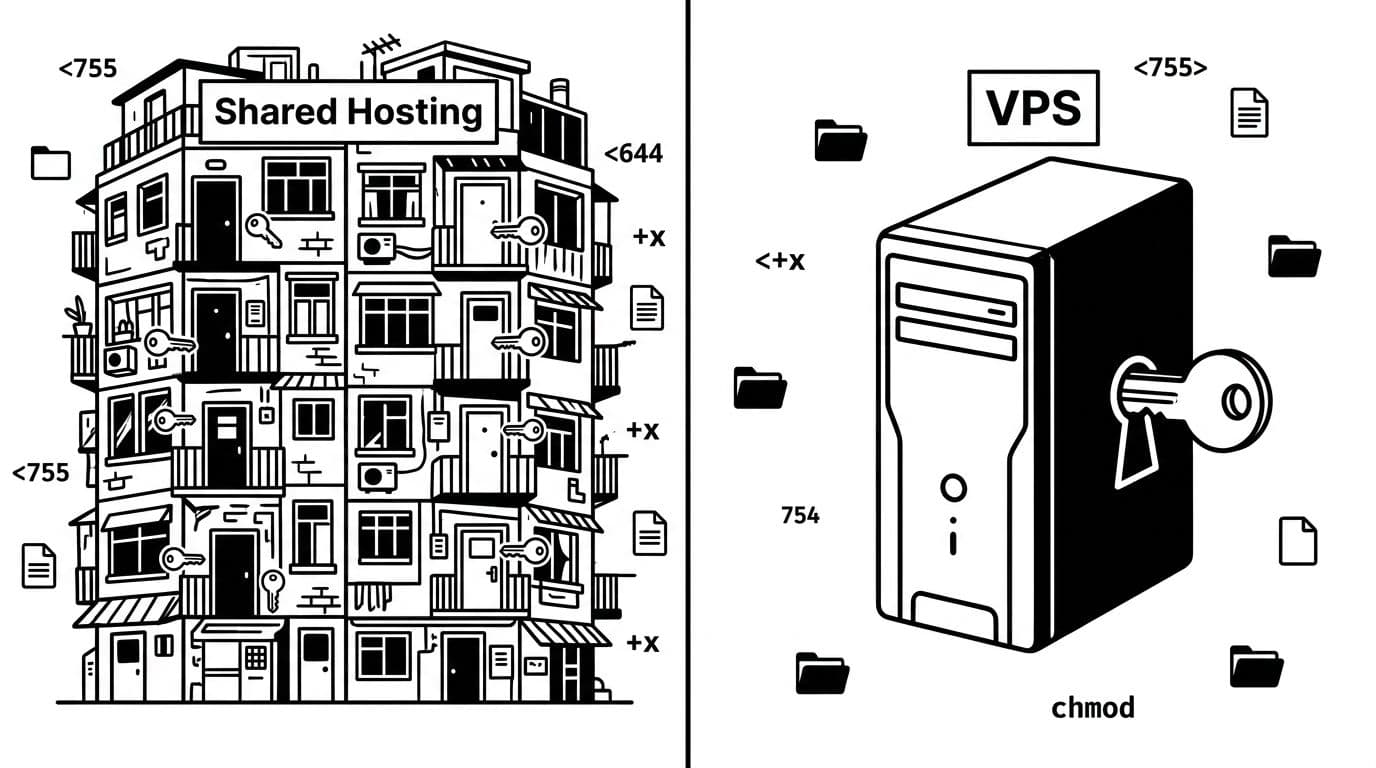
On Linux, permissions use octal notation for three sets of rights (owner, group, world). WordPress runs through your web server and PHP, so the key question becomes: “Who is the process user that needs read access or write access to this file?” Get this wrong, and you might see a 403 forbidden error.
On shared hosting, you’re in a crowded building. Your host usually isolates accounts with suexec, but you still want tighter permissions because mistakes can combine with server misconfigurations. Also, many shared hosts won’t let you change ownership (chown) at all, which limits what you can fix.
On a VPS, you own the whole building. That’s good, but it also means you can misconfigure everything yourself. The best practice is to run PHP-FPM under your site user instead of a common process user like www-data, keep ownership consistent, and only grant write access where WordPress truly needs it.
Here’s the mental model I use:
- 644 files: WordPress can read them, but random users can’t edit them.
- 755 directories: WordPress can enter folders, but others can’t add files.
- 600 or 640 sensitive files: Keep secrets tight (database creds, salts).
And yes, people still reach for 777 permissions when something won’t upload. That’s like taping a spare key to your front door. It can “fix” a symptom while creating a much bigger problem. If you want a clear refresher on what these numbers mean in practice, I like this breakdown of Linux permissions 644, 755, and 777.
If WordPress “needs 777 permissions,” the real issue is almost always ownership or the PHP user, not the permission number.
My WordPress file permissions checklist (the safe defaults)
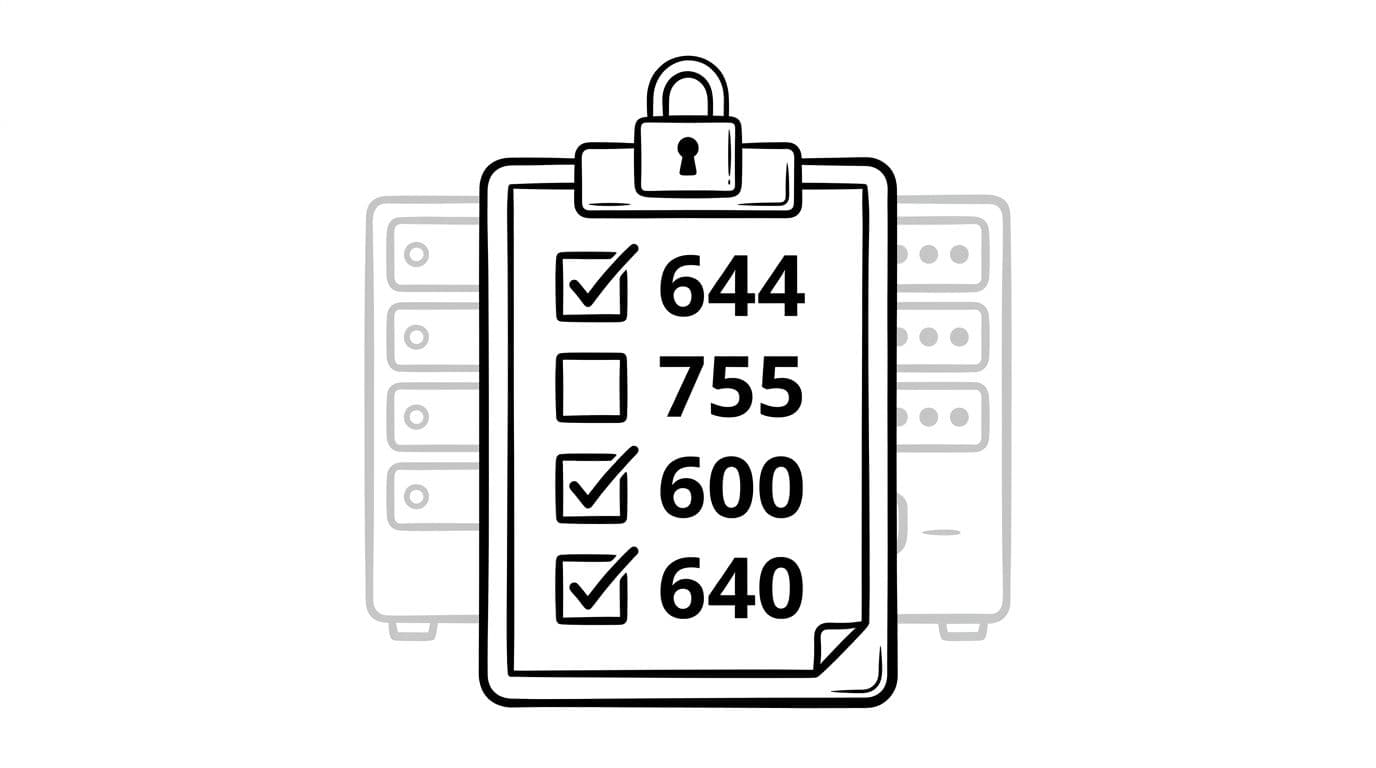
I start by separating directories from files, because they behave differently. Directories need execute access to enter. Files almost never need execute permissions in WordPress. Use this table as the baseline for wordpress file permissions. After that, I only loosen access when I can explain why.
| Path or file | Typical permission | Why it matters | Notes (shared vs VPS) |
|---|---|---|---|
| WordPress directories (general) | 755 | Allows traversal, blocks public writes | Some hosts prefer 750 with correct groups |
wp-admin/ | 755 | Secure admin area access | Standard directory permission like 755 |
| WordPress files (general) | 644 | Readable by server, not writable by others | Avoid 664 unless you need group writes |
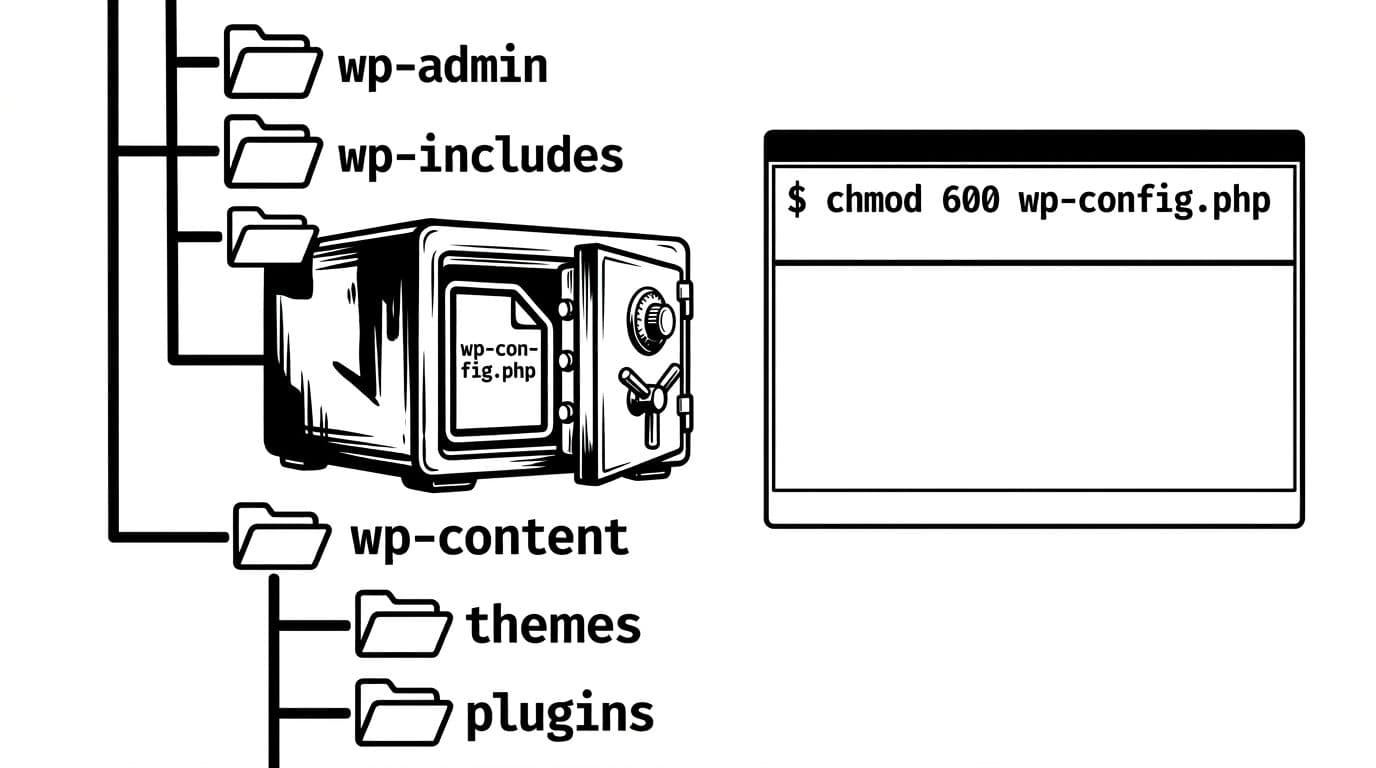
wp-config.php | 600 (or 640) | Protects DB creds and salts | 600 is best when PHP runs as your user |
.htaccess | 644 | Server must read it | Edit via SFTP, FTP client, or FileZilla |
| wp-content directory | 755 | Keeps content area sane | Don’t open this up “just in case” |
wp-content/uploads/ | 755 (dirs), 644 (files) | Needs writes for media uploads | If uploads fail, fix owner first |
wp-content/plugins/ and themes/ | 755/644 | Prevents web-based tampering | Tighten more on VPS; aids plugin installation |
Two common “gotchas”:
- If you use a security plugin that writes config files, it may need temporary write access. I still revert after changes.
- Auto-updates need the right owner or group or FTP credentials. On VPS, I prefer fixing owner and group over storing FTP passwords. Correct 755 and 644 settings also support successful plugin installation.
Permissions aren’t the whole story, but they’re a big part of hardening. For a practical reference that aligns with what I see in real cleanups, this is worth skimming: WordPress file permission hardening reference.
Step-by-step: audit, fix, and roll back without drama
Before I touch anything, I create a backup and a rollback trail. With SSH access, I use the command line to audit the file system so I can capture current modes and undo changes fast: cd public_html && find . -printf '%m %pn' > perms-backup.txt. On shared hosting without SSH, I take a quick directory snapshot in File Manager (or at least screenshots of key files).
Next, I audit. These checks catch the most dangerous mistakes:
- Look for world-writable items:
find . -perm -0002 -type fandfind . -perm -0002 -type d - Confirm directory vs file baselines: directories should usually be
755, files644 - Lock down secrets:
chmod 600 wp-config.php(or640if your setup requires group-read)
Then I fix in this order:
- Sensitive files first, because they reduce impact quickly (
chmod 600 wp-config.php,.htaccess, backup files, old zips). - Directories next, because they control where new files can be planted (use
chmod -R 755 wp-content directoryandchmod -R 755 wp-adminto recurse into subdirectories, along with standard755for directories and644for files in plugin folders). - Uploads last, because it’s the area that legitimately needs writes.
If media uploads fail after tightening, I don’t jump to 777. Instead, I check which owner PHP runs as for proper write access, and I correct owner and group where possible. On a VPS, that’s often chown -R siteuser:sitegroup wp-content/uploads to ensure the correct owner has write access and read access is limited elsewhere. On shared hosting, you may be stuck, so you’ll need to use your host’s “Fix Permissions” tool or support.
Managed WordPress hosts add one more wrinkle: you might not be allowed to change ownership, and some folders are mounted read-only. In that case, I stop fighting the platform and work with it. If you’re rethinking where you host because of those limits, SmartWP’s recommended WordPress hosts is a solid comparison starting point.
Finally, I tighten the human side too. File permissions won’t save you if too many people have admin access. I keep roles lean (see this breakdown of WordPress user roles explained) and I use per-app credentials for integrations (this WordPress application passwords guide is my go-to setup).
For extra context on server-side layers that pair well with sane permissions, this article on how web servers protect WordPress in 2026 connects the dots between permissions, isolation, and web server rules.
Conclusion
When I stick to least privilege, wordpress file permissions stop being scary and start feeling boring, which is exactly what I want. Back up first, change one area at a time, and keep a rollback path. If you’re tempted to use 777 permissions, pause and fix ownership or the PHP user instead. Your future self will thank you the next time WordPress updates cleanly and attackers find locked doors.