
How to Fix WordPress Emails Not Sending? My Detective Playbook for Logs, SMTP, and Hosting Blocks
Table of Contents

When WordPress emails not sending hits during troubleshooting WordPress email issues, it never shows up politely. It waits until a client misses a lead from contact form plugins, WooCommerce order notifications go quiet, or password resets vanish into smoke.
I treat it like a case. I don’t guess. I collect evidence, check the logs, and follow the trail from wp_mail() to whatever’s blocking delivery (SMTP settings, hosting rules, or DNS that doesn’t back up your sender identity).
Here’s the exact routine I use when I need an answer fast, and I need it to stick.
Step 1: Prove the email left WordPress (or didn’t)
Email logs provide the primary evidence here. Before I touch SMTP settings, I want to know one thing: did WordPress attempt to send the message, and what did the mailer say back?
The quickest way is a mail logging plugin. I’m staying plugin-agnostic here, but look for categories like “email log,” “WP mail logging,” or “mail catcher.” Examples you’ll run into: WP Mail Logging, Email Log, and SMTP plugins like WP Mail SMTP that include logging.
Once logging is on, I trigger a fresh test email I can control:
- Use a built-in “test email” if your plugin has it.
- Trigger a real workflow: submit a form via contact form plugins, place a test order, or request a password reset.
In the log entry, I look for four clues:
- To address is correct (no typo, no old admin email).
- From address makes sense (more on this later).
- The mailer response shows sent, failed, or a PHPMailer error.
- Headers show whether it used the default PHP mail() function or SMTP.
If the log shows “sent” but nobody receives it, I stop arguing with WordPress. That’s deliverability or a downstream block. If the log shows “failed,” I’ve got a lead worth chasing.
For extra context on why the default PHP mail() function is shaky on many hosts, I like Kinsta’s breakdown of common causes and fixes in their WordPress email troubleshooting guide.
Step 2: Turn on WP_DEBUG and read the crime scene (without leaking evidence)
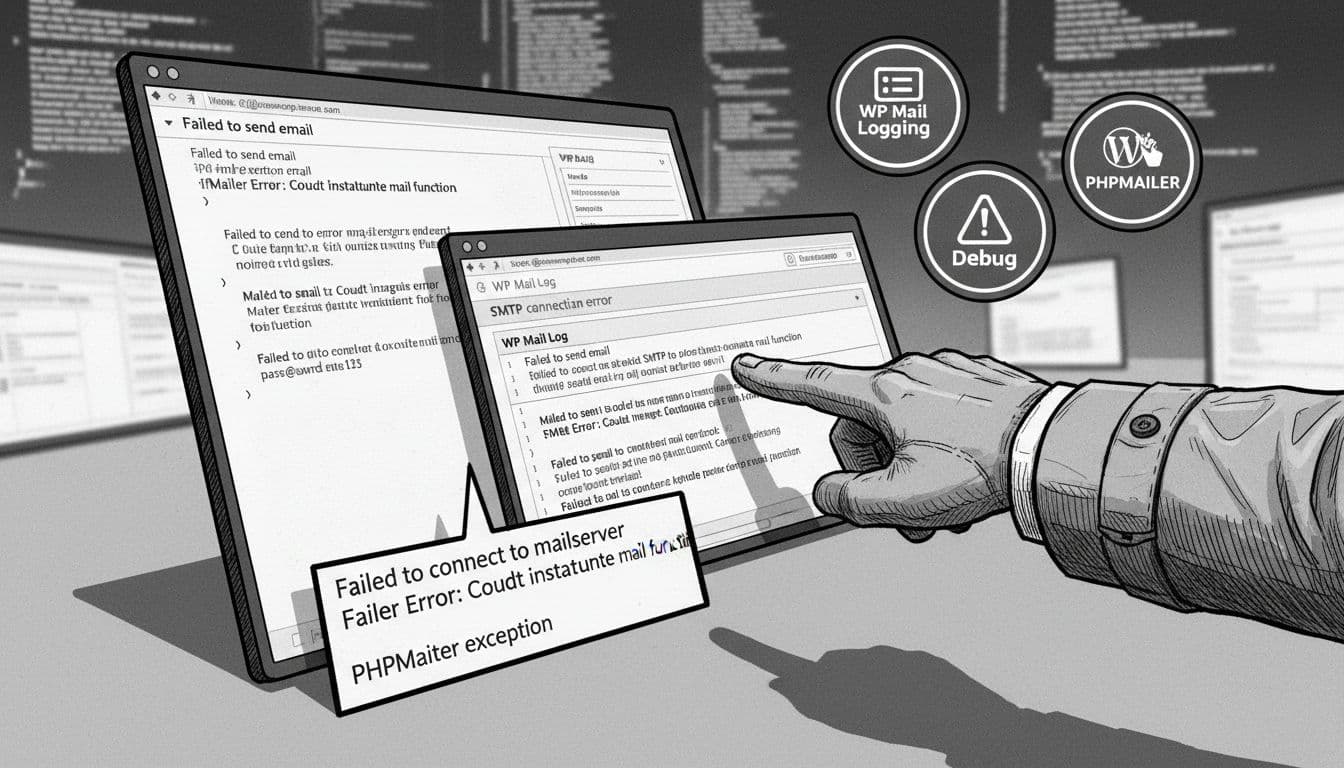
When email fails hard while troubleshooting WordPress email issues, the cleanest confession often lands in a log file.
Enable WP_DEBUG (copy-paste safe)
In wp-config.php, I add these lines above the line that says /* That's all, stop editing! */:
define( 'WP_DEBUG', true );define( 'WP_DEBUG_LOG', true );define( 'WP_DEBUG_DISPLAY', false );
That writes errors to wp-content/debug.log error logs instead of spilling them onto the screen.
Warnings I follow every time:
- Don’t paste
debug.loginto a ticket or Slack without scrubbing it. Logs can expose paths, plugin versions, and sometimes email addresses. - Turn this off after the case is closed. Debug logging on a busy site can grow fast.
Where I check next if debug.log is empty
If wp-content/debug.log doesn’t appear, I check:
- Hosting control panel error logs (often in cPanel or a host dashboard).
- A server-level file named
error_login the site root or/logs. - Any security plugin logs that might show blocked requests when a form submits.
If the error mentions PHPMailer, SMTP (Simple Mail Transfer Protocol) connect() failed, Could not authenticate, or Connection timed out, that’s not a WordPress “bug.” That’s a route problem, a credential problem, or a port problem.
Step 3: Set up SMTP like I’m wiring a clean getaway car
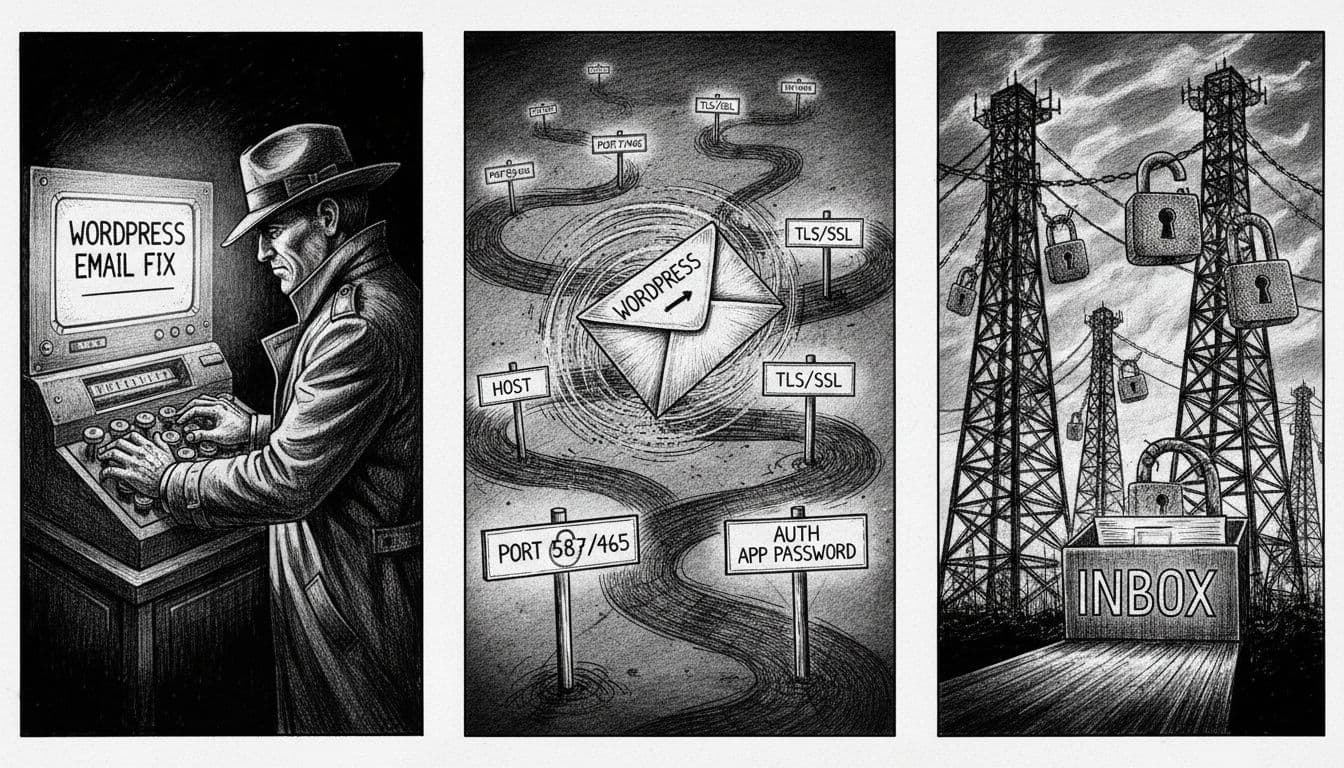
The default WordPress mail function relies on whatever the server can do with PHP mail. That’s fine for a postcard. It’s bad for a receipt, an order notice, or anything that needs to arrive.
So I route mail through SMTP, either using my email provider’s SMTP or a transactional email service as the professional alternative to host mail. If you want a third-party perspective on why this fixes so many delivery problems, SMTP.com lays it out well in their article on WordPress email delivery issues.
My SMTP setup “cheat sheet”
Plugins like WP Mail SMTP ask for the same core mailer settings:
- SMTP Host: From your provider (example format:
smtp.yourprovider.com) - Encryption: TLS (most common) or SSL
- SMTP port:
587for TLS (STARTTLS) in most setups465for SSL in many legacy setups
- Authentication: On
- SMTP credentials: Often an email address plus a password, or an API key
- From Email: Use an address on a domain you control (example:
[email protected]) - From Name setting: Your site or brand name
Once you enter these in WP Mail SMTP, send a test email to verify the configuration works smoothly.
Two details that solve a lot of “it still doesn’t work” cases:
- App Password: If you’re using Gmail or Microsoft 365, you may need an App Password (not your normal login), especially with MFA. Send a test email afterward to confirm delivery.
- TLS mismatch: If you pick port 587, set encryption to TLS. If you pick 465, set encryption to SSL. Mixed settings often fail with confusing errors.
Credential safety: I never store SMTP passwords in screenshots, and I avoid sharing them in tickets. If I must hand off access, I rotate the credential after the work is done.
Step 4: Spot hosting blocks and fix deliverability (the two usual suspects)
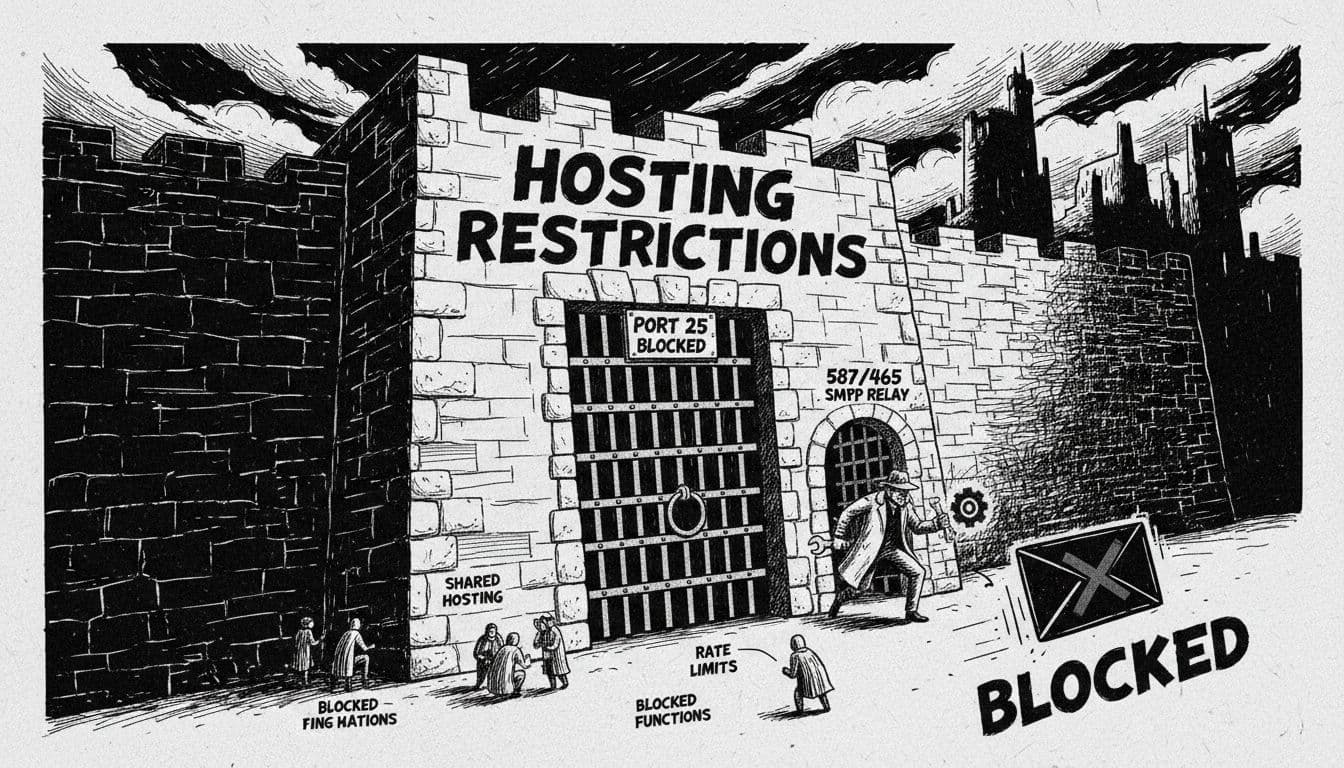
If SMTP is configured correctly and messages still don’t leave the building, I look at the guards at the gate.
Common hosting provider blocks I see in the wild
Blocked port 25: Many hosts block outbound port 25 to cut spam. If your setup tries to use it, mail fails or hangs. That’s why I stick to 587 (TLS) or 465 (SSL) unless the provider tells me otherwise.
Disabled mail() function: Some hosts restrict PHP mail entirely. If your email logs show PHP mail attempts failing, SMTP bypasses that.
Outbound limits and rate caps: Shared hosting often limits how many emails you can send per hour. WooCommerce order notifications, contact form plugins, and email notifications can hit that fast with orders, invoices, and admin alerts. In email logs, this can look like random failures after a burst of activity.
Firewall or security rules: ModSecurity and host firewalls can block outbound connections, even on 587/465. If email logs show timeouts, I test from the server side (or I ask the host support team to confirm outbound SMTP is allowed).
Deliverability: when mail sends but lands in Spam (or nowhere)
This is where people lose days. The log says “sent.” The inbox says “never heard of it.”
I check two things:
From alignment: The “From Email” should match your domain to protect domain reputation. Sending as [email protected] from a server on yourdomain.com is a red flag to spam filters. Use Force From Email as a specific fix for alignment issues.
DNS records (SPF record, DKIM record, DMARC record): These critical DNS records form the backbone of email authentication:
- The SPF record says which servers can send for your domain.
- The DKIM record signs messages so they can’t be easily forged.
- The DMARC record tells providers what to do if SPF/DKIM checks fail.
If you use a transactional email provider, they’ll give you these DNS records to add for proper email authentication. I add them, then re-test. Email authentication via these critical DNS records is essential for email deliverability. When they’re missing, “sent” can still mean “quarantined” due to email spoofing flags and landing in the spam folder, hurting email deliverability further.
Conclusion: Close the case with proof, not guesses
When WordPress emails go missing, I keep it simple: check the email logs, read the errors, configure WP Mail SMTP to route mail securely, then clean up the hosting and DNS issues that make messages look suspicious. The fastest wins usually come from WP Mail SMTP on 587/465 plus a From address that matches your domain.
If you run the steps above and you still can’t get a clean send for contact form plugins or email notifications, grab your latest email log entry and the exact PHPMailer error, then bring your host into the loop with those facts. Send a final test email to confirm success. That’s how I get the envelope out of the maze, back into the inbox where it belongs, wrapping up troubleshooting WordPress email issues.