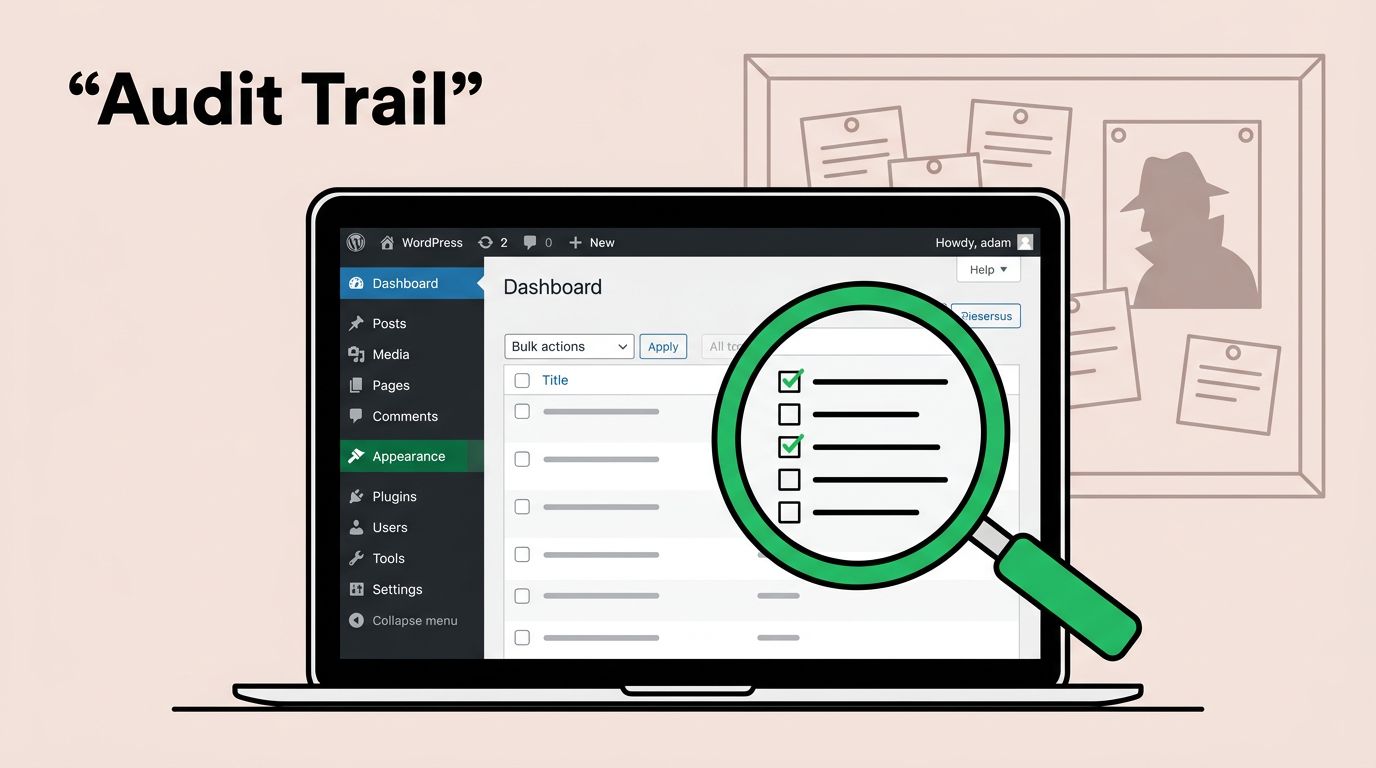
How to Set Up WordPress Audit Logs for Admin Changes
Table of Contents
The night my client’s homepage layout “mysteriously” changed, I felt like a detective staring at a blank corkboard. No fingerprints, no record of user activity, no witnesses, just a broken layout and three admins saying, “Wasn’t me.”
That’s why I treat WordPress audit logs like a black-box flight recorder, a digital paper trail for every change. When security events happen in wp-admin, I want a clear trail: who did it, what they touched, and when it happened. In this guide, I’ll show you the setup I use to track admin changes, tighten the settings, and create alerts for the moments that actually matter.
Decide what your WordPress audit logs should record (before you install anything)
Before I pick a plugin, I write down what I’m trying to prove later. Because an audit log isn’t just “security.” It’s also user accountability, how you settle team confusion without drama, and helps meet regulatory standards like GDPR compliance.
On most sites, and especially in a multisite network, I care about admin actions in four buckets:
- User and role changes (new admin created, admin role granted, password resets)
- Plugin and theme changes (installs, updates, activations, file edits)
- Settings changes (especially anything that affects URLs, email, or visibility)
- Post and page changes (deleted pages, menu edits, widget edits, editor changes)
Role changes are a big one. If you’re fuzzy on who can do what, it’s easy to give away too much power. I keep this bookmarked: WordPress user roles explained so I can sanity-check permissions before I start logging.
If you’re comparing options, I like scanning a neutral roundup first, then choosing based on the events I need. This comparison is a decent starting point: activity log plugins comparison for 2026.

Caption: I want my logs to feel like a calm control room, not a guessing game. Prompt idea: “security control room monitoring abstract audit timeline, modern illustration, no text.”
My step-by-step setup for logging admin changes (plugin, retention, and access)
I’ve tested a few loggers, but my default choice for deep tracking of admin actions is WP Activity Log. It’s actively maintained (its directory listing shows recent updates in March 2026), and it covers the admin events clients ask about most. Here’s the listing I reference: WP Activity Log plugin page.
Step-by-step: the setup I use on real client sites
- Start on staging first. I want to watch what gets logged without risking performance surprises.
- Install your activity log plugin. Then confirm it logs at least logins, role changes, plugin changes, and settings edits.
- Limit who can view logs. I usually keep it Admin-only, and I never give “log access” to casual editors.
- Turn on the high-signal events. User role changes, plugin installs, and settings changes come first.
- Set retention. For small sites, 30 to 90 days works. For compliance-heavy sites, I go longer.
- Decide where logs live. Database-only is fine at first, but an external database provides better performance and security, while exports or offsite storage help later.
- Do a “test incident.” I install a plugin, change a role, and tweak a setting, then I confirm the log shows all three.
After that, I lock down authentication. Logs tell me what happened, but strong sign-ins reduce what happens in the first place. If you’re ready for a modern login flow, I’d pair logging with WordPress passkeys for secure logins.
Configuration checklist (the stuff I don’t skip)
- Record these events: logins (success and failed login attempts), IP address, role changes, plugin/theme installs and activations, settings changes
- Track “Settings” depth: include changes tied to wp_options (more on why below)
- Retention window: set a clear number of days, then stick to it
- Time zone: match WordPress site time zone to your real working hours
- Log viewer permissions: restrict to admins who actually need it
- Export plan: weekly or monthly export if the site is business-critical
- Staging vs production: keep settings consistent so tests match reality
Alert rules that catch risky admin behavior (without spamming you)
If audit logs are the flight recorder, alerts are the cockpit alarm. You don’t want the alarm blaring all day. You want it to shout when the plane tilts.
Real-time monitoring means focusing on actions that are rare and dangerous for alerts. Email notifications are the primary way to receive these alerts. The most important include admin role granted, plugin installed, wp_options changed, and suspicious login activity that could signal a brute-force attack or other suspicious behavior. That last wp_options one matters because it stores a lot of “silent” settings that can reroute email, change URLs, or load unexpected code through integrations.
If you want a plugin built around security-relevant event logging with notifications, WP Admin Audit is worth a look: WP Admin Audit event logging plugin.
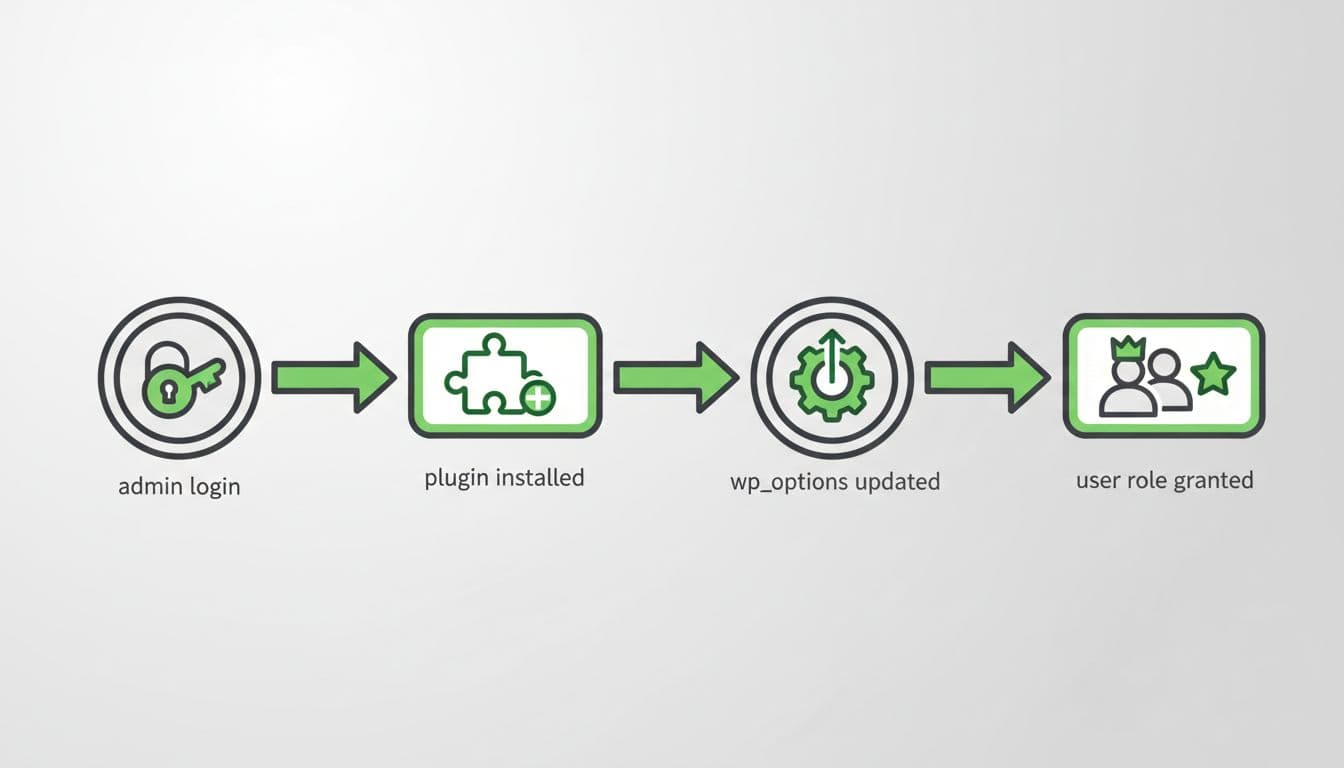
Caption: I think in timelines, because incidents are a chain of events. Prompt idea: “left-to-right timeline of admin events with icons, no labels, modern illustration.”
Here are example alert rules I’ve used (you can adapt the wording to your plugin’s alert builder):
| Alert name | Trigger event | When I notify | Why I care |
|---|---|---|---|
| Admin role granted | User role changed to Administrator | Immediately | This is a fast path to full control |
| New admin created | New user created with admin privileges | Immediately | Often shows up in compromised sites |
| Plugin installed | Plugin installed or uploaded | Immediately | A single plugin can add backdoors |
| Plugin activated | Plugin activated | During business hours, plus daily digest | Activation is when code starts running |
| wp_options modified | Option value changed in options table | Immediately (admins only) | Settings can quietly rewire behavior |
| WooCommerce changes | WooCommerce settings or options modified | Immediately (for e-commerce sites) | Critical for online stores handling payments |
| Theme file edited | Theme or plugin editor used | Immediately | File edits inside wp-admin are high risk |
Gotcha: if you alert on every post edit, you’ll train yourself to ignore alerts. I keep alerts for “rare and risky,” and I review the rest in the log.
How I review audit logs when something breaks (filters, timelines, and proof)
When I’m troubleshooting, I don’t scroll endlessly through the audit trail. I filter like I’m reconstructing a story.
First, I narrow by time. I pick the moment the issue started, then I work backward 30 to 60 minutes. Next, I filter by user, then by event type (plugins, settings, users). Finally, I look for pairs of events that travel together, like “plugin installed” followed by “plugin activated,” or “role changed” followed by “settings updated.” This helps spot unauthorized access or specific change tracking issues.
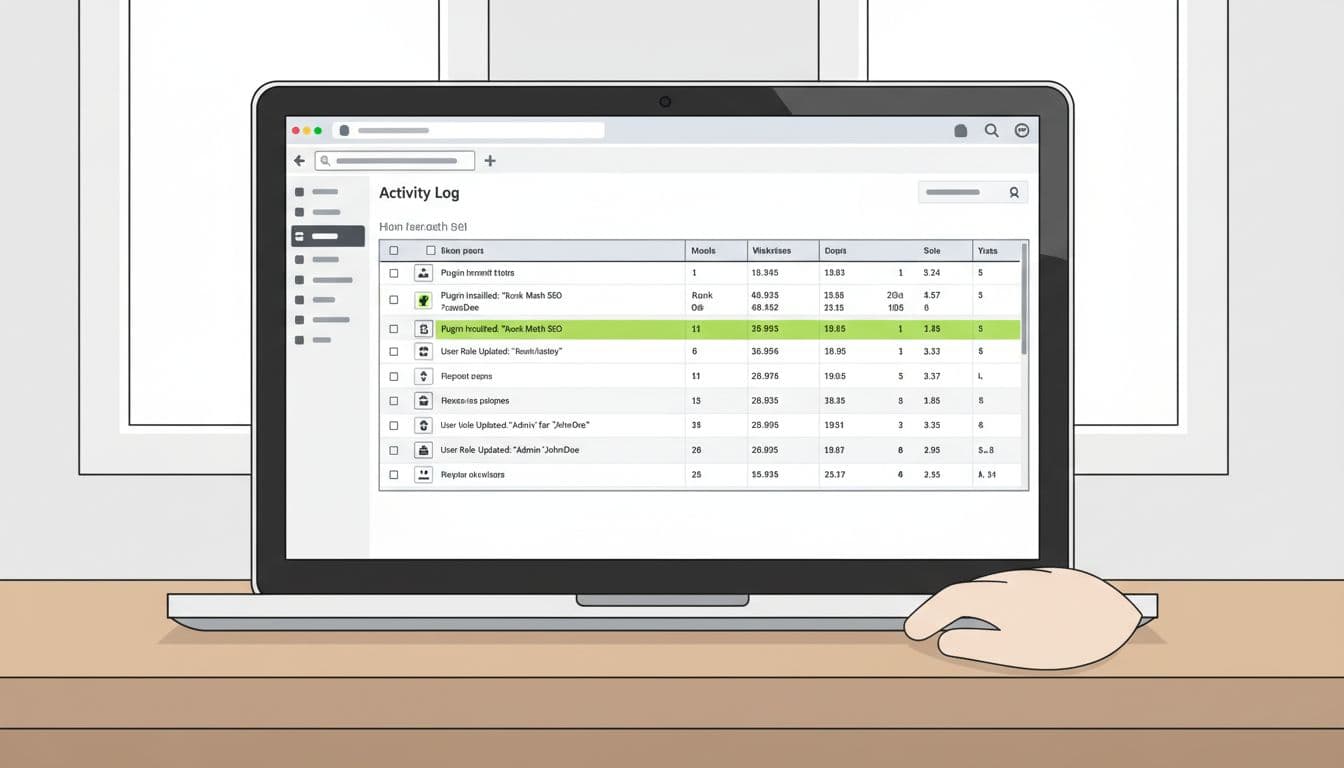
Caption: A clean log view turns panic into a checklist. Prompt idea: “laptop with blurred admin log table, office desk, modern illustration, no text.”
I also like adding “presence” signals, not just “change” signals. A last-login column helps me spot dormant admin accounts that suddenly woke up through effective user session management. This guide makes that easy: track user last login dates.
One last habit during troubleshooting: I export CSV reports after incidents. If your database gets restored, your log can rewind too. An export gives you a frozen snapshot of what happened.
Conclusion
When I set up WordPress audit logs the right way, admin changes stop feeling spooky. I get a clear timeline, useful alerts, and fewer arguments about “who touched what.” These logs also mitigate the damage of security breaches and help identify the source of malicious attacks, forming the foundation of site transparency. Start with the events that matter most (roles, plugins, settings), keep retention realistic, and add alerts only for high-risk actions. If you set it up today, what’s the first alert you’d want to receive tomorrow morning?