
How to Fix the WordPress “Are You Sure You Want to Do This?” Error (nonces, mod_security, caching)
Table of Contents
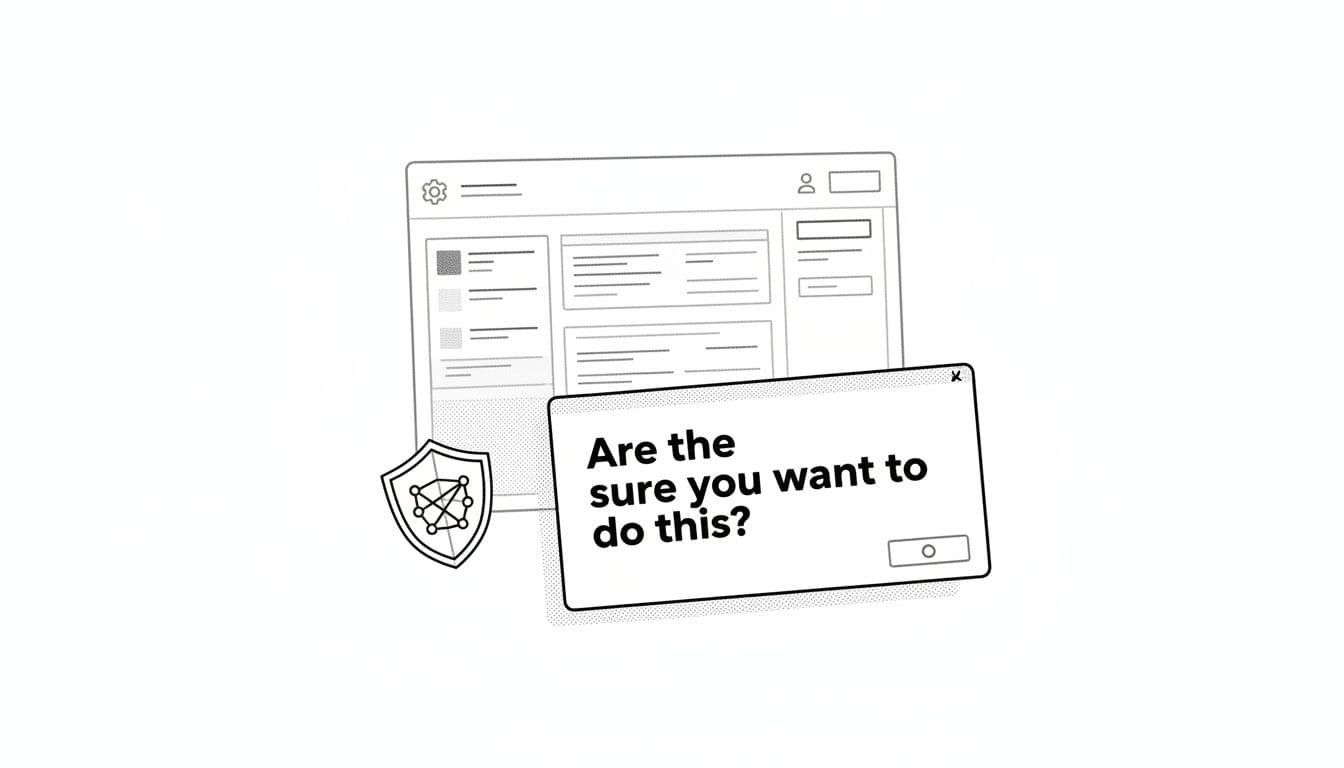
The first time I saw the WordPress error, it felt like WordPress was accusing me of a crime it wouldn’t name. I’d click “Update,” “Install,” or “Save,” and I’d get that blunt pop-up, no details, no logs, no mercy.
Over time, I learned to treat it like a noir case. This common WordPress error within the WordPress admin is never the real culprit; it’s just the streetlight flickering when something upstream goes wrong. Most of the time it comes down to three suspects: nonces (security tokens), a server firewall like mod_security, or caching that serves an old page with a dead token.
Let’s work the case, least invasive moves first.
Quick case file: symptoms, likely cause, the fix that usually works
This WordPress error is WordPress saying, “I don’t trust the request you just sent.” That distrust can be valid (security) or accidental (bad cache, WAF false positive).
Here’s the fastest mapping I use when I’m on a deadline.
| Symptom (what I see) | Likely cause | Fix (fastest first) |
|---|---|---|
| Error after leaving an editor tab open | Nonce expired (session timeouts) | Reload the page, re-login, re-try the action |
| Error only on one action (media upload, menu save) | mod_security / WAF rule hit | Ask host for the rule ID, whitelist the endpoint, retest |
| Error happens after migrating or changing domains | Cached admin page or stale cookies | Purge all caches and browser cache, clear cookies, log in again |
| Error when installing/updating plugins/themes | WAF or hosting malware scanner blocking POST | Temporarily disable WAF rule, try manual install via SFTP |
| Only happens with one plugin or custom code | Plugin conflict or bad nonce handling | Fix nonce verification (check_admin_referer, wp_verify_nonce) |
This WordPress error is sometimes mistaken for a generic internal server error or WordPress admin loading failure.
If you want a broader checklist to compare against, MalCare keeps a solid roundup of ways to fix this error (I still do my own diagnosis, but it’s a helpful sanity check).
Nonces: the “bouncer at the door” that sometimes loses the guest list
A nonce is WordPress’s security verification token, a “prove you meant to do that” mechanism. It’s time-based, and it’s supposed to stop CSRF attacks. In current WordPress releases (2026), nonces generally validate within a rolling window (commonly 12 hours per “tick,” often accepted for up to 24 hours total depending on how the check is done). Translation: if you keep a WordPress admin page open for ages, that token can go stale.
When I’m hunting a nonce problem, I start with behavior, not code.
What I try first (no server access, no risk)
- I reload the WordPress admin page that contains the button or form I’m submitting, then try again.
- I close extra WordPress admin tabs. Two edit screens open for the same thing can trip you up.
- I log out and back in (WordPress admin → top-right profile menu → Log Out).
- I clear site cookies for the domain (especially after a migration or switching between
wwwand non-www).
If that fixes it, you’ve basically confirmed “nonce mismatch or expiry,” not mod_security.
If I’m the developer: verify nonces the WordPress way
If you’re building an admin form, plugin settings page, or custom action, the nonce has to be created and verified consistently.
I keep it boring and standard:
- Create the nonce field in the form with
wp_nonce_field( 'my_action', 'my_nonce' ) - Verify on submit with
check_admin_referer( 'my_action', 'my_nonce' )for nonce verification
If you can’t use check_admin_referer() (like a custom endpoint), I fall back to:
wp_verify_nonce( $_REQUEST['my_nonce'] ?? '', 'my_action' )
For AJAX, I use check_ajax_referer( 'my_action', 'security' ) and return a JSON error if it fails.
If you’re chasing “invalid nonce” messages in logs or custom error handling, this explainer on what an invalid nonce means is a good companion piece.
Safely isolate plugins or themes (still low risk)
Sometimes the nonce is fine, but a plugin is filtering requests, injecting forms, or caching admin screens. This troubleshooting process helps identify a plugin conflict.
What I do in wp-admin:
- Go to Plugins → Installed Plugins
- Deactivate anything involved with security, caching, optimization, or forms first
- Retest the exact action that triggers the error
- If it stops, reactivate plugins one by one until it returns
If wp-admin itself is too broken to do that, I switch to the “quiet back alley” approach.
Server access required: via an FTP client or your host’s File Manager, rename wp-content/plugins to plugins.off, then log in and test. WordPress will treat plugins as deactivated. Rename it back when you’re done.
If the error persists, check your wp-config.php file for incorrect security salts.
Caching and CDNs: when WordPress signs the form, then caching swaps the page
Caching is supposed to speed things up. The trouble starts when it caches something that should never be reused, like wp-admin screens or pages that embed fresh nonces. Caching plugins are a frequent source of this WordPress error.
In real life, I see this most after:
- enabling a new cache plugin
- switching hosts with “server-side caching”
- adding a CDN or proxy (Cloudflare, host CDN)
- migrating a site, then hitting admin screens through an old cached layer
What to purge, in the order I actually do it
- Plugin cache: in your cache plugin settings, use its Purge/Clear Cache button (often in the admin bar too).
- Host cache: managed hosts often have a separate cache toggle in their control panel, purge it there.
- CDN cache: purge the CDN zone, then retest in a private window.
- Browser cache and cookies: I usually just clear the browser cache and cookies for the site, then hard refresh.
Then I lock down the caching rules so it doesn’t come back.
Caching rules I won’t negotiate on
- Don’t cache the WordPress admin
/wp-admin/(ever). - Don’t cache
/wp-login.php, which is part of the WordPress admin. - Don’t cache AJAX requests in the WordPress admin (
/wp-admin/admin-ajax.php); many plugins depend on it. - If you’re caching HTML at the edge, be cautious with anything personalized. A cached admin page with someone else’s nonce is a perfect way to trigger this error.
If your cache layer supports it, I also bypass cache when WordPress sets logged-in cookies. That’s often the difference between “works today” and “mystery error next week.” Additionally, adding a specific line to wp-config.php can sometimes help manage cache-related session issues.
mod_security and WAF rules: the bouncer that stops the request mid-sentence
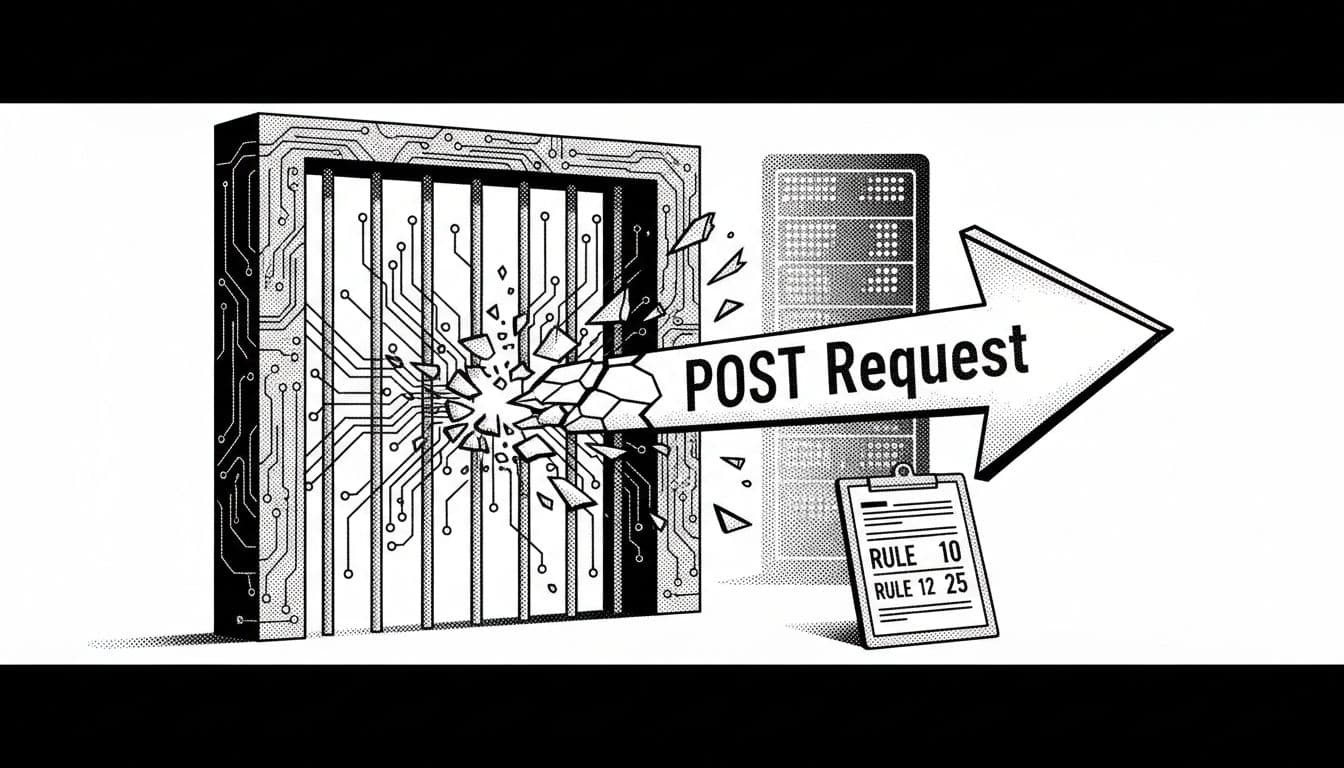
When the error only happens on specific actions, especially anything that sends a big POST request, I start suspecting a web application firewall. A block can sometimes result in a 403 internal server error rather than the standard prompt.
Common triggers I’ve seen:
- Saving menus with lots of items via complex AJAX requests
- Updating a post with certain HTML patterns
- Uploading media (or importing)
- Installing plugins from wp-admin
- Submitting forms in the admin that include code snippets
The giveaway is often in server responses: 403, 406, or a connection reset, right when you click “Save.”
What I ask hosting support for (copy-paste friendly)
If you’re on shared hosting, you usually can’t change mod_security rules yourself, but you may need to check your .htaccess file for custom security rules. I ask support for specifics:
- The mod_security rule ID that was triggered (example format:
id 123456) - The exact URL and parameter it blocked (like
/wp-admin/admin-ajax.phpor/wp-admin/nav-menus.php) - Whether they can whitelist that rule for my domain or for that one endpoint only
- Whether there’s a WAF in front of Apache/Nginx (some hosts run multiple layers)
Additionally, use a staging site to test if lowering security thresholds (like mod_security rules) resolves the issue.
If they want proof, I give them the timestamp and the action I took (example: “Clicked Save Menu in wp-admin at 2:14 PM ET, got ‘Are you sure…’”).
Server access required (advanced): if you manage your own server, you can tune ModSecurity, check file permissions on key directories, ensure PHP scripts have enough resources to execute, raise request limits, or adjust rules. Always verify file permissions are not overly restrictive. I still prefer narrow exceptions (specific endpoint, specific rule ID) instead of disabling the WAF.
Conclusion
When I see the “Are you sure you want to do this?” WordPress error, I don’t take it personally anymore. I treat it like a signal flare in the WordPress admin: either the nonce expired, caching served the wrong page, or a WAF like mod_security stopped the request before WordPress could confirm it.
Start small, refresh and re-login, then purge caches, then bring in hosting support with a request for the exact rule ID. If you’re still stuck, the fastest next clue is isolating plugins and themes until the WordPress error disappears, then you’ve got a name for your suspect.
Last Resort
For stubborn WordPress errors, dive into server-side checks. First, verify your PHP memory limit in wp-config.php by adding a line like define('WP_MEMORY_LIMIT', '256M');. You can also adjust the PHP memory limit directly in .htaccess with php_value memory_limit 256M. If issues persist, use an FTP client to inspect wp-config.php for corrupted files or syntax errors, and check your .htaccess for conflicts.
Next, confirm your PHP version matches WordPress requirements via the FTP client; outdated versions often cause the white screen of death. Extreme cases might trigger maintenance mode unexpectedly or lead to another white screen of death, especially if file permissions block PHP scripts from writing to the server.
As a final wp-config.php tweak, ensure it defines the proper memory settings alongside any custom paths, ruling out maintenance mode loops triggered by insufficient resources.