How to Switch From a Classic Theme to a Block Theme in WordPress (Safe Checklist + Rollback Plan)
Table of Contents
Switching from a classic theme used to feel like repainting a room. Switching to a block theme can feel more like renovating the whole house while you still live in it. The upside is huge, you get full site editing with the site editor, Templates, template parts, Patterns, and global styles. The downside is also real, one careless click can scramble headers, menus, and sidebars.
When I switch to a block theme for clients (or my own sites), I treat it like a preflight and a controlled landing. I plan the route, I pack a lifeboat, and I don’t touch production until staging looks boringly perfect.
Below is the exact approach I use: a safe checklist, the step-by-step switch, and a rollback plan I actually trust.
Preflight checklist (what I capture before I touch anything)
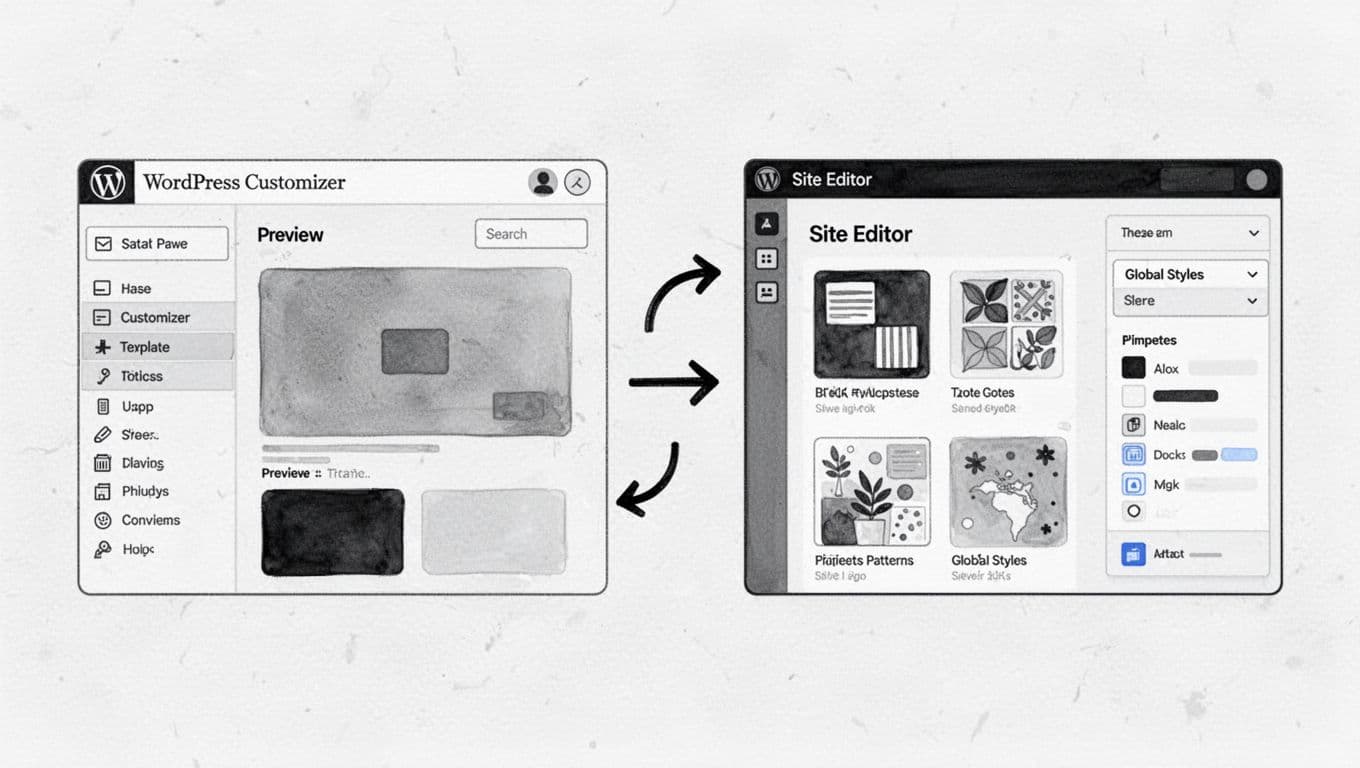
Before I even browse block themes, I write down what I can’t afford to lose. Classic themes hide lots of “silent” settings in the Customizer, classic widget areas, and theme options panels. Block themes, acting as a design system, move most of that into the Site Editor, which is great, but it means old settings won’t map one-to-one.
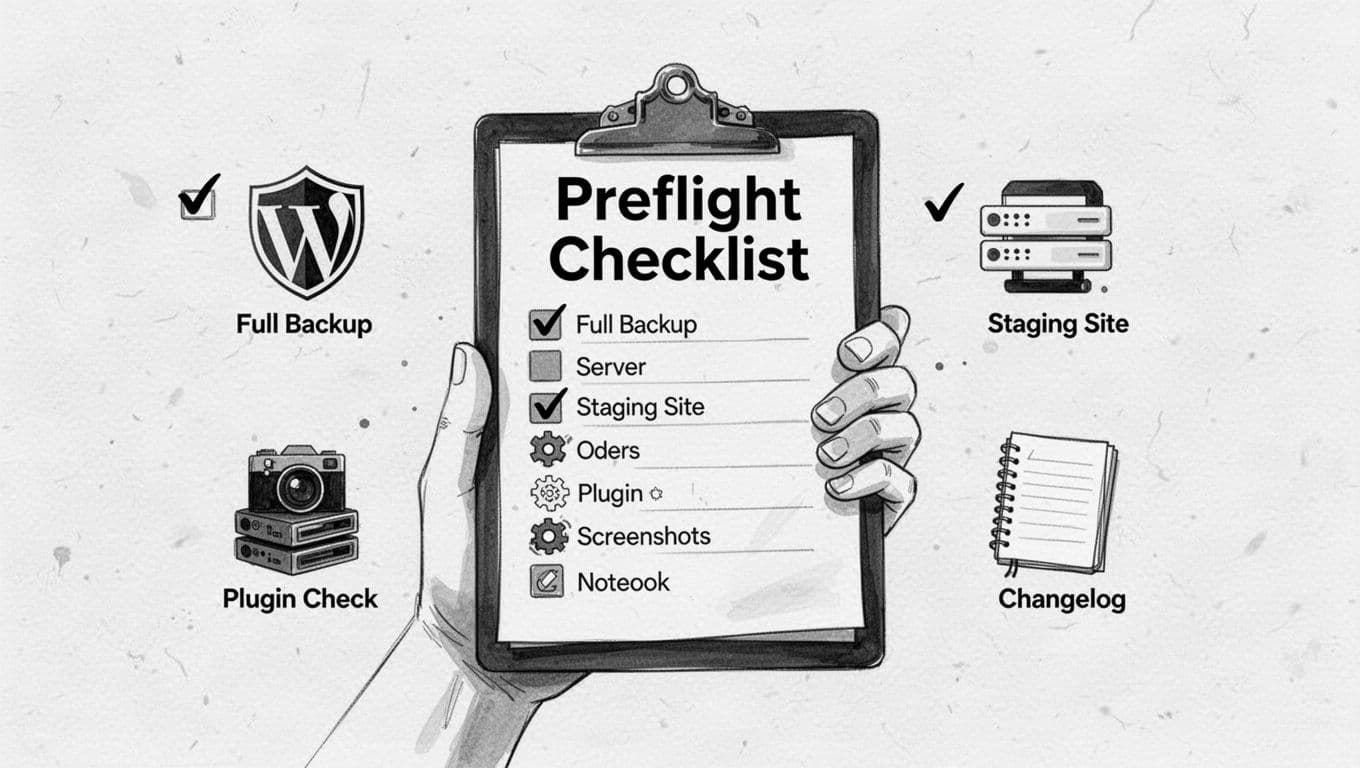
Here’s what my preflight always includes:
- Backup your website (files + database), plus a quick restore test if I can. If you’ve ever restored only the database (or only uploads), you know why both matter. For a solid “don’t lose content” mindset, I like this guide on changing a WordPress theme without losing content.
- A staging environment that matches production (same PHP version, same plugins, same caching). If your host offers one-click staging, use it.
- A change log in plain English. I keep it simple: date, what I changed, where, and why.
- Screenshots of key pages (home, a post, a page, blog archive, product page if WooCommerce). Screenshots are my “before” truth when my eyes start adjusting to the new design.
- An inventory of what’s theme-tied: classic widget areas (document them before they disappear), menus, Customizer CSS, header scripts, footer credits, any page builder templates, plugin compatibility (specifically check for the classic editor plugin).
If you want a quick refresher on how the Site Editor matured and why the Templates and Template Parts workflow matters, SmartWP’s overview of WordPress 6.2 Full Site Editor updates is still a helpful mental model.
If I can’t answer “How do I undo this in 5 minutes?” I’m not ready to start.
Switch to a block theme on staging (step-by-step, no surprises)
On staging, I’m trying to make the future boring. If it looks good on staging, production becomes a repeatable routine.
1) Install the block theme and set a baseline
In Appearance > Themes, I install the block theme I want, then activate it on staging. For many sites, starting with a default block theme (like Twenty Twenty-Five) keeps the first pass simple because it follows WordPress conventions.
Next, I open Appearance > Editor (the Site Editor) and do one thing first: Global Styles. Typography and colors, along with spacing, should match the brand before I tweak layouts. Otherwise, I end up judging templates while everything still looks “wrong.” Modern layout control is handled via theme.json and the site editor.
2) Rebuild the shell using Templates and Template Parts
As I migrate to block theme, I think of this as framing the house: the shift from PHP templates to HTML templates respects the template hierarchy.
- In Template Parts, I recreate (or heavily edit) the header and footer first. That’s where most classic theme identity lives.
- Then I review Templates in this order: Home (or Front Page), Single (posts), Page, Archive (blog/category), Search, 404.
I keep changes small and deliberate. A header might only need a Site Logo (or Site Title), a Navigation block, and a button. After that, I save and move on.
If you want to see the expected workflow from WordPress itself, this tutorial on how to switch from a classic to a block theme matches what I do in practice.
3) Convert to blocks (and decide what to keep)
When you activate a block theme, WordPress may convert classic widgets into special template parts. I open the relevant Template Part (often a legacy “sidebar” or “widgets” area), then I replace old widget equivalents with clean blocks.
If a widget was only there because the old theme demanded it, I delete it. Block themes don’t need sidebars by default, and forcing one can make the layout feel cramped on mobile.
4) Verify navigation menus inside the Navigation block
This step catches more “how is my menu gone?” moments than anything else.
In the Header Template Part, I click the navigation block and check whether it imported an existing menu. If it didn’t, I choose the correct menu from the navigation block’s settings, then I confirm dropdown behavior on mobile. I also check any utility links that lived in a top bar (login, contact, cart).
5) Handle Customizer CSS the right way
Classic themes often store tweaks in Customizer > Additional CSS. When I switch block theme setups, I re-home that CSS intentionally:
- If the CSS is truly theme-specific, I move it into Styles > Custom CSS (when available).
- If the CSS is “site identity” (fonts, buttons, small fixes I’ll want across themes), I keep it outside the theme so it survives future switches.
To keep myself sane, I paste CSS in small chunks and re-test after each save, verifying results in the WordPress editor.
This quick map helps me remember where things went:
| In a classic theme | In a block theme |
|---|---|
| Customizer colors/fonts | Site Editor, Global Styles |
| Header/footer settings | Template Parts (Header/Footer) |
| Widgets screen | Blocks inside Template Parts |
| Menus screen | Navigation block (with menu selection) |
Controlled landing: go-live checks, rollback lifeboat, and common fixes
Once staging is right, I pick a calm time to go live. Then I do one last backup, because the safest parachute is the one you packed five minutes ago.
My go-live verification pass (fast but thorough)
Right after activation on production, I check the same pages I screenshotted earlier. I also test plugin compatibility for dynamic elements like contact forms, search, comments, checkout, and any popups. I verify reusable blocks render correctly in the new WordPress editor. Then I purge caches (plugin cache, host cache, CDN) so visitors don’t see a split reality.
If anything feels off, I stop and decide: can I fix it in 10 minutes, or do I roll back?
Rollback plan (multiple options, from fastest to deepest)
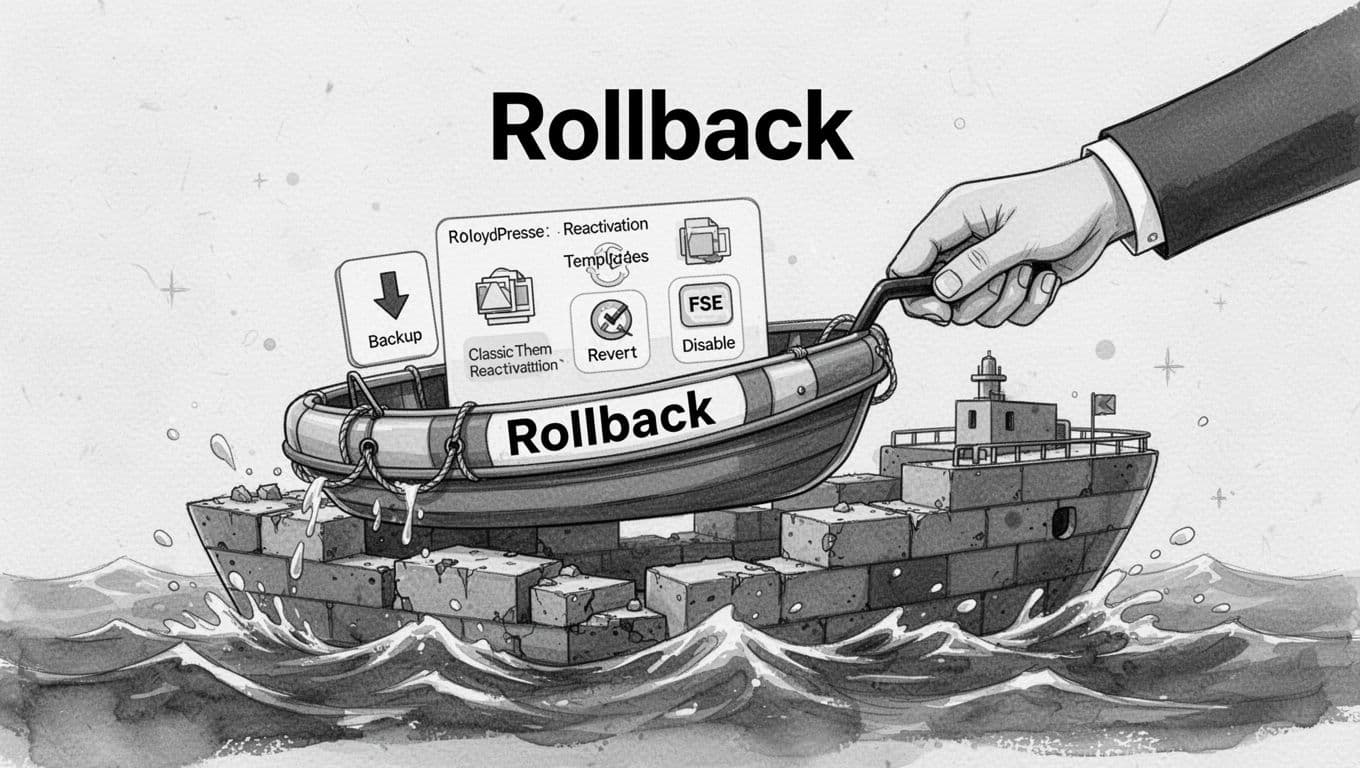
I keep four rollback doors unlocked:
- Switch back to the classic theme: In
Appearance > Themes, reactivate the old theme. Content stays, design snaps back, and I can breathe again. - Restore the full backup: This is the clean “time machine” option when data integrity matters most (or when I changed too many moving parts).
- Revert Site Editor changes: Block theme edits live in the database as Templates, Template Parts, and Global Styles. If the theme supports resetting styles, I use that first. Otherwise, I remove or revert the specific template changes I made instead of nuking everything.
- Disable the new pieces that caused the issue: If a plugin block is misbehaving, I deactivate that plugin before I abandon the whole switch.
Troubleshooting the usual suspects
Header looks right in Editor, wrong on the front-end: I purge all caches first. Next, I check whether a performance plugin is delaying CSS or combining files too aggressively.
Menu disappeared or won’t drop down: I open the Header Template Part, select the Navigation block, and re-select the correct menu. After that, I check mobile behavior in an incognito window.
Archives look empty: Inspect the query loop block in the archive template and ensure it is configured correctly.
Sidebar widgets are “missing”: They’re usually sitting in a converted Template Part after convert to blocks. I find it, then rebuild with blocks I actually want.
Custom CSS stopped working: Classic themes often targeted old selectors. Block themes output different markup, so I rewrite CSS to target block classes, and I keep the CSS minimal. Check if a child theme is necessary for custom CSS preservation.
A plugin page builder fights the block theme: I decide quickly whether that builder owns the layout. If it does, I keep templates simple and let the builder handle pages. If not, I rebuild the important pages using blocks and Patterns.
Conclusion
Switching from a classic theme to a block theme with full site editing is less like flipping a switch and more like guiding a plane onto a new runway. When I migrate to block theme setups with a real preflight, staging practice, and a lifeboat rollback plan, the move feels calm instead of scary. Take screenshots, keep a change log, and don’t skip the full backup. Follow the safe checklist, and then you can enjoy the site editor without that “what did I just break?” feeling.