How To Remove Unused Tables from WordPress Database After Plugin Deletion (Safely)
Table of Contents
The first time I went hunting for leftover plugin tables, I felt like I was cleaning a garage with the lights off. I’d deleted a plugin, the site looked fine, and yet my bloated database still had a bunch of “mystery” tables sitting there like unlabeled boxes.
If you’re here, you probably want the same thing I did: remove wordpress database tables that no longer belong to anything, without breaking your site. That’s doable, but only if you treat your WordPress database like careful surgery, not spring cleaning.
Before I drop anything, I follow a simple rule: I need proof a table is safe to remove, and I need a rollback plan.
Start with a safety net: database backup first, then find the leftovers
Deleting the wrong table from your WordPress database can take your site down fast. So I always back up before I even think about dropping tables.
If I have SSH access, WP-CLI is my go-to because it’s quick and easy to repeat:
- Database export:
wp db export ~/db-backup-$(date +%F).sql - List database tables:
wp db tables - Run a read-only query:
wp db query "SHOW TABLES;"
If you want more WP-CLI workflow ideas, I keep a handy reference of WP-CLI tools for WordPress database cleanup and maintenance that pairs well with this job.
Next, I try to identify what “unused” even means on this site. A plugin table can be “unused” because:
- I uninstalled the plugin, but it left its tables behind.
- I deactivated the plugin, but I might re-enable it later.
- I migrated a site and brought old tables with it.
Tables from unused plugins persist for reasons like these. Also, I check the plugin’s settings page before uninstalling. Some plugins have a “remove data on uninstall” option, and that’s usually safer than manual deletion.
My non-negotiable: I don’t delete anything until I have a fresh database backup file I can restore.
Confirm table ownership (and don’t confuse core tables with leftovers)
Here’s the trap: people say “never delete wp_* tables,” but WordPress doesn’t always use wp_. Your site might use abc_ or something custom. So the real rule is: never delete core WordPress database tables, whatever your prefix is.
I confirm my table prefix in wp-config.php (look for $table_prefix). Then I keep an eye out for the usual core database tables (like posts, postmeta, options, users, usermeta, terms, term_taxonomy, term_relationships, comments, commentmeta). Multisite adds even more database tables, so I slow down even more there.
To help myself decide which database tables belong to the WordPress database, I use a quick “ownership” filter. This table shows how I think about common patterns in the WordPress database:
| What I see in the table name | What it often means | My move |
|---|---|---|
<prefix>_posts, <prefix>_options, <prefix>_users | WordPress core database tables | Never delete |
<prefix>_woocommerce_* or other obvious brand prefix | Plugin tables | Only delete after confirming plugin is gone |
Random prefix like <prefix>_abc123_* | Plugin tables or orphaned data from old dev work | Investigate carefully before touching |
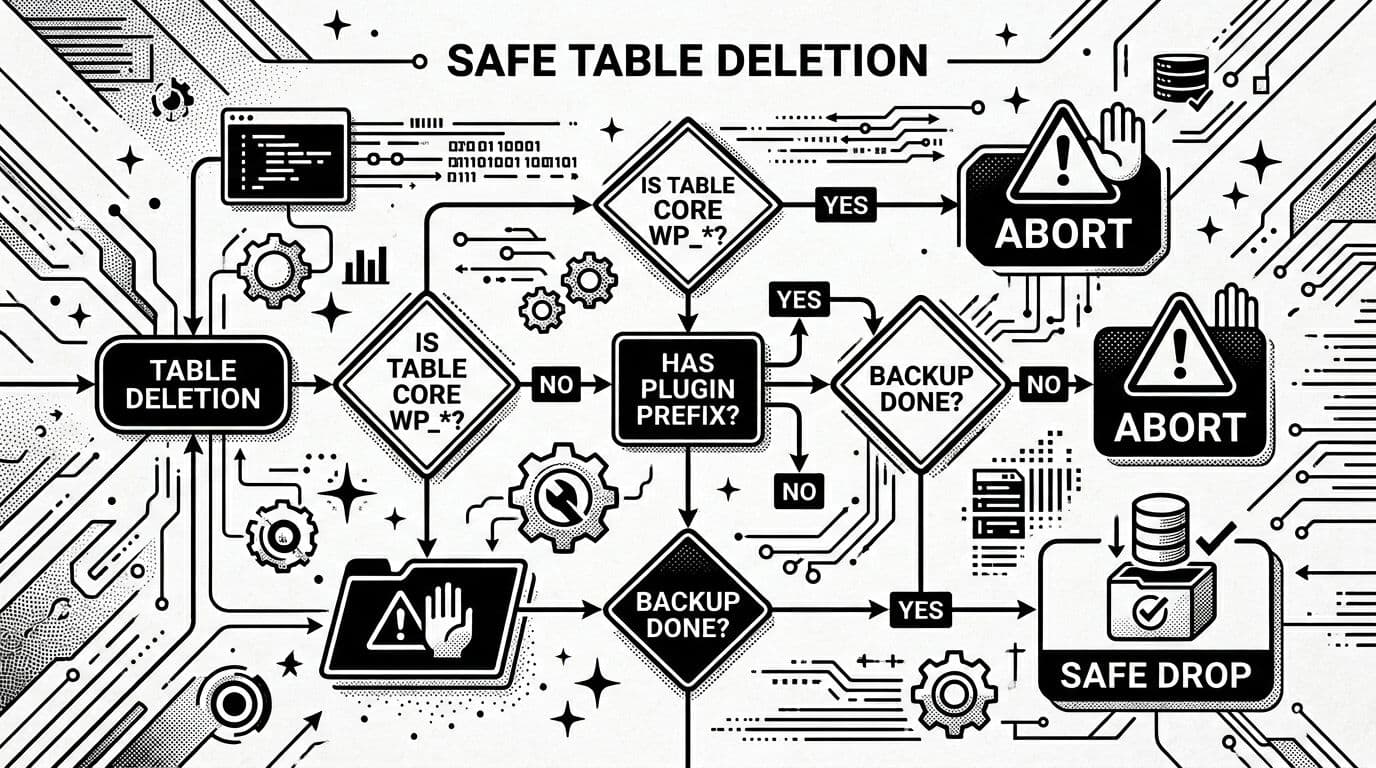
When I’m not sure, I follow this mini decision tree:
- If it matches core table names, I stop.
- If the related plugin is still active, I stop.
- If I can’t prove what created it, I don’t drop it yet.
- If I can prove it’s orphaned data from a deleted plugin, I remove it, after backup.
That “prove it” part matters. I look for clues in two places: the plugin’s folder name, and the table schema. Sometimes SHOW CREATE TABLE your_table; will include hints in comments or column names.
How I remove unused WordPress database tables (WP-CLI and SQL options)

Once I’m confident a table is a leftover in the WordPress database, I remove it in the least risky way I can. My preferred order is: rename (optional safety step), then the DROP TABLE step.
Option A: WP-CLI (my favorite for clean, logged changes)
- Export the WordPress database again if anything changed since my first backup:
wp db export ~/db-backup-pre-drop-$(date +%F).sql - Double-check the table exists:
wp db query "SHOW TABLES LIKE 'yourprefix_plugin%';" - Optional “training wheels” step, rename the table first:
wp db query "RENAME TABLE yourprefix_plugin_table TO zzz_yourprefix_plugin_table_old;" - If the site runs fine for a day, I drop it:
wp db query "DROP TABLE zzz_yourprefix_plugin_table_old;"
That rename step has saved me more than once. If something complains, I can rename it back quickly.
Option B: SQL queries (direct, fast, but you need discipline)
If I’m in phpMyAdmin (often via cPanel) or a MySQL client, I keep it simple:
- List candidates:
SHOW TABLES LIKE 'yourprefix_%'; - Check database size (helpful when you’re cleaning big leftovers):
SELECT table_name, ROUND((data_length+index_length)/1024/1024,2) AS mb FROM information_schema.tables WHERE table_schema = DATABASE() ORDER BY mb DESC; - Drop only what I’ve verified:
DROP TABLEyourprefix_plugin_table`;`
If you’re doing this in a hosting panel, this guide on deleting unused WordPress plugin tables in phpMyAdmin matches the same “confirm, then drop” mindset.
One more note: if you’d rather use a cleaner plugin like WP-Optimize, a database optimization plugin, I still suggest watching a walkthrough first, then deciding. This video on removing hidden database bloat shows what those tools usually target, including orphaned tables. These steps help you optimize database safely.
If I can’t explain what a table does in one sentence, I don’t delete it today.
Troubleshooting, then a cleanroom checklist I actually follow

Troubleshooting when something feels off after you remove wordpress database tables
If the site throws errors right after you remove wordpress database tables (say, from post revisions or spam comments), don’t panic. First, restore service, then diagnose. This keeps site performance steady while targeting bloat like trashed posts or transient options.
- Plugin breaks after reinstall: You probably deleted a table the plugin expects, such as one holding transient options. Restore the table from backup, or reinstall and see if it recreates the schema. Some plugins won’t rebuild old data.
- Tables seem “missing,” but the site works: That’s common on old sites with unused plugins or abandoned pingbacks and trackbacks. Leave them alone unless you’re sure they’re unused.
- You dropped the wrong table: Import your backup fast. With WP-CLI, that’s
wp db import your-backup.sql. Then refresh the page and check error logs, especially after clearing auto-drafts. - Multisite surprise: Network tables and site-specific tables can look “extra.” On multisite, I assume nothing is safe until proven. Watch for media files references too.
My cleanroom checklist (print this mentally)
- I confirmed the real table prefix in
wp-config.php. - I exported a fresh WordPress database backup and saved it off-server.
- I verified the plugin is uninstalled (and won’t come back); if developing plugins, always use
register_uninstall_hookto handle cleanup proactively. - I checked the table name doesn’t match core WordPress tables or bloat like post revisions and spam comments.
- I inspected the schema (columns, engine) for ownership clues in the WordPress database.
- I renamed the table first when I wasn’t 100% sure, especially for unused plugins.
- I dropped only the verified tables, one batch at a time (post revisions, trashed posts, spam comments, pingbacks, trackbacks).
- I loaded key pages, checked admin, then watched logs for errors.
Cleaning plugin leftovers feels great because it’s tangible progress toward better site performance. It cuts database overhead and server load for smoother operation. The best win is finishing with a cleaner WordPress database: optimize database tables, perform regular database cleanup, and enjoy a site that works the same, just with less junk (no more endless post revisions) behind the scenes. In other words, I’m happy only when the database is cleaner after you optimize database and the site is boring again.