
How to Set Up Google Analytics 4 in WordPress Without Slowing Your Site
Table of Contents
The first time I set up GA4 in WordPress, I did what most people do. I installed a big analytics plugin to add Google Analytics 4, connected it to my verified Analytics account, flipped a switch, and moved on.
Then I checked my speed report and felt my stomach drop. It tanked my site performance with extra scripts, extra requests, and a site that suddenly felt like it was jogging with a backpack full of bricks.
Since then, I’ve treated Google Analytics 4 like a carry-on bag: only bring what you’ll actually use. Below is the approach I use in 2026 for a clean setup that keeps Core Web Vitals happy.
Pick the lightest GA4 approach (gtag vs GTM vs a plugin)

Before I touch the WordPress dashboard, I decide how many “moving parts” I want. The fastest GA4 installs usually have one of two shapes:
- Direct GA4 (gtag.js): best when you only need Google Analytics 4 (and maybe one or two simple events).
- Google Tag Manager (GTM): best when marketing tools multiply (Ads, conversions, pixels) and you need control without editing theme files every week.
Here’s the quick comparison I use when I’m deciding on GA4 in WordPress:
| Option | Best for | Performance impact | Complexity |
|---|---|---|---|
| Direct GA4 (gtag.js) | Simple Google Analytics 4 tracking | Lowest | Low |
| Google Tag Manager container | Multiple tags and conversions | Low to medium (depends on tags) | Medium |
| MonsterInsights plugin, Jetpack plugin, or other full plugins | Dashboards, extra features, “all-in-one” Google Analytics 4 tracking | Often highest | Low to medium |
My rule: one tag beats five plugins like the MonsterInsights plugin. If you’re already trying to speed up your WordPress site, analytics should not be the heaviest thing on the page, hurting your site speed and search engine optimization.
Also, don’t confuse “Google Tag Manager is slower” with “Google Tag Manager is bad.” A single Google Tag Manager container can be lighter than the MonsterInsights plugin plus three separate third-party scripts. The container only becomes a problem when it turns into a junk drawer.
My go-to GA4 WordPress setup (direct gtag, no bloat)
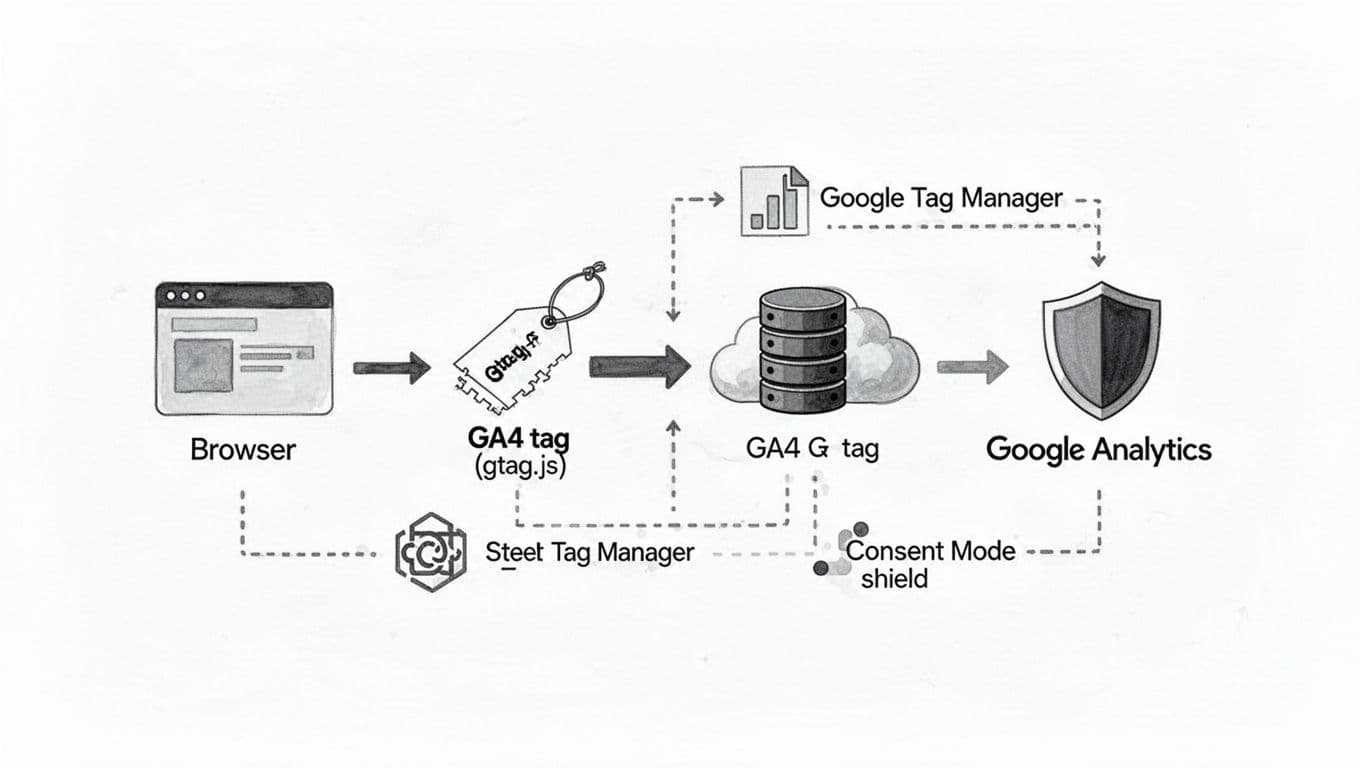
When I’m doing a clean ga4 wordpress setup, I aim for one async script and a tiny inline config. Nothing more.
Step 1: Get your GA4 Measurement ID
In Google Analytics 4, I go to Admin, then Data Streams, then pick my web data stream. I copy the Measurement ID that starts with G-.
If you want Google’s official flow for creating and placing the tag, I keep this bookmarked: set up your Google tag in Google Analytics.
Step 2: Add the Google tag to WordPress the right way
Where I place the code depends on the site:
- Block themes (Site Editor): Via the WordPress dashboard, I put it in the header template so it loads site-wide.
- Classic themes: I add it to a child WordPress theme’s
header.php fileright after<head>, or via a safe header-injection field if the theme provides one.
Google also documents a WordPress editor based install here: set up your Google tag with WordPress Editor. I still prefer WordPress theme-level placement because it’s harder to duplicate by accident.
The standard Google Analytics 4 GA4 tracking code looks like this (replace the Measurement ID):
https://www.googletagmanager.com/gtag/js?id=G-XXXXXXX(loaded withasync)- then an inline snippet that calls
gtag('config','G-XXXXXXX')
Two setup habits keep this fast:
- I don’t load Google Analytics 4 GA4 tracking code twice. It happens a lot when a theme, a plugin, and GTM all “help.”
- I watch my optimization plugin settings. If you use “delay JavaScript,” don’t delay GA4 unless you truly accept missing pageviews.
If your cache or optimization plugin combines or defers scripts, test GA4 again after you toggle those settings. Analytics issues often start there.
Verify Google Analytics 4 tracking in minutes (Realtime, DebugView, and one sanity check)
I never trust a tag just because I pasted it. To properly track visitor behavior, I verify it while the change is fresh, because that’s when fixes are easy.
Realtime report (the quick “is it alive?” test)
Right after publishing, I open GA4 Reports, then Realtime. Next, I visit my site in a private window and click a couple pages.
If I see myself as an active user within a minute or two, and the tracking data appears correctly, the base tag works to track visitor behavior.
DebugView (the “is event tracking firing?” test)
When I’m testing custom event tracking, I use DebugView. The easiest way is to use Google’s Tag Assistant in preview/debug mode so Google Analytics 4 receives events marked as debug.
DebugView is also where I catch common mistakes like:
- firing the same event twice
- event names with weird casing that disrupts event tracking
- custom parameters that never arrive, causing gaps in tracking data
One more step: filter your own traffic
Once I know event tracking works, I define internal traffic in my Analytics account so my own visits don’t pollute reports or tracking data. You can often manage these settings via your WordPress dashboard plugin or directly in the Analytics account. It’s a small setup step that saves me months of second-guessing later.
Privacy basics that won’t slow your pages
In 2026, privacy choices are part of setup, not an extra. If you serve visitors in the EEA or UK, consent rules apply, and Google Analytics 4 Consent Mode expectations matter even more when ads enter the picture.
Cookie consent and Consent Mode (keep it simple)
My goal is “fast and honest”: show a clear consent banner, load Google Analytics 4 in a way that respects choices, and don’t add three extra libraries just to do it.
For Consent Mode style behavior, the pattern is:
- set a default consent state early (often denied until consent)
- update consent after the user chooses
In plain terms, I’m telling GA4 whether analytics_storage (and if relevant, ad_storage) is allowed. Consent Mode v2 adds more signals (like ad_user_data and ad_personalization) if you use Google ads features.
IP anonymization: what to know with GA4
Universal Analytics had an anonymize_ip toggle. Unlike Universal Analytics, GA4 works differently. Google states GA4 does not log or store IP addresses in a way you can access in reports, and IP is used for basic location then dropped. So instead of hunting for that old Universal Analytics setting, I focus on consent, retention settings, and limiting extra ad features unless I need them.
Performance guardrails I stick to
I use this short checklist whenever analytics starts creeping into “too heavy” territory:
- Keep tags lean: one GA4 tag, set up custom dimensions without adding bloat, then only the events you’ll read like bounce rate, user engagement, and conversion tracking.
- Limit third-party scripts: for GA4 in WordPress, consider local hosting with the CAOS plugin; every extra vendor is another performance bet.
- Avoid render-blocking: if your speed report flags scripts, fix the root issue (this guide helps: eliminate render-blocking resources).
- Check caching and CDN behavior: GA4 is fine with caching, but script delay and aggressive JS optimization can break tracking.
- Re-test after changes: theme switch, new plugin, new banner, new problems; monitor site performance and user engagement plus conversion tracking from your WordPress dashboard.
If you’re still building out your GA4 property, GA4’s own helper is worth a pass: GA4 Setup Assistant guidance.
Conclusion
I’ve found the best GA4 in WordPress installs using Google Analytics 4 feel almost boring. One lightweight tag, clean verification in Realtime and DebugView, and privacy choices that don’t pile on scripts. That’s how I keep Google Analytics 4 accurate while my site stays quick with optimal site speed.
This clean GA4 in WordPress setup leads to better data-driven decisions from your Analytics account. If you set this up today, create a solid measurement plan for long-term success, then re-check it after your next theme or optimization change. For search engine optimization as a logical next step, link to Google Search Console. Site speed and tracking both drift over time, and a quick audit keeps you ahead.