How to Fix WordPress Stuck in Maintenance Mode After an Update (and prevent it next time)ab
Table of Contents
I’ve seen it at the worst time, coffee in hand, update just “about to finish,” and then my site turns into a crime scene. Yellow tape across the front door: wordpress maintenance mode. Visitors get the same line on repeat: “Briefly unavailable for scheduled maintenance. Check back in a minute.”
Most of the time, this isn’t a catastrophe. It’s a leftover lock file from an update that never got to clean up after itself. The trick is fixing it without making things worse, then setting up a workflow so it doesn’t happen again.
Why WordPress gets stuck in maintenance mode (the real culprit)
When WordPress updates core, plugins, or themes, it creates a tiny file named .maintenance in your WordPress root (the same folder that holds wp-config.php). That file tells WordPress to show the maintenance message while files are being swapped.
When everything finishes cleanly, WordPress deletes .maintenance. When something interrupts the update, that file sticks around like a parked car with no owner.
Common interruptions I run into in 2026 hosting setups:
- PHP timeouts during chunky plugin updates (page builders, WooCommerce add-ons).
- Low disk space or inode limits, especially on older shared plans.
- Permission issues (WordPress can’t replace files, so it never completes).
- Caching layers lying to you (host page cache, CDN edge cache, even a browser cache).
A quick reality check helps before you touch anything:
| What you see | Likely cause | What I do |
|---|---|---|
| Maintenance message for everyone, everywhere | .maintenance file is present | Delete .maintenance, then clear caches |
| Only you see it | Browser or CDN cache | Hard refresh, purge CDN, test a different network |
| It comes back after deletion | Update process still stuck | Check wp-content/upgrade/, logs, or use WP-CLI |
If you want to confirm what version you were updating to (helpful for support tickets), this guide on why knowing your WordPress version matters for updates is a fast refresher.
Beginner fix: delete the .maintenance file safely (File Manager or FTP)
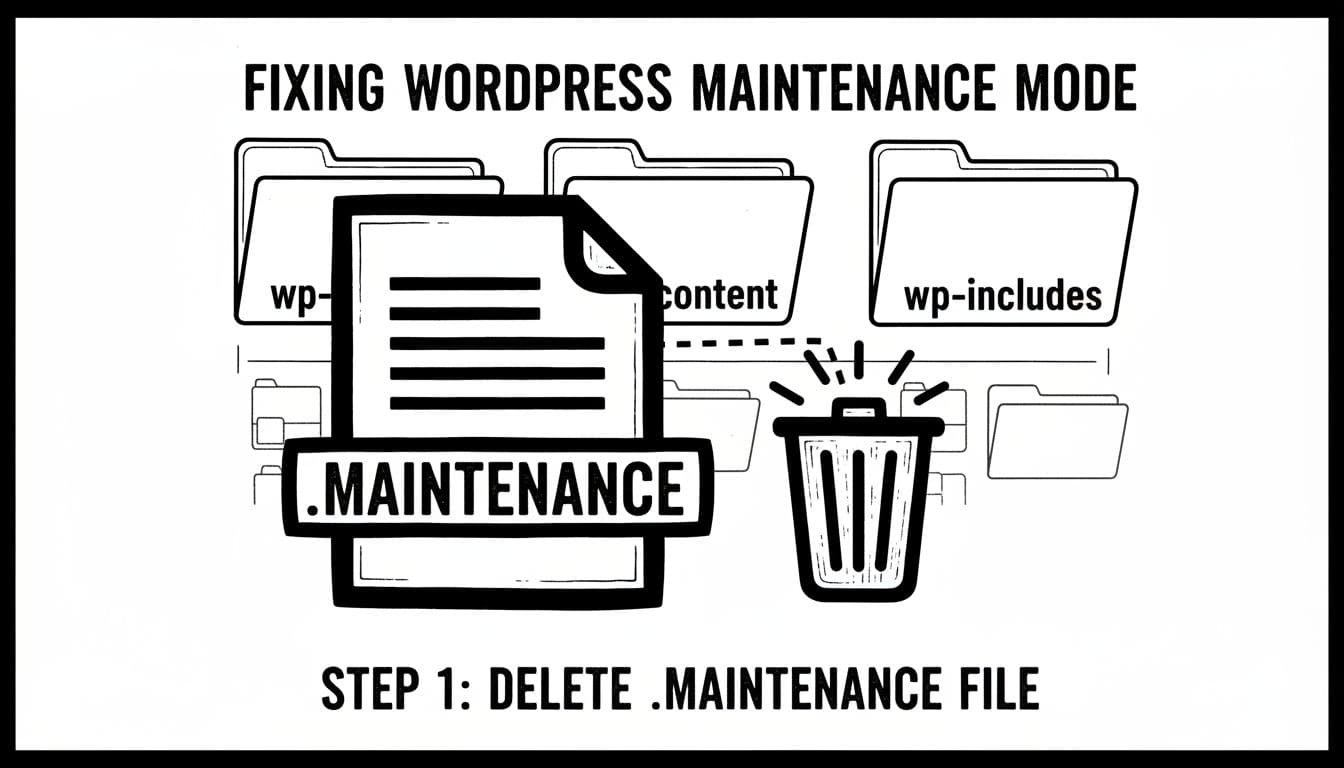 Deleting the
 .maintenance file in the WordPress root, created with AI.
This is the “take the tape down” fix, and it works more often than not.
Step 0: Don’t poke around blindly
Before I delete anything, I confirm I’m in the right place. The .maintenance file should be in your WordPress root, typically one of these:
/home/USERNAME/public_html/.maintenance/var/www/html/.maintenance- If WordPress is in a subfolder:
/home/USERNAME/public_html/site/.maintenance
Warning: If you don’t see it, you may need to enable “Show Hidden Files” (dotfiles).
Option A: Host File Manager (cPanel, Plesk, managed host panel)
- Open File Manager.
- Go to your WordPress root (look for
wp-config.phpand folderswp-admin,wp-content,wp-includes). - Find
.maintenance. - Delete it.
- Load your site in an incognito window.
Many hosts document the same approach. If you want a host-written walkthrough for comparison, GoDaddy’s help article on fixing a site stuck in maintenance mode explains the basic idea in plain terms.
Option B: FTP/SFTP (FileZilla, Cyberduck, your host’s SFTP)
- Connect via SFTP (preferred) or FTP.
- Browse to the WordPress root directory.
- Delete
.maintenance. - Refresh your site.
If you delete it and still see the message
Now I assume the message is cached.
- If you use a CDN (Cloudflare or similar), purge the cache.
- If you’re on a managed host, purge full-page cache from the host panel.
- If you have a caching plugin, clear it (and any object cache like Redis, if exposed).
Intermediate fix: use WP-CLI to confirm the site is healthy again
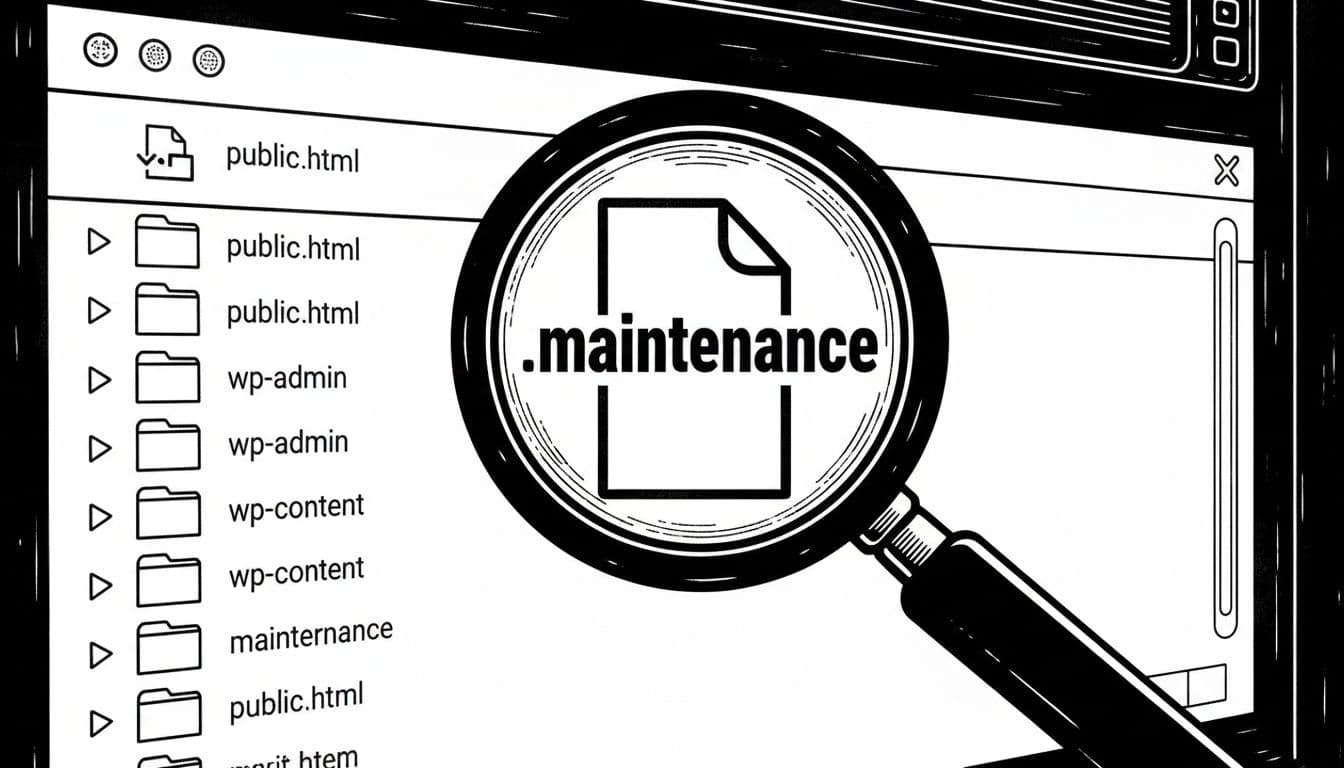 Hunting the
 .maintenance file like it owes me money, created with AI.
When the simple delete doesn’t hold, I go one level deeper. WP-CLI is perfect here because it doesn’t care if wp-admin feels haunted.
What I run (and why)
SSH into your server, cd into the WordPress root (the folder with wp-config.php), then use these decision points:
- If you suspect WordPress still thinks it’s in maintenance mode: run
wp maintenance-mode deactivate - If core updated but the database step didn’t: run
wp core update-db - If things feel half-updated: run
wp plugin update --allandwp theme update --all - If you suspect corrupted core files after a failed update: run
wp core verify-checksums
For a more complete routine, I keep this bookmarked: WP‑CLI commands for updating WordPress core, themes, and plugins.
If .maintenance keeps reappearing
That’s the sign I treat seriously. It usually means an update process is still choking.
- Check
wp-content/upgrade/(a stuck temporary upgrade folder can hint at a failed run). - Check your PHP error logs in the host panel.
- Look for filesystem permission problems (WordPress can download updates but can’t replace files).
When I need real-world cases, I skim threads like the WordPress.org support topic on updates getting stuck. It’s a good reminder of how often caching and permissions are the actual villains.
Prevent wordpress maintenance mode from getting stuck next time (a workflow I trust)
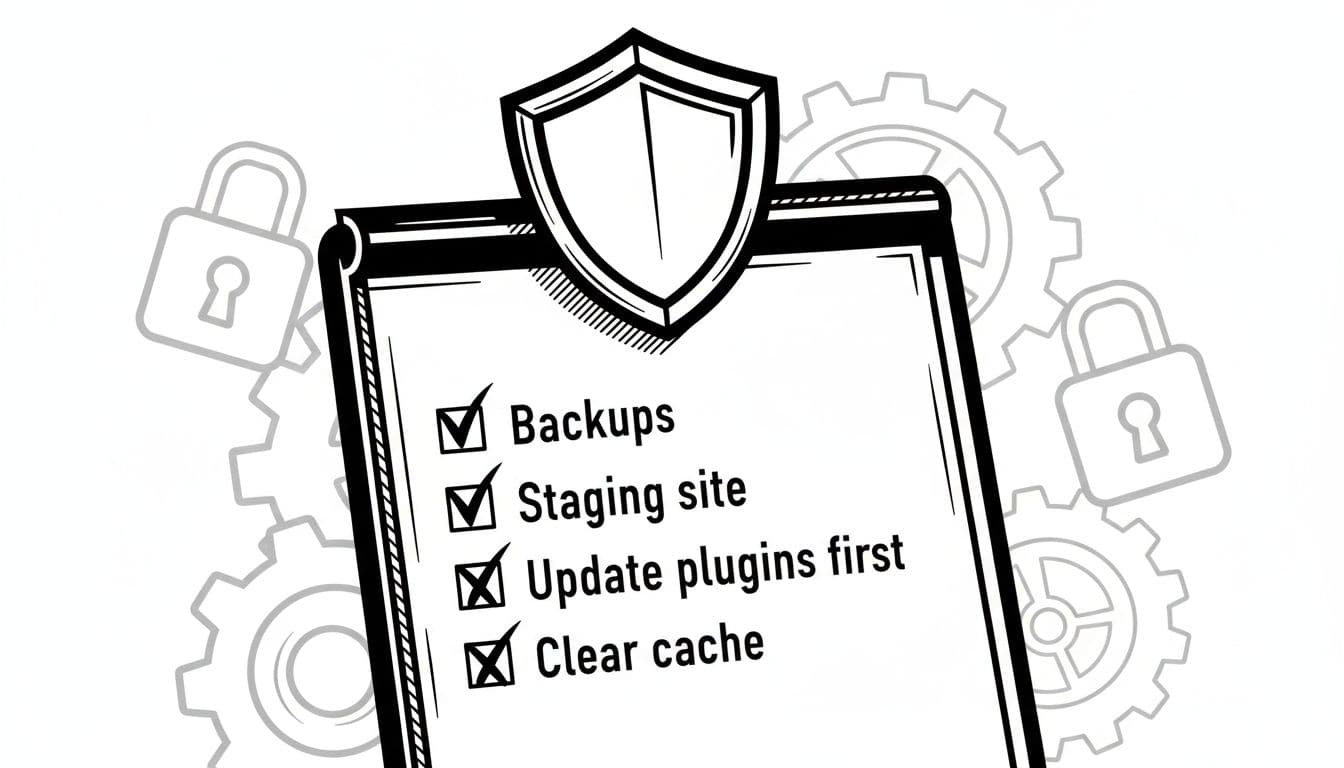
I prevent most maintenance mode lockups by treating updates like a short, controlled operation instead of a late-night gamble.
My low-drama update checklist
- Backup first: host snapshot if available, plus a database export if I’m using WP-CLI.
- Use staging for major changes: core major version jumps, big theme updates, or WooCommerce-heavy sites.
- Update order that behaves: plugins first (especially security and caching), then theme, then core.
- Compatibility check: glance at plugin changelogs, PHP version support, and known conflicts.
- Clear caches after: caching plugin, host cache, CDN cache.
Two habits that save me on managed hosts + CDNs
1) I update during a quiet window.
If an update takes longer and hits a timeout, it’s better when traffic is low and caches aren’t churning.
2) I don’t trust the first page load.
After updates, I test:
- Incognito window
- A different device or cellular connection
- A direct URL that bypasses heavy caching (like
/wp-login.php)
If you run auto-updates and your inbox fills with status emails, I also like to control the noise. This guide shows how to disable automatic WordPress update notification emails without breaking the update system itself.
For a host perspective on preventing and resolving this issue, Cloudways has a clear support note on fixing WordPress stuck in maintenance mode that matches what I see in the field.
When the tape comes down (and stays down)
When my site is stuck in wordpress maintenance mode, I start simple: delete .maintenance, then clear every cache layer that can fake the result. If it comes back, I switch to WP-CLI and treat it like a failed update, not a missing file.
Do that, then adopt the staging and backup routine, and maintenance mode goes back to what it was meant to be: a short hallway you walk through, not a locked door.