
How to Fix “The Link You Followed Has Expired” in WordPress (Upload Limits, Timeouts, Plugin Checks)
Table of Contents
The first time I saw “The Link You Followed Has Expired”, I thought I’d clicked a bad bookmark. Then it happened again, right after I tried uploading a perfectly normal plugin ZIP while working within the WordPress dashboard. Same bland message, no clue what actually broke. It felt like a detective handed me a case file with the key pages blacked out.
In January 2026, I still treat this error the same way: I follow the evidence. In most cases, it’s not a “link” problem at all. It’s usually tied to restricted server settings or a specific PHP configuration rather than a broken URL, with your server refusing an upload, timing out mid-request, or blocking something that looks suspicious. Below is the fast fix I use for plugin/theme uploads, then the deeper server-side fixes (Apache and Nginx), and finally the “it’s not limits” checks when a plugin conflict or security rule is the real culprit.
Fast path: when a plugin or theme upload fails (the most common case)
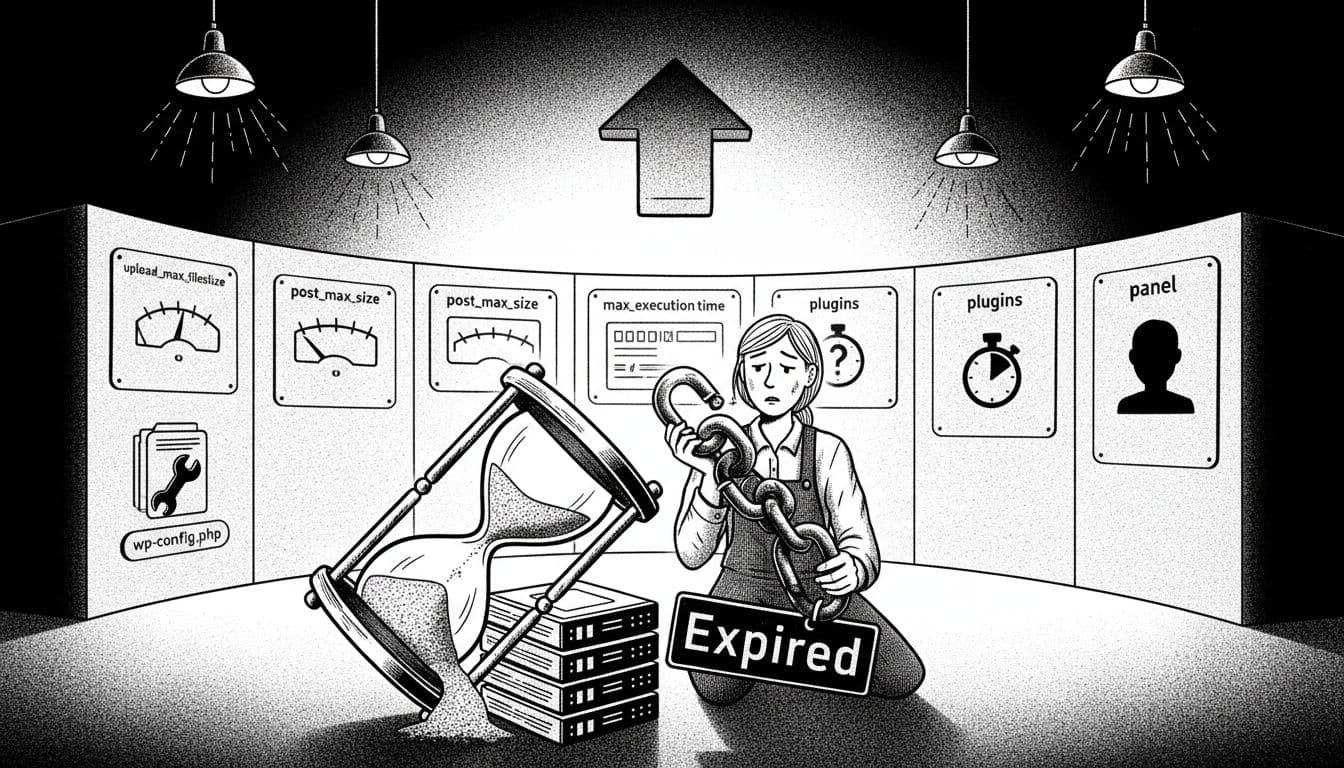
When I’m in a hurry, I assume the upload hit a ceiling: file size, request size, or time. Here’s my quick routine:
- Confirm it’s the uploader: If the error shows right after choosing a ZIP in Plugins or Themes, this is almost always server limits or timeouts.
- Check the zip file size: If it’s huge (page builders, big theme bundles), you might be hitting the maximum upload file size. WordPress may be fine, but PHP isn’t. Try a smaller file upload (like an image) to compare.
- Install without the web uploader: I perform a manual upload of the unzipped plugin folder using an FTP client like FileZilla to
wp-content/plugins/, then activate it in WordPress. For themes, I upload towp-content/themes/. - Try a clean upload path: If you’re uploading a “bundle” ZIP that contains multiple zips inside, unzip it locally and upload the correct inner theme/plugin ZIP.
- If it still fails, stop and switch tactics: At that point, I move to limits and conflict checks below, because repeating the same upload often just burns more time.
If you want a second opinion on the typical causes and fixes, Liquid Web, a hosting provider, has a solid hosting-focused rundown of this exact error in their guide on fixing “The Link You Followed Has Expired”.
Fix the root cause: increase upload limits and timeouts (Apache and Nginx)
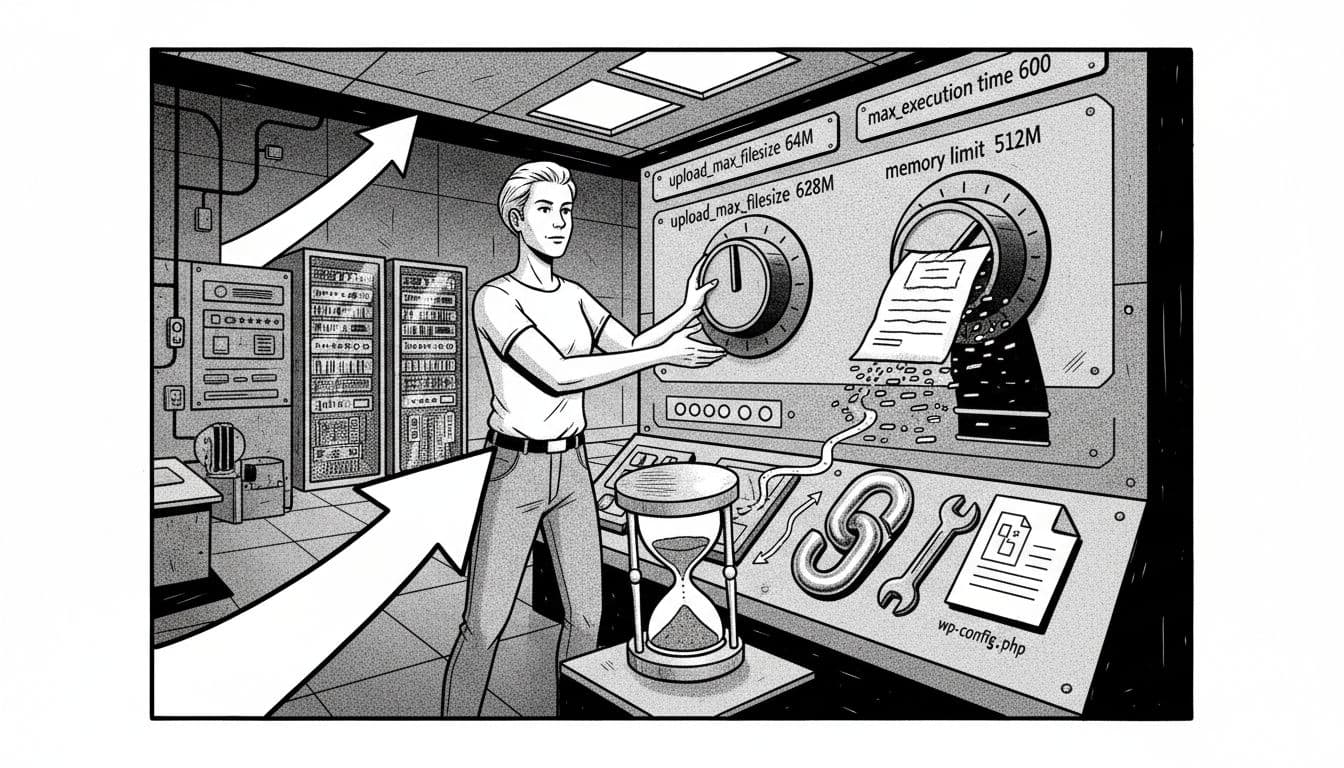
In my “case notes,” this error usually comes down to a mismatch between what WordPress is trying to send and what PHP will accept. The main settings I look at are:
upload_max_filesize(max size of one uploaded file)post_max_size(max size of the whole request, should be larger than upload_max_filesize)max_execution_timeandmax_input_time(time limits)memory_limit(helps with extraction and heavy admin operations)
Option A: php.ini file (best when you control the server)
If you can edit the php.ini file, you can often find it or create it in the root directory of your site. Add or adjust lines like these (example values, change to fit your needs):
upload_max_filesize = 64M
post_max_size = 128M
max_execution_time = 300
max_input_time = 300
memory_limit = 256M
On many hosts, you’ll need to restart PHP-FPM or the web server for changes to apply. On shared hosting, you may not have that access. For those who don’t want to edit files manually, cPanel and the MultiPHP INI Editor offer user-friendly alternatives.
Option B: .user.ini (common on shared hosting with PHP-FPM)
Some hosts let you set PHP values per directory using .user.ini in your WordPress root:
upload_max_filesize = 64M
post_max_size = 128M
max_execution_time = 300
max_input_time = 300
memory_limit = 256M
Changes can take a few minutes to kick in because PHP caches .user.ini.
Option C: .htaccess file (Apache only, and not always allowed)
If your site runs on Apache with mod_php, you can try the .htaccess file in the WordPress root. If your host disables it, this can trigger a 500 error, so I keep a backup of the file before editing.
php_value upload_max_filesize 64M
php_value post_max_size 128M
php_value max_execution_time 300
php_value max_input_time 300
php_value memory_limit 256M
If the site throws a 500 error right after, remove these lines.
Option D: wp-config.php (safe for memory, not for upload size)
This won’t fix upload limits directly, but it can stop timeouts during extraction or updates. Add this near the top of wp-config.php, above the line that says “That’s all, stop editing”:
define( ‘WP_MEMORY_LIMIT’, ‘256M’ );
define( ‘WP_MAX_MEMORY_LIMIT’, ‘512M’ );
Nginx: set limits in server config (and sometimes PHP-FPM)
If you’re on Nginx, .htaccess does nothing. I check client_max_body_size first:
server {
client_max_body_size 128M;
}
Timeouts can also be set at Nginx and PHP-FPM layers. Depending on your stack, you may need both. If you’re on managed WordPress hosting, these configurations are often handled via their own support teams, or you might use a hosting control panel.
For another perspective that matches what I see in the field (limits first, then deeper checks), InstaWP also has a clear explanation of why this error happens and what to change.
If limits aren’t the issue: plugin checks, security rules, and conflicts
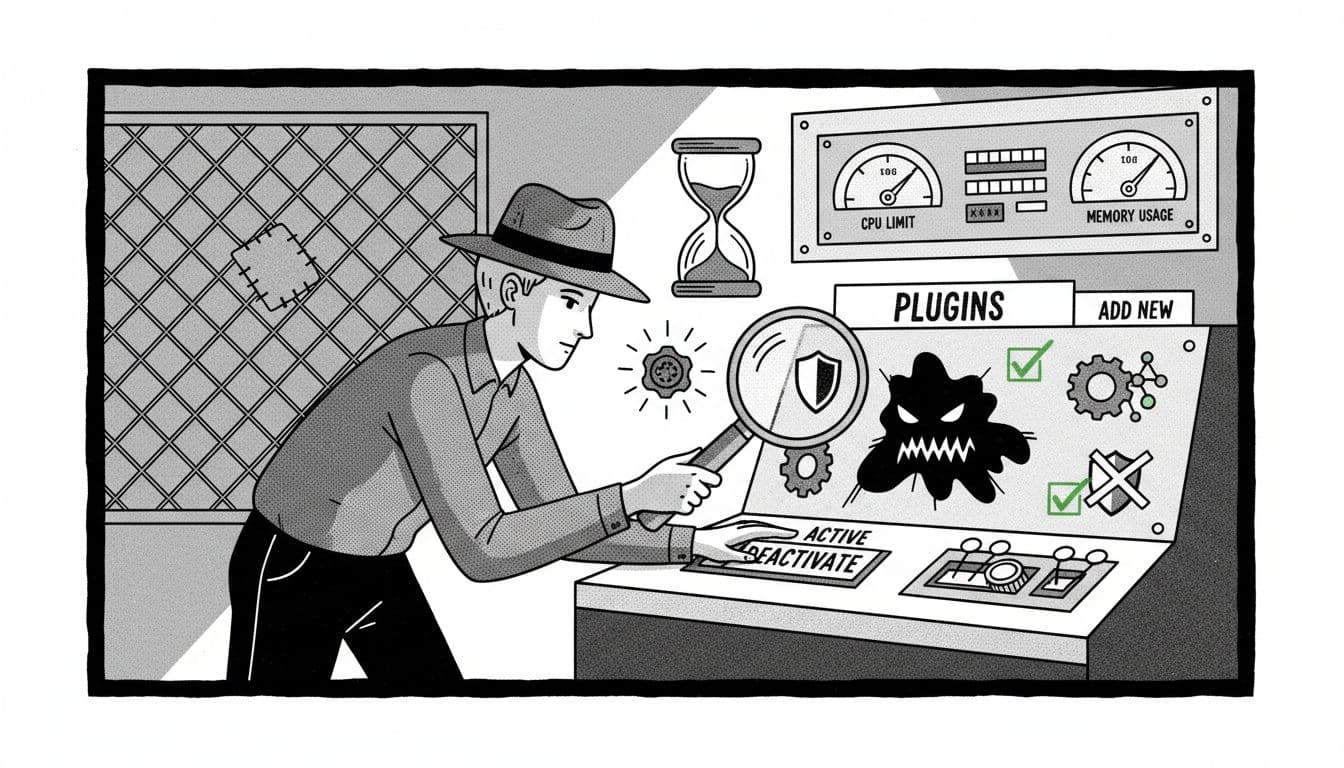
Sometimes I raise limits and the error still shows up. Before diving into plugin checks and other culprits, I use the WordPress Site Health Tool to verify the current limits assigned to any PHP script running on the server. While some tutorials suggest adding code to the functions.php file or a child theme, it is generally better to fix the server limits directly.
Plugin or theme conflict is a frequent one. If I can still access wp-admin, I temporarily deactivate plugins (or use a “safe mode” style approach with a troubleshooting plugin). If I can’t access wp-admin, I rename the plugins folder via SFTP/FTP from plugins to plugins.off, log in, then rename it back and activate plugins one by one. It’s slow, but it gives a clear answer.
Security rules (WAF/mod_security) can also cause this exact message, especially when uploading ZIPs or importing data. If the error only happens on one specific plugin ZIP (and others upload fine), I treat that like evidence. I check host logs if I have them, or I ask support to look for mod_security or WAF blocks tied to my IP and timestamp.
Permissions and disk space are sneaky. A full disk can break uploads in odd ways. Bad permissions in wp-content/uploads can make WordPress fail after the upload starts, which sometimes surfaces as a generic “expired” message.
When I’m stuck, I like reading real-world debugging threads where people post the exact server context and outcome. This Stack Overflow question on uploading a plugin triggering the expired link error is a good example of how often the fix is simply server limits plus the right method for that host.
Conclusion: my compact “expired link” checklist (plus prevention)
When that “expired” message pops up, I remind myself it’s usually a file size limit wearing a bad disguise. I start with the fast path, then I adjust limits and timeouts, and only then do I hunt conflicts and security blocks.
Quick checklist
- Confirm it fails during plugin/theme/media upload in wp-admin
- Try SFTP/FTP upload to
wp-content/plugins/orwp-content/themes/ - Raise upload limits like
upload_max_filesizeandpost_max_size(post should be bigger) - Increase
max_execution_timeandmax_input_timefor slow servers - Raise PHP
memory_limit, and setWP_MEMORY_LIMITif needed - For Nginx, check server settings like
client_max_body_sizeand related timeouts - If limits don’t help, disable plugins and test again
- Ask your host to check WAF/mod_security blocks and server logs
To prevent repeats, I keep plugin/theme zip files tidy (no “mega bundles”), do big changes on a staging site when I can, and update WordPress and PHP before I’m forced to during a rushed upload.