How I Fix “There Has Been a Critical Error on This Website” (WordPress Critical Error, Debug Log, Recovery Mode, Plugin Triage)
Table of Contents
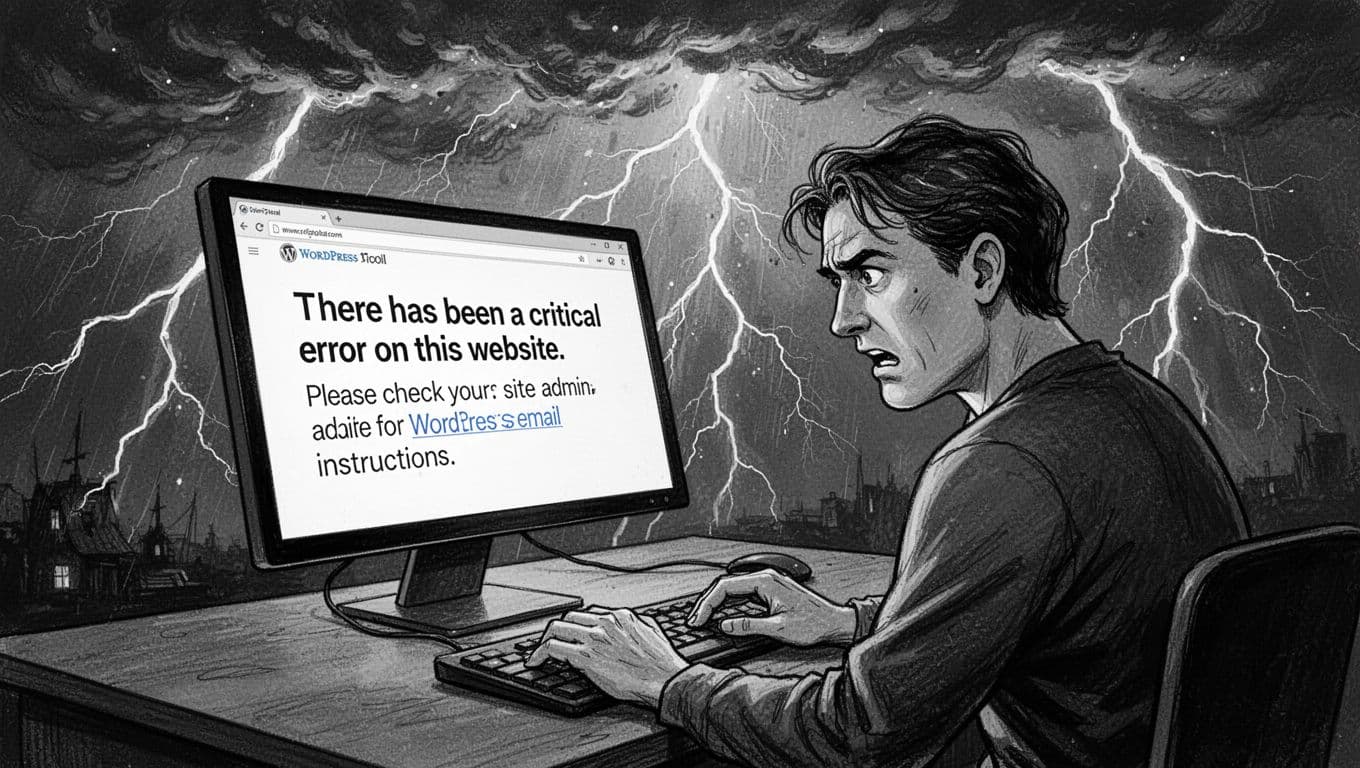
That “There Has Been a Critical Error on This Website” message always lands the same way, like your site just slammed the brakes on with no warning during a WordPress critical error. I’ve seen it after a plugin update, after switching themes, and once after a host bumped PHP without telling me.
The good news is the wordpress critical error is usually fixable without rebuilding anything, best diagnosed on a staging site to avoid downtime on a live production environment. The trick is staying calm and doing the steps in the right order: get back into the wp-admin area, read the real error, then isolate what caused it.
Below is my go-to workflow, the one I use when I need the fastest path back to a working site.
Step 1: Use WordPress Recovery Mode to get back into wp-admin
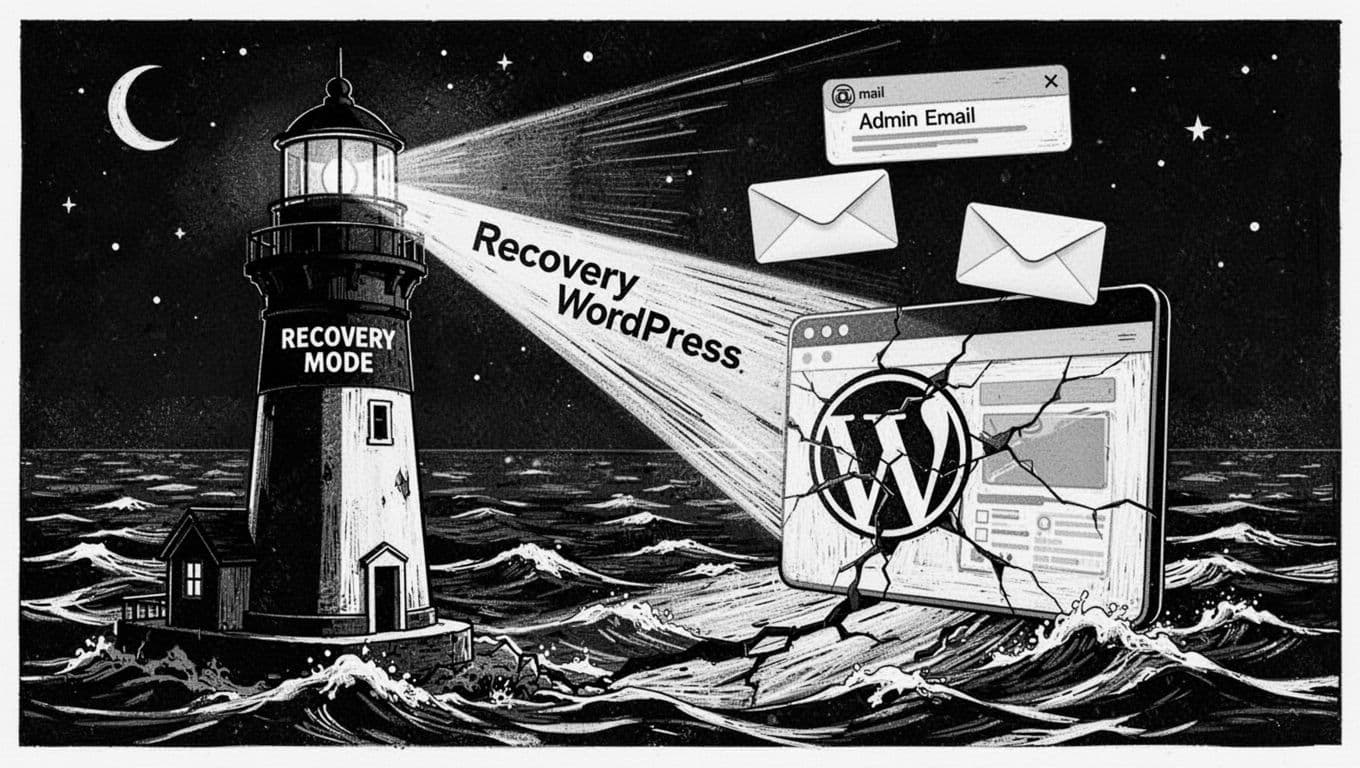
When WordPress hits a fatal PHP error, it often sends a technical issue email to the site admin with a special Recovery Mode link. If you have that email, you’re in the fast lane.
Here’s what I do first:
- Check the admin inbox for the recovery email, then spam and promotions. The subject usually mentions “Your Site is Experiencing a Technical Issue.”
- Click the Recovery Mode link, log in, and WordPress will usually show which plugin or theme triggered the crash.
- Deactivate or roll back that item immediately, then reload the front end in a private window.
If you don’t get the email, it doesn’t mean you’re stuck. It just means WordPress can’t reach your admin address, or email isn’t configured well on the server. Liquid Web has a solid plain-English breakdown of what this error is and why it appears in the first place, which can help you sanity-check what you’re seeing: what the “critical error” message means.
No Recovery Mode email and you can’t access wp-admin? I switch to manual recovery:
- Hosting File Manager: Most hosts include one, even when FTP/SFTP feels like a hassle.
- FTP/SFTP: If you have it, great. If not, File Manager is enough for the steps below.
At this stage, my goal is simple: restore wp-admin access so I can work safely, not poke at random settings while the site is down. Core files are usually not the issue at this stage but need to be kept in mind.
Step 2: Turn on a debug log and read what actually broke
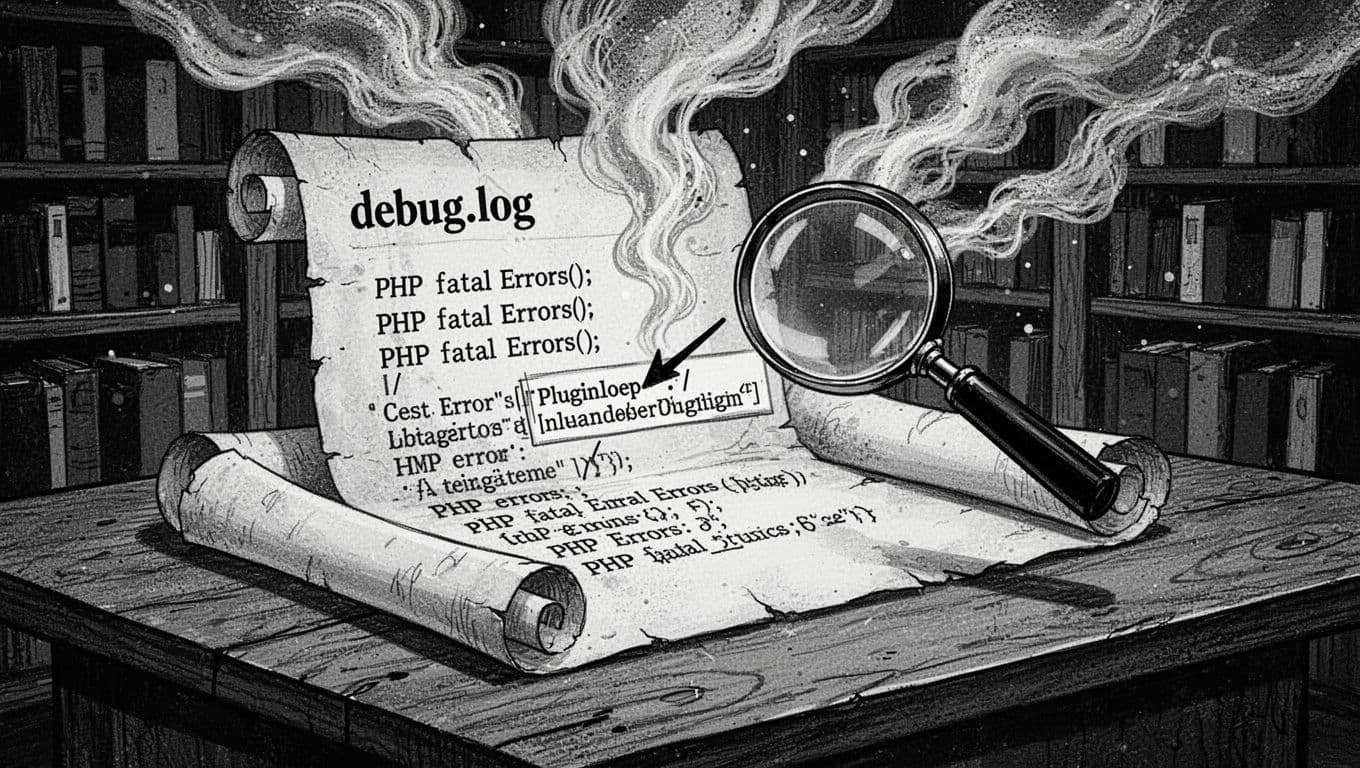
The WordPress critical error message is generic on purpose. The real answer is in the logs.
When I can reach my files, I locate the wp-config.php file in the WordPress root folder, open wp-config.php, and set these values by editing it with plain text edits:
WP_DEBUGtotrueWP_DEBUG_LOGtotrueWP_DEBUG_DISPLAYtofalse
That last one matters because I don’t want raw error messages printed to visitors. With WP_DEBUG and WP_DEBUG_LOG enabled, WordPress writes the details to wp-content/debug.log.
Then I refresh the page that triggers the crash (home page, a specific post, wp-admin, whatever causes the failure). After that, I open wp-content/debug.log (via FTP, cPanel File Manager, or similar) and look for error messages like the first “PHP Fatal error” or “Uncaught Error.” The line right above it often names the plugin, theme, or file. If you can access the dashboard by then, check Site Health for additional logs and info.
Here’s a quick way I interpret the usual suspects, including common PHP memory limit issues:
| What I see in the log | What it often means | What I do next |
|---|---|---|
Allowed memory size exhausted | PHP memory limit too low or a runaway plugin | Disable heavy plugins, raise the PHP memory limit if possible |
Call to undefined function | Version mismatch (plugin expects newer PHP or WP) | Check PHP version, update, or roll back plugin |
Class not found in a plugin path | Plugin conflict or incomplete update | Re-upload plugin, then triage conflicts |
If the log hints at PHP compatibility, I confirm my server’s PHP version. This takes two minutes and saves a lot of guessing: check your WordPress PHP version.
If debug.log stays empty, I check the host’s server logs next (often under “Error Logs” in cPanel or the host dashboard). Some crashes happen before WordPress can write a fatal error.
Step 3: Plugin triage (and theme triage) to isolate the culprit fast
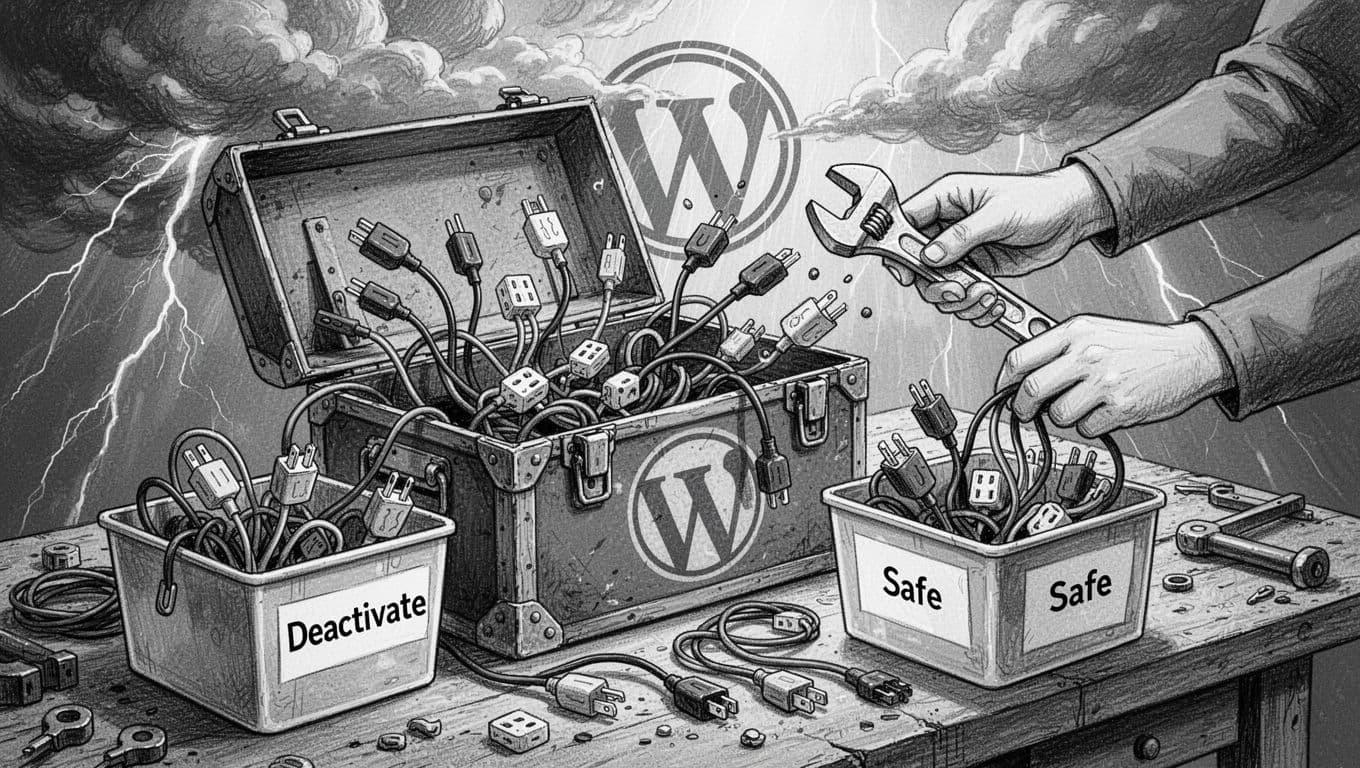
When the logs aren’t obvious, I stop trying to be clever and do clean plugin triage. Think of it like flipping breakers in a house. One circuit is overloaded, you just need to find which one, especially in a plugin conflict.
The quickest manual plugin reset (no wp-admin needed)
In File Manager or FTP:
- Go to
wp-content/ - Rename the
pluginsfolder toplugins.off
That instantly deactivates all plugins. If the site loads again, I know it’s a plugin conflict, not core. Complex plugins like WooCommerce often trigger these issues due to high resource demands or a low PHP memory limit.
Next, I recreate a new empty folder named plugins, then move plugins back in one at a time from plugins.off into the new plugins folder, refreshing the site after each move. When the error returns, the last plugin moved is the prime suspect (watch for WooCommerce, as it can clash with other extensions during this process).
If you have SSH access, WP-CLI is even faster for this kind of isolation. I keep this guide bookmarked because it’s a time-saver when the dashboard is unusable: use WP-CLI to disable plugins remotely.
Don’t forget the theme
If deactivating plugins doesn’t fix it, I do the same thing for themes:
- Rename the active theme folder inside
wp-content/themes/(for examplemytheme.off) - WordPress should fall back to a default theme if one exists
If that fixes it, the theme has the fatal error, often in functions.php or a custom integration (WooCommerce themes are notorious for this when paired with outdated plugin versions).
One more gotcha: some sites have “must-use” plugins in wp-content/mu-plugins/. Those don’t show in the normal plugins list, and they stay active even if you rename plugins/. If the log points there, I review that folder too.
For a little extra confirmation during cleanup (especially if I’m writing a quick safety check in a custom plugin), I’ll reference this: is_plugin_active function guide.
If the error persists after plugin triage, try a database repair using phpMyAdmin. Access your database, select the tables, and choose “Repair table” from the dropdown; this can resolve corruption linked to heavy plugins like WooCommerce without deeper WP-CLI intervention.
If you want another detailed walkthrough to compare against your situation, Wisdmlabs has a practical recovery path that lines up with what I do in real site emergencies: step-by-step critical error recovery guide. If triage still fails across plugins, themes, and database, consider reinstalling core files to rule out corruption.
Conclusion: Get the site up first, then fix the cause
The fastest way through a WordPress critical error—like seeing “There Has Been a Critical Error on This Website”—is Recovery Mode if you have it, Debug log if you don’t, then plugin and theme triage to isolate the exact trigger. Once the site is stable again (especially complex ones running WooCommerce), I update carefully (one change at a time), keep backups, always use a Staging site for updates to prevent future Error messages, and avoid bulk-updating plugins on a live site without a rollback plan. If your site just crashed today, start with access and evidence for this manual recovery, then make fixes you can explain later.