
How to Enable AVIF Images in WordPress (Server Support, Plugins, and Safe Fallbacks)
Table of Contents
The first time I tried to enable AVIF WordPress support on a busy site, I expected a simple win, smaller AVIF images in, faster pages out with better Largest Contentful Paint (LCP). Instead, I got a quiet failure: uploads worked, but some thumbnails never showed up, and a few browsers grabbed the wrong format.
As one of the next-gen image formats, AVIF is like shipping your AVIF images in a tighter box through superior image compression. It usually arrives smaller, but only if the whole route supports the box size, the label, and the handoff. In WordPress, that route includes core support, your server image libraries, your theme output, and whatever plugin or CDN is doing the conversion.
Here’s how I set AVIF up in a way that’s fast, safe, and easy to roll back.
What WordPress 6.5 AVIF Support Really Covers in 2026
As of January 2026, WordPress can accept AVIF uploads in core (it has for a while), and the experience improved across recent releases. The cleanest public reference I point people to is the core announcement that started the broader rollout: WordPress 6.5 AVIF support details.
But “WordPress supports AVIF” can mean a few different things in real life:
- Upload support: The Media Library will let you upload AVIF images if your install and server allow it.
- Image editing and resizing: WordPress creates intermediate sizes (thumbnails, medium, large), including metadata preservation for EXIF data. That only works if your server’s image stack can read and write AVIF images.
- Automatic conversion: Core does not automatically convert your JPEGs and PNGs into AVIF, one of the leading next-gen image formats. You need a plugin, a build pipeline, or a CDN for that.
- Serving AVIF with fallbacks: Even if you have AVIF files, you still need a way to serve them only to browsers that support them, while sending WebP or JPEG to everyone else.
Real-time verification matters here because hosts change PHP modules, ImageMagick builds, and container images without warning. Also, plugins that “served AVIF” last month might switch approach after an update. I always check again before I push to production.
Confirm server support (and fix it if it’s missing)
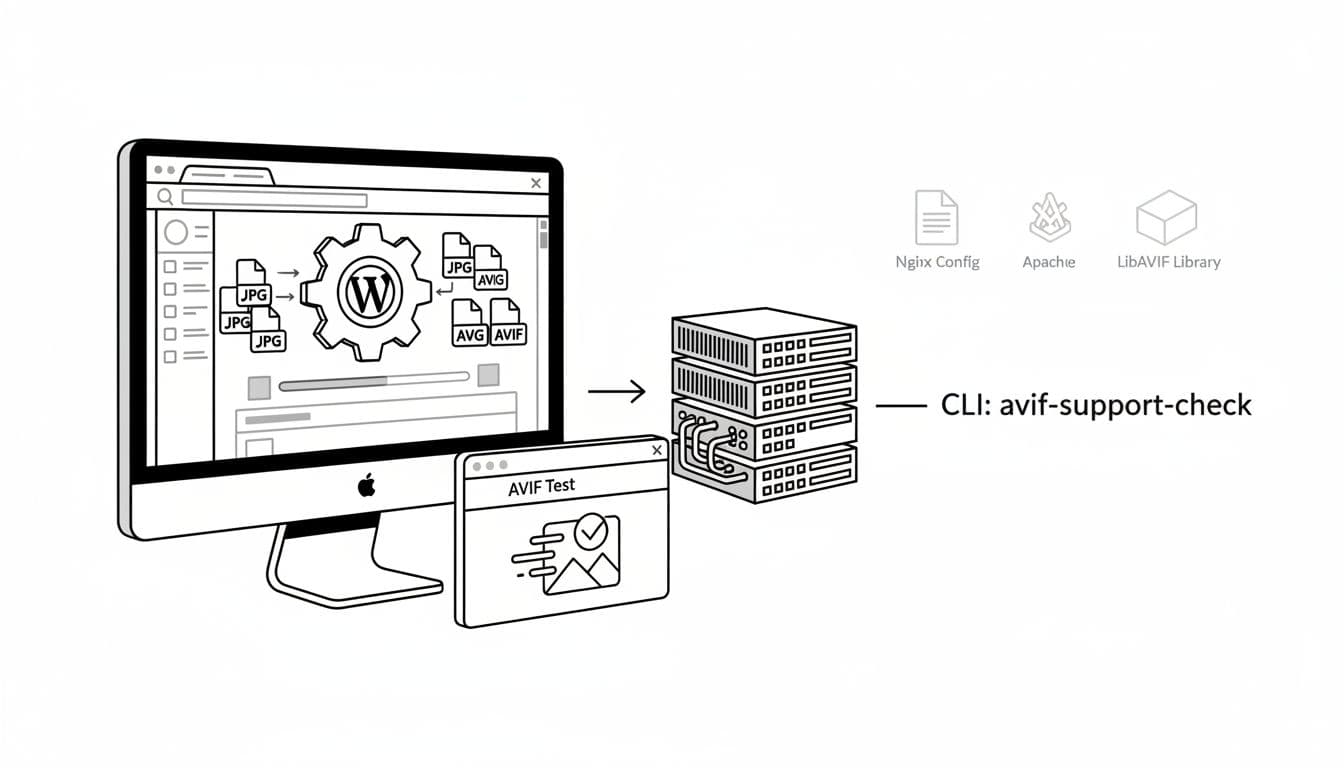
Before I touch plugins, I confirm the server can actually process AVIF. The two usual paths are Imagick PHP extension (common on managed hosts) and GD Library (often compiled into PHP 8.1). AVIF support depends on how they were built, not just whether they exist.
Here are checks I run (swap in what fits your setup):
- In WordPress Admin, I open Tools, Site Health as the primary WordPress diagnostic tool and look for the image libraries section. If AVIF is missing, that’s my first red flag.
- With WP-CLI available, I run WP-CLI commands:
wp --infoandwp core version. - On Linux, I check installed tooling:
php -m | grep -i imagickphp -m | grep -i gdconvert -version(ImageMagick CLI, if installed)ffmpeg -version(optional, but handy on custom stacks)
If I’m on Nginx, I also make sure AVIF MIME types are configured (they should map .avif to image/avif). On Apache, I confirm the server knows image/avif as a content type.
A simple Apache pattern (used by a lot of “convert and serve” plugins) is rewriting to an .avif when the browser sends the right Accept header. The idea looks like this:
RewriteEngine OnRewriteCond %{HTTP_ACCEPT} image/avifRewriteCond %{DOCUMENT_ROOT}/$1.avif -fRewriteRule (.+).jpg$ $1.avif [T=image/avif,L]
I don’t paste rewrite rules blindly anymore. Caching layers can complicate this, especially if a CDN caches the first variant it sees. If you use a CDN, confirm it varies cache by Accept (or uses its own image format negotiation) before relying on header-based rewrites.
Enable AVIF in WordPress safely (plugins, fallbacks, and rollout)
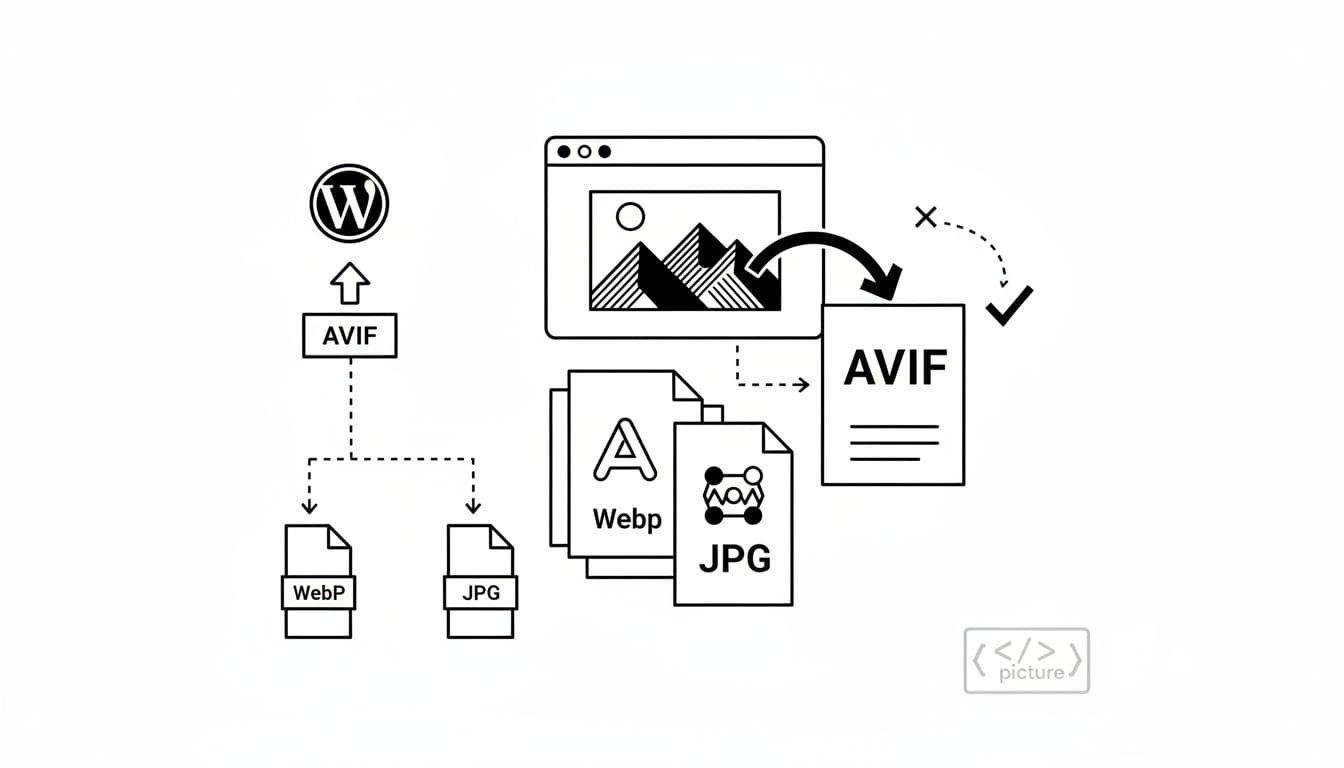
When I’m choosing how to serve AVIF images, I decide based on two questions: “Where do I want conversion to happen?” and “How much control do I need over fallback images?”
Plugin or CDN: how I decide
- If I want simple setup and less server CPU, I look at image optimization plugins that can use an external service or a conversion network. If you’re comparing options, this roundup is a helpful starting point: AVIF plugins to optimize WordPress images, or alternatives like Imagify.
- If I want local processing and full data control, I stick to plugins that convert on my server (I choose lossy compression for smaller file sizes or lossless compression to preserve original quality, but I make sure my hosting plan can handle the extra CPU, especially on bulk conversion).
- If I’m already on a strong CDN that does image optimization, I prefer format negotiation at the edge. It reduces origin complexity, but I still keep a clean fallback path.
For a plugin-first approach, I’ve had good results with image optimization plugins that explicitly handle AVIF images + fallback images serving. For example, AVIF Local Support Plugin focuses on adding <picture> output and can fit well if you want conversion plus theme-safe delivery. If you’re in the Elementor ecosystem, Image Optimizer (WebP or AVIF conversion) is another route, especially when you want the plugin to manage optimization and next-gen formats together.
No matter which plugin you choose, I treat it like a moving part. I check the plugin’s changelog, last update date, and whether it supports my exact stack (Apache vs Nginx, Imagick vs GD). That part can’t be “set and forget” in 2026.
Safe fallback images: the picture element pattern I trust
Even with strong browser support, fallback images still matter. Older browsers, some embedded webviews, and odd caching paths can still trip you up.
This is the basic shape I like, because it’s explicit and boring (boring is good in production), stacking AVIF first, then WebP, then JPEG and PNG:
<picture>
<source type="image/avif" srcset="path/to/image.avif">
<source type="image/webp" srcset="path/to/image.webp">
<img src="path/to/image.jpg" alt="Descriptive alt text" loading="lazy">
</picture>
Many AVIF plugins generate something like this automatically using the picture element. If yours doesn’t, I treat that as a warning sign. Relying only on rewrites can work, but the picture element gives you more predictable behavior when caches, themes, and page builders get involved.
Quick-start checklist and cautious rollout plan
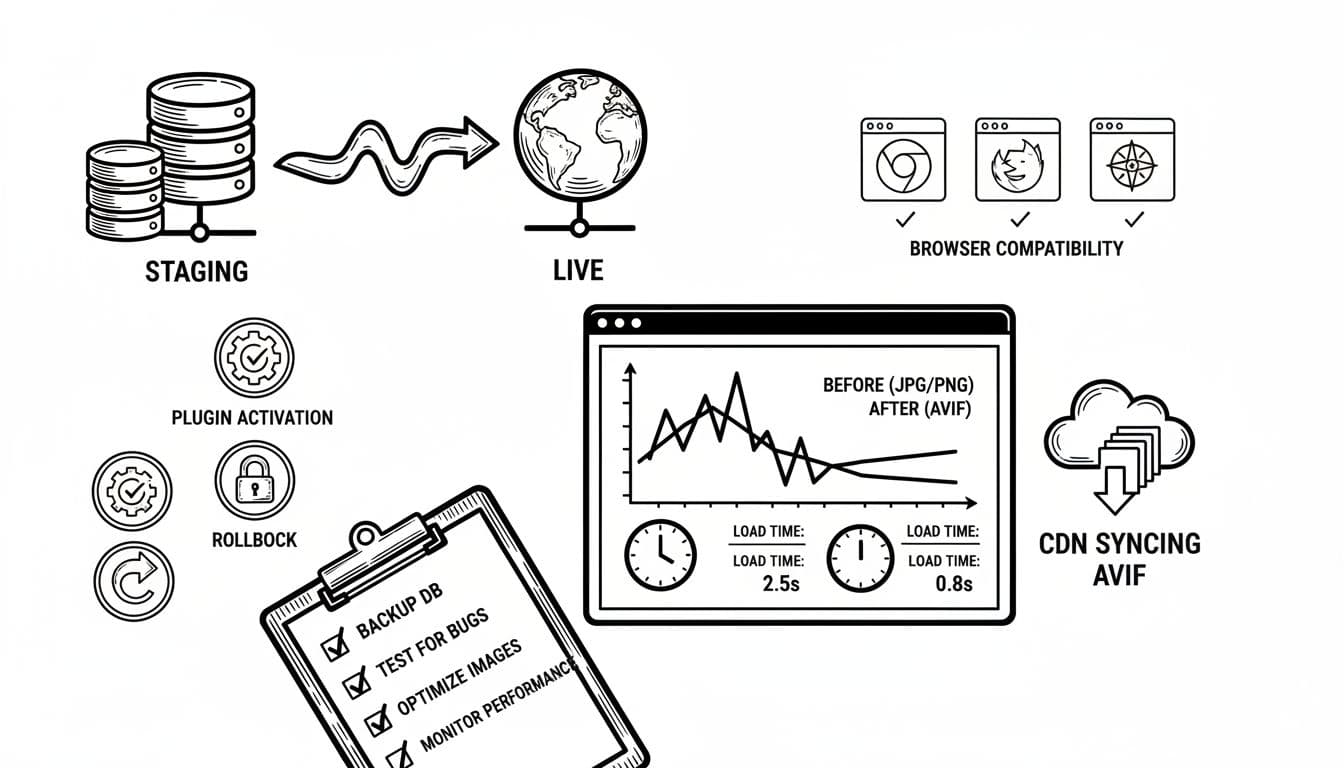
Here’s the tight process I follow so I don’t break image delivery on a Friday.
Quick-start checklist (staging first):
- Confirm WordPress is up to date and AVIF images uploads are allowed.
- Verify Imagick or GD has AVIF support on the server.
- Install one AVIF plugin, not two, and disable overlapping image features elsewhere.
- Convert a small test set (10 to 20 images), then check the front-end HTML output.
- Test on at least one Safari device, one Chromium browser, and Firefox.
- Confirm your CDN and page cache aren’t mixing formats between users.
Cautious rollout plan (with rollback):
- Roll out AVIF on staging, then push the same config to production.
- Enable conversion for new AVIF images uploads first, then schedule bulk conversion off-peak.
- Monitor Core Web Vitals using PageSpeed Insights, image 404s, and server CPU during conversion.
- Keep originals and don’t delete JPEGs yet.
- If something goes sideways, rollback is simple: deactivate the plugin, purge caches, and confirm JPEG delivery returns.
Conclusion
When AVIF is set up right, it feels like swapping heavy boxes for padded envelopes. Pages load faster, and your image library stays future-friendly. The trick is treating fallbacks and server support as first-class requirements, not optional extras. If you start on staging, test real browsers, and keep a rollback path, AVIF images outperform JPEG and PNG or even WebP as a next-gen format, delivering a safe upgrade instead of a risky experiment while yielding better scores in PageSpeed Insights.