How to Disable WordPress Emoji Scripts for Faster Page Loads
Table of Contents
The last time I audited a “pretty fast” WordPress site for site performance, one tiny hitch kept showing up like a squeaky wheel. Not a giant image. Not a bulky slider. It was the emoji detection script, a feature added back in WordPress 4.2.
If you want to disable WordPress emojis to speed up your site, you’re usually chasing a small win, but a real one. You drop an extra request, remove a bit of inline JavaScript, and avoid a page-wide scan that doesn’t help most sites in 2026.
I’ll show you what WordPress is loading, how to shut it off safely (WordPress 6.x and up), and how I verify the change without guesswork.
What WordPress emoji scripts actually do (and why they can slow things down)

By default, WordPress adds emoji support to help older browsers render emoji characters consistently. The key piece you’ll notice in performance tools is the file:
wp-emoji-release.min.js
On the front-end, WordPress also prints a small inline script in the document head. That script checks emoji support, then conditionally loads the emoji JS. In practice, many sites still pay the cost of that inline logic, and often the request too, even if nobody uses emojis. Removing this code bloat makes your site more GDPR friendly and improves visitor privacy by disabling external DNS prefetching to s.w.org.
On modern browsers, the “fix” part rarely matters. Most visitors already have native emoji fonts. So for a typical blog, business site, or content-heavy WordPress install, emojis become a little backpack of rocks your pages carry everywhere.
That said, I don’t treat this as a magic button. It’s one brick in a bigger performance wall. WordPress core has been steadily improving front-end speed (the core team even publishes a performance field guide for each release, like the WordPress 6.9 Frontend Performance Field Guide), but trimming unused defaults still helps.
Gotcha: disabling emoji scripts does not remove emoji characters from your posts. It mostly removes WordPress’ extra detection code and fallback assets.
If your audience includes very old browsers, test first. Otherwise, this is usually safe.
The safest way to disable WordPress emojis (code, with clear explanations)
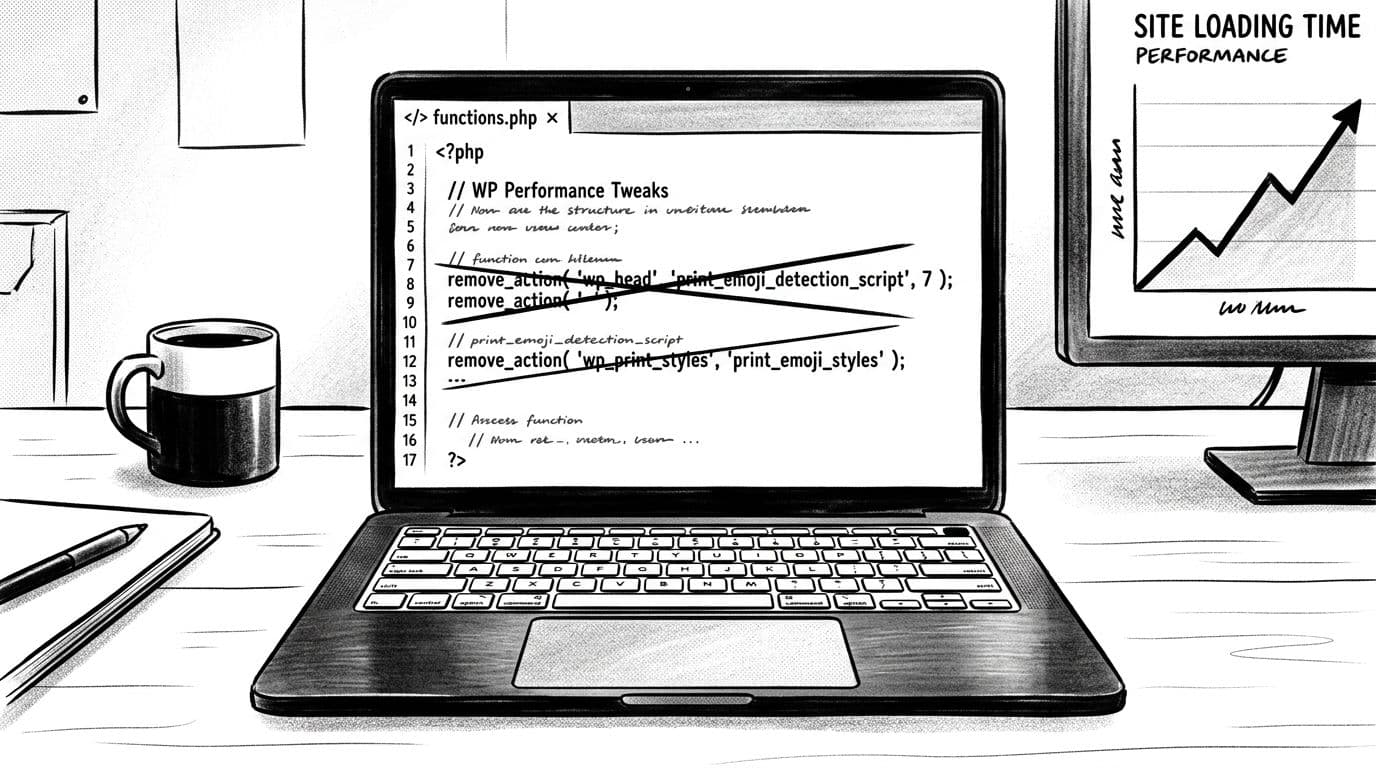
When I do this on my own sites, I prefer adding a code snippet to functions.php or my theme’s functions.php over installing another WordPress plugin. It’s simple, and it’s easy to undo.
Safety first (so you don’t break anything)
Before adding the snippet:
- Back up (or at least have a restore point from your host).
- Add the code to a child theme (not the parent theme), or use an MU-plugin so theme updates won’t wipe it.
- If possible, test on staging first.
If you want the longer, step-by-step version with a plugin option too, I keep a dedicated guide here: step-by-step guide to disable WordPress emojis.
Drop-in snippet (front-end + admin, WordPress 6.x+)
<?php
/**
 * Disable WordPress emoji scripts and related extras.
 * Safe for WordPress 6.x+.
 */
add_action( 'init', 'smartwp_disable_emojis_2026' );


function smartwp_disable_emojis_2026() {


	// 1) Remove the inline emoji detection script from the front-end <head>.
	remove_action( 'wp_head', 'print_emoji_detection_script', 7 );


	// 2) Remove the emoji detection script from the admin area.
	remove_action( 'admin_print_scripts', 'print_emoji_detection_script' );


	// 3) Remove emoji styles on the front-end and in wp-admin.
	remove_action( 'wp_print_styles', 'print_emoji_styles' );
	remove_action( 'admin_print_styles', 'print_emoji_styles' );


	// 4) Stop WordPress from converting emojis in feeds and emails.
	remove_filter( 'the_content_feed', 'wp_staticize_emoji' );
	remove_filter( 'comment_text_rss', 'wp_staticize_emoji' );
	remove_filter( 'wp_mail', 'wp_staticize_emoji_for_email' );


	// 5) Remove the TinyMCE emoji plugin (classic editor / legacy cases).
	add_filter( 'tiny_mce_plugins', 'smartwp_disable_emojis_tinymce' );


	// 6) Disable the emoji SVG URL (prevents related loading paths).
	add_filter( 'emoji_svg_url', '__return_false' );
}


function smartwp_disable_emojis_tinymce( $plugins ) {
	if ( is_array( $plugins ) ) {
		return array_diff( $plugins, array( 'wpemoji' ) );
	}
	return array();
}
Here’s how I think about it:
- This code snippet disables emojis comprehensively; it uses
remove_action()to target specific hooks likeprint_emoji_detection_scriptandprint_emoji_styles, so WordPress stops printing emoji scripts and styles in the front-end and admin. - The
remove_filter()lines forwp_staticize_emojiprevent emoji conversions in RSS feeds and emails, so WordPress doesn’t do extra work there. - The TinyMCE step modifies
tiny_mce_pluginsto remove the wpemoji plugin; it’s mostly a “clean the corners” step, but I like including it for completeness. - The
emoji_svg_urlfilter shuts off an emoji-related URL WordPress can reference.
If you only care about page loads for visitors, you can skip the admin removals (another use of remove_action()). I usually remove both, because I want wp-admin snappy too.
How I verify the change (and what to check if nothing happens)
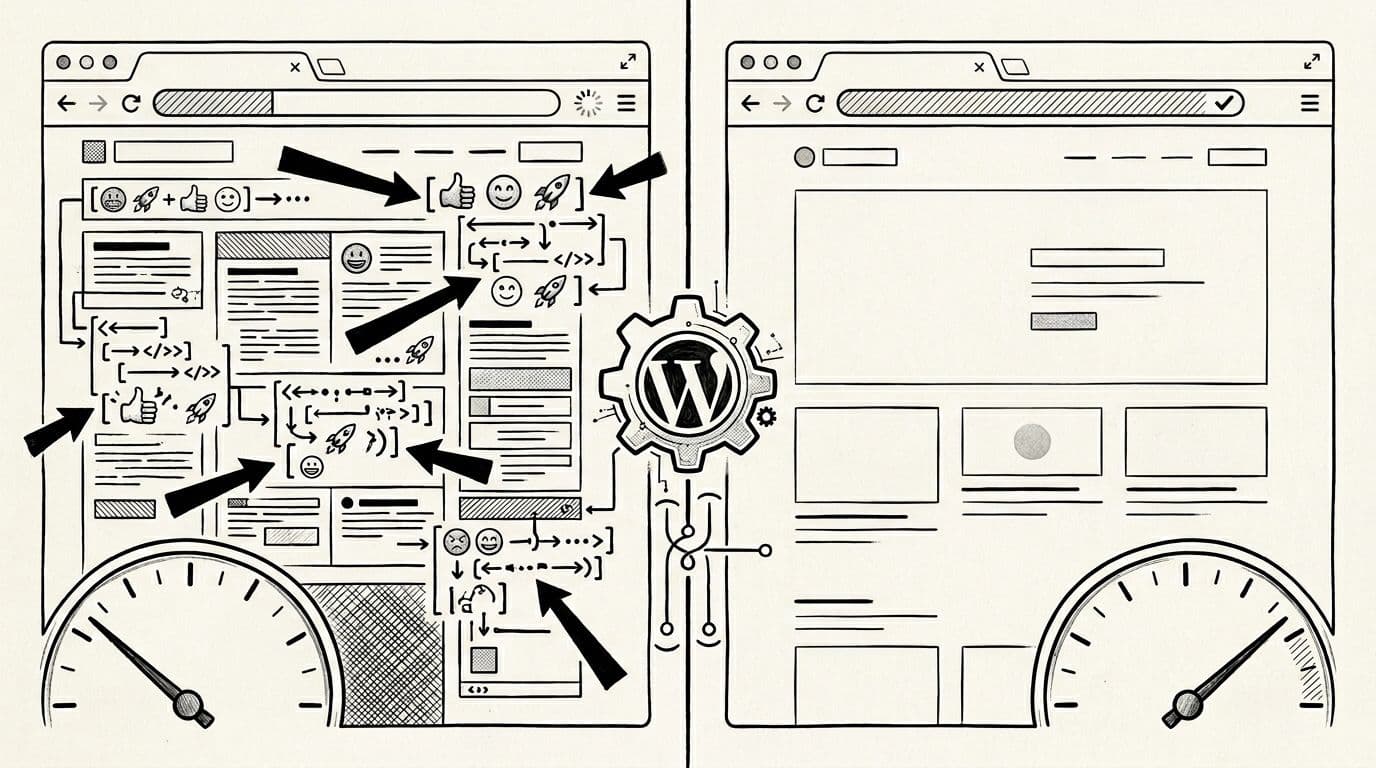
After I add the snippet, I don’t rely on vibes. I check the actual requests.
Before/after verification checklist
Use this quick list to confirm the win:
| Check | Before | After |
|---|---|---|
DevTools Network shows wp-emoji-release.min.js | Present | Gone |
View page source includes print_emoji_detection_script output | Present | Gone |
| PageSpeed Insights or Lighthouse “unminified/unused JS” notes affecting page speed | Sometimes flagged | Often reduced |
My usual flow is simple: open Chrome DevTools, go to Network, reload, then search for “emoji”. If your site uses caching, purge it first. Also clear any CDN cache for the page.
If the file still loads, one of these is usually the culprit:
- Performance plugins such as WP-Rocket (which has millions of active installs) have their own emoji toggle and it’s fighting your snippet.
- You added the code to the wrong theme file (common with parent vs child themes).
- A must-use plugin or custom code re-adds emoji actions later.
While you’re already cleaning up requests, I’d also look at other common slowdowns like render-blocking files and heavy images. I’ve had good results pairing emoji removal with eliminate render-blocking JavaScript and CSS and smart media handling like implement lazy loading for images, resulting in sites loading faster. For broader ideas, Oxygen’s team also shares a solid roundup in ways to speed up your WordPress website.
Quick FAQ
Will this break emojis in my posts?
No. Your emoji characters still show up. You’re removing WordPress’ extra code for detection and fallback scripts.
Should I disable emojis on every site?
If you care about performance, usually yes. Still, I test if a site targets older devices or browsers.
Is a plugin OK instead of code?
Sure. Check the WordPress dashboard; I only avoid plugins when the feature is one small toggle I can keep in an MU-plugin.
Does this help Core Web Vitals?
It can, because you’re trimming work in the head and cutting a request. The impact varies by site.
Conclusion
Emoji scripts are like packing a raincoat for a desert hike. It’s not the heaviest item, but you feel it after a few miles.
If you want to disable WordPress emojis, add the snippet in a safe place (child theme or MU-plugin), clear caches, and verify the request is gone. Then stack this disable emojis win with bigger fixes as part of your site performance strategy, and your site starts to feel lighter, click by click.