How to Create a Custom WordPress User Role With Proper Permissions
Table of Contents
The first time I handed a client Editor or Administrator role access, I felt like I’d given them keys to my whole house, not just the guest room. They didn’t mean harm, but they could publish anything, change categories, and delete posts. On a busy site, that’s how accidents happen.
A custom WordPress user role fixes that. I treat roles like I’m drawing a building plan: user permissions ensure each door gets the right lock, and each key opens only what it should. In this guide, I’ll show you how I plan user permissions, build a tiny plugin to create custom roles, adjust capabilities safely for site security, and clean up on uninstall.
Plan the role like a permissions architect (least-privilege first)
Before I touch code, I write down what this person actually needs to do with granular control. Not their job title, their tasks. For example:
- A “Content Steward” might edit existing posts and upload images, but never install plugins.
- A “Shop Assistant” might manage orders, but never touch site settings.
- A “Membership Moderator” might edit users in a limited way, but not delete them.
If you’re fuzzy on what WordPress ships with in terms of built-in roles, I keep this handy: WordPress user roles explained. It’s the quickest way to sanity-check what an Editor can do versus an Author role, Contributor role, or Subscriber role.
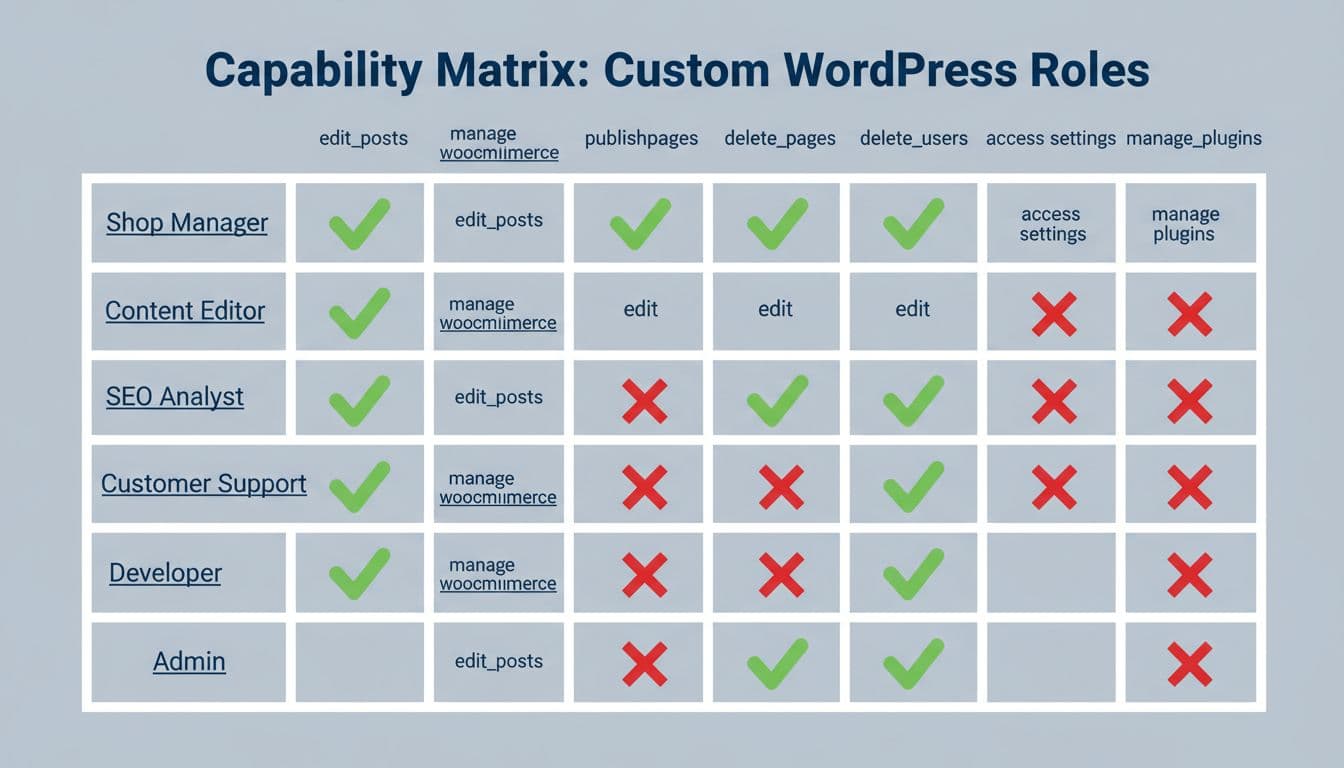
Caption: I like thinking in a simple allow/deny matrix before I pick capabilities.
Next, I choose the approach to assign user roles. If I’m building a one-off site, a UI plugin can be enough. If I’m shipping a repeatable setup (client template, multisite, product), I code it so it’s consistent.
Here’s a quick comparison to set expectations:
| Approach | Best for | Main risk |
|---|---|---|
| User Role Editor plugin | Quick changes on one site | Someone clicks the wrong box |
| Small custom plugin | Repeatable, reviewable permissions | You must test updates carefully |
If you want a UI while you learn, User Role Editor tools like PublishPress Capabilities can help you explore capabilities without writing code. I still prefer code for the “final blueprint” because I can review it like any other change.
The safest permission is the one you never grant. Start small, then add caps only when a real task fails.
Create the role in a small plugin (so it’s consistent and portable)
I put roles in a tiny WordPress plugin because roles live in the database. If you switch themes, I don’t want your permissions to disappear. Adding this to your theme’s functions.php risks losing it on theme changes; a separate WordPress plugin keeps it portable and consistent. The goal is simple: create the role on activation, then leave it alone unless you choose to update it.
Drop a folder at wp-content/plugins/smartwp-content-steward/ and add smartwp-content-steward.php with this PHP code:
<?php
/**
 * Plugin Name: SmartWP Content Steward Role
 * Description: Adds a least-privilege custom role for managing content.
 * Version: 1.0.0
 */

if ( ! defined( 'ABSPATH' ) ) {
    exit;
}

function smartwp_add_content_steward_role() {
    // Avoid overwriting if it already exists.
    if ( get_role( 'content_steward' ) ) {
        return;
    }

    add_role(
        'content_steward',
        'Content Steward',
        array(
            'read'                 => true,
            'edit_posts'           => true,
            'edit_published_posts' => true,
            'upload_files'         => true,

            // Intentionally NOT granted:
            // 'publish_posts'      => false,
            // 'delete_posts'       => false,
            // 'manage_options'     => false,
            // 'install_plugins'    => false,
        )
    );
}
register_activation_hook( __FILE__, 'smartwp_add_content_steward_role' );
I always include read. Without it, the user can get weird “you do not have permission” dead ends in the WordPress dashboard.
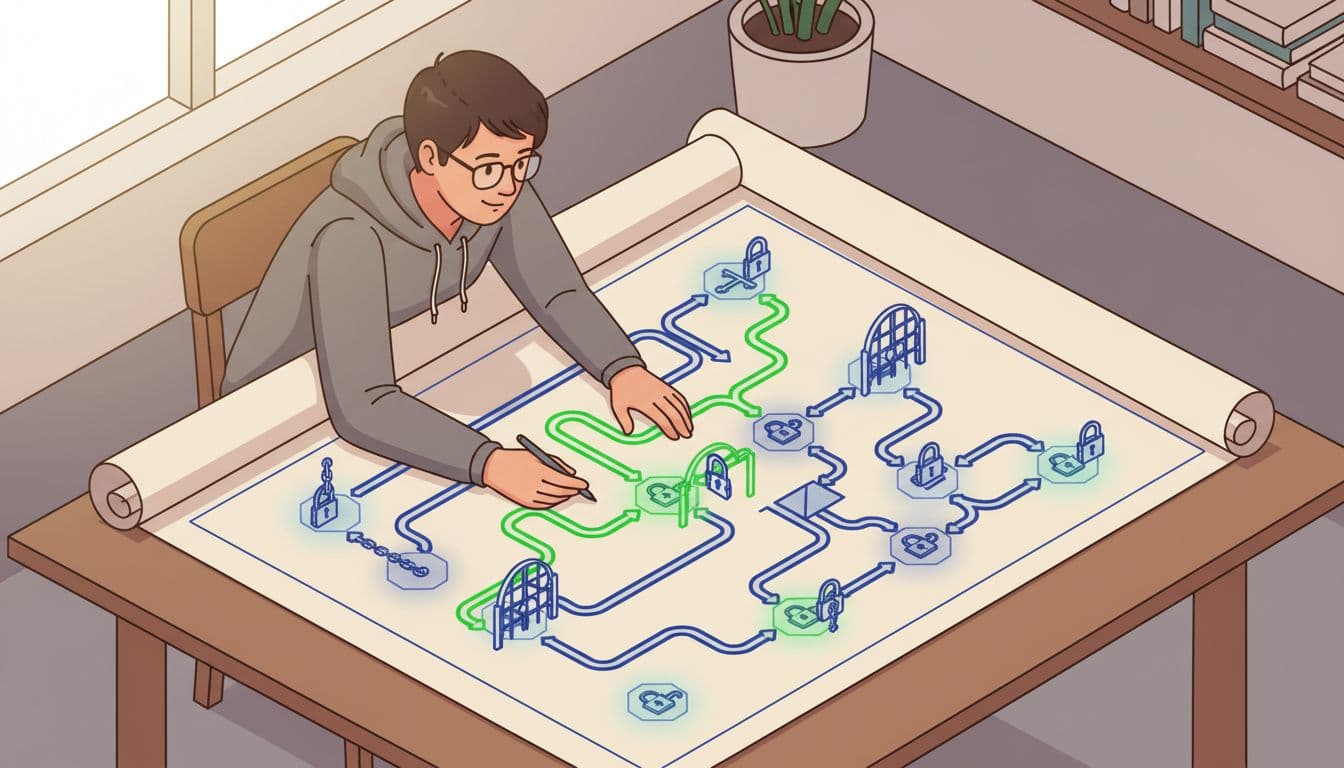
Caption: My mental model is always “keys and doors,” not “roles and boxes.”
Add or remove capabilities (without accidentally widening access)
After launch, the usual request is, “Can they edit pages too?” That’s normal. I handle capability changes in a controlled way, and I never change Administrator caps (or Super Admin in multisite setups) to “test something.”
Here’s a small snippet of custom code you can run in the same WordPress plugin (temporarily) to adjust capabilities. I typically trigger it once, confirm it worked, then remove the code to avoid repeated changes:
function smartwp_update_content_steward_caps_once() {
    if ( ! current_user_can( 'manage_options' ) ) {
        return;
    }

    // Change this key when you want to run a new one-time update.
    $flag_key = 'smartwp_cs_caps_updated_v1';

    if ( get_option( $flag_key ) ) {
        return;
    }

    $role = get_role( 'content_steward' );
    if ( ! $role ) {
        return;
    }

    // Example: allow editing pages, still no publishing.
    $role->add_cap( 'edit_pages' );
    $role->add_cap( 'edit_published_pages' );

    // Example: explicitly remove anything you don't want lingering.
    $role->remove_cap( 'publish_pages' );
    $role->remove_cap( 'delete_published_posts' );

    update_option( $flag_key, 1 );
}
add_action( 'admin_init', 'smartwp_update_content_steward_caps_once' );
That “one-time update” pattern saves me from surprises on every page load. It also makes changes easy to track in git.
If you need inspiration on role patterns (like tying roles to content tools), I’ve found ACF’s guide to WordPress custom user roles useful for thinking through real site workflows.
Test safely, audit user capabilities, and remove the role on uninstall
I never build WordPress user roles on a live site first. I use staging, make a test user, and walk through the exact tasks they’ll do. Safe testing is especially critical for a multisite network or membership site. If something fails, I add one capability at a time. That’s the least-privilege loop in real life.

Caption: Testing a role feels like checking gates along a path. Open only the ones you need.
Quick capability audit snippet (so you can verify access)
When I’m debugging, I add quick checks in an admin-only page or temporary mu-plugin. The point is to audit user capabilities and confirm what WordPress thinks the user can do:
function smartwp_capability_audit() {
    if ( ! is_user_logged_in() ) {
        return;
    }

    $checks = array(
        'edit_posts',
        'publish_posts',
        'upload_files',
        'moderate_comments',
        'manage_options',
    );

    foreach ( $checks as $cap ) {
        error_log( $cap . ': ' . ( current_user_can( $cap ) ? 'YES' : 'NO' ) );
    }
}
add_action( 'admin_init', 'smartwp_capability_audit' );
Also, I keep a spare Administrator account that I don’t use day-to-day. That’s my emergency key.
Biggest gotcha: don’t test by reducing your own permissions. Use a separate test account, or you can lock yourself out fast.
Remove the role on uninstall (clean teardown)
Deactivation doesn’t always mean “delete everything.” Uninstall is the right place to remove the role, because it signals you’re done with the plugin. Since WordPress core stores roles in the database, using remove_role ensures a clean teardown.
Create wp-content/plugins/smartwp-content-steward/uninstall.php:
<?php
if ( ! defined( 'WP_UNINSTALL_PLUGIN' ) ) {
    exit;
}

remove_role( 'content_steward' );
If you prefer a UI to remove and tweak roles while you experiment, Custom Role Creator (CRC) is another simple option. I still recommend you document the final capability set somewhere, even if you click it together.
Conclusion
When I create custom roles, I’m really deciding where the doors are, and who gets keys. Start with the smallest set of user capabilities and user permissions, test on staging, then expand only when a real task demands it. Keep a backup Administrator role account, and treat role changes like any other production change: reviewable and deliberate. If you want, describe your use case and I’ll help you sketch the least-privilege capability set before you write a line of code.