How I Set Up a Custom WordPress Dashboard for Clients and Guest Authors (Widgets, Shortcuts, and Admin Cleanup)
Table of Contents
The first time I handed a client their WordPress login page, they stared at the Dashboard like it was a cockpit full of unlabeled switches. They didn’t need more options. They needed a custom WordPress dashboard (the right options, in the right places, with fewer ways to break things).
That’s why I build a custom WordPress dashboard for almost every client project now. I treat wp-admin like a calm control room prioritizing user experience: only the panels they’ll touch, clear shortcuts for common tasks, and a “clean floor” so nothing feels intimidating.
Below is the exact approach I use in 2026, with safe defaults, role-based tweaks, and a mix of code and optional plugins.
Start with WordPress user roles and least-privilege (clients vs guest authors)
Before I move a single widget, I decide who’s flying the plane.
For most sites, I separate permissions for “site ownership” from “content contribution.” Clients often need to edit pages, upload images, and see basic site health. Guest authors usually need to write, save drafts, upload a featured image, then stop.
Here’s the mental model I use:
| User type | Typical role | What I allow by default | What I keep out of reach |
|---|---|---|---|
| Client (non-technical) | Editor role (sometimes Administrator on small sites) | Pages, posts, media, menus (sometimes), forms (if needed) | Plugin installs, theme switching, core settings |
| Guest author | Author (or Contributor if you want reviews) | Posts, media (optional), profile | Pages, plugins, settings, most tools |
Two practical rules keep things safe:
- Don’t “hide” power features from admins, because admins still need update and security visibility. Instead, remove clutter for non-admin roles.
- Use capabilities as the gate, not CSS tricks. If a user can’t access a screen, they shouldn’t even see the menu item.
On multisite, I also keep a hard line between Site Admin tasks and Network Admin tasks. Most client users never need the Network Admin at all, so I keep their experience site-level and simple.
If I’m unsure, I start with fewer permissions and add one capability at a time after a real request.
For more precise adjustments to these WordPress user roles, try the User Role Editor plugin as an alternative to manual tweaks.
Build a calm dashboard with the right widgets (and remove the rest)
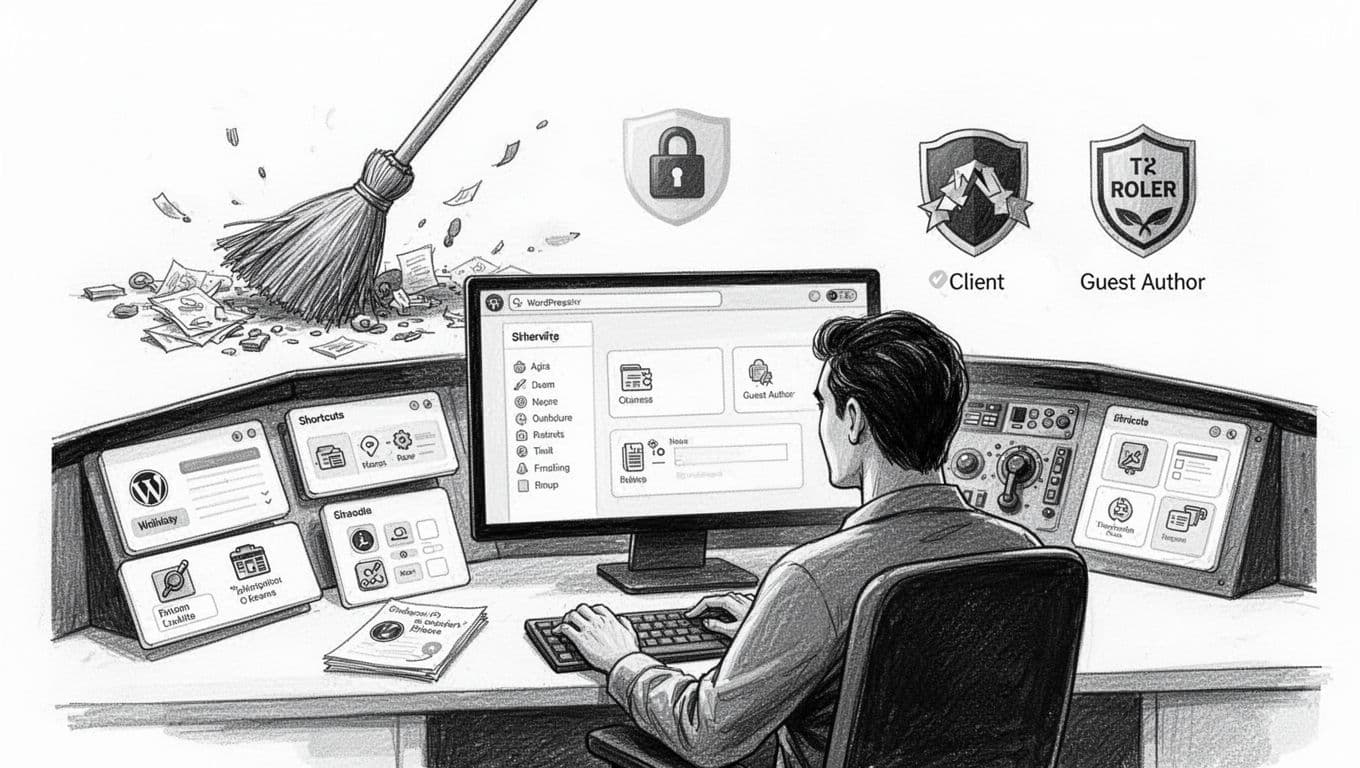
An AI-created illustration of a calm, “cockpit-style” WordPress admin with only the essentials visible.
I like to think of the custom WordPress dashboard as the “home screen” for momentum. If it’s noisy, people freeze. If it’s clear, people publish.
Remove noisy Dashboard widgets (role-aware)
Most clients don’t need Events and News, Quick Draft, or random plugin panels. I remove them for non-admin roles, while leaving admins alone.
These lines can live in Functions.php (or better, a tiny site plugin):
add_action('wp_dashboard_setup', 'my_dash_cleanup');function my_dash_cleanup(){ if (current_user_can('manage_options')) return; remove_meta_box('dashboard_primary','dashboard','side'); remove_meta_box('dashboard_quick_press','dashboard','side'); }
I keep it gentle. If a plugin adds a useful widget (backups, forms, editorial), I leave it and remove the fluff around it.
Add one “Start Here” Dashboard widget that actually helps
My most-used addition is a single widget with three things:
- A short “what to do next” note (plain language).
- A couple of links (New Post, Media Library, Support tickets, Tutorial videos).
- A reminder about images (size, alt text, and captions).
I build it with a standard dashboard widget:
add_action('wp_dashboard_setup', 'my_dash_widgets');function my_dash_widgets(){ wp_add_dashboard_widget('my_start_here','Start Here','my_start_here_cb'); }function my_start_here_cb(){ echo '<p>Need to publish? Use Posts → Add New.</p>'; }
For accessibility, I keep the widget layout simple: real headings, short sentences, and links with clear labels. If someone uses a screen reader, this should feel like a tidy checklist, not a puzzle.
If you’d rather do this with a plugin, I’ve had decent results with WP Adminify’s dashboard customization options when I need white-label controls fast.
Add shortcuts that feel obvious (menus, admin bar, and quick links)
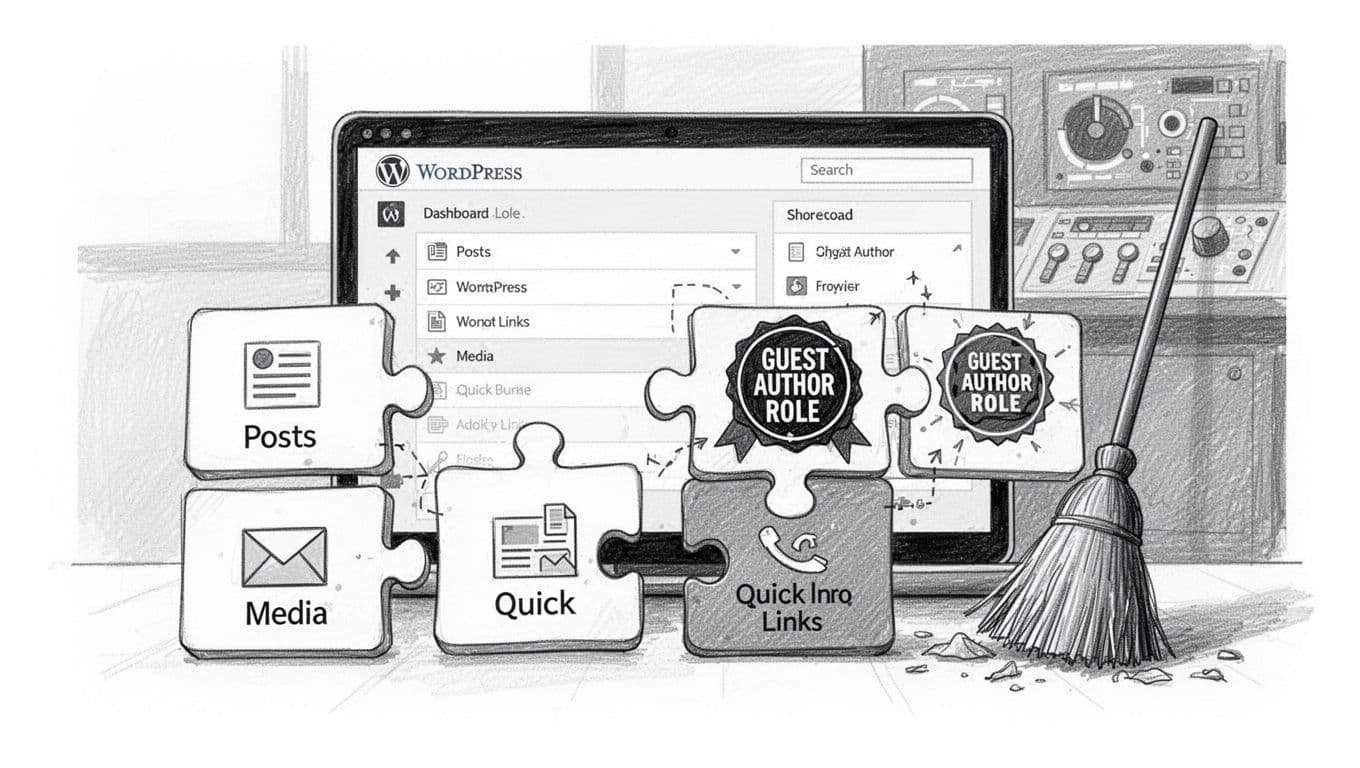
An AI-created illustration of dashboard tiles and shortcuts snapping into place.
After widgets, I focus on “time-to-task.” If guest authors log in to write, I want them writing within seconds.
My quick shortcut recipe
I usually add shortcuts in three places, in this order:
- Dashboard widget links (best for beginners). A custom dashboard layout often works best as a one column dashboard for maximum clarity.
- Admin menu cleanup (best for reducing wrong clicks).
- Admin bar links (best for power users).
For the Admin bar, I add a single node like “New Draft” for authors, and I keep the label plain:
Here are code snippets that can be used to tweak the Admin bar:
add_action('admin_bar_menu','my_admin_bar_links',100);function my_admin_bar_links($bar){ if(!current_user_can('edit_posts') || current_user_can('manage_options')) return; $bar->add_node(['id'=>'new-draft','title'=>'New Draft','href'=>admin_url('post-new.php')]); }
On editorial teams, I also add one shortcut to the editorial calendar or the content hub page (if the site has one). The trick is to pick one path and make it predictable, like the same button on the same microwave every time.
If you manage lots of sites, I keep maintenance out of the UI completely. I update from the command line, then the client never has to see the updates screen. This guide on WP-CLI commands for quick WordPress updates matches the workflow I use when I’m in “maintenance mode.”
Clean up the admin area without hiding important warnings
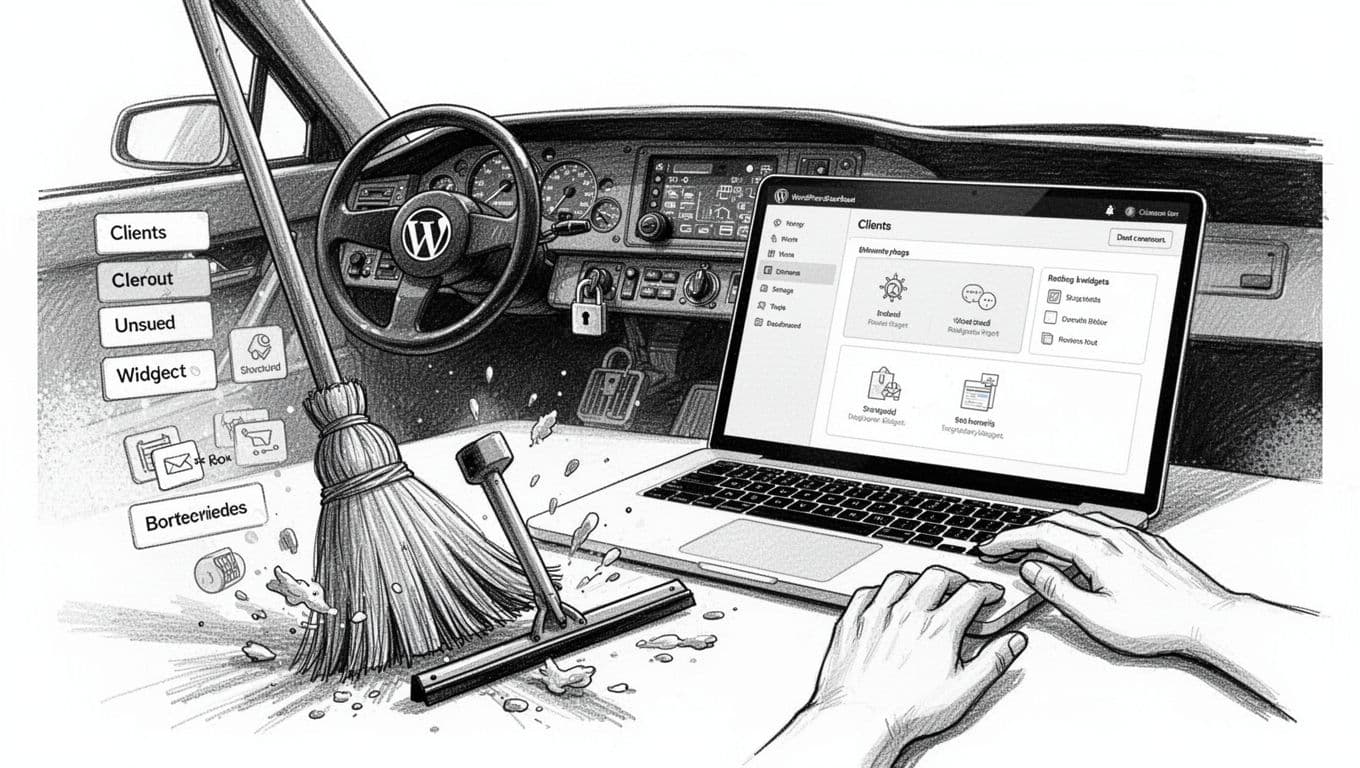
An AI-created illustration of admin cleanup, removing clutter while keeping the essentials.
Admin cleanup is where people often go too far. I’ve seen dashboards “cleaned” until users can’t find Media, and admins can’t see updates. That’s not a calm cockpit, that’s a cockpit with taped-over gauges.
Remove menus by capability, not by vibe
I remove menu pages for non-admin roles, but I keep WordPress defaults intact for admins.
A minimal pattern looks like this:
add_action('admin_menu','my_menu_cleanup',999);function my_menu_cleanup(){ if(current_user_can('manage_options')) return; remove_menu_page('tools.php'); remove_menu_page('plugins.php'); remove_menu_page('themes.php'); }
For guest authors, I also hide Pages and Comments on many sites, since they rarely need them. On the other hand, if comments matter to the workflow, I leave them visible and add one note about moderation rules in the “Start Here” widget.
For those who don’t want to use code, plugins like Admin menu editor or Adminimize provide easy alternatives. Users can check Screen Options or apply Custom CSS for further visual refinement. Using Admin Columns also makes Custom fields visible without cluttering the screen.
Keep update and security signals where they belong
I never block update notices for admins. If a client is an admin, they should see core and plugin updates. That’s part of owning a site.
For non-admin roles, WordPress already limits most update access. If a plugin throws noisy notices at authors, I handle it carefully. I only suppress non-critical plugin nags for non-admins, and I test in a staging site first.
White labeling and WordPress branding are important for a professional client feel. If you want a plugin path for white labeling and cleanup, White Label (custom admin and dashboard) can cover a lot with toggles. I still prefer code for small sites, because it’s easier to audit later.
For more plugin options I actually trust in 2026, I keep a running shortlist on SmartWP. When I’m building a client stack, I start from my own notes on best WordPress plugins for 2026 and pick only what the site will use.
If you want another perspective on the “client dashboard” idea, HostPapa has a straightforward walkthrough on creating a client dashboard in WordPress. I don’t follow every step, but it’s useful context for the bigger picture.
Closing: a dashboard your clients won’t fear
When I’m done, my goal is simple: the admin feels like a calm desk, not a busy workshop. The right widgets sit up front, the shortcuts match real tasks, and the risky parts stay behind proper permissions.
If you build one thing from this post, build the custom WordPress dashboard widget that tells users what to do next. That single panel can save hours of support email, and it helps people feel confident fast. A well-built custom WordPress dashboard even transforms the site into a true client portal. Finish the setup by customizing the WordPress login page with a login URL redirect for added security. As a final tip for user experience, adding a dark mode toggle can be a nice touch for clients.