
How To Optimize WordPress Core Web Vitals In 2026
Table of Contents
The first time I took Core Web Vitals seriously, it felt like flying a plane with fogged-up windows. I knew I was moving, but I couldn’t tell if I was headed toward a smooth landing or a mountain.
In 2026, the fog is gone. Google’s page experience signals, powered by Core Web Vitals, have matured, and the sites that feel calm and quick usually win more often, especially on mobile. The trick is to stop chasing random “speed scores” and start fixing the handful of things that move LCP, INP, and CLS.
The 2026 scoreboard: what “good” looks like for LCP, INP, and CLS

Core Web Vitals are still three numbers, but they behave like three different problems:
- Largest Contentful Paint (LCP) is loading speed for the main content.
- Interaction to Next Paint (INP) is how fast the page reacts after a tap or click (INP replaced FID, and it’s harder to “fake”).
- Cumulative Layout Shift (CLS) is whether the page stays still or shifts around.
In 2026, “good” thresholds are the same ones I keep taped to my monitor (check PageSpeed Insights), because they’re the baseline most teams aim for: Largest Contentful Paint (LCP) ≤ 2.5s, Interaction to Next Paint (INP) ≤ 200ms, Cumulative Layout Shift (CLS) ≤ 0.1. What matters most is Field data (real users, 28-day window, 75th percentile). That’s why I don’t celebrate a perfect lab run until the Field data numbers agree.
Here’s the quick map I use when I’m triaging a WordPress site for Core Web Vitals:
| Metric | Good target | What it feels like | Usual WordPress cause |
|---|---|---|---|
| LCP | ≤ 2.5s | “Why is the hero still blank?” | Slow TTFB, huge hero image, render-blocking CSS |
| INP | ≤ 200ms | “I tapped and nothing happened” | Too much JavaScript, heavy plugins, third-party tags |
| CLS | ≤ 0.1 | “The button moved under my thumb” | Missing dimensions, late fonts, injected banners |
When I need a refresher on how Interaction to Next Paint and the thresholds work for Core Web Vitals, especially WordPress speed optimization, I point people to this plain-English breakdown: Core Web Vitals: LCP, INP, and CLS optimization.
Largest Contentful Paint starts at the server, then the theme (Time to First Byte, caching, critical CSS)
Most Largest Contentful Paint problems I see aren’t “WordPress is slow.” They’re “WordPress is doing too much work before the first byte leaves the server.”
Lower Time to First Byte with smart caching layers (and fewer uncached pages)
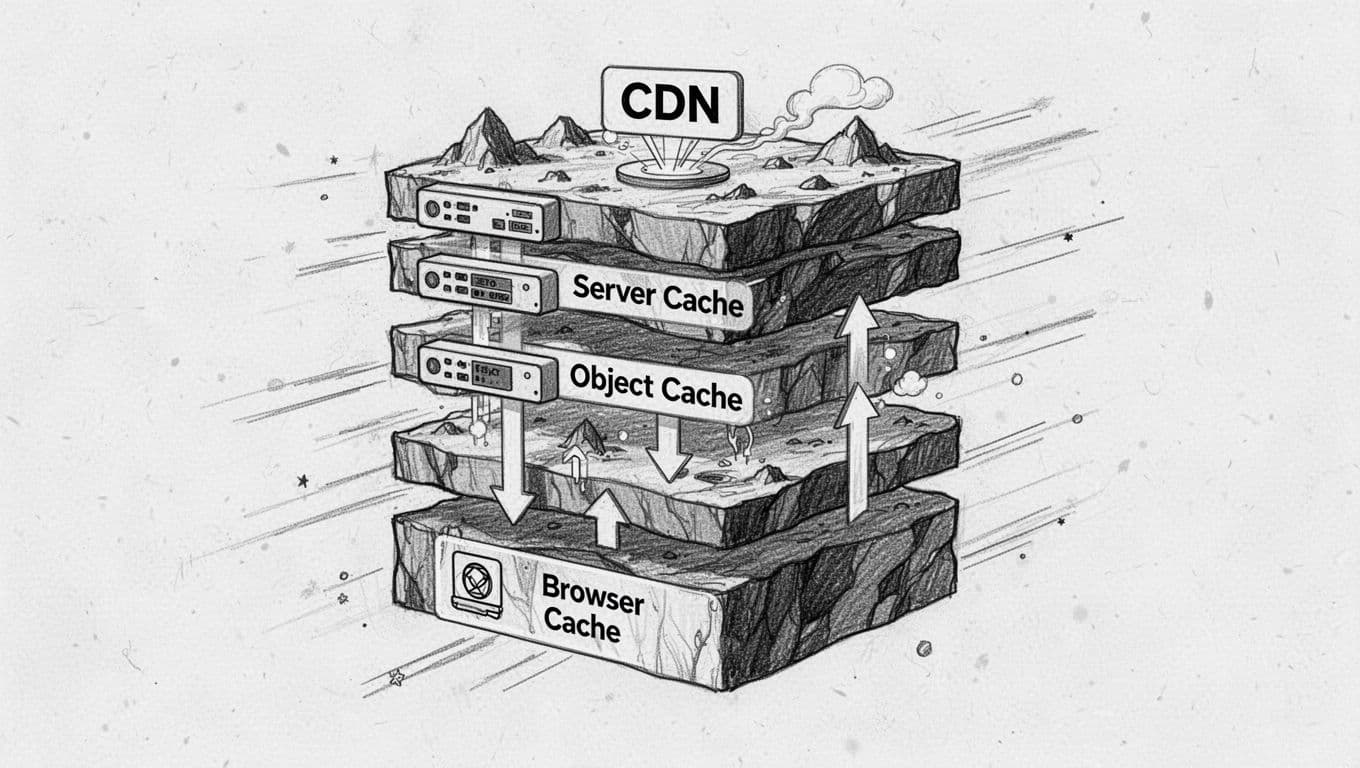
I like to think of caching like winter layers. One sweater won’t do it, but the right stack keeps you warm.
For most WordPress sites, I aim for:
- Full-page caching for public pages (posts, landing pages, docs).
- Edge or Content Delivery Network caching for static assets, and sometimes HTML if the site is mostly static.
- Object caching (Redis or Memcached) for query-heavy sites, WooCommerce catalogs, and membership sites.
- Browser caching with long-lived headers for versioned assets.
If you’re on Apache, the “hint” I use as a mental model is long cache headers for static files (because they should be fingerprinted): Cache-Control: public, max-age=31536000, immutable. On Nginx, the equivalent is usually an expires 365d rule for css/js/images/fonts. Your Managed WordPress hosting or performance plugin can set this, but I still verify it in DevTools.
WooCommerce stores need extra care. I aggressively cache category and product pages, then exclude cart, checkout, and account areas. If you cache those wrong, you get weird sessions, and support tickets.
Make above-the-fold lighter: hero image, critical CSS, and render blockers
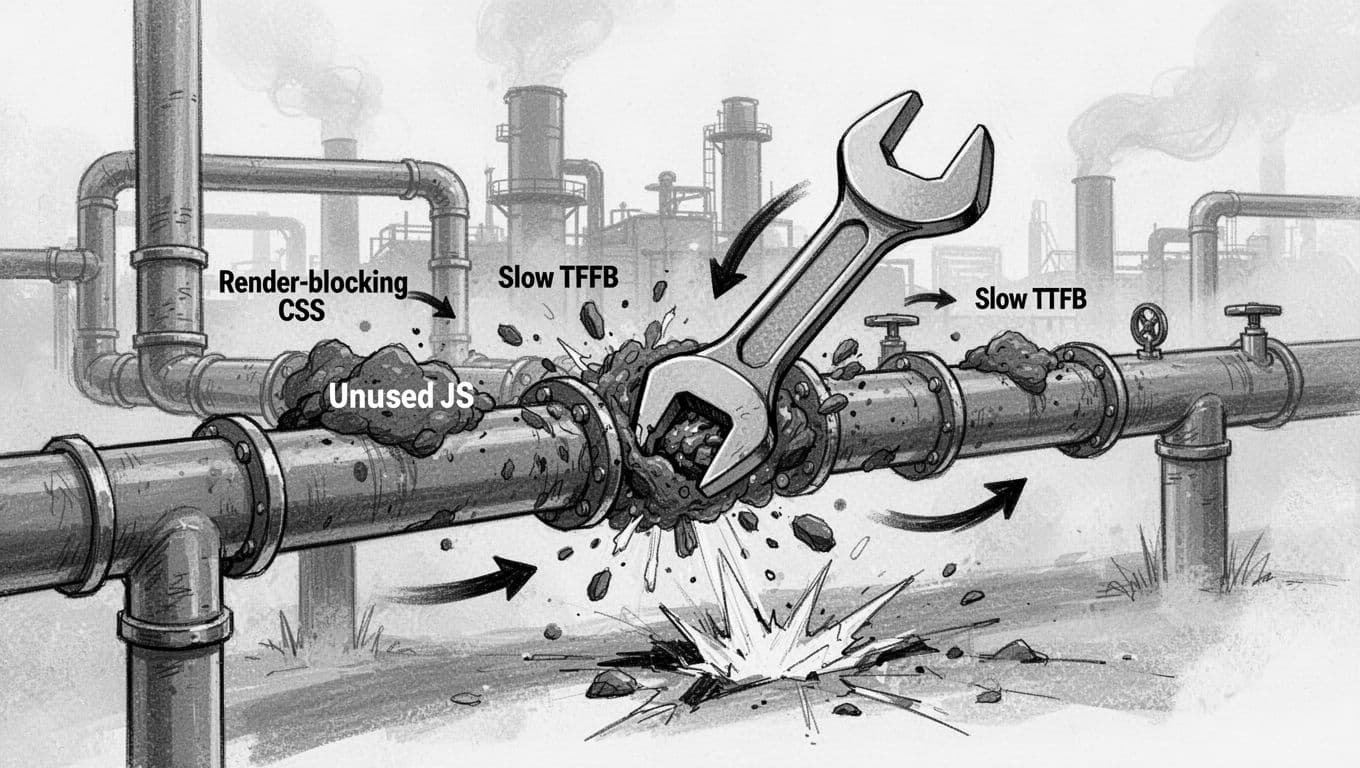
Even with great hosting, LCP can stall if the browser hits a wall of render-blocking resources: CSS and JavaScript before it can paint the hero.
My 2026 rule: ship less to the first view.
- Inline or generate critical CSS for the layout above the fold.
- Defer non-critical scripts and remove unused CSS where possible.
- Keep your theme lean. Block themes can be fast, but only if you don’t pile on extras.
If you want a WordPress-specific walkthrough for this part, I’d follow the same steps in this guide on SmartWP to eliminate render-blocking resources, then re-test your main templates (home, post, product, checkout).
Gotcha I see weekly: don’t lazy-load your LCP image. If the hero is the LCP element, it needs priority, not delay.
Interaction to Next Paint improves when I cut JavaScript, audit plugins, and delay third parties

Interaction to Next Paint is the metric that exposes “death by a thousand scripts.” Your site might look loaded, but the main thread is still busy doing chores.
When Interaction to Next Paint is bad, I assume JavaScript is guilty until proven otherwise.
Here’s the plugin audit method that keeps me honest:
- Measure first: Use PageSpeed Insights to run a Lighthouse test and open the Performance panel, then look for long tasks tied to JavaScript execution and Total Blocking Time.
- List plugins by purpose: performance, SEO, builder, forms, analytics, WooCommerce add-ons, “misc.”
- Disable in batches on staging and watch what changes, starting with builders and add-ons, and include database query optimization for any database-heavy plugins.
- Stop loading everywhere: only load scripts on the pages that need them (forms on contact pages, sliders only on the homepage).
- Replace stacks with one tool when it makes sense (for example, one good forms plugin, not three).
For a curated list of safer categories and widely used options, I cross-check against SmartWP’s updated roundup of best WordPress plugins. I’m not looking for “more plugins,” I’m looking for fewer, better ones.
Third-party tags are the other Interaction to Next Paint trap. Chat widgets, A/B testing, heatmaps, and ad scripts can crowd the main thread. In 2026, I default to delaying non-essential tags until after interaction, or after consent. Plugins like WP Rocket and LiteSpeed Cache can “delay JavaScript execution,” but I always whitelist checkout and add-to-cart flows so they don’t break.
If you want a broader context on how these fixes line up with 2026 expectations, this guide is a solid reference: Core Web Vitals guide for 2026.
Cumulative Layout Shift and image pipeline: stop layout shifts, then prove it with lab + field data

Cumulative Layout Shift is the “wiggle tax.” Even small shifts make a site feel cheap, especially on product pages where people try to tap quickly.
My Cumulative Layout Shift checklist is boring on purpose, because boring works:
- Always reserve space for images, videos, embeds, and ad slots (width and height, or CSS aspect-ratio).
- Handle fonts intentionally: serve WOFF2, limit weights, preload one key font, and use
font-display: swap. - Don’t inject banners above content after load (promo bars, cookie notices, “subscribe” popups). If it must appear, reserve space.
Then I tighten the image pipeline for image optimization, because images are often your Largest Contentful Paint element and your bandwidth hog:
- Convert to AVIF when possible, fall back to WebP format or JPEG.
- Use responsive images with
srcsetand correctsizesas a core image optimization tactic. - Lazy-load below the fold with media offloading to a CDN, but keep the first screen eager to protect Largest Contentful Paint.
WordPress already supports lazy loading, but I still validate what loads when. If you want a practical walkthrough, SmartWP’s guide to lazy loading images in WordPress covers the basics and the common mistakes.
My verification workflow (so I don’t fool myself)
- Lab: PageSpeed Insights and Lighthouse for a repeatable baseline (including Largest Contentful Paint metrics), tested on a key template (homepage, blog post, product page). GTmetrix is another performance monitoring tool worth checking.
- Fix one layer: server and caching, then render blocking, then images/fonts with image optimization focus, then third-party scripts.
- Field: confirm movement in Google Search Console Core Web Vitals reports (expect lag, because it’s a 28-day window).
- Re-check after updates: run PageSpeed Insights again on theme changes, builder updates, WooCommerce extensions, PHP version bumps, and new ad tags, which can undo weeks of work.
For deeper server-side tuning ideas, this broader performance guide can help you spot what you missed: WordPress performance optimization guide 2026.
At the end of the day, WordPress speed optimization for Core Web Vitals is less like polishing a trophy and more like maintaining a car. Small issues add up, and routine checks keep you fast with solid WordPress speed optimization. For mobile-first performance, pick one template, make changes you can explain, then let real-user data from Google Search Console confirm the Core Web Vitals win.