
How to Add Cloudflare Turnstile to Contact Form 7 (Stop Spam Without Annoying CAPTCHAs)
Table of Contents
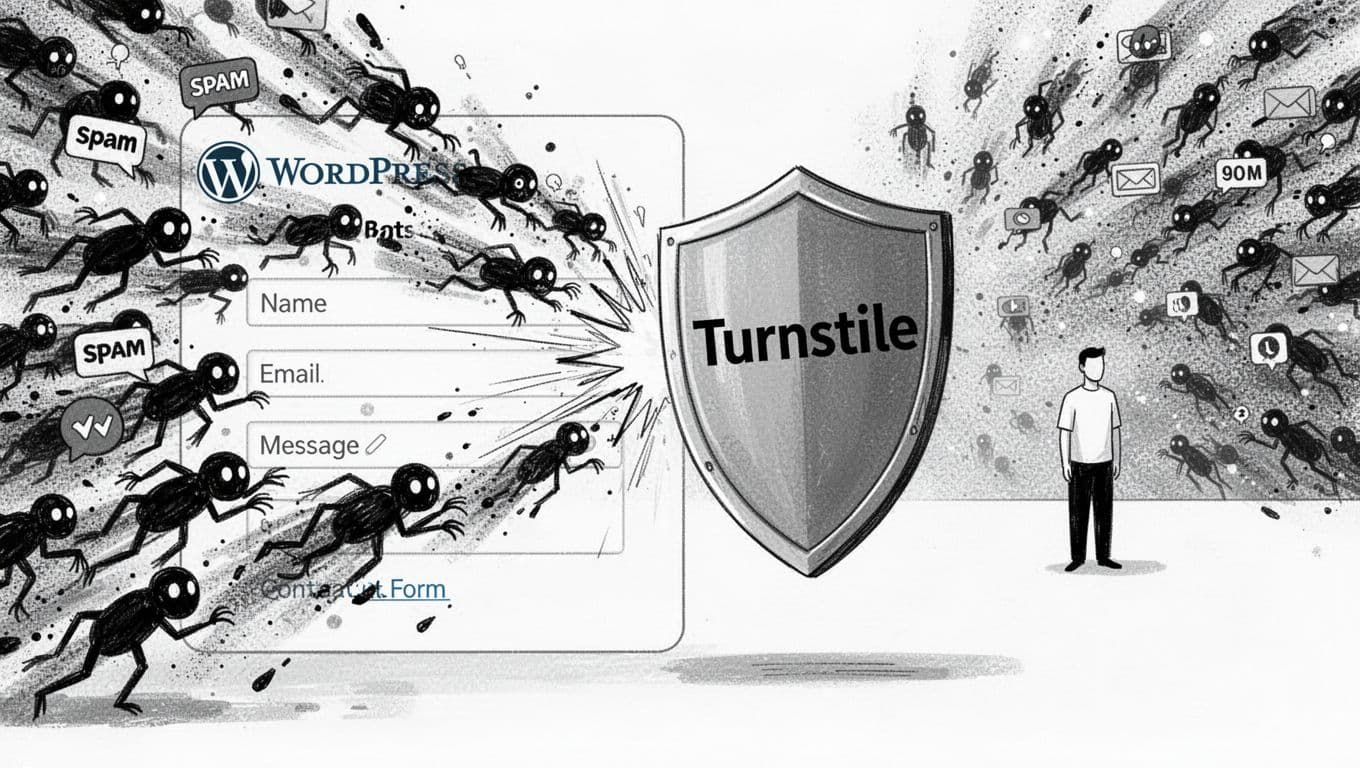
Spam never shows up politely. It arrives like a swarm at the gate, hammering your Contact Form 7 endpoint and making it tough to stop form spam before your inbox turns into a junk drawer.
I wanted something quieter than puzzle CAPTCHAs. Something that provides bot protection without making real people squint at crosswalks. That’s why I switched to Cloudflare Turnstile Contact Form 7 integration, and why I keep recommending it.
The best part is that Contact Form 7 now supports Turnstile directly. Once you add keys, it can protect every form without extra hoops.
Why Turnstile beats old-school CAPTCHAs on CF7 sites
Traditional CAPTCHAs like Google reCAPTCHA try to prove you’re human by interrupting you with mini-games. Turnstile, a leading reCAPTCHA alternative and CAPTCHA alternative, flips that idea. Most of the time, it relies on invisible bot detection to verify in the background, based on signals and risk checks. When it does show a challenge, it’s usually a simple checkbox, not a mini-game.
That one change delivers a modern user experience. My forms feel normal again, and conversions don’t take a hit.
Turnstile also tends to be more privacy-friendly than many legacy CAPTCHA tools because it’s designed to reduce friction and avoid the “tracking vibe” users have learned to hate. If you’ve ever watched someone give up halfway through a contact form, you already know why this is important.
As of February 2026, Contact Form 7 includes a built-in Turnstile integration that can apply across forms once configured. You don’t need to route your site through Cloudflare CDN either. You’re just using Turnstile as a verification service.
If you like seeing another real-world switch story before you start, I found this helpful: protect Contact Form 7 with Cloudflare Turnstile.
Create your Cloudflare Turnstile keys (Site Key and Secret Key)
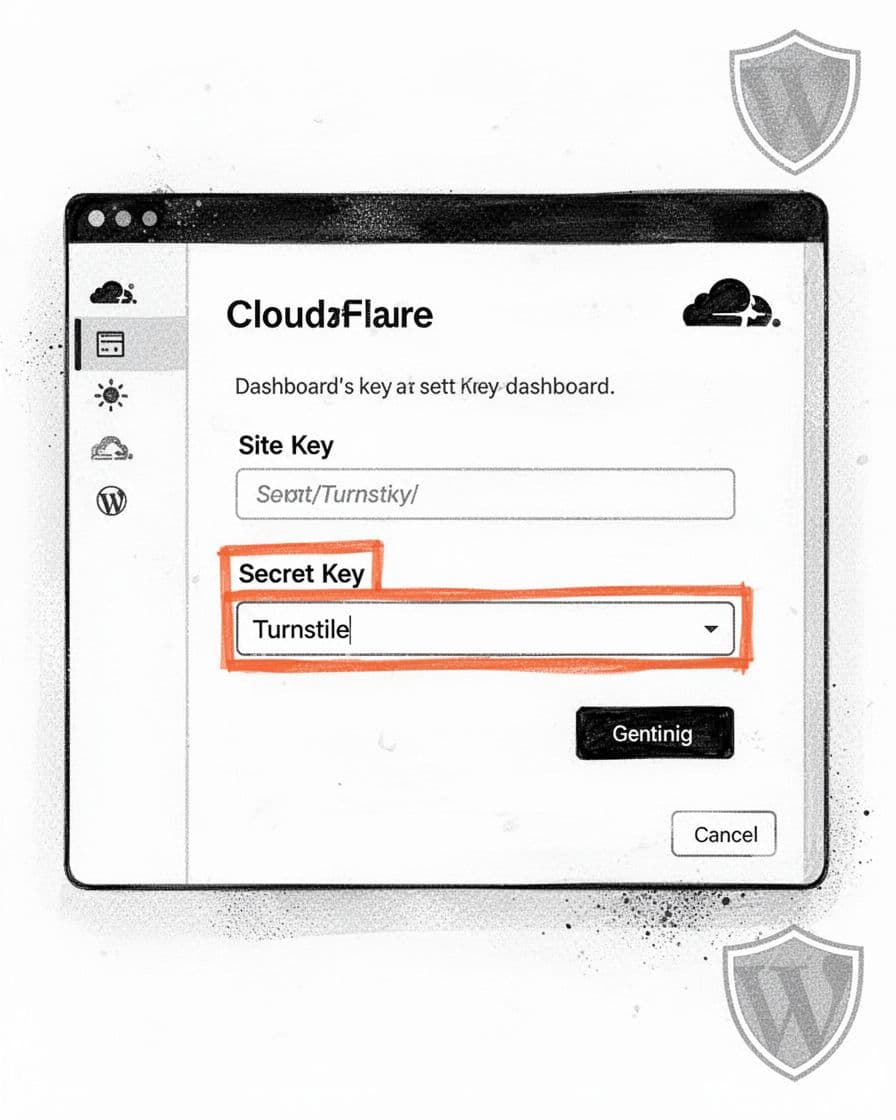
First, I create a Cloudflare Turnstile widget in Cloudflare. This is where your Site Key and Secret Key come from.
- Log in to your Cloudflare account.
- Open Turnstile (in the Cloudflare dashboard sidebar).
- Click Add site.
- Fill out the fields Cloudflare shows:
- Widget name: A label for you (I use something like “CF7 Contact Form”).
- Hostnames: Your domain (for example,
example.com). Add subdomains you actually use (likewww.example.com). - Widget mode: Choose how visible the check is (table below).
- Click Create.
- Copy the two values Cloudflare gives you:
- Site Key
- Secret Key
Here’s how I pick a Widget Mode:
| Widget Mode | What visitors see | What I use it for |
|---|---|---|
| Managed | Usually nothing (managed challenge evaluates browser signals, sometimes a checkbox) | Most Contact Form 7 sites |
| Non-interactive | A lightweight automatic check | When I want fewer visible prompts |
| Invisible | No visible widget | High-friction pages where any prompt hurts |
In most cases, Managed is the safest choice, and it “just works.”
Tip: If Turnstile doesn’t appear later, the first thing I re-check is Hostnames. A missing
wwwis a classic facepalm.
If you want a second set of eyes on the Cloudflare steps and labels, this doc walks through it cleanly: how to create Cloudflare Turnstile keys.
Connect Cloudflare Turnstile to Contact Form 7 and place the widget
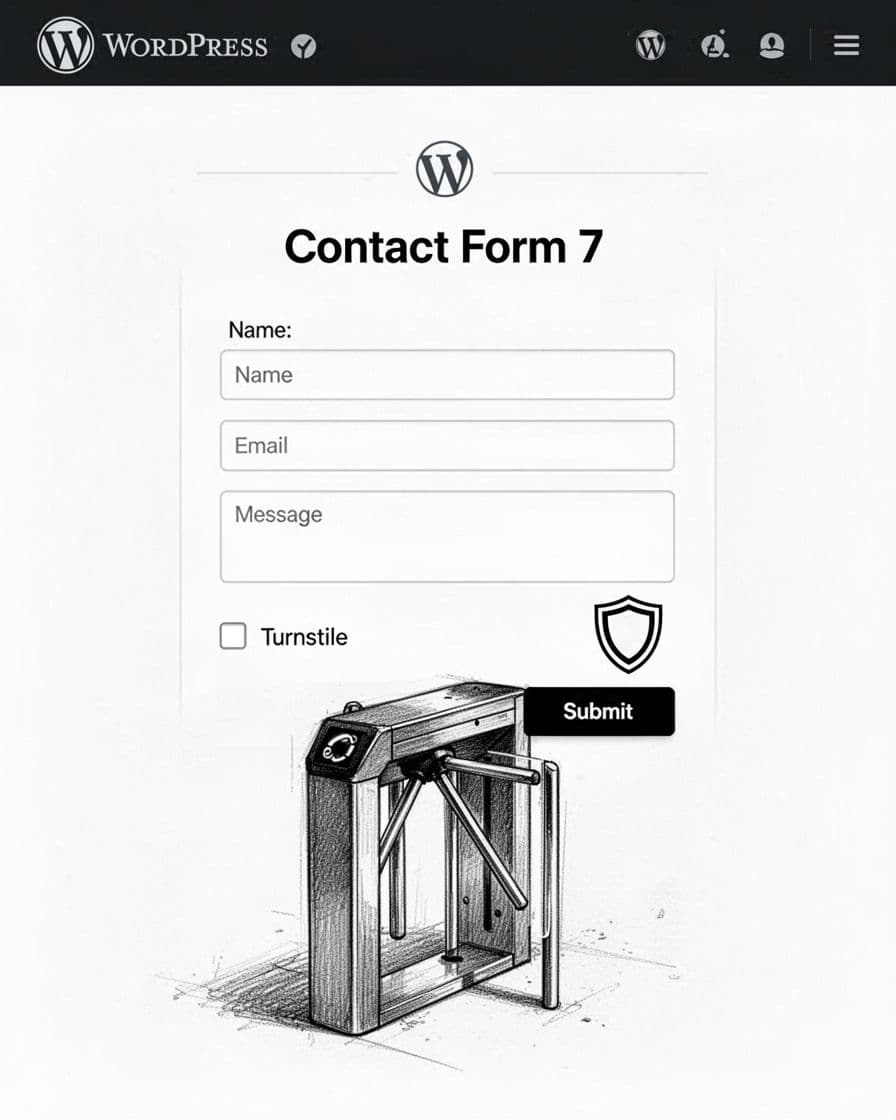
Now I wire those keys into WordPress. This part is short, but the menu location matters.
- In WordPress, go to Contact in the left admin menu.
- Click Integration (part of the global settings for the plugin).
- Find the Turnstile section.
- Paste your Cloudflare values into these exact fields:
- Site Key
- Secret Key
- Click Save Changes.
At this point, Contact Form 7 can protect your forms. On many setups, Turnstile will appear automatically near the top of each form once integration is enabled. While this guide focuses on Contact Form 7, similar steps apply to a WordPress anti-spam plugin for WPForms, Elementor forms, or WooCommerce forms.
Put Turnstile exactly where you want in the form
I prefer placing it right above the submit button so it provides effective spam protection and feels like part of the flow. To do that, I edit the form markup:
- Go to Contact → Contact Forms
- Open the form you want
- Add the Turnstile tag where you want it:
[turnstile] - For a smaller widget, use:
[turnstile size:compact] - Save the form
If you manage multiple forms, I suggest opening each one and placing [turnstile] on purpose for consistent spam protection, so you control the layout instead of relying on defaults.
If you also want Turnstile on other WordPress areas (login, registration, comments), I keep a broader setup guide here: Cloudflare Turnstile for Contact Form 7 spam protection.
How I test Turnstile (and the fixes when it fails)
I test like a stranger, not like an admin. That means I try to recreate real traffic conditions.
- Open an incognito/private window.
- Visit the page with your Contact Form 7 form.
- Confirm the Turnstile widget loads (or runs silently, depending on mode).
- Submit a real form submission, and verify you receive the email.
- In Cloudflare, open Turnstile stats and look for passes and blocks increasing.
Warning: If you run aggressive caching, minify, or script delay tools, they can break Turnstile loading. When I troubleshoot, I temporarily disable those features first.
When something’s off and you can’t stop contact form spam, these are the failures I see most:
- Turnstile doesn’t show up at all: I check the Cloudflare Hostnames for mismatches (missing
www, wrong subdomain). Next, I look for blocked requests to Cloudflare Turnstile in the browser dev tools (Network tab). - The form won’t send and shows Contact Form 7’s generic error (“There was an error trying to send your message. Please try again later.”): This often relates to a failure in server-side validation or key mismatches, so I re-copy the Site Key and Secret Key (no extra spaces), then save again. After that, I check server firewall rules that could block outbound verification.
- It works for me, not for visitors: I test again while logged out, in incognito, with browser extensions disabled. Ad blockers can interfere with challenge scripts.
If you need a plugin-based fallback for other WordPress forms or builders, or you want extra knobs, this listing is a good starting point: Easy Cloudflare Turnstile plugin listing.
FAQ: Cloudflare Turnstile with Contact Form 7
Do I need to proxy my site through Cloudflare?
No. Cloudflare Turnstile leverages bot scoring for protection, so I use it on sites that are not behind Cloudflare. You only need a Cloudflare account to create the widget and keys.
Does Contact Form 7 add Turnstile to every form?
Once you add keys in Contact → Integration → Turnstile, protection can apply broadly. Unlike basic honeypot fields, Cloudflare Turnstile serves as a superior anti-spam engine for Contact Form 7. If you want consistent placement, I still add [turnstile] inside each form.
Can I make the widget smaller?
Yes. Cloudflare Turnstile supports different widget sizes and modes, including invisible CAPTCHA. I use [turnstile size:compact] when the form is tight, like in a sidebar or modal.
Can I reuse one set of keys for multiple domains?
In practice, I treat keys as domain-specific because Cloudflare ties them to Hostnames. For separate domains, I create separate widgets.
Conclusion
When spam shows up like a crowd at the gate, I don’t want my real visitors to pay the price. With Cloudflare Turnstile in Contact Form 7, I get bot blocking without the puzzle fatigue.
Set up your Turnstile keys, paste them into Contact → Integration, then place [turnstile] where it fits your form. After that, test in incognito and watch Cloudflare’s stats for spam protection over a week. If you want, share what changed for your spam volume after you switch to Cloudflare Turnstile with Contact Form 7.