
How to Change Your WordPress Site URL Without Downtime (The Way I Actually Do It)
Table of Contents
The first time I had to change WordPress URL on a live site, it was a busy WooCommerce store requiring zero downtime, and I slept like I’d left the stove on.
What I learned is simple: the URL change isn’t the scary part. The scary part is rushing DNS, forgetting redirects, and “fixing” URLs in the database the wrong way.
Below is the workflow I use now to handle domain name changes (or switch from HTTP to HTTPS) with near-zero downtime, plus the exact redirect snippets for Apache and Nginx.
Prep work that prevents downtime (DNS records, TTL, backups, and a calm plan)
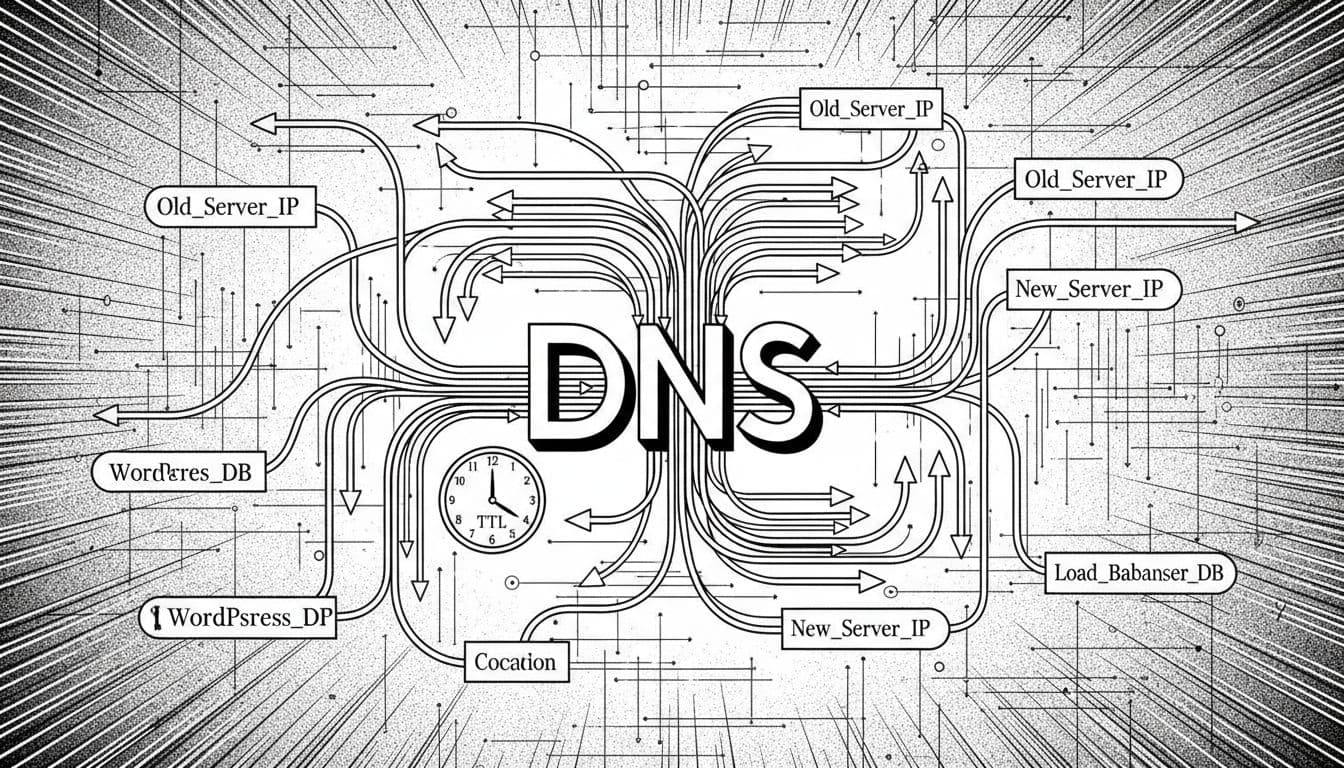
DNS propagation and TTL planning for a clean traffic switch, created with AI.
I start planning the move at least a day early, because DNS has its own schedule. The big win is adjusting your “TTL settings” before you flip records. That way, when it’s time to switch, most visitors won’t cling to old DNS answers for hours; this helps manage “DNS propagation”.
Here’s my pre-move checklist:
- Lower TTL on the relevant records (often A, AAAA, or CNAME) to something like 300 seconds, 12 to 24 hours before the switch.
- Perform a full “database backup” (files plus database); this serves as your primary “rollback strategy”. I like a host snapshot plus a manual database export. Check with your “hosting provider” for specific snapshot tools.
- Pick a quiet window, even if you’re aiming for no downtime. Less traffic means fewer edge cases.
- Decide how you’ll handle “writes”: new orders, form submissions, new comments. For stores, I often pause promotions and keep an eye on new orders during the cutover.
Do this: Reduce TTL early, keep the old site online, and switch traffic only after you verify the new one.
Don’t do this: Change DNS first and “hope” WordPress settings will sort themselves out later.
If you want the official WordPress view on migration gotchas, I keep WordPress’s migration handbook bookmarked. It’s dry, but it’s accurate.
Set up parallel hosting, then verify the new URL before anyone sees it
My best “no downtime” moves all share one trick: I run the old and new setups in parallel until the new one looks boring.
If I’m moving hosts or rebuilding, I’ll set up a staging site first so I can rehearse the website migration without pressure. A simple approach is using a plugin-based copy, which I cover in this guide on how to clone a WordPress site for migration. For bigger or fussier sites, I’ll pick from my shortlist of best WordPress migration plugins and match the tool to the site size.
Then I verify the new site without touching public DNS:
- Point a temporary hostname (or a staging domain) at the new server, install the SSL certificate to get HTTPS working there before the switch.
- Preview the site by overriding DNS locally (editing your
/etc/hostsfile with the new server’s IP address), so your browser hits the new server while the world stays on the old one. - Test the money pages first: checkout, cart, login, search, contact form, and any membership flows.
- Confirm cron and email: password resets, order emails, contact form mail.
That local /etc/hosts trick feels old-school, but it’s like trying a key in the lock before you replace every lock in the building.
Update WordPress URLs safely (and don’t break serialized data)
Once the new server is ready, I update WordPress to recognize the new address. WordPress stores two critical values:
home(Site Address (URL), front-end address)siteurl(WordPress Address (URL), where WordPress core lives)
If those get out of sync, you’ll see redirect loops, broken logins, or the admin trying to send you back to the old domain.
My preferred order of operations
First, I do the “easy” settings update if I can access the WordPress dashboard on the new server. That’s Settings → General, then update both fields.
If I can’t log in yet, I use one of these instead:
- Update the values in the database (
wp_optionstable,siteurlandhome) - Or temporarily edit the wp-config.php file or use the functions.php file to hardcode the URLs (useful when you’re locked out)
Database search-replace (WP-CLI), with a serialized-data warning
To change URLs inside content, menus, widgets, and plugin settings, I usually use WP-CLI because it’s fast and consistent. I keep a longer list of tips in my post on update site URLs via WP-CLI search and replace.
I always do a dry run first, then the real run:
wp search-replace 'https://olddomain.com' 'https://newdomain.com' --skip-columns=guid --dry-run

wp search-replace 'https://olddomain.com' 'https://newdomain.com' --skip-columns=guid
The warning matters: don’t run a naive search-replace in phpMyAdmin or a text editor. You can corrupt serialized data (common in page builders and many plugins). WP-CLI is built to handle serialized values correctly, but manual methods often are not. For users not comfortable with the command line, the Better Search Replace plugin is a solid alternative; always create a database backup before running the URL update.
For a deeper walkthrough on domain moves, including edge cases, I’ve found this guide from WP Migrate lines up with what works in real life.
Switch traffic gradually, then lock it in with 301 redirects (Apache and Nginx)

301 redirects guiding visitors from the old URL to the new one, created with AI.
When the new site is verified, I flip DNS (because TTL is already low, this part is usually quick). Still, I assume some visitors will resolve the old domain to the old server’s IP address and hit that server for a while. So I keep the old server online at its IP address and add 301 redirects there.
Apache (.htaccess) 301 redirect to the new domain
This goes on the old server in the .htaccess file, located in the root directory and accessible via cPanel File Manager or an FTP client:
RewriteEngine On
RewriteCond %{HTTP_HOST} ^(www.)?olddomain.com$ [NC]
RewriteRule ^(.*)$ https://newdomain.com/$1 [R=301,L]
Nginx server block 301 redirect to the new domain
Also on the old server:
server {
    listen 80;
    listen 443 ssl;
    server_name olddomain.com www.olddomain.com;

    return 301 https://newdomain.com$request_uri;
}
If you’re also moving from HTTP to HTTPS, do it in one clean move where possible: old domain redirects to new domain, and new domain forces HTTPS. That prevents “ping-pong” chains.
Post-switch checks I do every time
Right after DNS flips, I do these fast checks:
- Load the home page, a post, a category, and a 404 page.
- Log in and log out twice.
- Place a test order (or at least run checkout to the payment step).
- Submit the new site in Google Search Console and use the Change of Address tool to notify search engines of the move.
Troubleshooting quick fixes (the stuff that bites most people)
- Mixed content warnings: Usually hardcoded
http://assets. Re-run search-replace forhttp://olddomain.comtohttps://newdomain.com, then purge caches. - Redirect loops: Most often
homeandsiteurldon’t match, or a plugin forces one URL while your server forces another. Disable redirect plugins temporarily and confirm WordPress addresses. - wp-login.php won’t load: Clear cookies, then check any
WP_HOMEandWP_SITEURLconstants inwp-config.php. Also confirm HTTPS is correct behind proxies or CDNs. - Broken links: Scan for broken links with a site crawler to protect SEO rankings.
Conclusion
A no-drama domain move comes down to three habits: lower TTL early, verify the new site in parallel, then redirect from the old server like you mean it. After that, I treat the first hour as a monitoring window, not a victory lap.
If you’re about to perform a domain name change on a high-traffic WordPress site, plan the cutover like a careful handoff, not a big bang. A successful website migration ensures zero downtime, so you can switch domains while your visitors keep browsing like nothing happened.