How to Fix cURL Error 28 in WordPress and Stop Timeout Errors
Table of Contents
Few WordPress errors feel as slippery as cURL Error 28, a common curl error 28 wordpress issue. The site may look fine to visitors, yet updates fail, Site Health throws warnings, or a plugin can’t connect to an outside service. I’ve run into it during backup jobs, email sends, WordPress REST API calls, and routine plugin updates.
When I troubleshoot it as part of troubleshooting WordPress errors, I don’t blame WordPress first. This error usually means a request took too long, then timed out. So I trace the slow request, test one change at a time, and look hard at plugins, firewalls, DNS, SSL, loopback requests, and hosting limits.
What cURL Error 28 in WordPress actually means
WordPress uses cURL to make HTTP requests. That includes checking for core updates, making REST API requests, running loopback requests, and talking to services outside your site. When the server doesn’t get a reply fast enough, WordPress stops waiting and logs a timeout.
If you’re seeing curl error 28 WordPress notices, the message often says something like “operation timed out after 10000 milliseconds,” indicating a connection timed out. That doesn’t always mean the destination is down. In my experience, it often points to a blocked request, a slow DNS server, improper SSL configuration, or a host with tight resource limits.
A site can still look normal on the front end, which makes this error extra annoying. Cached pages may load fast while background tasks keep failing. That’s why I pay close attention to where the error appears first.
These are the places where I usually spot it:
| Where it appears | What I suspect first |
|---|---|
| Site Health | REST API or loopback request failed |
| Plugin or theme updates | Firewall, DNS server, or host blocking outbound requests |
| API-based plugins | Slow third-party service, bad SSL, or blocked HTTPS |
| Scheduled tasks | WP-Cron loopback issue or an overloaded server |
The big takeaway is simple: this is a symptom, not a full diagnosis. So if the whole site works but background jobs don’t, I focus on connections and server rules before I start replacing WordPress plugins.
If the dashboard keeps hanging, I sometimes switch to WP-CLI commands for quick updates so I can keep maintenance moving while I test the real cause. For a broader breakdown of common timeout sources, Kinsta’s breakdown of cURL timeout causes lines up with what I usually see on client sites.
How I troubleshoot cURL Error 28 step by step
Before I edit config files or disable security tools, I make a fresh backup and write down each change.
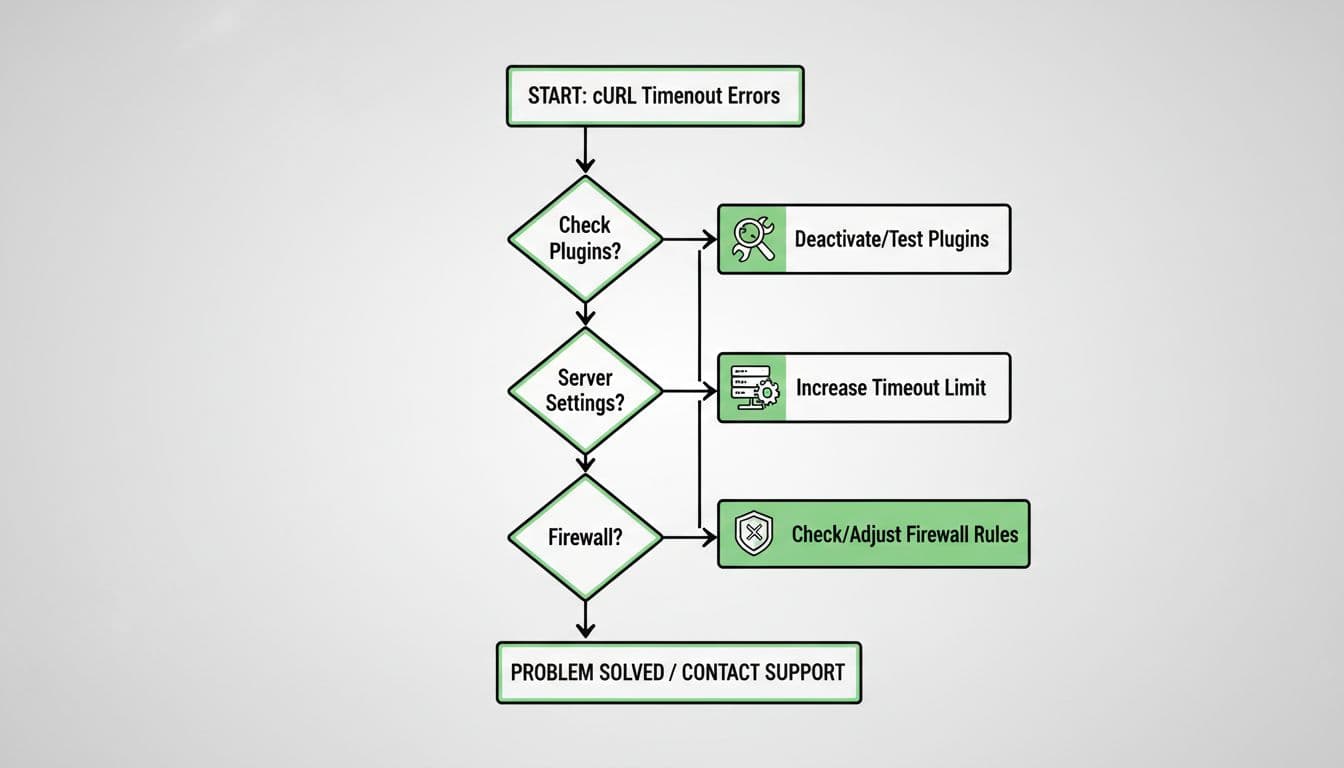
I start with the easiest checks and move toward server-level fixes. That keeps me from changing five things at once and guessing which one worked. After each change, I clear any cache that could hide the result, then I retest the same action.
- Disable WordPress plugins one at a time to check for plugin conflicts. I start with security, backup, cache, SEO, and API-heavy plugins. Then I retest Site Health, updates, or the exact action that failed. If the error disappears, I’ve found the branch of the problem.
- Check firewall settings and security rules. A web application firewall, server firewall, or security plugin can block outbound HTTPS requests. That’s common when WordPress tries to reach WordPress.org, a licensing server, or its own REST API.
- Review SSL certificate and DNS next. SSL certificate issues and bad DNS resolution can slow requests until they connection timed out. If email, forms, or newsletter tools are involved, MailPoet’s timeout knowledge base shows the same pattern, the app is fine, but the connection never completes.
- Raise PHP resources. Low memory and short execution limits make slow requests worse. When I suspect that, I increase the PHP memory limit and max execution time values, then test again. If you need a quick path, here’s how to increase WordPress memory limit.
- Update PHP and the server stack. Outdated PHP versions, older cURL versions, and weak shared hosting can trigger stubborn timeouts. When I see the error across multiple plugins, I stop chasing plugin settings and look at the server instead. For server-level issues, use an SFTP client to edit files like the .htaccess file.
- Fix loopback and cron problems. If Site Health says loopback requests failed, scheduled posts miss their time, or backups never finish, I test alternate cron by adding
define('ALTERNATE_WP_CRON', true);to wp-config.php. This often helps scheduled tasks complete. - Use WP-CLI if wp-admin is too slow. When the update screen stalls, I fall back to the command line and keep the site moving while I diagnose the timeout.
If one change fixes the problem, I undo the extra changes that didn’t help. That keeps the site stable and avoids leaving behind risky settings.
Quick troubleshooting checklist
- Fresh backup taken
- Error reproduced in the same place twice
- Plugins tested one by one
- Firewall or WAF reviewed
- PHP memory and timeout raised
- Host asked about DNS, outbound port 443, and loopback requests
If I’m working on a live store or membership site, I test during low-traffic hours. I also avoid disabling payment or login plugins unless I have a staging copy ready.
When the problem is your hosting provider, and how I prevent it next time
Sometimes the site isn’t the real problem. If the error shows up in Site Health, plugin updates, REST API calls, and scheduled tasks at the same time, I treat it as a hosting provider issue first. This error can trigger an “http_request_failed” notice in some logs. The same goes for cases where every plugin is off and the timeout still happens.
At that point, I open a support ticket with timestamps, the exact error message, and the failing action. I ask whether outbound HTTPS requests are blocked, whether DNS resolution is failing, and whether the server is rejecting loopback requests. Often, server configuration or issues with data transfer are to blame when the hosting provider is at fault. For a second opinion on hosting provider-related fixes, Hostinger’s WordPress cURL error 28 guide covers the same server-side checks.
To reduce future timeout errors, I keep my stack lean. I remove plugins I don’t trust, update PHP promptly to avoid outdated software, and test new API-heavy tools on staging first. I also avoid piling on two security plugins or multiple caching layers, because they can clash in odd ways. Site Health is part of my regular maintenance now, since it often warns me before visitors notice a problem.
If the server always feels cramped, it’s worth comparing top WP hosts for speed and reliability before the next timeout picks a worse moment.
Final thoughts on fixing timeout errors
cURL Error 28 feels vague at first, especially in curl error 28 WordPress scenarios, but I treat it like a traffic jam, not a crash; it’s typically a connection timed out situation. I test one thing, watch the result, and keep notes. Most of the time, the fix turns out to be a blocked request, a plugin conflict, a weak server setting, or a missing PHP library for the cURL extension itself, not a broken WordPress install. Take the slow, methodical route, check with your hosting provider if needed for long-term stability, and the next timeout usually becomes a short repair instead of an all-day chase.