How I Add FAQ Schema in WordPress Without a Plugin
Table of Contents
Adding one more plugin for a tiny task can feel like buying a toolbox to tighten one screw. When I need FAQ schema WordPress pages can use, I usually add it by hand.
I like the control. I also like keeping my site lean. More importantly, manual FAQ schema markup makes it easier to keep the code and the visible FAQ section perfectly in sync, which is where most mistakes happen. This approach can boost organic traffic and click-through rate in Google search results through rich snippets, all without a bulky SEO plugin.
When FAQ schema is worth adding, and when it isn’t
I only add FAQ schema to pages that already show real frequently asked questions on the page. That part matters. Google’s current guidance still says the question and answer must be visible to users (following content guidelines is essential for appearing in People also ask and PAA boxes), even if the answer sits inside an expandable section.
As of March 2026, FAQPage markup still exists, but rich results are more limited than they once were. In many cases, Google seems to reserve those enhanced displays for health and government sites. Still, I use it when it fits, because structured data can help earn rich snippets in Google search results.
A few rules keep me out of trouble:
- Use
FAQPageonly when each question has one clear answer. - Don’t mark up forum threads or user-submitted answers.
- Don’t use FAQ markup for sales copy dressed up as questions.
- Don’t repeat the same marked-up FAQ on multiple pages.
If the visible FAQ and the JSON-LD, the preferred format for FAQ schema markup, don’t match, I don’t publish the markup.
I also keep the FAQ content readable first. If I want collapsible answers, I often use the native Details block for accordion style. And if I want a fancier layout later, SmartWP has a helpful guide to WordPress accordions for collapsible FAQ sections.
Three no-plugin ways to add FAQ schema WordPress markup
Here’s the quick version before I get into the steps:
| Method | Best for | Watch out for |
|---|---|---|
| WordPress Block Editor | Single posts or pages | Some setups strip script tags |
| Theme or host code area | Easy site-wide control | Avoid loading FAQ code everywhere |
functions.php | Precise page targeting | Use a child theme |
Method 1: Add JSON-LD in the WordPress Block Editor
First, I write the FAQ section on the page itself. Then I add a Custom HTML block below it and paste the JSON-LD. This manual schema markup is a great alternative to using a specialized Gutenberg block from an SEO plugin like Rank Math SEO, Yoast SEO, or All in One SEO. I often start with a schema generator to create the code snippet initially. It works well for modern sites and avoids the limitations of the classic editor or complex shortcodes on older setups.
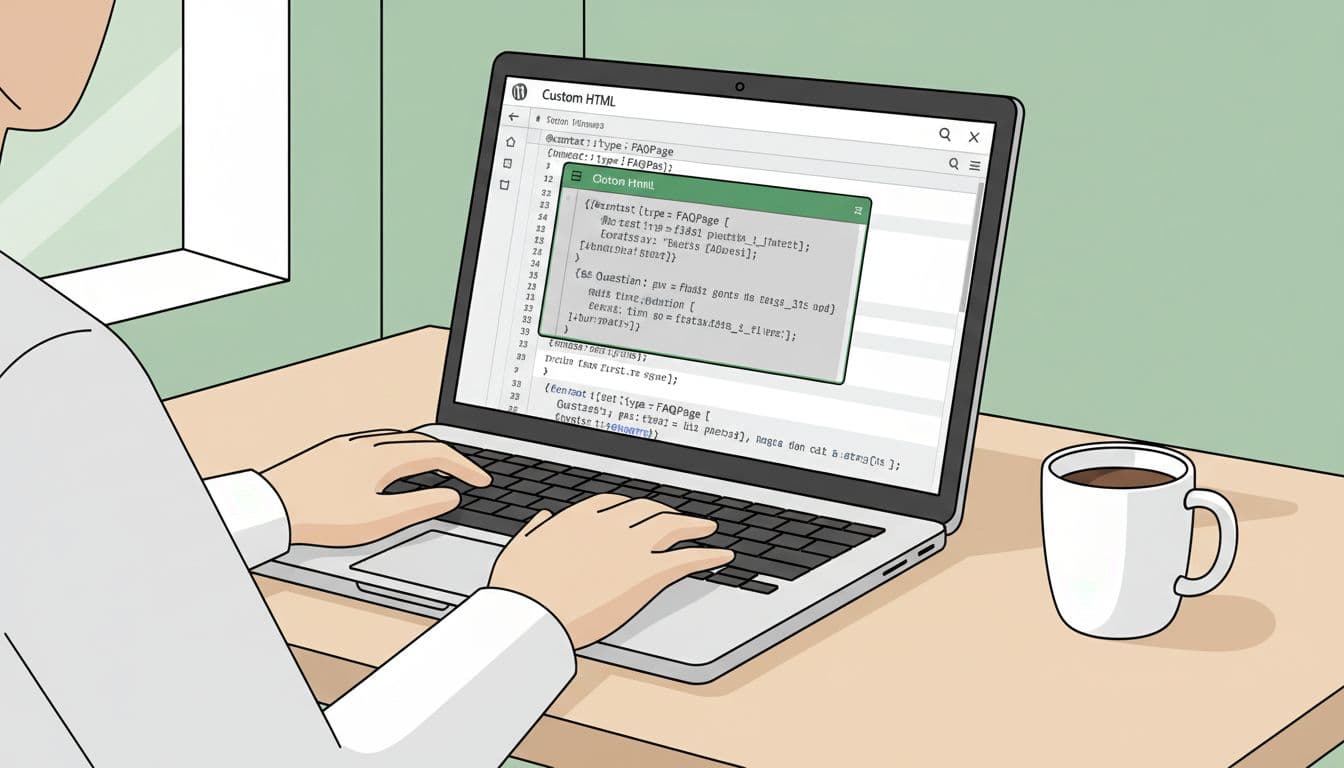
Here’s a simple example I use:
<script type="application/ld+json">
{
"@context": "https://schema.org",
"@type": "FAQPage",
"mainEntity": [
{
"@type": "Question",
"name": "Do I need a plugin to add FAQ schema in WordPress?",
"acceptedAnswer": {
"@type": "Answer",
"text": "No. I can add FAQ schema manually with JSON-LD if the questions and answers are visible on the page."
}
}
]
}
</script>
To add more questions, I copy that Question object and place commas between each item in mainEntity. Adding this structured data helps visibility in Google search results.
This method is quick, but there’s one catch. Some WordPress setups, user roles, or security layers strip script tags from post content. If I paste the code, save, and the script disappears, I move to the next method.
Method 2: Use a theme or host custom code area
Some themes and managed hosts include a header scripts box, custom code panel, or page-level injection field. If I have that option, I paste the same JSON-LD there instead of inside the editor.
This feels cleaner when the editor blocks scripts. It also keeps the page content separate from the markup. Still, I only use it if I can target the right page. I don’t want FAQ code loading on every page of the site.
If you want a broader view of manual structured data, this manual schema markup guide explains the bigger setup well.
Method 3: Add it through functions.php
When I want full control, I use functions.php in a child theme. That way, theme updates won’t wipe out my work.

I hook into wp_head and tell WordPress to print the schema only on the page I want. A basic pattern looks like this:
add_action('wp_head', function () {
if (!is_page('faq')) return;
?>
<script type="application/ld+json">
{ ... your FAQPage JSON-LD here ... }
</script>
<?php
});
I use this when I need page targeting and a stable place for the code. It’s also a good fallback when the Block Editor strips scripts.
If you want another manual example to compare against your own setup, this FAQ schema walkthrough follows the same basic FAQPage format.
How I test it and fix common problems
After I add the markup, I run the page through Google’s Rich Results Test and Schema Markup Validator. Structured data and schema markup are fundamental to modern search engine optimization. Then I publish, resubmit the page if needed, and keep an eye on Google Search Console.
Most errors, which can prevent display in Google search results, come from a short list:
- Text mismatch: The answer in JSON-LD doesn’t match the page.
- Bad JSON: A missing comma or quote breaks the whole block.
- Wrong page type: Multiple user answers belong to
QAPage, notFAQPage. - Stale markup: I updated the FAQ text on the page but forgot the schema.
I also keep the answers plain. HTML inside text can work in some cases, but I prefer clean copy in JSON-LD because it’s easier to maintain and supports better performance in voice search and queries via Google Assistant. When I change an FAQ, I update the schema on the same day. That habit saves me from silent errors later.
Keep it simple, and keep it honest
Manual FAQ schema isn’t hard once you see the pattern. I start with visible questions and answers, add clean JSON-LD in the right place, and test before I move on. If I keep the markup honest and page-specific, manual control usually beats another plugin sitting in my dashboard. This manual schema markup for frequently asked questions is a transferable skill that can even be used for a WooCommerce product FAQ. By implementing structured data this way, you gain rich snippets without an extra plugin, making it the most efficient way to manage your site.