How I Optimize WordPress PHP-FPM Settings for Faster TTFB
Table of Contents
A slow Time to First Byte feels like waiting at a locked door. The page is there, but the server takes too long to answer. When I work on WordPress PHP-FPM, I treat it as the part of the stack that decides how quickly PHP can start doing its job.
Tuning WordPress PHP-FPM settings is a critical part of broader performance optimization for high-traffic LEMP stack servers, and it matters most on VPS and dedicated servers where I can actually control the pool settings. A few smart changes can cut queue time, reduce server strain, and make WordPress feel much snappier. A few bad changes can do the opposite, so I always tune with measurements, not guesses.
Why PHP-FPM Has Such a Big Impact on TTFB
PHP-FPM manages the PHP pool behind dynamic WordPress requests. When a visitor hits a page that isn’t served from full-page cache, the PHP pool assigns a worker to build that response. If no worker is free, the request waits in line. That wait shows up as higher TTFB.
I only tune PHP-FPM when I have server-level access and a real reason to change it. If I’m on shared hosting, or on a managed host that already handles PHP pools, I leave it alone unless support tells me otherwise. In those cases, the better move is often changing plans or comparing best WordPress hosting plans for performance.
Recent guidance still points to dynamic mode for most WordPress VPS setups, with PHP 8.3+ , OPcache enabled, and pm.max_children tuned appropriately. That combination usually gives the best balance of fast response and sane memory use. Still, PHP-FPM is only one layer. I also look at caching, images, scripts, and theme bloat. If I want a broader cleanup plan, a caching plugin is often the first step, along with these simple ways to speed up WordPress.
If
pm.max_childrenis too low, requests queue up. If it’s too high, the server can run out of RAM.
That’s why I don’t copy someone else’s numbers. Exact values depend on available RAM, CPU, traffic patterns, and how much memory each PHP worker uses on my site. A lean blog and a busy WooCommerce store won’t behave the same way, even on the same server.
Tune Your PHP-FPM Pool Settings Without Guessing

Before I change anything, I decide which process manager fits the server. These choices often tie into your Nginx configuration, especially within a server block.
| Mode | When I use it | TTFB impact |
|---|---|---|
dynamic | Most WordPress VPS setups | Fast, with good flexibility |
static | Dedicated servers with steady traffic | Very fast, but uses fixed RAM |
ondemand | Very low-traffic sites only | Can raise TTFB because workers wake up late |
For most sites, dynamic is the safe place to start.
A practical way I size pm.max_children
I use a simple three-step process:
- I check total RAM and subtract memory for the OS, web server like Nginx worker_processes, database, Redis, and anything else running locally.
- Then I measure average PHP worker memory in
htoportopduring real traffic. On WordPress, I often see 40 MB to 100 MB per worker. - Finally, I divide RAM available for PHP-FPM by average worker size.
So if my server has 8 GB RAM, and I can safely give 4 GB to PHP-FPM, with workers averaging 60 MB, I start near 4096 / 60 = 68. That makes pm.max_children roughly 65 to 70, then I test.
That basic math lines up with the sizing approach explained in this guide on PHP-FPM worker sizing for WordPress. I like it because it avoids magical numbers.
The starting ranges I trust most
After pm.max_children, I usually set pm.start_servers around 20 to 25 percent of that value. Then I set pm.min_spare_servers and pm.max_spare_servers high enough to keep idle workers ready for small traffic bursts. For pm.max_requests, I often start around 300 to 500 so long-running workers get recycled before memory leaks pile up.
While tuning your PHP pool, also check php.ini settings like upload_max_filesize and align Nginx client_max_body_size to avoid upload bottlenecks.
I also prefer a Unix socket instead of TCP when PHP-FPM and the web server live on the same machine. In addition, set fastcgi_pass to php-fpm.sock with the right FastCGI params. I keep OPcache on, because it cuts repeated PHP parsing. The WordPress PHP-FPM tuning notes from webhosting.de also call out sockets and OPcache as easy wins, and that matches what I’ve seen on real servers.
If I host several sites on one box, I use separate pools. That way one noisy site doesn’t eat every worker.
Measure the Results and Fix the Common Failure Patterns
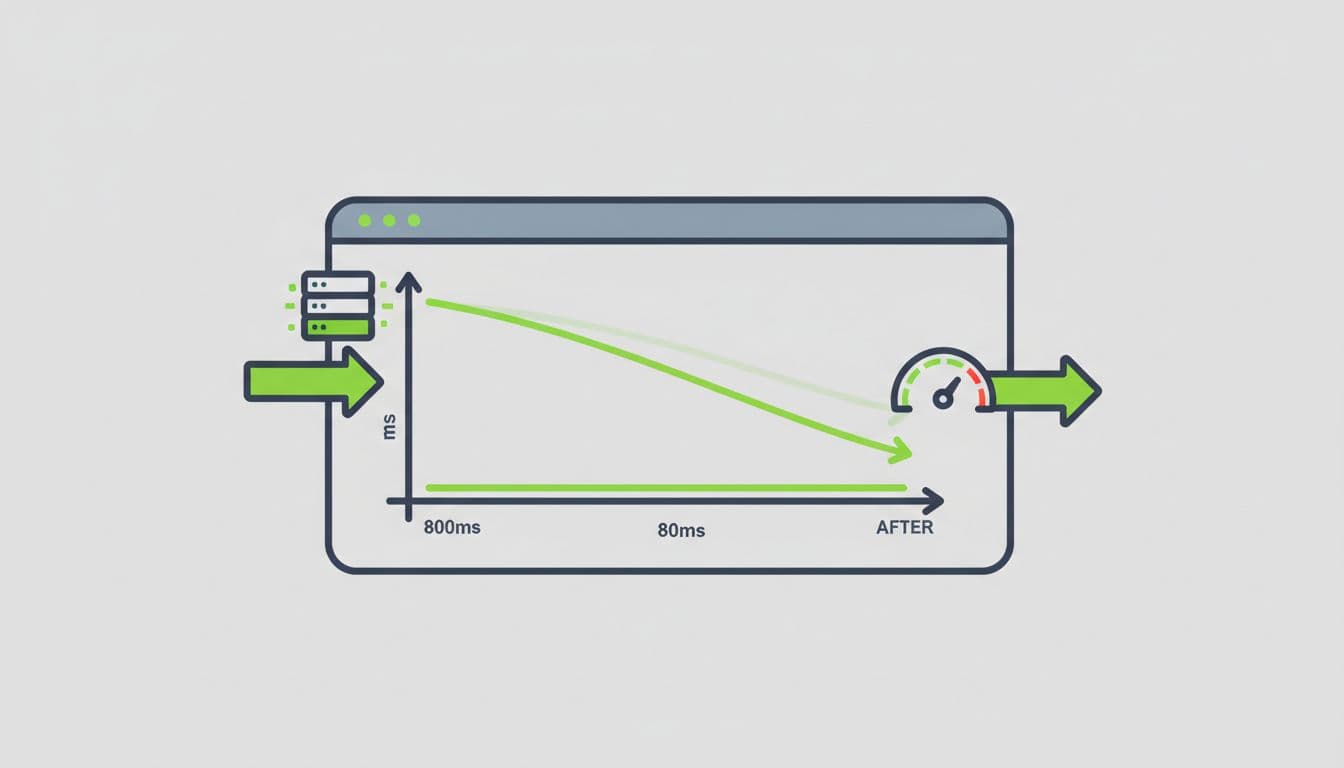
I never trust “it feels faster.” I measure before and after. First, I run a response-time test with GTmetrix or a simple curl TTFB check, and perform load testing with tools like K6 or Loader.io. Then I watch CPU usage, RAM, load average, and PHP-FPM pool activity during normal traffic and traffic spikes. If I can, I enable the FPM status page too.
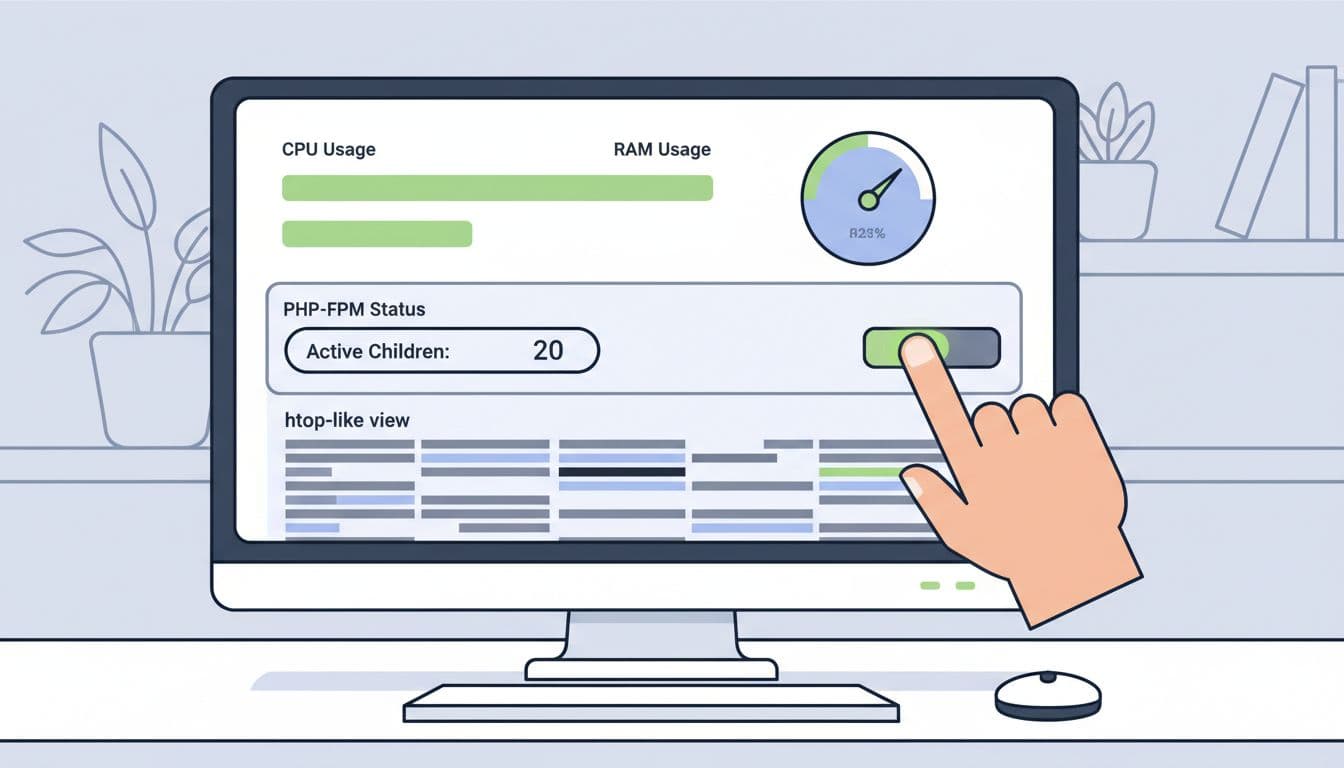
When TTFB stays high but CPU is calm, I usually find requests waiting on too few PHP workers. In that case, I raise pm.max_children a bit and retest, but only if free RAM allows it.
When I see 502 or 504 errors, or logs that say the server reached pm.max_children, workers are exhausted. That can mean I need more workers, but it can also mean each request is too heavy. A slow plugin, uncached WooCommerce page, remote API call, or bad database query can keep workers busy for too long. Check your database host or MariaDB logs for slow queries, and watch for 502 errors stemming from permissions issues with the www-data user or a faulty Nginx configuration.
On the other hand, if RAM fills up, swap kicks in, or CPU pegs at 100 percent, I’ve usually gone too far. More workers won’t help if each worker is expensive. Then I lower the pool size, trim plugin load, move WP-Cron to a real system cron, and add object caching with Memcached via wp-config.php or page caching with FastCGI cache where it fits.
If running inside a Docker container behind a reverse proxy, ensure the Nginx configuration handles headers correctly so wp-config.php recognizes the correct client IP and avoids extra troubleshooting headaches.
If I’m updating several servers or testing changes often, I also like using WP-CLI commands for site updates, because a clean, updated stack is easier to tune than a messy one.
Conclusion
When I optimize WordPress PHP-FPM, I’m really balancing queue time against server memory. The best settings for performance optimization come from watching the server, measuring TTFB, and making small changes that fit my RAM, CPU, traffic, and worker memory use. If the server feels like a crowded kitchen, the fix isn’t “hire infinite cooks,” it’s giving the right number of cooks enough space to work. Ultimately, WordPress PHP-FPM stands at the heart of performance optimization for dynamic sites.