How To Set Up WordPress Locally Using Docker Compose (My Go-To Stack in 2026)
Table of Contents
When I’m juggling client sites, I don’t want my laptop to feel like a junk drawer. One project needs PHP tweaks, another needs a plugin test, and suddenly everything conflicts.
That’s why I keep a wordpress docker compose setup handy to replace the traditional LAMP stack. I can spin up a fresh WordPress “tiny city” in containers, do my work, then shut it down without leaving crumbs all over my machine.
In this guide, I’ll show you the exact folder layout I use, a complete docker-compose.yml (WordPress + MySQL, plus optional phpMyAdmin), and the everyday commands that make this feel easy.
Why I use WordPress Docker Compose for local development
For local WordPress work, I care about two things: repeatability and isolation. Docker Compose gives me both through the architectural benefits of containerization.
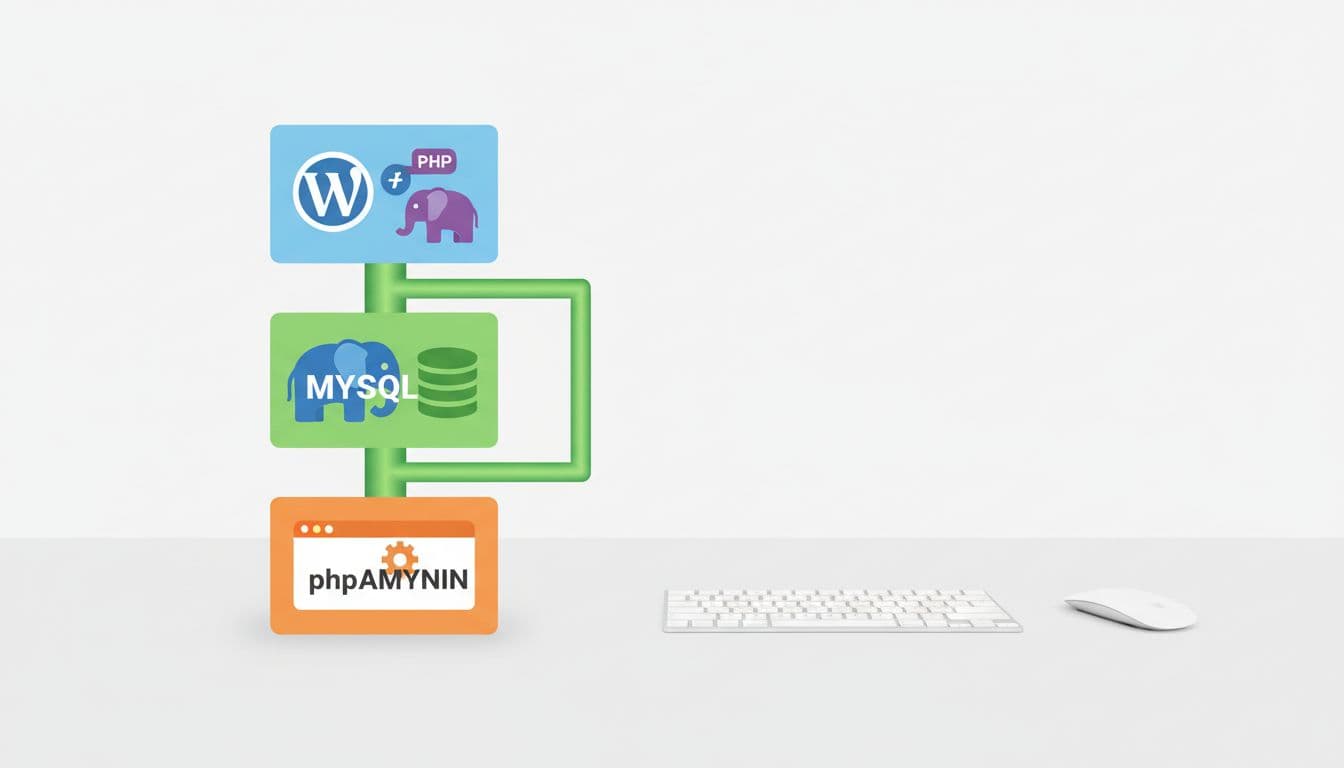
Instead of installing PHP, a MySQL database, and Apache (or the nginx web server as a popular alternative), I run them as separate containers in a multi-container stack that act like little buildings in the same neighborhood. WordPress talks to the database over a private network, while I only expose a simple localhost port in my browser.
This also makes handoffs easier. When a teammate asks, “How did you get that running?”, I can point to one folder and one file. They run the same docker compose command and get the same result.
If you want a broader reference for the concept (and how Dockerized WordPress can scale beyond local), DigitalOcean’s guide on installing WordPress with Docker Compose is worth a look. My setup below stays focused on local dev, where speed matters more than production hardening.
Create a project folder (and keep wp-content editable)
I start with a dedicated folder per site. Here’s the structure I aim for:
my-wp-site/my-wp-site/docker-compose.ymlmy-wp-site/.envmy-wp-site/wp-content/(themes, plugins, uploads live here)
That last folder matters. I bind-mount the wp-content directory to my machine using Docker volumes for persistent data storage, so I can edit themes and plugins with my normal editor. It feels like working on a regular WordPress install, because it is, at least where it counts.
Next, I add a .env file in the same folder as docker-compose.yml. The .env file stores environment variables for sensitive data like passwords and uses port mapping to manage ports, keeping them out of the Compose file and making it easy to run multiple projects without port conflicts.
Here’s a simple .env example you can copy and adjust:
COMPOSE_PROJECT_NAME=mywpsite
WP_HTTP_PORT=8080
PMA_PORT=8081
WORDPRESS_DB_NAME=wordpress
WORDPRESS_DB_USER=wp
WORDPRESS_DB_PASSWORD=wp_pass_change_me
MYSQL_ROOT_PASSWORD=root_pass_change_me
A small 2026 note: I stick to the modern docker compose command (with a space). On most systems now, Docker Compose ships as part of Docker, so you don’t need the old docker-compose binary.
My docker-compose.yml (WordPress + MySQL, optional phpMyAdmin)
This is the full docker-compose.yml file I use for a clean local stack. It features the WordPress service utilizing the official WordPress image, a MySQL database container, and an optional phpMyAdmin. Save it as docker-compose.yml inside your project folder.
name: ${COMPOSE_PROJECT_NAME:-wp-local}
services:
db:
image: mysql:8.4
restart: unless-stopped
command: –default-authentication-plugin=mysql_native_password
environment:
MYSQL_DATABASE: ${WORDPRESS_DB_NAME}
MYSQL_USER: ${WORDPRESS_DB_USER}
MYSQL_PASSWORD: ${WORDPRESS_DB_PASSWORD}
MYSQL_ROOT_PASSWORD: ${MYSQL_ROOT_PASSWORD}
volumes:
– db_data:/var/lib/mysqlwordpress:
image: wordpress:php8.3-apache
restart: unless-stopped
depends_on:
– db
ports:
– “${WP_HTTP_PORT:-8080}:80”
environment:
WORDPRESS_DB_HOST: db:3306
WORDPRESS_DB_NAME: ${WORDPRESS_DB_NAME}
WORDPRESS_DB_USER: ${WORDPRESS_DB_USER}
WORDPRESS_DB_PASSWORD: ${WORDPRESS_DB_PASSWORD}
volumes:
– ./wp-content:/var/www/html/wp-contentphpmyadmin:
image: phpmyadmin:5
restart: unless-stopped
profiles: [“tools”]
depends_on:
– db
ports:
– “${PMA_PORT:-8081}:80”
environment:
PMA_HOST: db
PMA_USER: ${WORDPRESS_DB_USER}
PMA_PASSWORD: ${WORDPRESS_DB_PASSWORD}volumes:
db_data:
phpMyAdmin is “optional” because it uses a profile. That means it won’t start unless you ask for it, which keeps the default stack clean.
Run the stack: up, down, logs, and exec
Once the files are in place, I open a terminal in the project folder and run:
- Start WordPress + DB:
docker-compose up -d - Open WordPress: visit
http://localhost:8080(or yourWP_HTTP_PORT) - If you want phpMyAdmin too:
docker-compose --profile tools up -d, then openhttp://localhost:8081
After that, these are the commands I reach for most:
- See what’s running:
docker-compose ps - Tail logs (great when install screens hang):
docker-compose logs -f wordpress - Stop containers (keeps the database volume):
docker-compose down - Stop and delete volumes (wipes the database):
docker-compose down -v - Get a shell inside the WordPress container using docker exec:
docker-compose exec wordpress bash
Gotcha I learned the hard way:
docker-compose down -vis like bulldozing the whole city, including the basement storage. Use it only when you want a full reset.
Once you’re comfortable, adding command-line management is a nice upgrade. I often pair this setup with command-line WordPress management with wp-cli to speed up plugin installs, search-replaces, and quick admin user creation.
For another perspective on running WordPress with Compose (including a more “server-like” arrangement), this walkthrough on running WordPress with Docker Compose is a solid read.
Practical tips: ports, naming, .env, and backing up volumes
When you run more than one local site, a few habits save a lot of time:
Pick predictable ports. I like 8080, 8082, 8084, and so on. If something already uses 8080, I change the WP_HTTP_PORT environment variable in .env and restart. This keeps things consistent across projects and avoids port conflicts.
Name projects on purpose. Set COMPOSE_PROJECT_NAME so your containers and volumes don’t collide. This matters when you have three WordPress sites open at once.
Keep wp-content on your machine. That bind-mount is why editing feels normal. It also provides easy access for persistent storage outside Docker volumes, making it simpler to commit theme or plugin work to Git.
Back up the database volume before risky work. Docker volumes offer persistent storage for your database, so protect it with a quick database dump. For a one-liner archive, I use a temporary container with mysqldump. First check docker volume ls to confirm the exact volume name for your project.
Use phpMyAdmin only when you need it. Profiles keep it out of the way, which means fewer moving parts most days.
Quick security note (local only)
This wordpress docker compose stack is meant for local development. I use easy credentials because nobody else can reach it. Still, I don’t reuse real production passwords, and I avoid publishing these ports to the internet. If you need a production setup, treat it as a different project with stricter settings like a reverse proxy and SSL certificates.
FAQ: WordPress Docker Compose (the stuff people ask me)
Do I need Docker Desktop?
Not always. Docker Desktop works, but on macOS and Linux there are other options. Use whatever runs docker compose reliably.
Where do my images and uploads live?
Anything in wp-content lives in your local wp-content/ folder, because we mounted it.
Why does WordPress prompt me to FTP when installing plugins?
File permissions can cause that, especially on Windows. In most cases, editing wp-content locally and restarting containers helps.
Can I run multiple sites at once?
Yes. Change COMPOSE_PROJECT_NAME and ports in each project’s .env.
How do I reset everything?
Run docker compose down -v, then docker compose up -d. Remember, that wipes the database volume.
Can I use MariaDB as an alternative to MySQL?
Yes. Just change the database service image from mysql to mariadb in docker-compose.yml.
How does WordPress connect to the database environment variables?
WordPress reads environment variables like WORDPRESS_DB_HOST and WORDPRESS_DB_PASSWORD from .env to automatically configure wp-config.php.
How do I enable Xdebug for local debugging?
Use a custom Dockerfile to install Xdebug in the PHP container, or switch to a WordPress image with Xdebug built-in.
What about php-fpm and Alpine Linux image tags?
Performance-minded users love them. Swap default images for php-fpm and alpine linux variants to reduce size and boost speed.
Conclusion
Once I started using wordpress docker compose, local WordPress work stopped feeling fragile. My projects became portable, predictable, and easy to pause. If you set up the folder, drop in the Compose file, and learn four commands, you’ll have a local stack you can trust. When you’re ready to deploy to a live server, look into Let’s Encrypt and Certbot for seamless SSL setup. What would you build first if spinning up a fresh WordPress site took less than a minute?