How To Create Custom Block Patterns In WordPress 2026 Guide
Table of Contents
Have you ever built the same “hero with a button” section five times in one week and thought, “There has to be a better way”? That’s exactly why I lean so hard on wordpress block patterns.
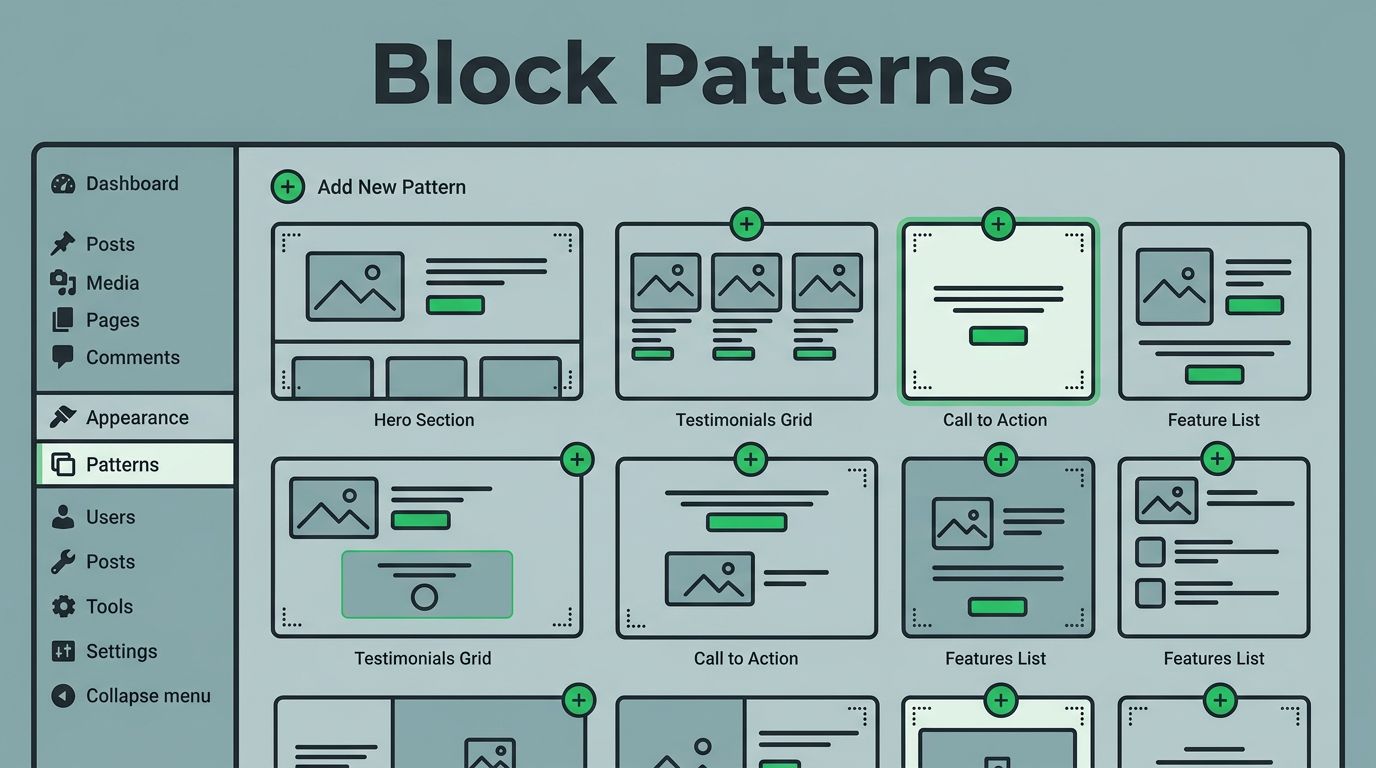
A block pattern is basically a saved layout made from normal blocks. I can drop it into any page, tweak the text, and move on. Better yet, patterns help me keep a site consistent, even when multiple people edit content.
In this guide, I’ll show you two reliable ways to create custom patterns in 2026: the theme-based approach (patterns folder plus headers), and the plugin/PHP registration approach.
What block patterns are (and when I use synced vs non-synced)
Patterns come in two “flavors” in day-to-day work:
- Non-synced patterns: These insert as regular blocks. After I insert one, it’s independent. Changes don’t affect other pages.
- Synced patterns (formerly Reusable blocks): These stay linked. If I update the synced pattern, every place using it updates too.
I reach for non-synced patterns for layout starters, like a pricing section or an FAQ block stack. Meanwhile, I use synced patterns for things that must match everywhere, like a call-to-action strip used across dozens of pages.
Here’s the quick decision table I keep in my head:
| If you need this… | Use this… | Why |
|---|---|---|
| A starting layout people customize | Non-synced pattern | Each page can diverge safely |
| A section that must stay identical | Synced pattern | One edit updates all instances |
| Patterns that survive theme changes | Plugin-registered patterns | Theme switches won’t wipe them |
If you want the WordPress-friendly “why” behind patterns, the lesson plan at Learn WordPress on creating and registering a pattern matches how I teach this to clients.
My personal rule: if a change should roll out site-wide, I make it synced. If it’s just a shortcut, I keep it non-synced.
Method 1: Create theme-based block patterns (patterns folder plus headers)
When I’m working on a block theme, this is my favorite method because it’s clean and portable with the theme.
Step 1: Create the patterns folder
In your (block) theme, create:
/wp-content/themes/your-theme/patterns/
File names should be short and readable. I like kebab-case, for example: hero-simple.php, header-centered.php.
Step 2: Build the layout in the editor, then copy the blocks
I build the layout on a blank page using the Block Editor. Next, I select the blocks, open the three-dot menu, and click Copy all blocks. That gives me the exact block markup WordPress expects.
Step 3: Paste into a pattern file with the required headers
Create a file like:
/patterns/hero-simple.php
Then add a header comment first, followed by the copied block markup.
<?php
/**
 * Title: Simple Hero with Button
 * Slug: yourtheme/hero-simple
 * Categories: featured, call-to-action
 * Keywords: hero, button, cta
 * Block Types: core/group
 * Inserter: yes
 */
?>


<!-- wp:group {"align":"full","style":{"spacing":{"padding":{"top":"var:preset|spacing|60","bottom":"var:preset|spacing|60"}}},"layout":{"type":"constrained"}} -->
<div class="wp-block-group alignfull" style="padding-top:var(--wp--preset--spacing--60);padding-bottom:var(--wp--preset--spacing--60)">
  <!-- wp:heading {"textAlign":"center","level":1} -->
  <h1 class="wp-block-heading has-text-align-center">A clear headline people understand</h1>
  <!-- /wp:heading -->


  <!-- wp:paragraph {"align":"center"} -->
  <p class="has-text-align-center">One short sentence that explains the offer.</p>
  <!-- /wp:paragraph -->


  <!-- wp:buttons {"layout":{"type":"flex","justifyContent":"center"}} -->
  <div class="wp-block-buttons">
    <!-- wp:button -->
    <div class="wp-block-button"><a class="wp-block-button__link wp-element-button" href="#">Get started</a></div>
    <!-- /wp:button -->
  </div>
  <!-- /wp:buttons -->
</div>
<!-- /wp:group -->
A few notes that save me time later:
- Slug should be namespaced, like
yourtheme/pattern-name. - Categories control where it shows in the inserter. WordPress also has special “Header” and “Footer” pattern buckets, which got easier to browse after editor improvements like the ones discussed in Full Site Editor updates in WP 6.2.
If your pattern doesn’t show up, the first thing I check is the header comment. One missing “Title” can break the whole thing.
Step 4: Preview and insert the pattern
After saving the file, I refresh the editor:
- In a post or page: click +, switch to the Patterns tab, then search by title or keyword.
- In the Site Editor (Appearance, Editor): open the inserter and browse patterns there too.
For extra guidance on what patterns are best for (and what becomes a maintenance headache), I like 10up’s write-up on Block Patterns best practices.
Method 2: Register block patterns with a plugin (PHP registration)
If I want patterns to survive theme changes, I register them in a plugin. This is also great when I’m building a “pattern library” for multiple sites.
Step 1: Create a tiny plugin
Create a folder:
/wp-content/plugins/smart-patterns/
Then create:
/wp-content/plugins/smart-patterns/smart-patterns.php
Paste this:
<?php
/**
 * Plugin Name: Smart Patterns
 * Description: Custom block patterns for this site.
 * Version: 1.0.0
 */


add_action( 'init', function() {
    if ( ! function_exists( 'register_block_pattern' ) ) {
        return;
    }


    register_block_pattern_category(
        'smartwp',
        array( 'label' => __( 'SmartWP Patterns', 'smart-patterns' ) )
    );


    $content = file_get_contents( __DIR__ . '/patterns/hero-simple.html' );


    register_block_pattern(
        'smart-patterns/hero-simple',
        array(
            'title'       => __( 'Simple Hero with Button', 'smart-patterns' ),
            'description' => __( 'A centered hero section with a headline, text, and button.', 'smart-patterns' ),
            'categories'  => array( 'smartwp' ),
            'keywords'    => array( 'hero', 'cta' ),
            'content'     => $content,
        )
    );
} );
Step 2: Store the markup in a separate file
Create:
/wp-content/plugins/smart-patterns/patterns/hero-simple.html
Paste the “Copy all blocks” markup into that file (no PHP needed). I prefer this split because long strings inside PHP get messy fast.
Step 3: Insert and test
Go back to the editor, open the inserter, and search for “Simple Hero with Button”. Insert it, then confirm the spacing and typography match your theme.
If you like keeping up with current editor changes, the WordPress Developer Blog post What’s new for developers? (March 2026) is worth skimming, especially when pattern behavior shifts between versions.
Export, import, and keeping patterns easy to maintain
For synced patterns, I treat them like content. WordPress stores them in the database (as the wp_block post type), so I can move them with normal site migration tools. On smaller jobs, I simply recreate them and keep names consistent.
For non-synced patterns, I keep the source in code. That means either a theme pattern file or a plugin pattern file, committed to version control.
To keep patterns maintainable, I avoid hard-coded spacing and colors. Instead, I use theme.json presets in my pattern markup (like var:preset|spacing|60). That way, when I adjust spacing tokens once, the whole library stays consistent.
Troubleshooting: when a pattern doesn’t show up
When a pattern is missing, I walk through this checklist:
- Wrong location: Theme patterns must live in
/patterns/at the theme root. Plugin patterns must load oninit. - Bad headers (theme patterns): Missing
TitleorSlugbreaks discovery. Also checkInserter: yes. - Category issues: If you use a custom category in PHP, you must register it first. If you misspell it, WordPress won’t place it where you expect.
- Caching: Clear any host cache, plugin cache, and object cache. Then hard refresh the editor tab.
- PHP not running: If you registered via plugin, confirm the plugin is active and there are no fatal errors.
If the pattern appears but looks “unstyled,” I compare the inserted markup to my theme tokens and block supports. In most cases, one hard-coded class or missing preset is the culprit.
Conclusion
Once I started building my own wordpress block patterns, my page building got faster and my layouts got more consistent. Theme-based patterns are perfect when the pattern belongs to the theme, while plugin registration is my pick for long-term reuse across projects. If you build one hero pattern today and reuse it ten times next week, you’ll feel the payoff immediately.