
How To Fix WordPress 403 Forbidden Error on Any Host (Apache, Nginx, LiteSpeed)
Table of Contents
A wordpress 403 forbidden error (the HTTP status code 403) always feels personal. Like a stone gate just slammed shut, right when I’m trying to publish a post, log into wp-admin, or load a simple image.
The good news is that 403 is usually a rule problem, not a “your site is gone” problem. Your server understands the request, it just refuses to let it through. So I treat it like a picky gatekeeper: figure out which rule is yelling “no,” then swap the right key.
Below is the same host-agnostic checklist I use regardless of your hosting provider on shared hosting (cPanel or Plesk), managed WordPress, and VPS boxes.
Confirm what’s actually forbidden or access denied (and where)
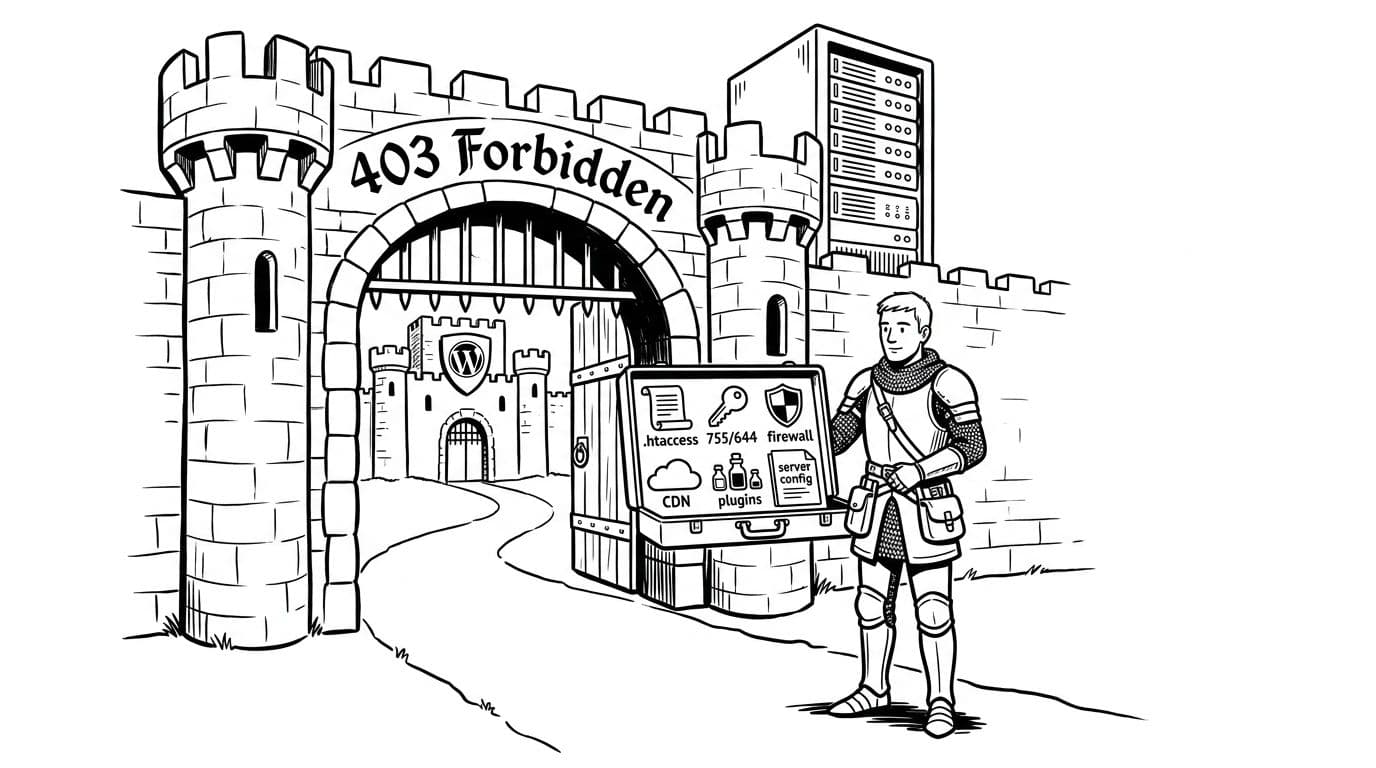
Before I touch files, I pin down the scope. A 403 Forbidden or access denied on the whole site points to server rules, firewall, or permissions. A 403 on /wp-admin/ can be a security rule. A 403 on images often means bad permissions inside wp-content/uploads.
Here’s my quick triage map:
| What’s blocked | Common cause | Fastest check |
|---|---|---|
| Entire site | WAF/CDN rule (web application firewall), server config | Temporarily bypass CDN or WAF |
Only /wp-admin/ or /wp-login.php | Security plugin, ModSecurity, IP block | Check error logs, security logs, disable plugin |
Only one folder (like /wp-content/) | Permissions/ownership | Verify 755 folders, 644 files |
| Media files 403 | Uploads permissions, hotlink protection | Check uploads perms, disable hotlink rule |
| Random pages 403 | Bad rewrite rule or cached rule | Reset .htaccess, clear caches |
Mini checklist (2 minutes, no risk):
- Try an incognito window or clear browser cache and cookies: Rules out a weird cached auth cookie.
- Disable VPN/proxy: Some hosts block datacenter IPs.
- Check CDN/WAF events: If you use Cloudflare or a host firewall, look for a “blocked request.”
- Confirm the web server: Apache and LiteSpeed often use
.htaccess. Nginx does not.
If you want a plain-English explanation of what 403 means across scenarios, Elementor’s breakdown is a decent reference: 403 Forbidden error causes and fixes.
Gotcha I see a lot: if your homepage loads but images return 403, don’t waste time resetting permalinks first. Go straight to permissions and hotlink rules.
Fix permissions and ownership (the most common “silent bouncer”)
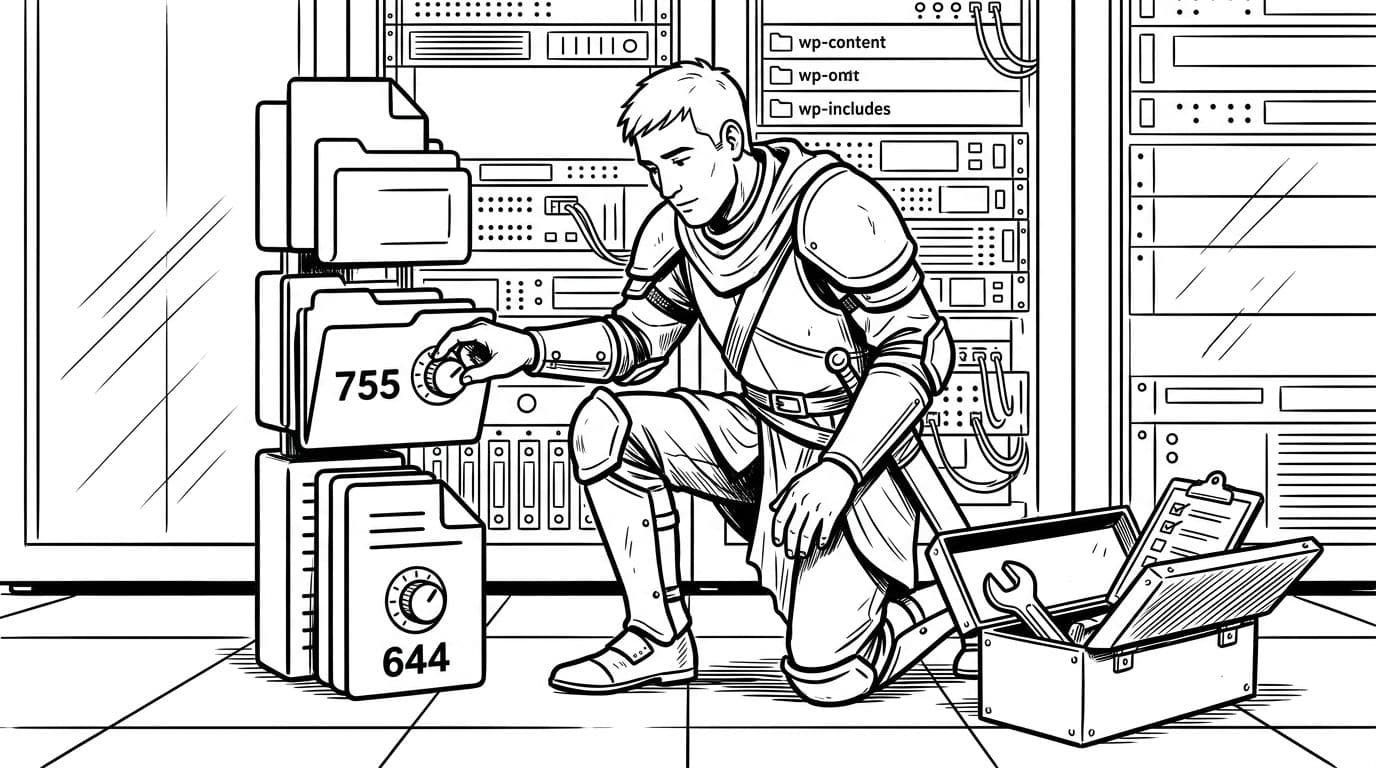
When a WordPress 403 Forbidden pops up after a migration, a restore, or a new host setup, resetting file permissions is my first real “fix” step. Hosts differ, but the target is pretty consistent:
- Folders:
755 - Files:
644 wp-config.php: often640or600(host-dependent, don’t force it if your host manages it)
How I do it on any host:
- Open file manager (cPanel or Plesk) or connect via SFTP/SSH with an FTP client.
- Navigate to your WordPress root directory (often
public_html,httpdocs, or the domain folder). - Reset file permissions by setting directory permissions to
755on the root directory and subdirectories (likewp-contentandwp-includes), then set file permissions to644.
Expected outcome: pages stop returning 403, file permissions align correctly, and media loads again.
Rollback note: permissions changes are reversible. If something breaks, reset file permissions back to what they were (or restore from your host backup). On managed WordPress, support can tell you the “correct” owner and group.
Quick copy/paste permission targets
Keep this as a simple target, not a religion. These numeric values represent standard security settings:
755for directories (directory permissions)644for files (file permissions)
If you’re on a VPS and you changed ownership during a move, 403 can also mean the PHP user can’t read files due to mismatched file permissions. That’s harder to solve “blind,” so check the host’s error logs next (often in a control panel under logs, or in Nginx/Apache logs on the server). A line mentioning “permission denied” is basically the gatekeeper pointing at the key you need.
Warning before anything destructive: don’t set permissions to 777 “just to test.” It can open your site to abuse, and some hosts will auto-block you.
Reset rewrite rules and remove “deny” traps (Apache vs Nginx vs LiteSpeed)
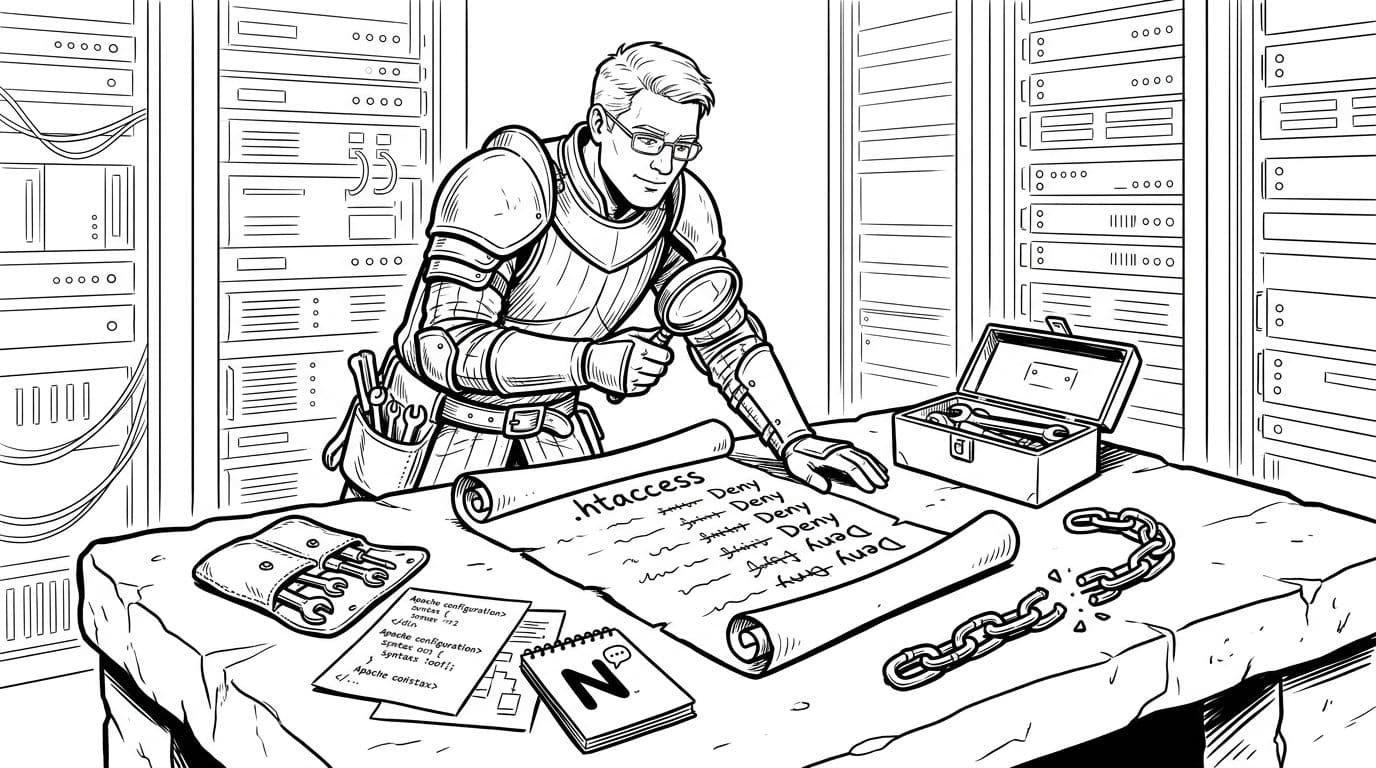
This is where hosting differences matter.
If you’re on Apache or LiteSpeed: reset .htaccess
LiteSpeed acts like Apache for .htaccess in most setups, so the same fix applies to the apache webserver.
Mini checklist before the reset
- Take a backup copy of your current
.htaccess file. - Know your server type: If you’re on Nginx,
.htaccess fileedits won’t help.
Step-by-step (safe and fast):
- In your WordPress root, rename
.htaccess fileto.htaccess-old. - Try loading your site.
Expected outcome: if a bad rule caused the 403, the site starts loading (maybe with broken pretty permalinks).
Rollback note: rename it back if nothing changes.
If the rename fixed it, create a fresh .htaccess file by re-saving permalinks in WordPress (Settings, Permalinks, Save). If you can’t access wp-admin, you can paste a basic default .htaccess file.
Sample .htaccess file reset (Apache/LiteSpeed, WordPress default):
# BEGIN WordPress
<IfModule mod_rewrite.c>
RewriteEngine On
RewriteBase /
RewriteRule ^index.php$ - [L]
RewriteCond %{REQUEST_FILENAME} !-f
RewriteCond %{REQUEST_FILENAME} !-d
RewriteRule . /index.php [L]
</IfModule>
# END WordPress
If you’re on Nginx: look for deny rules in server configuration
Nginx doesn’t read .htaccess. A 403 often comes from a location block, an include file, or a security rule in the server configuration.
Copy/paste snippets I search for in Nginx configs:
deny all;location ~* .(php|phtml)$ { deny all; }location ~* /(wp-admin|wp-login.php) { deny all; }allow 1.2.3.4; deny all;(IP allowlist lockout)
Expected outcome: removing or correcting the deny rule restores access immediately.
Rollback note: revert the config change and reload Nginx if you edited the wrong block.
Don’t forget the host-level gatekeepers (WAF, ModSecurity, CDN)
On shared hosting, ModSecurity rules can trigger a 403 on admin actions, plugin installs, or certain query strings. On managed WordPress, a platform web application firewall might block your IP after failed logins.
What I do:
- Check your host’s security events or WAF logs.
- Temporarily disable a rule set (if your host allows it), then retest.
- If a CDN sits in front, purge cache and review firewall events.
For another perspective on the most common WordPress-specific causes, this guide is a handy cross-check: step-by-step 403 troubleshooting for WordPress users.
Final check: plugins, themes, and the “locked admin” rescue
If the 403 only happens in wp-admin, I assume WordPress plugins or security plugins until proven otherwise. This could also point to a malware infection causing corrupted files or unauthorized permission changes.
My quick rescue plan:
- If I can access wp-admin, I deactivate security plugins and cache plugins first.
- If I’m locked out, I use File Manager or SFTP and rename
/wp-content/plugins/to/wp-content/plugins-off/.
Expected outcome: WordPress disables all WordPress plugins, and wp-admin loads again.
Rollback note: rename the folder back, then re-enable WordPress plugins one by one until the 403 returns. That last plugin is your gatekeeper.
If a theme causes it (rare, but it happens), I switch to a default theme by renaming the active theme folder inside /wp-content/themes/.
Conclusion
When I hit a wordpress 403 forbidden error, I picture a guard doing their job a little too well. This is essentially a lack of authorization. The fix is almost always the same: confirm scope, correct permissions, reset rules, then check host firewalls and plugins. If all else fails, return to default settings for core files.
If you get stuck, grab the exact URL that returns 403 and the timestamp, then ask your host for the matching log entry. With that single line, the “403 wall” usually turns into a door.