WordPress Backup Verification Checklist to Prove Restores Actually Work
Table of Contents
A backup you’ve never restored is like a spare key you’ve never tried in the lock. It looks comforting on the keychain, right up until you’re standing outside in the rain.
When I do wordpress backup verification, I’m not asking, “Did the backup job finish?” I’m asking, “If production melts down tonight, can I bring this site back, fast, and with proof?” This checklist is designed to help you test wordpress backups effectively.
This checklist is the restore drill I run for my own sites and client sites. It’s practical, repeatable, and it catches the sneaky failures that “green checkmarks” don’t. This process is a vital component of a disaster recovery strategy.
Restore to staging first (and time the clock)
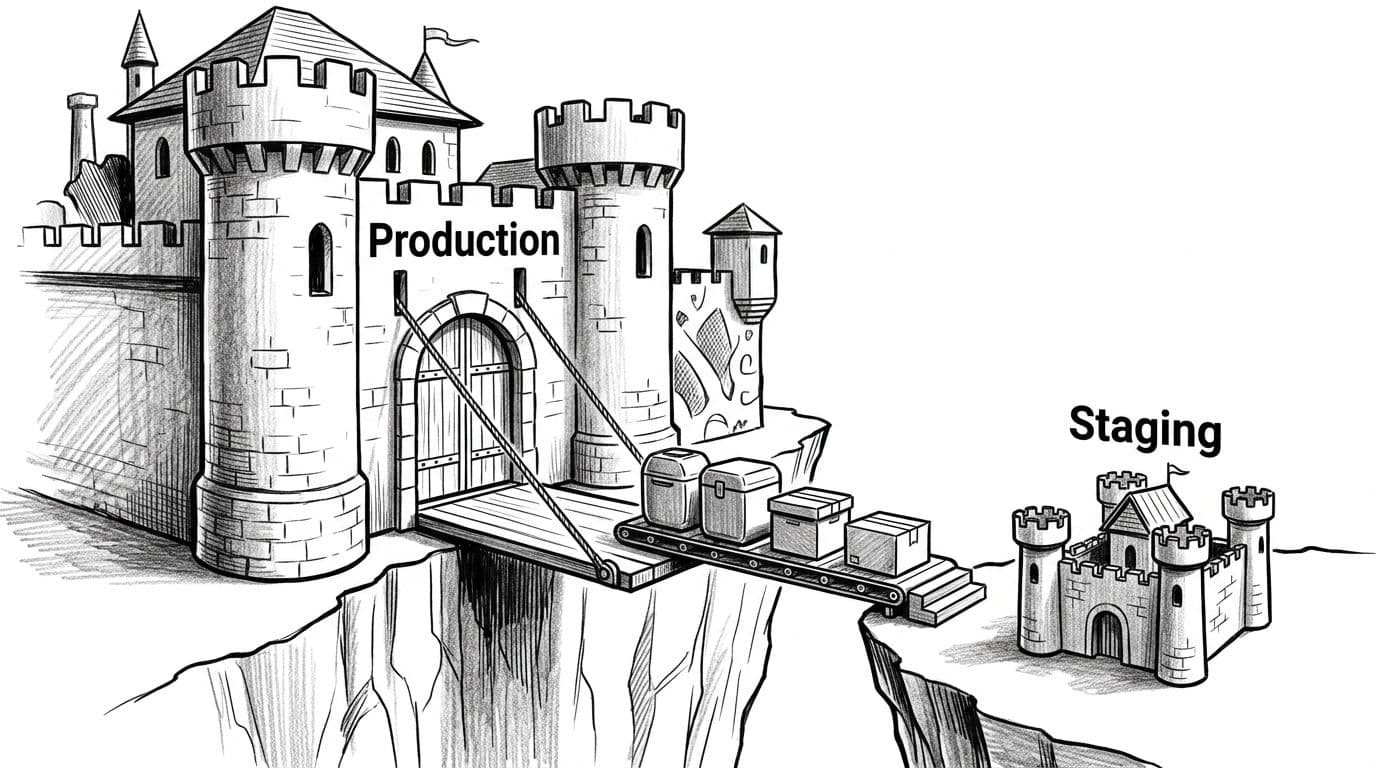
Restoring straight to production is how small problems become public ones. I always restore to a staging environment first, even if I’m “pretty sure” the backup is fine.
If you don’t have a staging site yet, create one using your host’s staging feature (many managed hosting providers offer these tools natively), a server clone, or a local copy. For a simple walkthrough to set up your staging site, I follow the same approach as this guide to clone WordPress site for staging. I also put basic auth on staging and set it to noindex, because staging shouldn’t be a surprise guest on Google.
Here’s my restore drill, in order:
- Start a stopwatch and note the backup timestamp you’re restoring.
- Use your tools to “restore a backup” including all site data to staging (not just database).
- Confirm the site loads (even if it’s ugly at first).
- Run the verification checklist later in this post.
- Fix issues and repeat until it passes.
- Write down what broke, so next time is faster.
Then I record two numbers that keep everyone honest:
- RTO (Recovery Time Objective): how long a restore takes end-to-end.
- RPO (Recovery Point Objective): how much data you can lose (time gap between now and the latest good backup).
Measuring these metrics prevents catastrophic data loss by ensuring your recovery processes are reliable and tested.
Use this small table to track targets vs reality; make these tests part of a regular backup schedule:
| Metric | Target | Actual (this test) | Evidence saved |
|---|---|---|---|
| RTO | 60 min | Screenshot + timestamps | |
| RPO | 24 hrs | Backup timestamp |
If you’ve never measured this, the first run feels like a fire drill. That’s the point. Better to sweat in staging than panic in production.
Confirm the Restore is Complete (WordPress Database + WordPress Files)

Validating backup integrity is the primary goal of this stage. Most restore “fails” I see aren’t dramatic. The site loads, but something important is missing. Usually it’s one of these: partial uploads, a skipped plugin folder, a database import that silently timed out, or environment values that don’t match.
Before I click around the site, I do a quick integrity pass:
- Backup date matches expectation: confirm the backup timestamp equals the restore point you wanted.
- WordPress database tables exist and look complete: not just
wp_posts, alsowp_options,wp_users, WooCommerce tables, and any custom tables your plugins create. Use phpMyAdmin to inspect the WordPress database. - WordPress files restored: spot-check wp-content directory for recent folders and file sizes.
- Themes and plugins restored: confirm the active theme folder exists and the plugins directory isn’t suspiciously tiny. Verify WordPress files throughout the wp-content directory.
- Disk usage looks right: compare total size against what you expect for that site.
For technical checks, I often use WP-CLI because it’s fast and it leaves a clean trail in my terminal history. You can also use phpMyAdmin to inspect the WordPress database or perform an SQL export for manual verification of the WordPress database. SmartWP’s guide on command line backups with WP-CLI is handy when you need to export, inspect, or confirm basics without relying on wp-admin.
Now, the part that bites people: wp-config.php and environment constants. Settings can be checked within the hosting control panel or via WP-CLI. If staging has different values for WP_HOME or WP_SITEURL, you can end up with login loops and weird redirects. If DISALLOW_FILE_MODS is set, updates and installs might fail (which can hide other issues). Also check that your table prefix matches what the database actually uses. If environment constants cause issues, check log files.
My rule: if I can’t explain why the restored site behaves differently, I don’t trust the restore yet.
WordPress backup verification checklist (restore tests that matter)
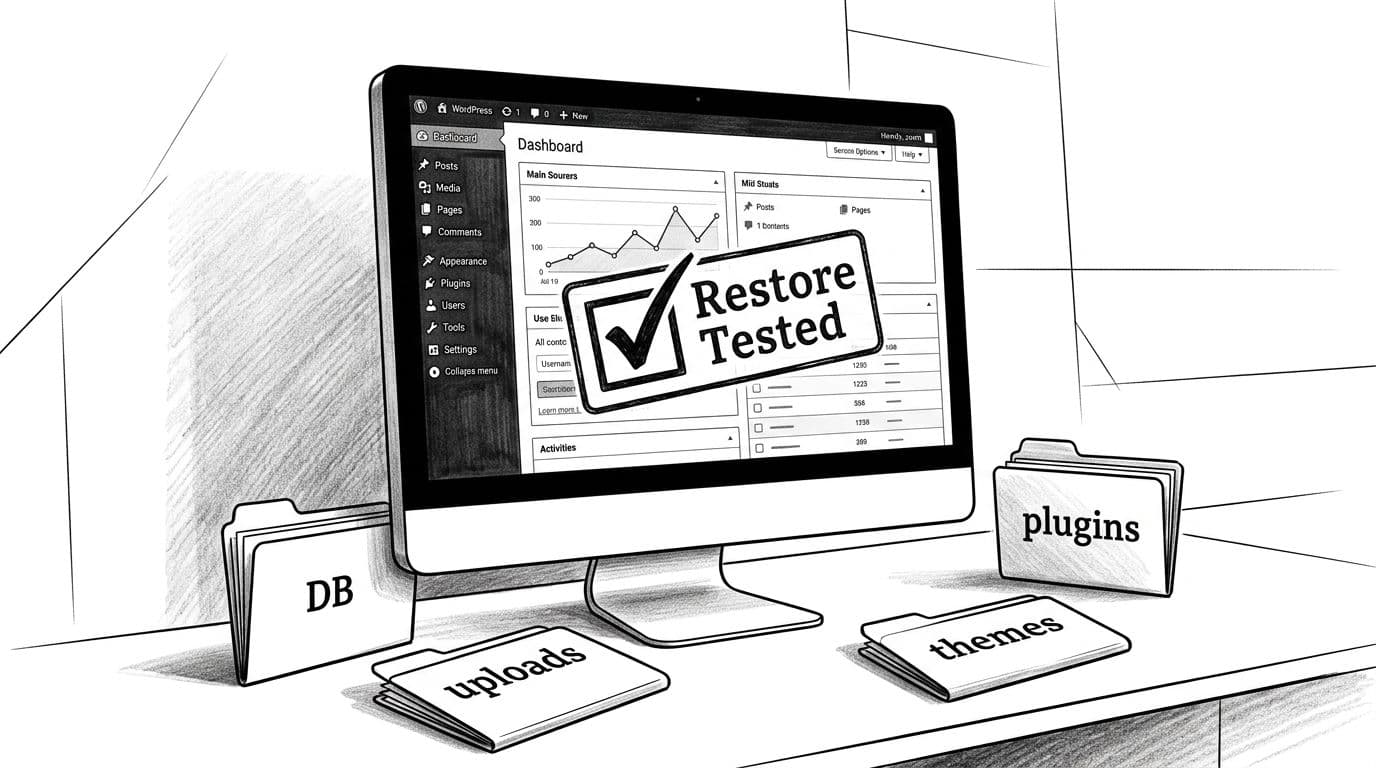
I run this checklist in staging after every scheduled test restore, whether from automated backups or a manual backup pulled from remote storage like Google Drive, to test WordPress backups thoroughly. This applies to server snapshots as an alternative verification method too. I do it after any big change (host move, new theme, major plugin updates). Keep it plugin-agnostic. You’re validating outcomes, not cheering for a tool.
- Front-end loads (home + one post); evidence: screenshot + load time.
- wp-admin login works (admin + editor account); evidence: screenshot of dashboard + timestamp.
- Permalinks work (no random 404s); evidence: test 3 URLs, record results.
- Flush rewrite rules (Settings > Permalinks, save once); evidence: note you did it and if it fixed anything.
- Site search returns results; evidence: screenshot of a search query and results.
- Media thumbnails display (featured images + gallery); evidence: screenshot of a post with images.
- New upload works (upload a JPEG); evidence: file appears in Media Library, screenshot.
- Forms submit and email arrives (contact form, lead form); evidence: submission screenshot + email headers or mail log.
- Transactional email works (password reset); evidence: received reset email + time sent.
- WooCommerce cart and checkout (if applicable, use a sandbox gateway); evidence: test order number in admin.
- REST API responds (
/wp-json/loads, no auth wall); evidence: screenshot of JSON response or status code. - WP-Cron runs (scheduled post publishes or a known scheduled task fires); evidence: timestamped result, plugin log, or server cron log.
- Cache doesn’t trap you (purge page cache and object cache if used); evidence: note cache cleared, confirm changes show.
- Plugins are active as expected (no silent deactivations); evidence: screenshot of plugins list.
- Error log files are clean enough (no fatal errors on load for WordPress database and files); evidence: copy 5 to 10 lines from
debug.logor server error log with timestamps.
When I want extra coverage, I borrow ideas from post-migration testing because migrations and restores break in similar ways. This post-migration WordPress testing checklist is a solid reference for additional checks (menus, widgets, redirects, analytics).
If your staging restore passes, you’re not done, but you can breathe again. At that point, I store the evidence (screenshots, logs, timestamps, and the backup ID) in the same place I’d look during an emergency: a client folder, a ticket, or a runbook.
For teams that manage lots of sites, I also keep a short “restore recipe” beside a list of top WordPress backup plugin and migration tools categories I’m willing to use, prioritizing backup plugins that support one-click restoration along with reliable backup plugins for consistent performance, so nobody has to improvise under pressure.
Conclusion
Backups are only comforting when you’ve watched one come back to life. With a staging-first workflow, a clear checklist, and saved evidence, wordpress backup verification turns from a vague hope into something you can prove. Even modern incremental backups demand these verification steps, particularly when using cloud storage for source files and remote storage to keep data safe. These drills also support the 3-2-1 backup rule by confirming you maintain three copies on two media types, including one in off-site storage like additional cloud storage. Run the drill on a calm day, time it, and record what you learn. Next time a site breaks, you won’t be guessing; you’ll be ready to restore a backup.