
How To Enable FastCGI Cache For WordPress On Nginx (2026 Setup)
Table of Contents
The first time I turned on nginx fastcgi cache for a WordPress site, it felt like adding a short express lane to a busy highway. Requests that used to queue up behind PHP and MySQL suddenly flew back as pre-built HTML.
If you’re chasing lower TTFB, higher concurrency, and fewer CPU spikes for better WordPress performance, FastCGI cache is one of the cleanest wins on an Nginx + PHP-FPM stack. The trick is getting the rules right, because WordPress is part blog, part app, and it changes behavior based on cookies, query strings, and logged-in state.
In this guide, I’ll walk through a practical Nginx config you can paste in for your LEMP stack, the gotchas I’ve learned the hard way (hello, WooCommerce carts), how to verify HIT/MISS headers, and how to roll back safely.
What FastCGI cache changes in the request path
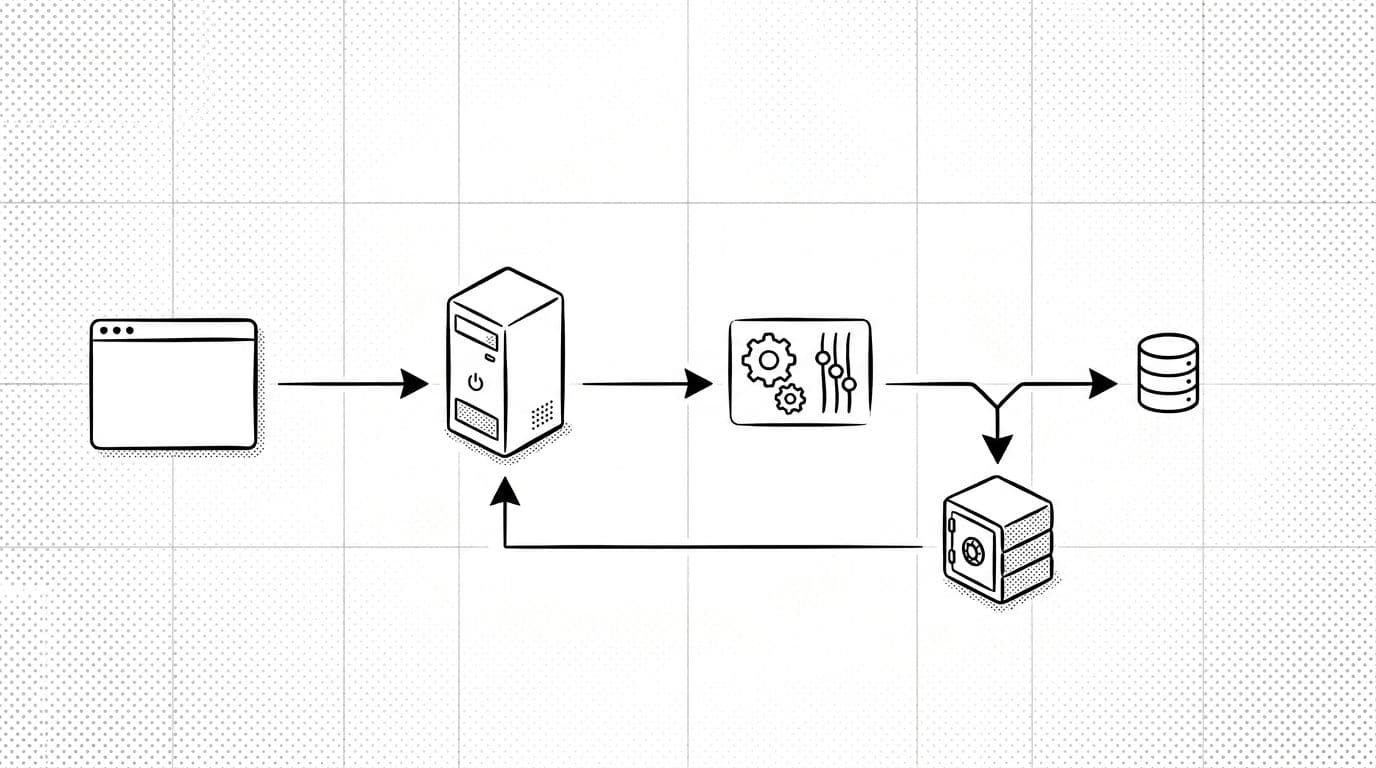
Without caching, every page view runs PHP, hits the database, builds HTML, and sends it back. With FastCGI cache, Nginx stores the final HTML output from PHP-FPM on disk. Next time a similar request comes in, Nginx can serve a static HTML version of the cached response without waking WordPress, improving server response time and WordPress performance.
That’s why it’s so effective under load, since the cache handles dynamic content by storing it after the first request. Your bottlenecks (PHP workers and database connections) stop being the first thing that crumbles during a traffic spike.
A few important realities, though:
- FastCGI cache works best for anonymous GET requests (home, posts, pages, categories).
- It should bypass anything personal or stateful (logged-in screens, carts, checkouts).
- You need a cache key strategy that doesn’t mix “different” pages into one file.
If you want a broader view of how FastCGI fits with other layers (Redis, DB tuning, and more), I like this hosting-focused breakdown: WordPress caching setup for VPS with Nginx and PHP-FPM.
Enable nginx fastcgi cache with a copy-paste Nginx config
This setup assumes a 2026-era stack (Nginx stable, PHP 8.2/8.3 with PHP-FPM). It doesn’t assume any control panel. You’ll add one block to http {} and a few directives inside your WordPress server {}.
1) Create the cache directory
Pick a fast disk. Then create a directory Nginx can write to:
sudo mkdir -p /var/cache/nginx/fastcgi
sudo chown -R www-data:www-data /var/cache/nginx/fastcgi
(Adjust www-data to your Nginx user.)
2) Add FastCGI cache settings in http {}
Put this in your main Nginx config (often /etc/nginx/nginx.conf) inside http {}. The fastcgi_cache_path directive sets up the shared memory zone using keys_zone=WORDPRESS:200m and the levels=1:2 parameter while defining the inactive timer with inactive=60m and the max_size parameter at 2g:
fastcgi_cache_path /var/cache/nginx/fastcgi levels=1:2 keys_zone=WORDPRESS:200m inactive=60m max_size=2g use_temp_path=off;

map $http_cookie $skip_cache_cookie {
    default 0;
    "~*wordpress_logged_in_" 1;
    "~*wp-postpass_" 1;
    "~*comment_author" 1;
    "~*woocommerce_items_in_cart" 1;
    "~*woocommerce_cart_hash" 1;
}

map $request_method $skip_cache_method {
    default 0;
    POST 1;
}

map $request_uri $skip_cache_uri {
    default 0;
    "~*/wp-admin/" 1;
    "~*/wp-login.php" 1;
    "~*/wp-json/" 1;
    "~*/cart/?$" 1;
    "~*/checkout/?$" 1;
    "~*/my-account/?$" 1;
    "~*/?add-to-cart=" 1;
    "~*/wp-admin/admin-ajax.php" 1;
}

map "$skip_cache_cookie$skip_cache_method$skip_cache_uri" $skip_cache {
    default 0;
    "~*1" 1;
}
That map logic is the guardrail. It populates the skip_cache variable to keep the cache away from logins, POST requests, and WooCommerce state.
3) Add cache directives to your WordPress server {}
Inside your WordPress site config, add headers and caching in the PHP location. This snippet assumes a typical PHP-FPM upstream with fastcgi_pass and fastcgi_param SCRIPT_FILENAME $document_root$fastcgi_script_name, plus fastcgi_cache_key, fastcgi_cache_valid, fastcgi_no_cache, fastcgi_cache_bypass, and fastcgi_cache_use_stale:
set $skip_cache 0;

add_header X-FastCGI-Cache $upstream_cache_status always;

location ~ .php$ {
    include fastcgi_params;
    fastcgi_param SCRIPT_FILENAME $document_root$fastcgi_script_name;

    fastcgi_pass unix:/run/php/php8.3-fpm.sock;

    fastcgi_cache WORDPRESS;
    fastcgi_cache_key "$scheme$request_method$host$request_uri";
    fastcgi_cache_valid 200 301 302 10m;
    fastcgi_cache_valid 404 1m;

    fastcgi_cache_bypass $skip_cache;
    fastcgi_no_cache $skip_cache;

    fastcgi_cache_use_stale error timeout updating http_500 http_503;
    fastcgi_cache_lock on;

    fastcgi_buffers 32 32k;
    fastcgi_buffer_size 64k;
}
If you skip the
X-FastCGI-Cacheheader, you’re driving without a speedometer. This response headers value, known as the X-Cache header and powered by the$upstream_cache_statusvariable, makes debugging simple from the start.
One more thing: WordPress often adds query strings (UTMs, tracking, filters). If your site uses lots of query-based views, you may want to normalize or bypass cache for those requests. Otherwise, you can end up with too many cache files.
For a deeper explanation of why FastCGI cache can still serve pages even when PHP is struggling, this is a solid reference: FastCGI cache setup benefits and behavior.
Bypass rules that prevent broken logins and WooCommerce bugs
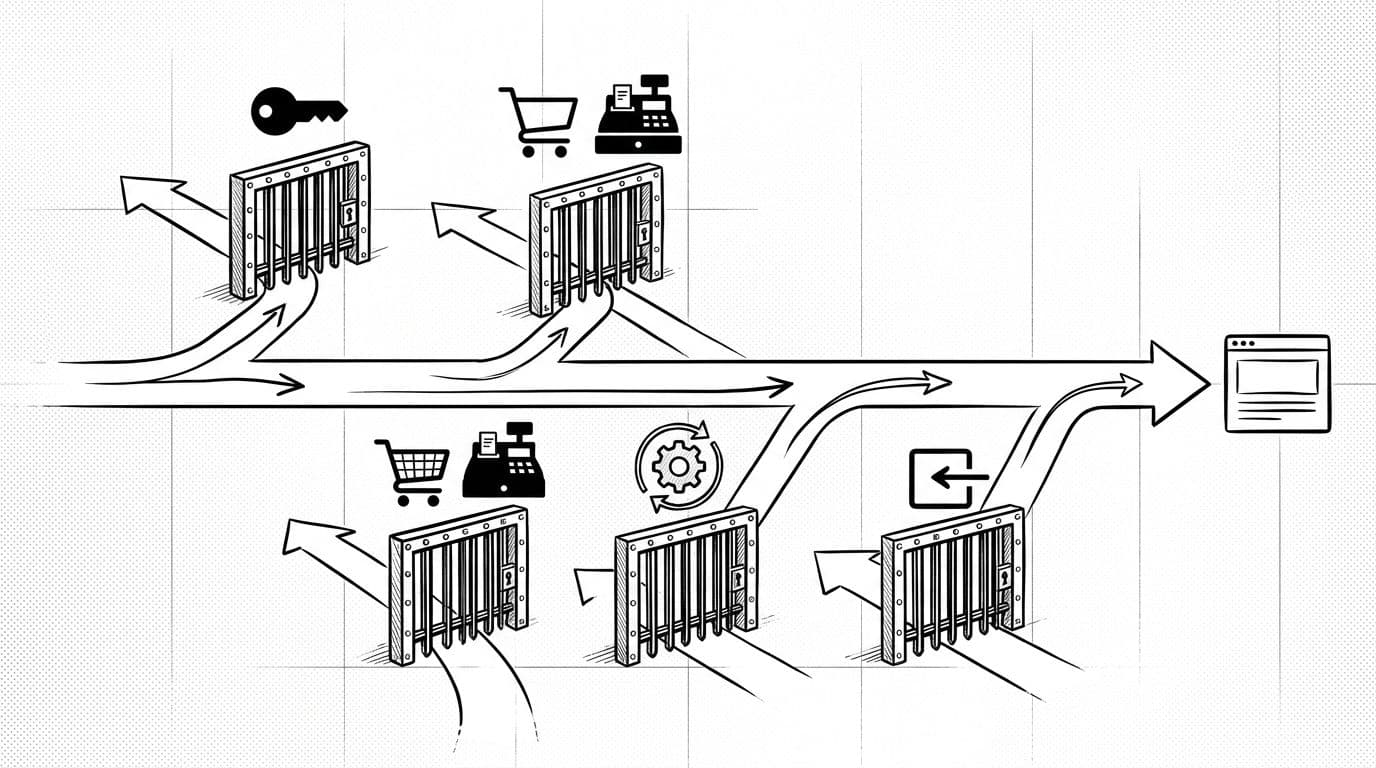
FastCGI cache is blunt by default. WordPress is not. So I treat bypass rules like door locks on a rental cabin, where WooCommerce exclusions form key gates for sensitive paths. Most guests should get in quickly, but a few doors stay private.
Here are the big gotchas I always plan for:
Cookies (logged-in and personalization)
If you cache responses that include wordpress_logged_in_ cookies, you can leak admin bars or personalized content. The map $http_cookie rules above cover the usual suspects, including password-protected posts and WooCommerce cart cookies.
POST requests and add-to-cart
Never cache POST responses. Also, watch for WooCommerce add-to-cart patterns. Depending on your theme and settings, add-to-cart can appear as a query string or POST, so I block both the method and common URIs.
admin-ajax.php
A lot of plugins use admin-ajax.php for dynamic fragments. If it gets cached, weird stuff happens (stale counts, stuck spinners, broken forms). I always bypass it.
Query strings
By default, $request_uri includes the query string. That means /?utm_source=a and /?utm_source=b become different cache keys, which can balloon cache size in your nginx fastcgi cache. This fragments storage, especially when dynamic content varies based on arguments. If you run heavy tracking, consider bypassing when $args is present.
If you want that behavior, add this in http {}:
map $args $skip_cache_args {
    default 0;
    "~.+" 1;
}


map "$skip_cache$skip_cache_args" $skip_cache_final {
    default 0;
    "~*1" 1;
}
Then swap $skip_cache to $skip_cache_final in fastcgi_cache_bypass and fastcgi_no_cache.
Verify HIT, MISS, and BYPASS (and roll back safely)
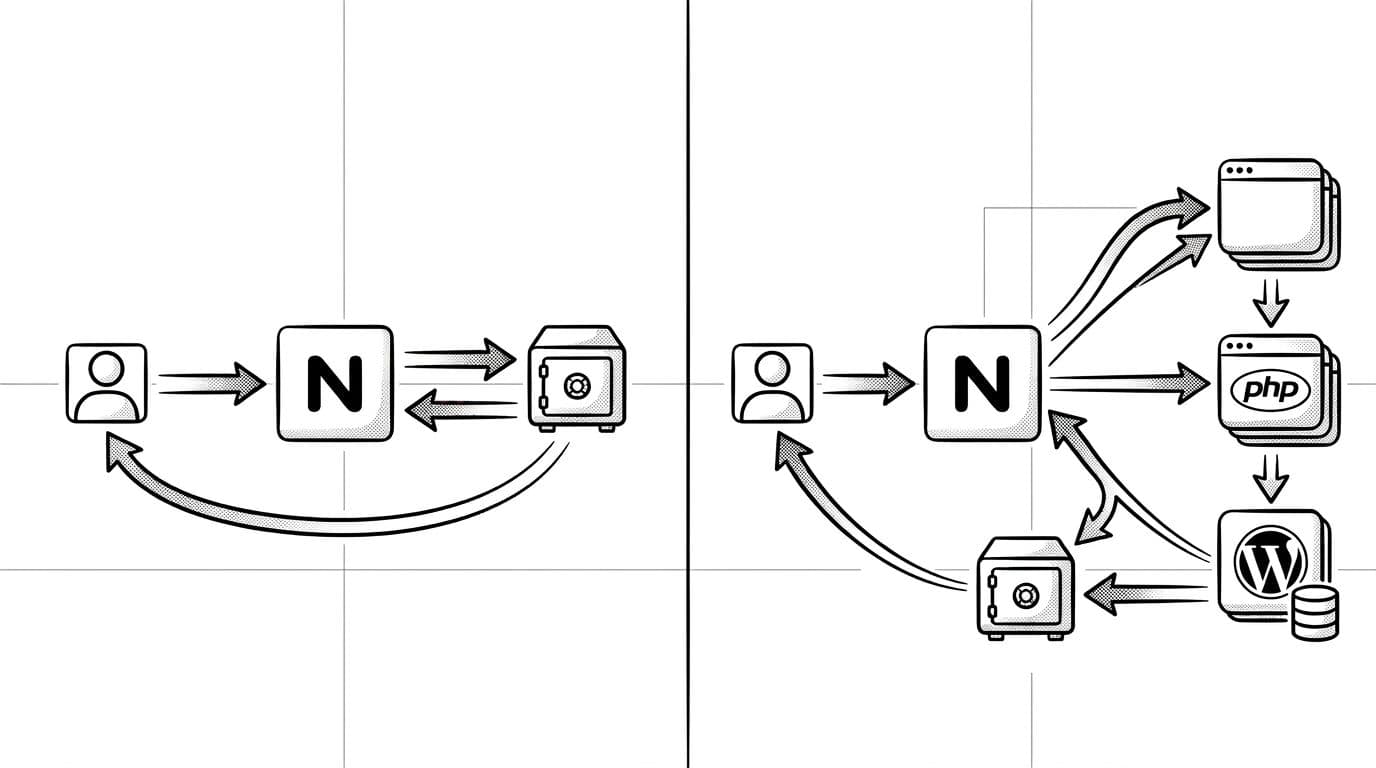
After reloading Nginx, I verify the nginx fastcgi cache with curl before I trust anything:
sudo nginx -t && sudo systemctl reload nginx
curl -I https://example.com/
curl -I https://example.com/
On the first request, you should see:
X-FastCGI-Cache: MISS(cache miss)
On the second request, you want:
X-FastCGI-Cache: HIT(cache hit)
The fastcgi_cache_key typically uses MD5 hashing to create unique identifiers on disk. If you only get BYPASS, your skip rules are too broad, or your PHP location block isn’t using fastcgi_cache. If you never get HIT, check permissions on the cache directory and confirm Nginx can write there.
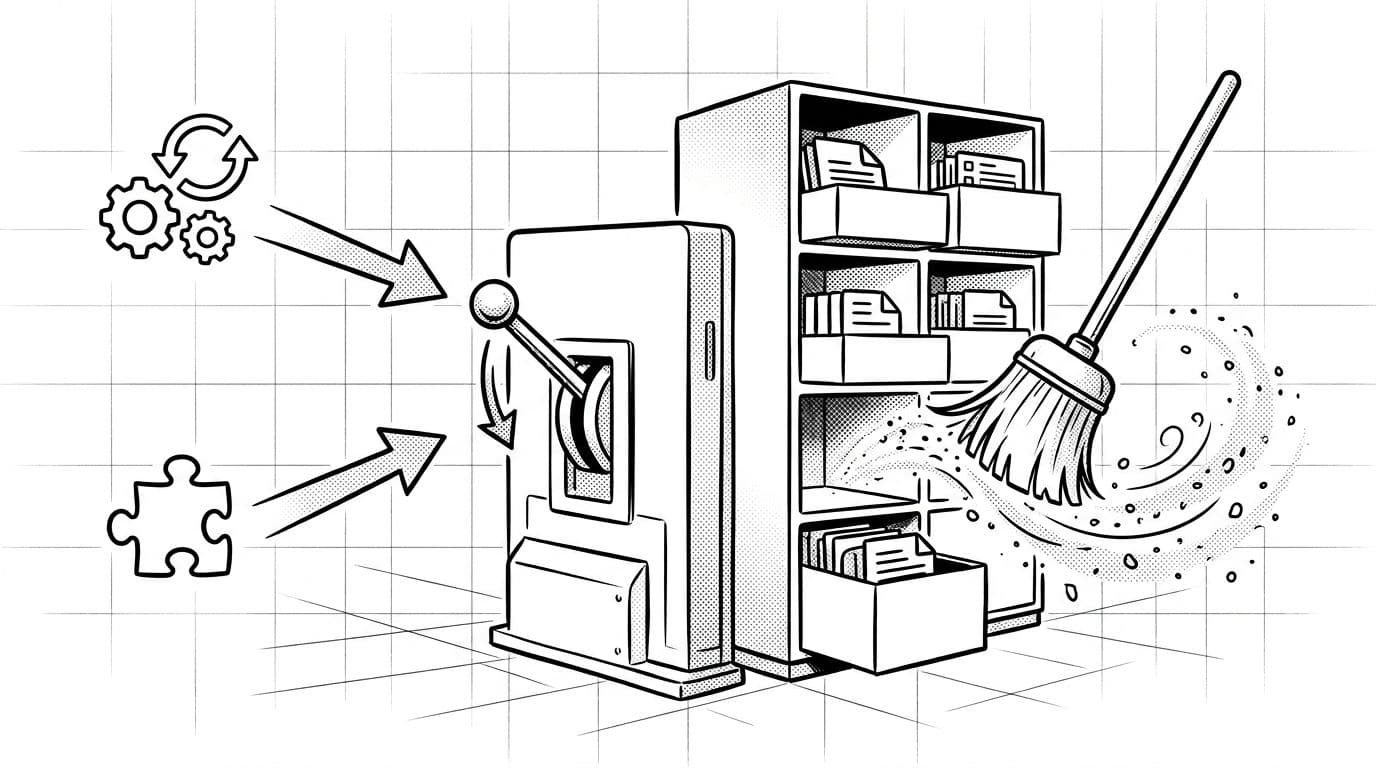
Purging the cache is the other half of the story. Without it, you’ll publish updates and wonder why the old page keeps showing.
If you don’t have an automated purge route, the simplest manual purging the cache is removing cached files and reloading:
sudo rm -rf /var/cache/nginx/fastcgi/*
sudo systemctl reload nginx
For a safe rollback, I keep it boring:
- Comment out
fastcgi_cache ...,fastcgi_cache_valid,fastcgi_cache_use_stale, and the bypass lines in the PHP location. - Reload Nginx (
nginx -tfirst). - Leave the
fastcgi_cache_pathin place for now, then delete it later if you’re sure.
That way, if something breaks, I can revert in minutes, not hours.
Conclusion
When I set up nginx fastcgi cache the right way, it dramatically improves WordPress performance and slashes server response time. WordPress feels less like a busy restaurant kitchen and more like a well-stocked grab-and-go counter. Anonymous visitors get instant pages, while logged-in users and shoppers still get the live, correct experience.
Start with strict bypass rules, verify HIT/MISS headers, and keep rollback simple. After that, you can tune cache size and purge behavior to fit your site for long-term stability. If you’ve got a tricky setup (membership, WooCommerce, heavy AJAX), test those flows first, then open the cache up slowly.