
How to Host Google Fonts Locally in WordPress (Speed + Privacy in 2026)
Table of Contents
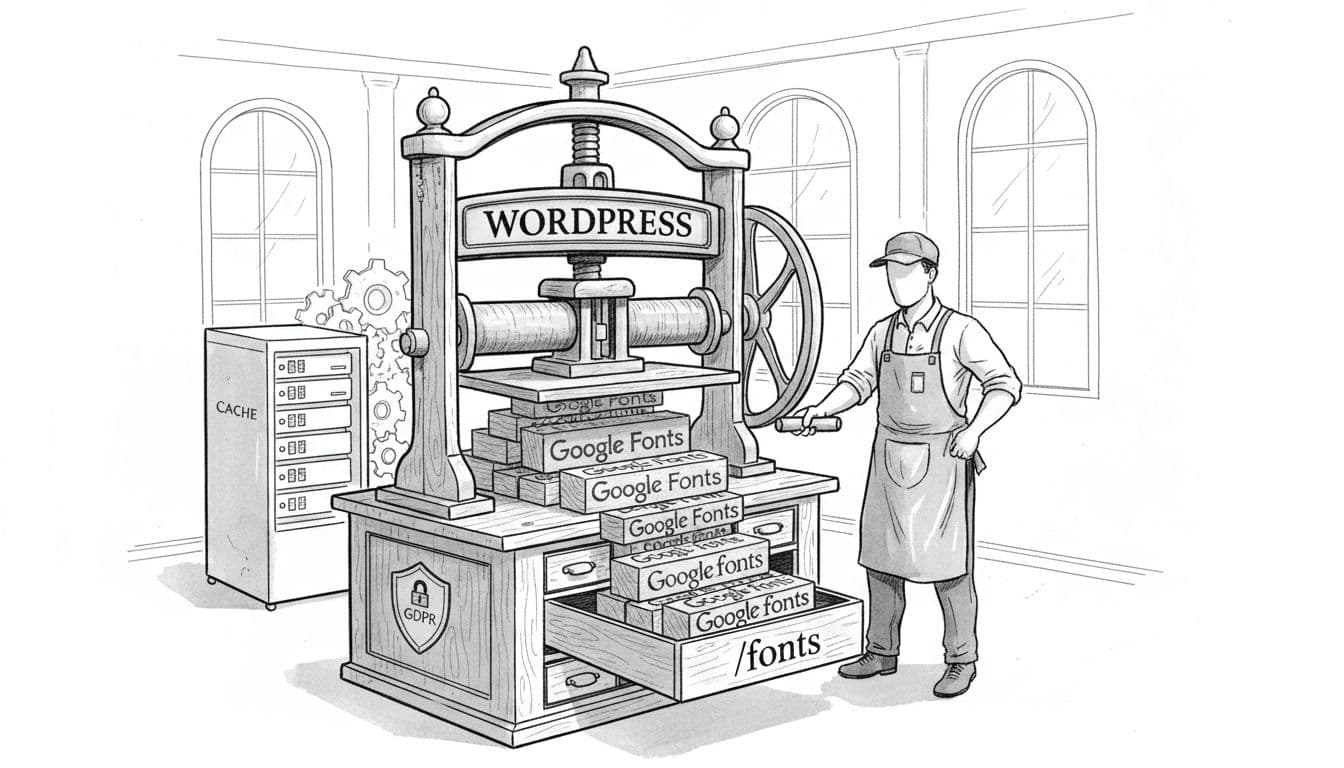
I used to load Google Fonts the “normal” way, straight from the Google Fonts API. It worked, until I started paying attention to two things: speed tests and privacy notices. Moving fonts locally through self-hosting Google Fonts is a primary strategy for improving website performance.
If you want to host Google Fonts locally, you’re usually after the same win I was: fewer third-party requests, fewer surprises, and more control over what your site sends to other companies.
In this guide, I’ll walk through how I do it today, step-by-step, with code you can paste into WordPress.
Why I moved Google Fonts to local files
The first time I audited a client site, the font requests felt like leaving the front door open “just a crack.” The page still loaded, but it made calls to fonts.googleapis.com and fonts.gstatic.com on almost every visit. That’s extra DNS lookups, extra TLS, and extra places where things can slow down.
Performance is part of it. Fonts can also show up as render-blocking resources, depending on how your theme loads them, and they directly affect Core Web Vitals like Largest Contentful Paint and First Contentful Paint. If you’re already working through other front-end bottlenecks, my guide on eliminating render-blocking resources pairs well with a local-font setup.
Privacy is the bigger reason in 2026. When fonts load from the Google Fonts CDN, a visitor’s IP address can be transmitted to third-party resources. That’s why so many GDPR compliance-focused WordPress checklists include Google Fonts. For background on the compliance angle (and why local loading matters), I like this explanation on Google Fonts and GDPR compliance.
Quick warning: before you change anything, take a backup and work in a staging site if you can. Also, don’t edit a parent theme directly. Use a child theme or a small custom plugin, otherwise updates can wipe your changes.
First, find where Google Fonts are being loaded from
When people tell me “I don’t use Google Fonts,” I usually believe them, until we check. Fonts often sneak in through a theme, a page builder, or even a single WordPress plugin that adds a widget.
Here’s how I track it down:
- Open your site in Chrome Incognito. This avoids some cache weirdness.
- Right-click, Inspect, open Network. Reload the page with the Network tab open.
- Filter for
fontandcss. Look for requests to font files at:fonts.googleapis.comfonts.gstatic.com
- View page source and search. In the source, search for
fonts.googleapis.com. You’ll often spot the exact theme or plugin pattern.
A common clue is a stylesheet URL like https://fonts.googleapis.com/css2?family=Inter:wght@400;600&display=swap. That CSS then points to font files hosted on fonts.gstatic.com.
One more place I check: your theme settings. Many themes have a “Typography” panel that toggles Google Fonts. Modern block themes and the WordPress Site Editor handle fonts differently, so disabling it there can remove the calls without any code.
If your goal is speed too, it helps to keep your font choices lean to improve page loading speed. Every extra weight and style is another file. If you’re doing a bigger performance pass, this checklist of simple ways to speed up WordPress helps you stack wins quickly.
The manual method I trust: download, upload, swap, then enqueue

I like the manual route because it’s boring in the best way. Once it’s set, it stays set.
Step 1: Download Google Fonts
Pick the exact family, weights, and character sets you need. Select font subsets to keep files as lean as possible. Decide between static fonts, which provide separate files for specific weights, and variable fonts, which pack multiple weights into one efficient file; pick static fonts for simplicity or variable fonts for advanced optimization. Favor WOFF2 first (best compression), then WOFF as a fallback if you want it. Keep it simple unless you have a real reason not to.
Also, respect font licenses. Google Fonts are generally open-source, but I still treat it like any other asset: verify the license and keep a copy with your project.
Step 2: Add a fonts folder in a safe location
If you put fonts in a parent theme, an update can delete them. Instead, I store them in a child theme within the wp-content directory, for example:
/wp-content/themes/your-child-theme/assets/fonts/
Upload your .woff2 (and optional .woff) files there.
Step 3: Create a small CSS file with @font-face
Create a local stylesheet:
/wp-content/themes/your-child-theme/assets/fonts/fonts.css
Then add @font-face CSS rules like this (adjust file names to match yours):
@font-face {
  font-family: "Inter";
  font-style: normal;
  font-weight: 400;
  font-display: swap;
  src: url("./Inter-Regular.woff2") format("woff2");
}


@font-face {
  font-family: "Inter";
  font-style: normal;
  font-weight: 600;
  font-display: swap;
  src: url("./Inter-SemiBold.woff2") format("woff2");
}
Step 4: Enqueue your local font CSS in WordPress
Add this to your child theme’s functions.php:
function smartwp_local_google_fonts() {
  wp_enqueue_style(
    "smartwp-local-fonts",
    get_stylesheet_directory_uri() . "/assets/fonts/fonts.css",
    array(),
    "1.0"
  );
}
add_action("wp_enqueue_scripts", "smartwp_local_google_fonts");
Step 5: Remove the old Google Fonts enqueue
This part depends on how your theme or plugin enqueues fonts. Sometimes the handle is obvious (like google-fonts), other times it isn’t.
If you can find the handle (using your theme files or a plugin like Query Monitor), you can try:
function smartwp_remove_google_fonts() {
  wp_dequeue_style("google-fonts");
  wp_deregister_style("google-fonts");
}
add_action("wp_enqueue_scripts", "smartwp_remove_google_fonts", 20);
If you can’t find the handle, I usually disable fonts in the theme settings first, then re-test, then only use code as the final “seal the cracks” step.
How I confirm there are zero calls to Google Fonts (and what to do if you still see them)

After I switch fonts, I do three checks, in this order:
- Chrome DevTools Network tab, hard reload, then search for
googleapisandgstatic. - View source, search for
fonts.googleapis.com. - A speed test run, because it shows third-party calls clearly and catches cached oddities.
Gotcha: browser caching and optimization plugins can keep old CSS around. If you still see Google calls after changes, clear page cache, object cache, and your CDN cache, then test again in Incognito.
Quick troubleshooting (the stuff I see most)
- Your page builder still loads fonts: turn off Google Fonts in the builder’s settings, then re-test.
- A plugin injects fonts in the front-end: disable plugins one-by-one to find the source.
- You replaced the CSS, but not the font-family: ensure your theme’s CSS rule uses the same
font-familyname as your@font-face. - Mixed paths: if fonts 404, confirm the path inside
fonts.cssmatches your folder layout. - FOIT or flash of unstyled text: keep
font-display: swap;to leverage fallback fonts and avoid loading too many weights.
Final checklist (what “done” looks like)
- No requests to
fonts.googleapis.comorfonts.gstatic.com - Fonts load from your domain (or your CDN) as
.woff2to host Google Fonts locally - You used a child theme (or a custom plugin) so updates won’t undo it
- You kept font files and CSS as small as possible
- License checked and stored with your project
Conclusion
Once I started self-hosting Google Fonts, my audits got quieter. Fewer third-party calls showed up, and privacy reviews got easier. If you take your time and test after each change, you can host Google Fonts locally without breaking your design. While the manual method works great, you could also use a WordPress plugin if you prefer an automated approach. If you want, run your checks again in a week, because new plugins and theme updates can sneak font calls back in.