
How to Set Up Cloudflare APO for WordPress
Table of Contents
The first time I set up Cloudflare APO (Automatic Platform Optimization) for WordPress caching, I treated it like a stakeout. The site felt fast for me, but I needed proof it was fast for everyone, everywhere, and that it wasn’t serving the wrong page to the wrong person.
APO is powerful because it pushes full HTML pages to Cloudflare’s edge, not just images and CSS. That’s the win, as this setup helps improve Core Web Vitals and specifically LCP. The risk is caching something that should never be shared, like a cart, an account page, or a member dashboard. In this guide, I’ll show you the exact setup I use, the Cache Rules I reach for, the cookie bypass patterns I trust (with warnings), and the tests that confirm it’s really working.
What Cloudflare APO actually changes (and why it feels like “instant”)
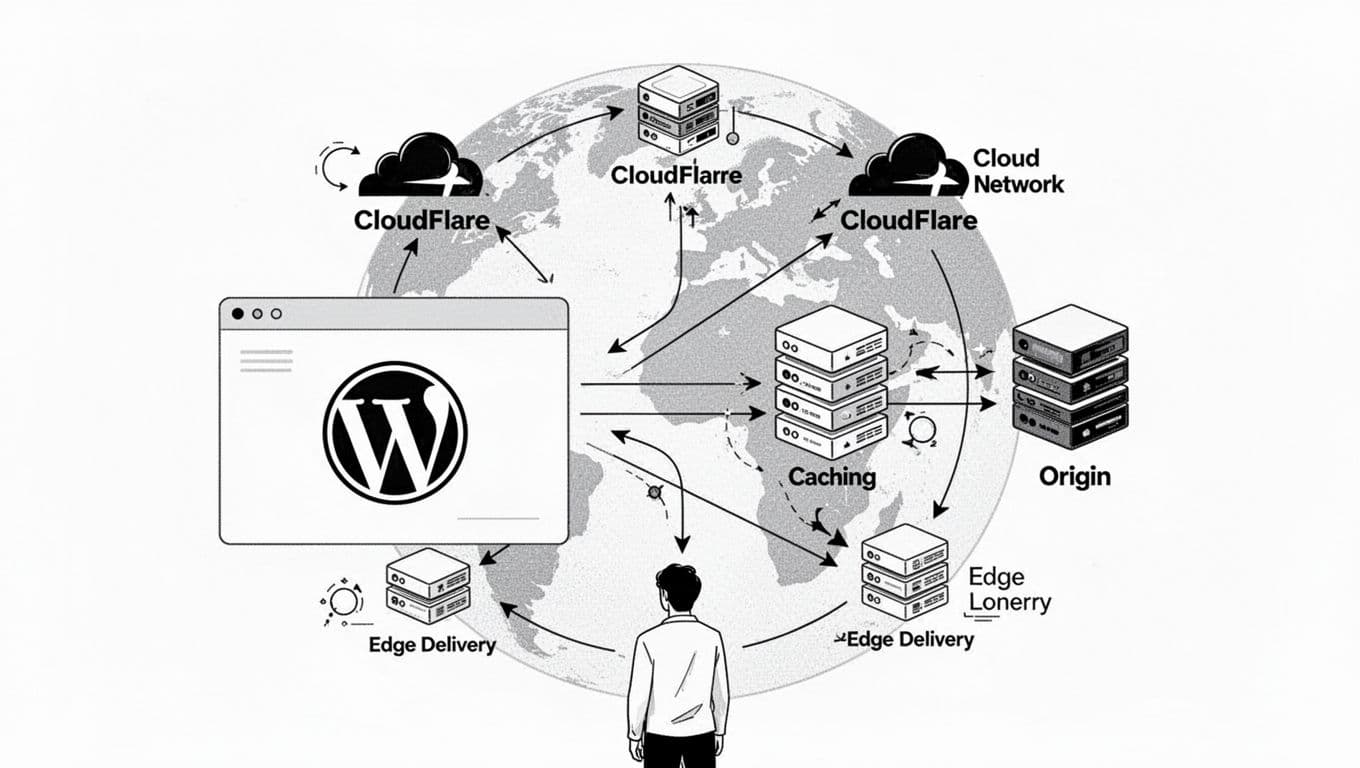
Without Cloudflare’s Automatic Platform Optimization (Cloudflare APO), Cloudflare usually caches Static assets well (images, JS, CSS). Your HTML still often comes from your Origin server, which means every visitor waits for PHP, database queries, and distance.
With APO enabled and powered by Workers KV to store content globally, Cloudflare enables Edge caching of Static HTML for full WordPress pages at the edge. That cuts down Time to First Byte, especially for visitors far from your host. The WordPress plugin is the “badge” that tells Cloudflare when content changes, so it can purge quickly and avoid stale posts hanging around.
Cloudflare’s own docs explain the intent clearly in the APO overview: it’s built to make WordPress behave more like an edge-served site, while still letting you publish normally.
One detail I always keep in mind: APO is great at caching public pages, but it has to respect sessions. Logged-in users, carts, and personalized content must bypass cache. When that bypass doesn’t happen, you don’t get a minor glitch, you get a trust-breaking mess.
If you’re also doing broader speed work (image compression, theme cleanup, script trimming), I keep a separate checklist handy so I don’t miss the basics. My go-to refresher is this SmartWP guide on how to speed up WordPress.
My setup checklist for Cloudflare APO in WordPress (2026 flow)
I like to set this up in a clean order, so my “evidence” is clear when I test later.
- Confirm your site is proxied through Cloudflare (orange cloud on your DNS records for the site hostname in the Cloudflare dashboard).
- Install the Cloudflare WordPress plugin on your site.
- In Cloudflare, create an API token that can edit the zone settings you need (the WordPress plugin will guide you). Paste the API token into the WordPress plugin and connect the site.
- In the plugin, enable APO and check for Full (Strict) SSL to ensure compatibility. (APO is a paid add-on on Cloudflare plans that support it, commonly priced as an add-on.)
- Purge cache once, right after enabling, so you’re not reading old signals.
- In Cloudflare, check you’re using Cache rules, not legacy Page Rules. If you have old “Cache everything” rules, pause them while you test.
- If you run a caching plugin (WP Rocket, LiteSpeed Cache, etc.), don’t panic. I usually keep them for file optimization and local cache control, but I clear both caches and avoid overlapping “full page cache” assumptions.
The main trap here is rule conflict. Cloudflare even calls this out in their documentation. If you’ve got older rules that force caching or set odd TTLs, they can interfere with APO behavior. The APO FAQ is blunt about it: you usually don’t need extra “cache everything” style rules for APO, and existing rules can get in the way.
Cache Rules and Bypass Cookies I Use (Copy-Paste Patterns, with Cautions)
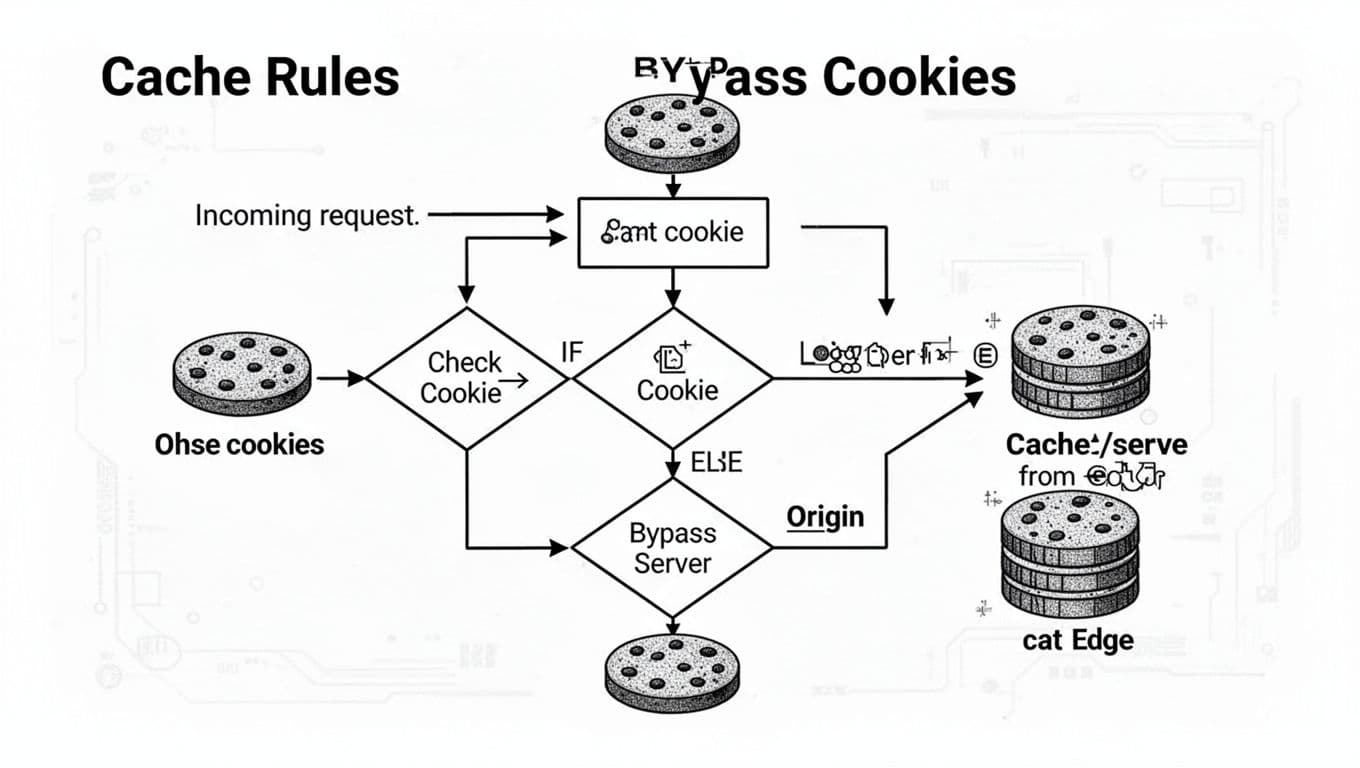
Here’s my detective rule: bypass cache first, cache second. Cloudflare evaluates rules in order, so put your bypass rules above any Cache rules.
Cache Rules examples (safe starting set)
| What I’m protecting | Cache Rule filter (expression) | Action |
|---|---|---|
| WP admin and login | http.request.uri.path starts_with "/wp-admin" or http.request.uri.path eq "/wp-login.php" | Bypass cache |
| WooCommerce checkout flow | http.request.uri.path starts_with "/cart" or http.request.uri.path starts_with "/checkout" or http.request.uri.path starts_with "/my-account" | Bypass cache |
| Logged-in or cart cookies | http.request.headers["cookie"][*] contains "wordpress_logged_in_" or http.request.headers["cookie"][*] contains "woocommerce_items_in_cart" or http.request.headers["cookie"][*] contains "wp_woocommerce_session_" | Bypass cache |
A few notes from the field:
- Cookie matching is blunt. You’re doing substring detection, so keep patterns specific.
- You can verify these settings in the Cloudflare dashboard using your API token.
- I include the trailing underscore in
wordpress_logged_in_on purpose. It lowers false matches. - On some sites, bypassing on
/my-accountis non-negotiable. On others, that URL doesn’t exist. Match your actual routes.
Cookie patterns I watch for (and when to use them)
When I need cookie-based bypass, these are common signals:
- WordPress auth:
wordpress_logged_in_ - Password-protected posts:
wp-postpass_ - WooCommerce cookies:
woocommerce_items_in_cart,woocommerce_cart_hash,wp_woocommerce_session_ - EDD cart (if you use it):
edd_items_in_cart,edd_cart
Caution: don’t bypass on cookies like analytics IDs or A/B testing cookies unless you enjoy killing your cache hit rate. Every bypass is a door you leave open.
If you’re building a performance stack beyond APO, it helps to choose tools that behave well with CDNs. I keep a short list of Cloudflare-compatible performance tools for WordPress so I’m not guessing.
How to prove it’s working (headers, repeat loads, and bypass checks)
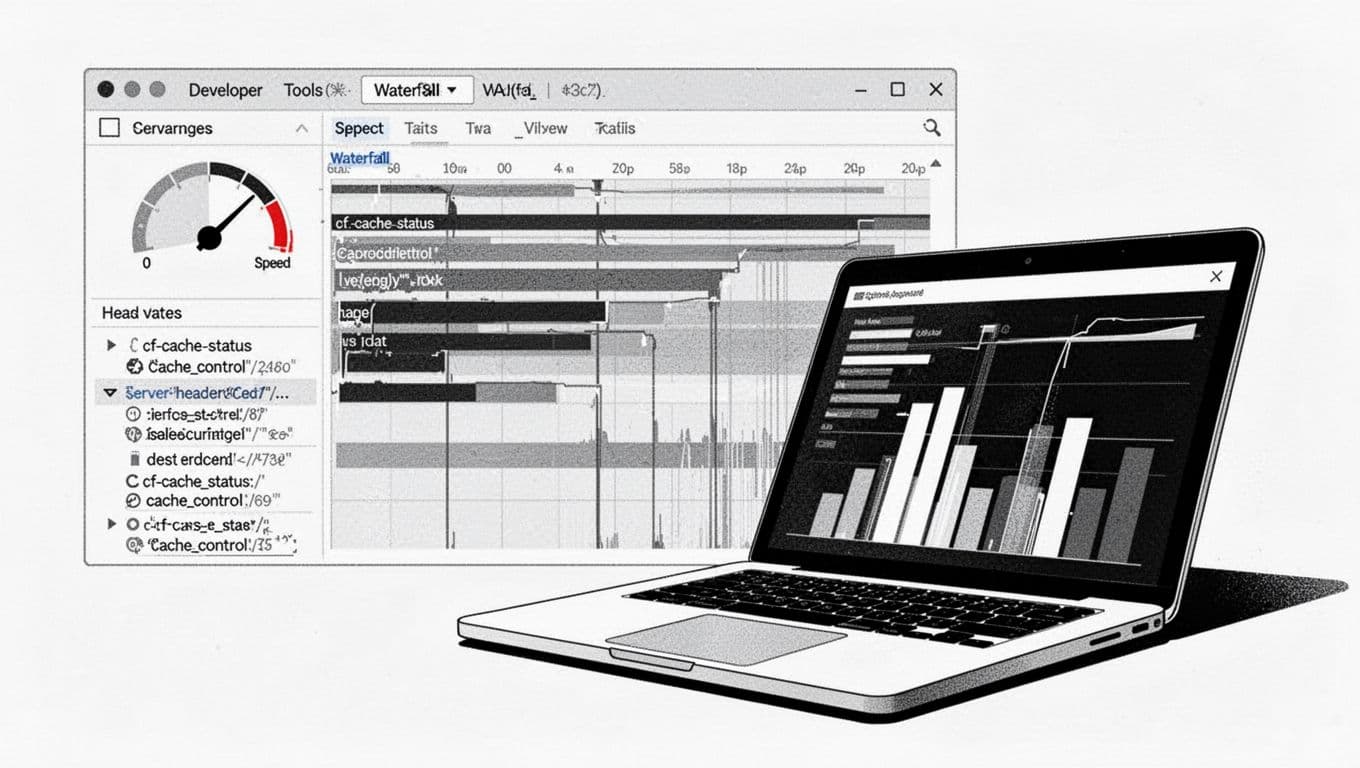
This is the part most guides skip. I don’t trust vibes. I want receipts.
1) Check response headers (my fastest truth test)
Open your homepage in Chrome, then DevTools → Network → click the main document request. In HTTP response headers, look for:
cf-cache-status: You want to see HIT on repeat loads for public pages.cf-apo-via: This confirms APO is handling the request.age: On a HIT, this should exist and usually increase over time.cf-edge-cache: cache,platform=wordpress: This is a strong hint APO is in play.
You can also do a header-only request with a terminal if you prefer: use curl -I https://yoursite.com/ and inspect the same headers.
2) Do a repeat-load comparison (same browser, same page)
I run this simple test:
- Load a public post in an incognito window.
- Hard refresh once.
- Refresh again after 3 to 5 seconds.
The second load should show a lower TTFB, which you can verify objectively with a KeyCDN Performance Test or PageSpeed Insights for an accurate TTFB reading, and a cf-cache-status that trends toward HIT. If it stays MISS every time, something is blocking caching or you’re purging constantly.
3) Verify bypass while logged in (and while a cart is “alive”)
This is where caching breaks stores and memberships, so I test it every time:
- Log into WordPress as a logged-in user, load the same public post again.
- Check the document request header.
cf-cache-statusshould commonly be BYPASS or DYNAMIC to confirm logged-in users always hit the origin server. - For WooCommerce, add an item to cart, then hit the cart and checkout URLs you bypassed. Confirm totals and cart count update normally, and confirm you are not seeing cache HIT on those pages.
If a logged-in page shows HIT, I treat it like an alarm bell. Tighten bypass rules until it stops.
Troubleshooting when APO doesn’t behave like it should

When I see weird results, it’s usually one of these:
- A legacy rule is overriding APO. Check the Cloudflare dashboard, pause old Page Rules, and re-check Cache Rules order. Cloudflare’s APO troubleshooting FAQ is worth a quick skim when you suspect conflicts.
- Bypass is too broad. If you bypass on a common cookie (or a cookie set for everyone), you’ll never get HITs. Logged-in users often trigger the origin server by design.
- You’re testing with a “dirty” session. Incognito helps, but also try a different browser, or a clean device.
- You’re double-caching without purging. If a host cache, a plugin cache, and APO all disagree, you can chase ghosts. Purge cache all layers once, then test again.
- Cache HIT but site still slow? If the site feels sluggish despite HITs, check other performance features like Brotli and HTTP/3.
Conclusion
When Cloudflare APO is set up well, it feels like moving your site closer to every visitor, without rebuilding WordPress into something it isn’t. My personal rule is simple: cache aggressively for the public, bypass for anything personal, and prove it with headers before I celebrate.
If you set up Automatic Platform Optimization today using the WordPress plugin for automated synchronization, run the header checks, do the repeat-load test, then try it logged in and with a live cart. If all three behave, check the HTTP response headers for the final ‘receipt’ of performance. You’ve got a fast site that still plays fair with users.