How to Fix WordPress 502 Bad Gateway and 504 Gateway Timeout (Nginx, PHP-FPM, Cloudflare)
Table of Contents
The first time I saw a 502 Bad Gateway, it felt like my site had a locked front door, and Nginx was the bouncer shrugging at everyone in line. No fancy message, no hint, just “Bad Gateway.” A 504 Gateway Timeout is the same vibe, except the bouncer let your request into the building and it never came back out.
When I’m on-call for a WordPress site behind Nginx + PHP-FPM (often with Cloudflare in front), I treat 502/504 like a short investigation. I figure out where the request died, I pull logs like receipts, then I fix the one bottleneck that’s actually guilty.
First clue: where the 502 or 504 is really coming from
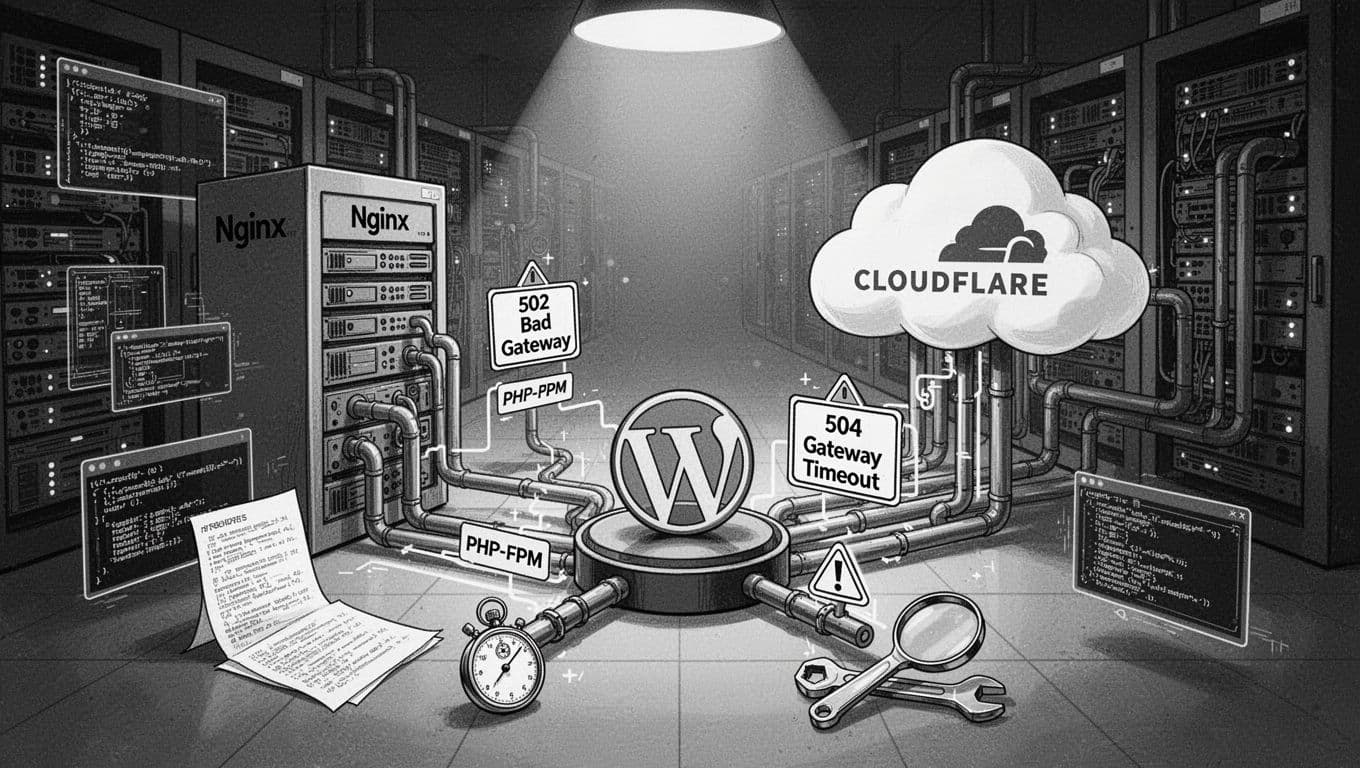
The 502 Bad Gateway and 504 Gateway Timeout are HTTP status codes representing a generic server-side error. Before checking the server, verify your browser cache and DNS cache to rule out client-side issues.
Before I touch a config file, I answer one question: is the error generated by your Content Delivery Network (Cloudflare), by Nginx, or by PHP-FPM? That tells me which logs matter.
Here’s what I look for:
- If the browser error page mentions your Content Delivery Network (Cloudflare) and you see
cf-rayin response headers, Cloudflare is involved. A Cloudflare 5xx might still be your origin server failing, but it changes the path I test. - If Nginx is returning the error, I usually find it in
/var/log/nginx/error.logwith phrases likeconnect() to unix:... failedorupstream timed out. If the upstream server managed by your hosting provider is unresponsive, Nginx will write the details to the error log. - If PHP-FPM is down or stuck, 502 is common (Nginx can’t get a valid response). If PHP is slow, 504 is common (Nginx times out waiting).
A quick “chain test” helps. From the server, I run curl -I http://127.0.0.1 and curl -I http://localhost. If those fail while Cloudflare shows errors to visitors, I stop blaming Cloudflare and focus on the origin.
If you want a deeper breakdown of common Nginx-side causes, I like this reference: NGINX 502 Bad Gateway causes and fixes.
Pull the receipts: Nginx and server logs that usually finger the 502 Bad Gateway culprit

When I’m troubleshooting live 502 Bad Gateway errors, I start with the simplest checks that give the biggest signal. These are copy-paste friendly:
- Confirm services are up
sudo systemctl status nginx --no-pagersudo systemctl status php8.2-fpm --no-pager(adjust version)- If PHP-FPM is dead:
sudo systemctl restart php8.2-fpm
- Validate Nginx config and reload safely
sudo nginx -t- If OK:
sudo systemctl reload nginx
- Read the last errors like a timeline
sudo journalctl -u nginx -n 200 --no-pagersudo journalctl -u php8.2-fpm -n 200 --no-pager
- Tail the real smoking gun
sudo tail -n 200 /var/log/nginx/error.logsudo grep -R "upstream timed out|Bad Gateway|connect() to unix" /var/log/nginx/error.log | tail -n 50
Now the “If you see X, do Y” part that saves time:
- If you see
connect() to unix:/run/php/php-fpm.sock failed (2: No such file or directory)do this: yourfastcgi_passunix socket path is wrong, or PHP-FPM is configured for TCP instead of a unix socket. - If you see
upstream timed out (110: Connection timed out) while reading response header from upstreamdo this: the PHP request is slow, or PHP-FPM is saturated. Jump to PHP-FPM tuning and WordPress suspects. - If you see
recv() failed (104: Connection reset by peer) while reading response header from upstreamdo this: PHP-FPM is crashing or killing workers mid-request, often memory limits orrequest_terminate_timeoutbehavior. - If your error log is empty or vague do this: edit wp-config.php to enable debug mode and capture specific PHP errors.
For extra context on how Nginx and PHP-FPM interact during 502s, MetricFire’s explainer is a solid companion read: 502 Bad Gateway NGINX and PHP-FPM overview.
Fix the upstream: Nginx fastcgi settings and PHP-FPM pool tuning
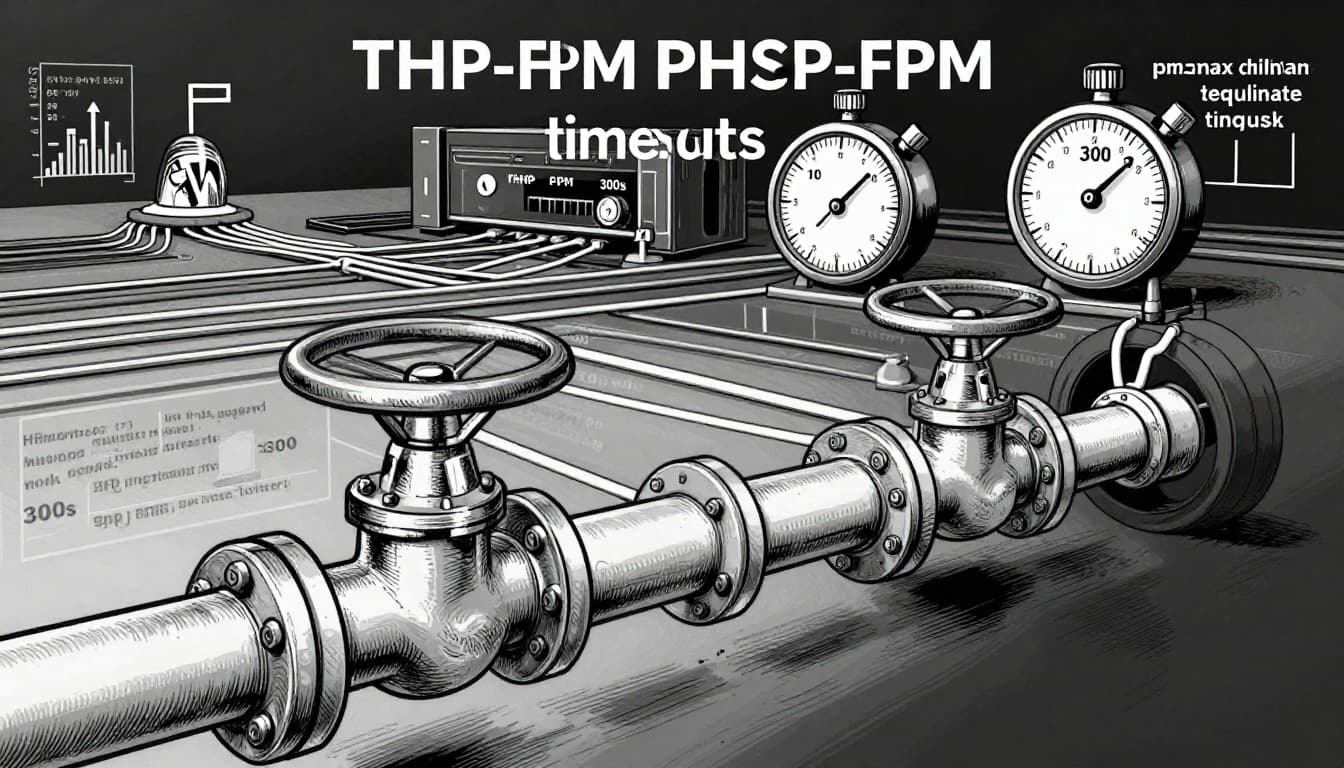
Once logs point to the upstream server, I check two things: Nginx timeouts and PHP-FPM capacity. A lot of “mystery” gateway errors are just not enough PHP workers.
Here’s an example Nginx upstream server + FastCGI setup I’ve used (adjust versions/paths). Copy-paste line by line:
upstream php_fpm { server unix:/run/php/php8.2-fpm.sock; }location ~ .php$ {include fastcgi_params;fastcgi_param SCRIPT_FILENAME $document_root$fastcgi_script_name;fastcgi_pass php_fpm;fastcgi_connect_timeout 30s;fastcgi_send_timeout 60s;fastcgi_read_timeout 120s;fastcgi_buffering off;}- If you changed anything:
sudo nginx -t && sudo systemctl reload nginx
Then I tune the PHP-FPM pool. On Ubuntu/Debian the PHP-FPM pool is often defined in /etc/php/8.2/fpm/pool.d/www.conf.
Common baseline changes (example values, scale to RAM and traffic):
pm = dynamicpm.max_children = 20pm.start_servers = 4pm.min_spare_servers = 4pm.max_spare_servers = 10pm.max_requests = 500request_terminate_timeout = 300s(PHP timeout, max execution time)
Pitfall I see a lot: pm.max_children set too low (like 5) on a busy WooCommerce site. One slow plugin call, and suddenly every worker is busy, leading to resource exhaustion, Nginx piles up, and you get 504s.
To confirm saturation, I check:
ps -ylC php-fpm8.2 --sort:rsssudo tail -n 200 /var/log/php8.2-fpm.log(path varies)free -muptime
If memory is tight, raising pm.max_children can make things worse. In that case, I lower it slightly, then fix the slow request (next section).
Cloudflare and WordPress suspects for 504 Gateway Timeout: admin-ajax, cron, bots, and “one bad plugin”
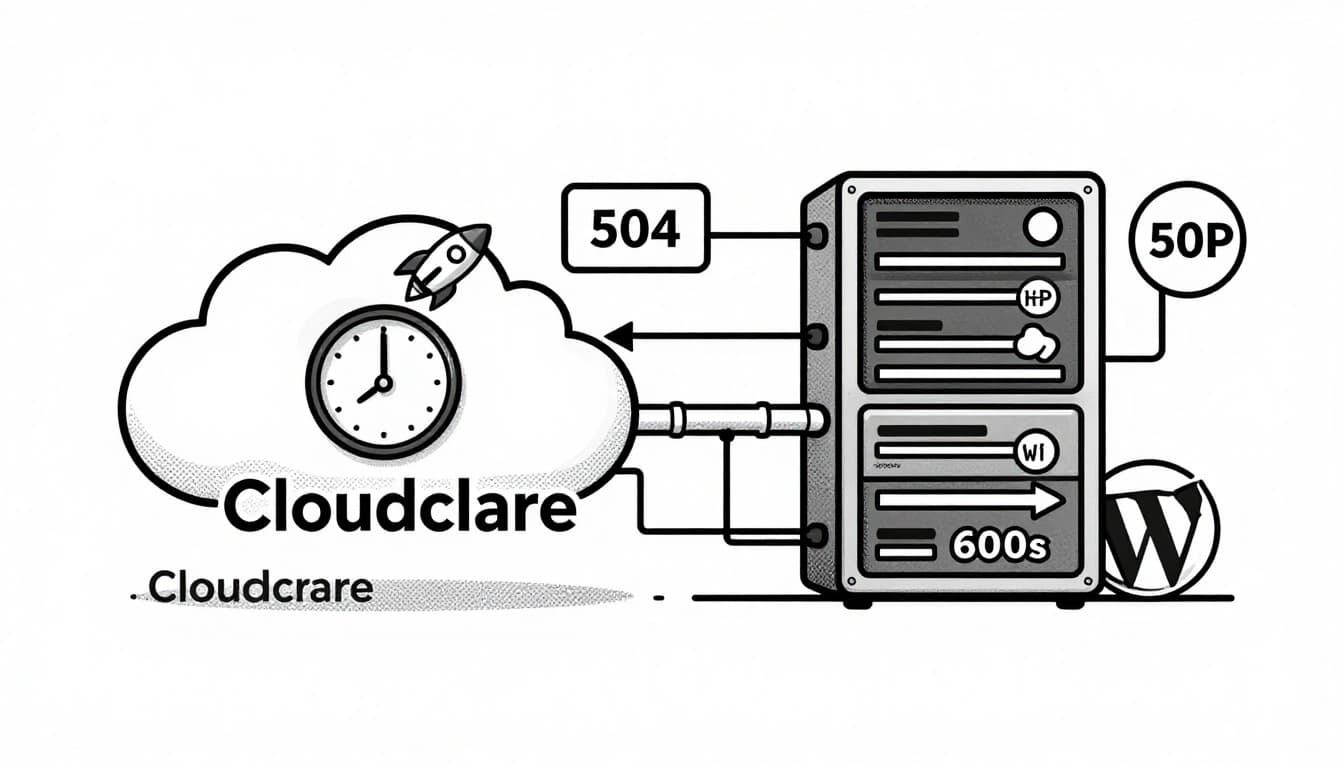
If a Content Delivery Network like Cloudflare is in front, I verify the basics first:
- SSL mode should be Full (strict) if you have proper origin certs. Flexible SSL can create redirect loops and odd failures.
- Check Cloudflare WAF or rate limits that might hammer
wp-login.phporxmlrpc.php. - If you’re testing, temporarily set the DNS record to DNS only (gray cloud) to compare behavior.
When I suspect WordPress itself is stalling PHP and causing 504 Gateway Timeout, I hunt for long requests. In Nginx access logs, I look for slow hits to wp-admin/admin-ajax.php or heavy endpoints like search, cart fragments, or a backup plugin. A slow database query in these can lead to a proxy timeout at the gateway or proxy level.
Fast isolation steps for plugin conflict:
- With WP-CLI:
wp plugin deactivate --all - If you can’t use WP-CLI: use an FTP client like FileZilla to rename the folder,
mv wp-content/plugins wp-content/plugins.off - Then test again, and re-enable plugins one at a time.
If you see repeated admin-ajax.php calls do this: identify the trigger (a form, a page builder, analytics, a “live chat” widget). It’s often one feature doing slow remote requests. Cutting that request time is better than only increasing timeouts.
If you see errors during traffic spikes do this: stop the flood before you tune PHP. Adding a bot barrier can save your workers from junk requests. If you use Cloudflare, I’ve had good results adding a friendly challenge to forms and logins (here’s my guide to Add Cloudflare Turnstile to WordPress).
Finally, WordPress cron can be a silent troublemaker. If a cron job runs on page loads, it can turn normal requests into slow ones. A common fix is setting define('DISABLE_WP_CRON', true); and running a real server cron like */5 * * * * php /var/www/html/wp-cron.php >/dev/null 2>&1.
To reduce recurrence, I keep this prevention checklist pinned:
- Cache the easy stuff and trim heavy pages (my notes: 7 simple ways to speed up WordPress)
- Monitor PHP-FPM and Nginx error rates, set alerts on 5xx spikes
- Add rate limiting on login and XML-RPC if you don’t need it
- Right-size resources (contact your hosting provider for RAM and CPU limits first), don’t run on the edge
- Log slow requests so you fix the cause, not just the timeout
For a broader list of Nginx-side failure modes you can compare against your logs, this guide is handy: NGINX 502 Bad Gateway troubleshooting guide.
Conclusion
When I fix a 502 Bad Gateway or 504 Gateway Timeout, I don’t treat it like a random outage. I treat it like a chain with one weak link in the gateway or proxy: Cloudflare, Nginx, PHP-FPM, or WordPress. Once you match the log message to the right fix, a WordPress 502 error stops being scary and starts being predictable. If you’re stuck or a server-side error persists, grab the exact Nginx error log line and the slow endpoint, share them with your hosting provider, and you’ll usually have your culprit in minutes.