How to Set Up Automated WordPress Backups to S3 (UpdraftPlus and No-Plugin WP-CLI Options)
Table of Contents
The first time I needed a WordPress backup, I didn’t need a backup. I needed a restore. My site was down, my inbox was loud, and my “backup plan” was a folder on my laptop from three weeks ago.
That’s why I like automated WordPress backups to Amazon S3 for real-world protection. Amazon S3 is off-site, durable, and boring in the best way. Once it’s set up, backups stop being a hopeful habit and start being a quiet routine.
Set up your S3 bucket so backups stay private (and usable)
I start by treating the S3 bucket like a vault, not a shared drive. The basics matter more than the fancy stuff.
Create a dedicated bucket for backups only, in a region close to your server (less latency, fewer surprises). Then lock it down:
- Turn on Block Public Access at the bucket level.
- Use Object Ownership settings that prevent ACL weirdness (I prefer bucket-owner enforced setups).
- Enable Versioning so accidental overwrites aren’t permanent.
- Require encryption (SSE-S3 is fine for many sites, SSE-KMS if you want tighter key control and audit trails).
- Add Lifecycle rules so older backups shift to cheaper storage, instead of piling up forever.
I also pick a clean path structure so I can find things under stress:
s3://my-wp-backups/example.com/daily/s3://my-wp-backups/example.com/weekly/
Before choosing a method, I sanity-check the tradeoffs:
While Amazon S3 is the standard for object storage, these methods also work for S3-compatible storage providers like DigitalOcean Spaces.
| Feature | UpdraftPlus to S3 | WP-CLI + cron to S3 |
|---|---|---|
| Setup time | Faster | Slower (but flexible) |
| Scheduling | Automatic, including database backup | Custom cron jobs |
| Control | High, mostly in WP admin | Total control in scripts |
| Failure visibility | Email/logs in plugin | Cron logs + your monitoring |
| Encryption options | Built-in options, plus S3-side | You decide (S3, GPG, KMS) |
| Best for | Site owners and small teams | Agencies, sysadmins, multi-site fleets |
UpdraftPlus: automated backups to S3 without babysitting
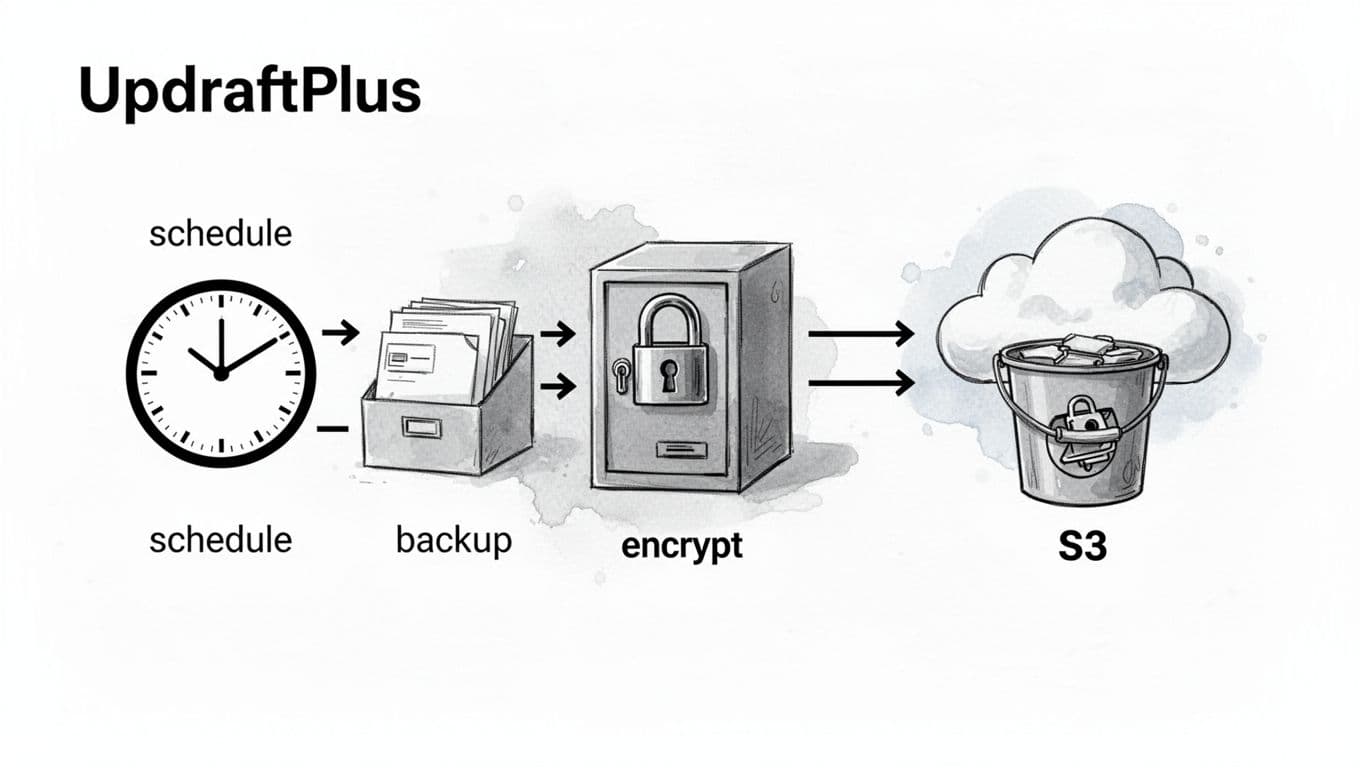
When I want “set it and forget it,” UpdraftPlus is my go-to. It’s especially good when a client site needs reliable backups, but nobody wants to maintain scripts. While the free version is robust, UpdraftPlus Premium adds support for incremental backups and more remote storage options.
Here’s the setup I use most often:
- Install UpdraftPlus, then open Settings → UpdraftPlus Backups.
- Set a backup schedule that matches how your site changes. I like database daily and files weekly for typical content sites.
- Choose retention. For example, keep 14 daily database backup files and 8 weekly file backups (adjust for storage and risk).
- In “Choose your remote storage,” select Amazon S3, then connect it using UpdraftPlus’ S3 steps (their docs are clear, including premium options like S3 Enhanced: UpdraftPlus Amazon S3 Enhanced documentation).
- Turn on database encryption if it fits your workflow. The plugin backs up key directories like wp-content/uploads, and confirm uploads complete before deleting local copies (handy on small disks).
- Run one manual backup, then confirm the files are actually in S3 (I always check with my own eyes at least once).
A nice bonus for technical teams is controlling it from the command line (mainly a premium feature). If you want that hybrid workflow, this is the reference I keep bookmarked: operate UpdraftPlus from WP-CLI.
The last step is the one people skip: do a test run to restore WordPress to a staging site. Backups are promises, restores are proof.
No-plugin option: WP-CLI + cron + AWS CLI backups to S3
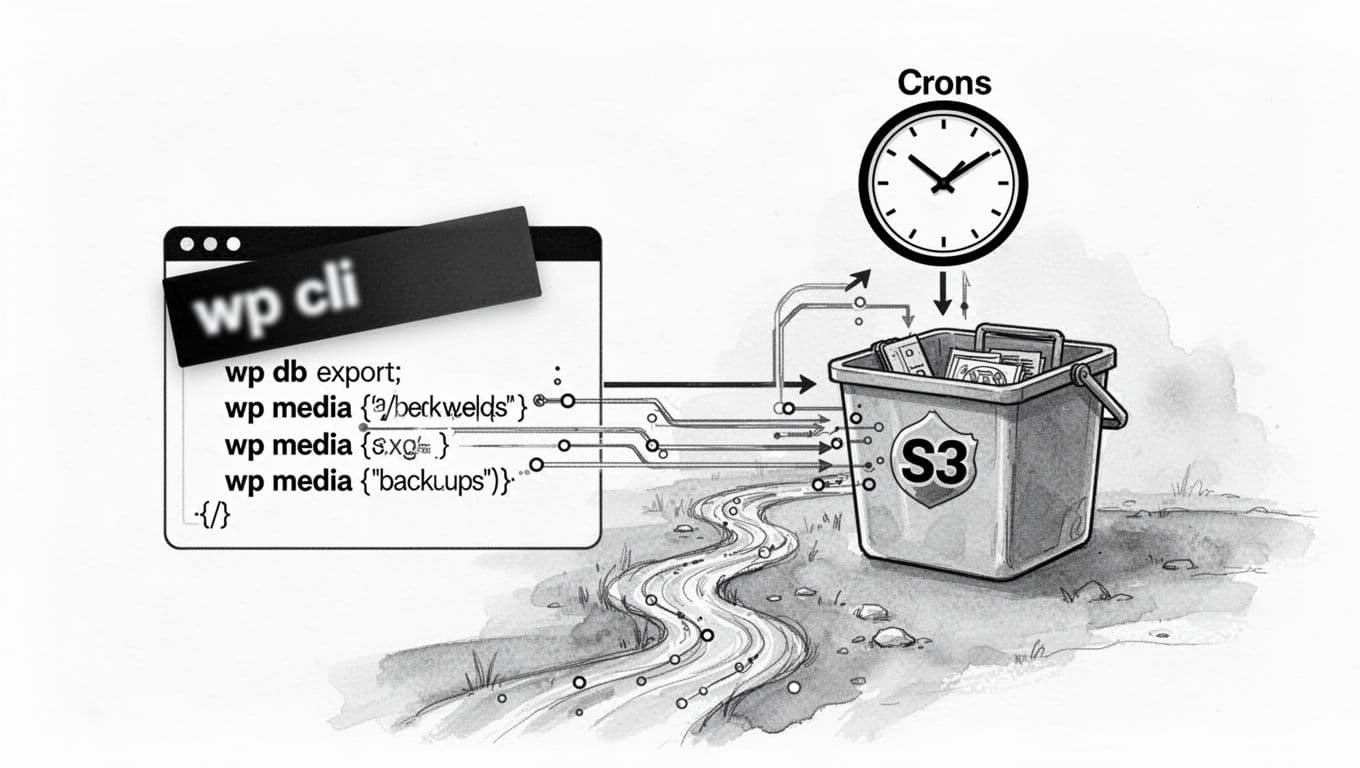
When I’m on VPS or dedicated hosting (or managing many installs), I like backup scripts that don’t depend on wp-admin loading. That’s where WP-CLI shines. If you want a refresher, I keep this handy: essential WP-CLI tools for site maintenance.
You’ll need WP-CLI and the AWS CLI (or a tool like s3cmd) installed, plus an IAM identity (or instance role) that can only write into one bucket path.
A simple backup script that exports the MySQL database looks like this:
#!/usr/bin/env bash
set -euo pipefail

WP_PATH="/var/www/example.com/public"
SITE="example.com"
TS="$(date -u +%Y-%m-%dT%H%M%SZ)"
WORKDIR="/var/backups/wp/${SITE}/${TS}"
BUCKET="s3://my-wp-backups/${SITE}"

mkdir -p "$WORKDIR"
cd "$WP_PATH"

wp db export "${WORKDIR}/db.sql" --single-transaction --quiet

tar -czf "${WORKDIR}/files.tar.gz"
  --exclude='wp-content/cache'
  --exclude='wp-content/updraft'
  wp-content wp-config.php

aws s3 cp "${WORKDIR}/db.sql"     "${BUCKET}/daily/db-${TS}.sql" --sse AES256
aws s3 cp "${WORKDIR}/files.tar.gz" "${BUCKET}/weekly/files-${TS}.tar.gz" --sse AES256

rm -rf "$WORKDIR"
Then I schedule it with a Cron job (run as a user that can read the site files):
15 3 * * * /usr/local/bin/wp-s3-backup.sh >> /var/log/wp-s3-backup.log 2>&1
One reason this works well is it runs outside browser timeouts. The Updraft team makes the same point about cron and shell runs being more reliable for long backups: running backups from shell or cron.
Lock it down: least-privilege IAM and restore drills
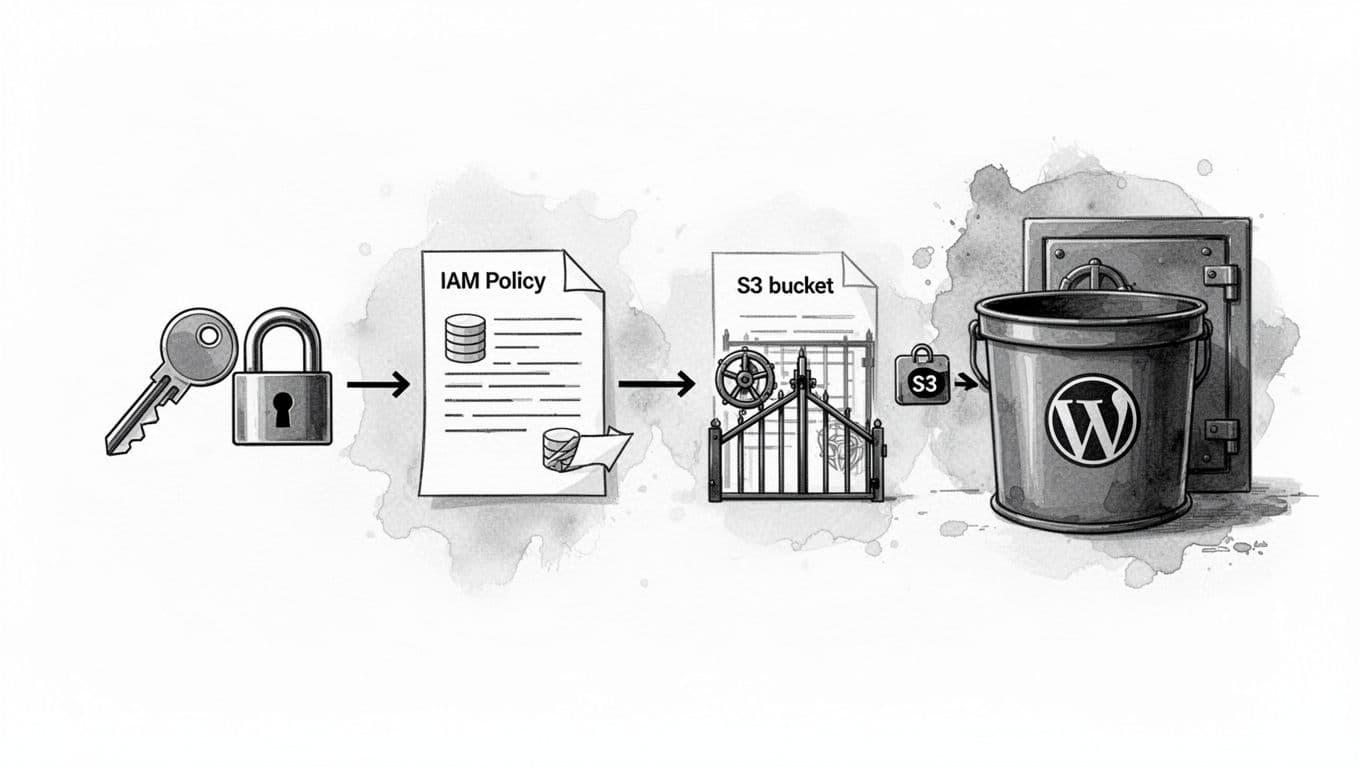
For IAM, my rule is simple: backup jobs shouldn’t be able to list the whole account, change bucket policy, or wipe history. I give them the smallest set of actions possible, scoped to one bucket prefix:
{
  "Version": "2012-10-17",
  "Statement": [
    {
      "Sid": "WriteBackupsOnly",
      "Effect": "Allow",
      "Action": ["s3:PutObject", "s3:AbortMultipartUpload"],
      "Resource": "arn:aws:s3:::my-wp-backups/example.com/*"
    }
  ]
}
Credential storage matters too. When I create an IAM user in the AWS console, I get an Access Key ID and a Secret Access Key; these keys must be kept secure. On EC2, I prefer an instance role. On other servers, I store AWS keys outside web roots, limit file permissions, and rotate keys when people change roles.
Then I practice a restore drill. A solid restore process is also the foundation for a smooth site migration. Once a month (or after big changes), I restore to staging: download the latest db.sql and files.tar.gz, import the database, unpack files, and load the site. I’m not looking for perfection, I’m looking for missing uploads, permission issues, and the little mistakes that only show up when it’s too late.
Conclusion
Automated WordPress backups to S3 aren’t about fancy tooling, they’re about sleeping through small disasters. UpdraftPlus gives me speed and simplicity, WP-CLI gives me control and scale. In both cases, the win comes from off-site storage and remote storage, tight permissions, and regular restore drills. If you set it up once and test it like you mean it with reliable UpdraftPlus for quick WordPress restores, backups stop being a worry and start being part of the weather.