How to Fix “Sorry, You Are Not Allowed to Access This Page” in WordPress (Roles, Capabilities, Plugin Conflicts)1232
Table of Contents
How to Fix “Sorry, You Are Not Allowed to Access This Page” in WordPress (Roles, Capabilities, Plugin Conflicts)1232
The last time I saw the message, it felt like a bouncer had shoved me out of my own club. I had the keys, I owned the place, and WordPress still stared back with: “Sorry, You Are Not Allowed to Access This Page,” locking me out of the WordPress dashboard.123
This wordpress access denied problem usually isn’t one bug. It’s a locked door with a few possible locks: user roles, missing capabilities, plugin conflicts, and (on multisite) a whole other layer of permissions.
I’m going to walk you through how I debug it, in the order that gets me back into the wp-admin area the fastest, with safety rails so you don’t turn one lockout into a bigger mess.
Start with a safe, repeatable triage (so you don’t make it worse)
When I’m locked out, my first job is not heroics, it’s containment. I want a clean trail, easy rollbacks, and proof of what changed.
- Take a backup you can restore. I grab a site backup plus a database export (or a host snapshot).
Expected outcome: I have a rollback point if permissions get scrambled further.
Rollback note: If anything goes sideways, restore files + DB, then try again on staging. - Try on staging site if possible. If your host offers one-click staging, use it. If not, clone to a local site. The Local community thread on this exact error is a good reminder that environment differences can trigger weird permission behavior.
- Confirm it’s not just the wrong account. Open a private window and log in with a known admin user. If you have multiple admins, test another one.
- Turn on logging, not on-screen errors. Access the wp-config.php file via FTP or SFTP (using a tool like FileZilla if wp-admin is down), then temporarily set:
define('WP_DEBUG', true); define('WP_DEBUG_LOG', true); define('WP_DEBUG_DISPLAY', false);
Expected outcome: errors land in the error log at/wp-content/debug.logwithout leaking details to visitors.
Rollback note: turn these back off after the fix. - Note which screen is blocked. Is it the whole dashboard, or one page like Plugins, Menus, or a plugin settings page? That detail points to the lock type (capability vs plugin vs multisite).
With triage complete, plugin conflicts are a primary suspicion to investigate next. If you want a broader set of root causes to compare against for the “Sorry, You Are Not Allowed to Access This Page” error, Kinsta’s breakdown is a solid reference: common causes of the “not allowed” error.
Isolate plugin conflicts fast (because they love to steal capabilities)
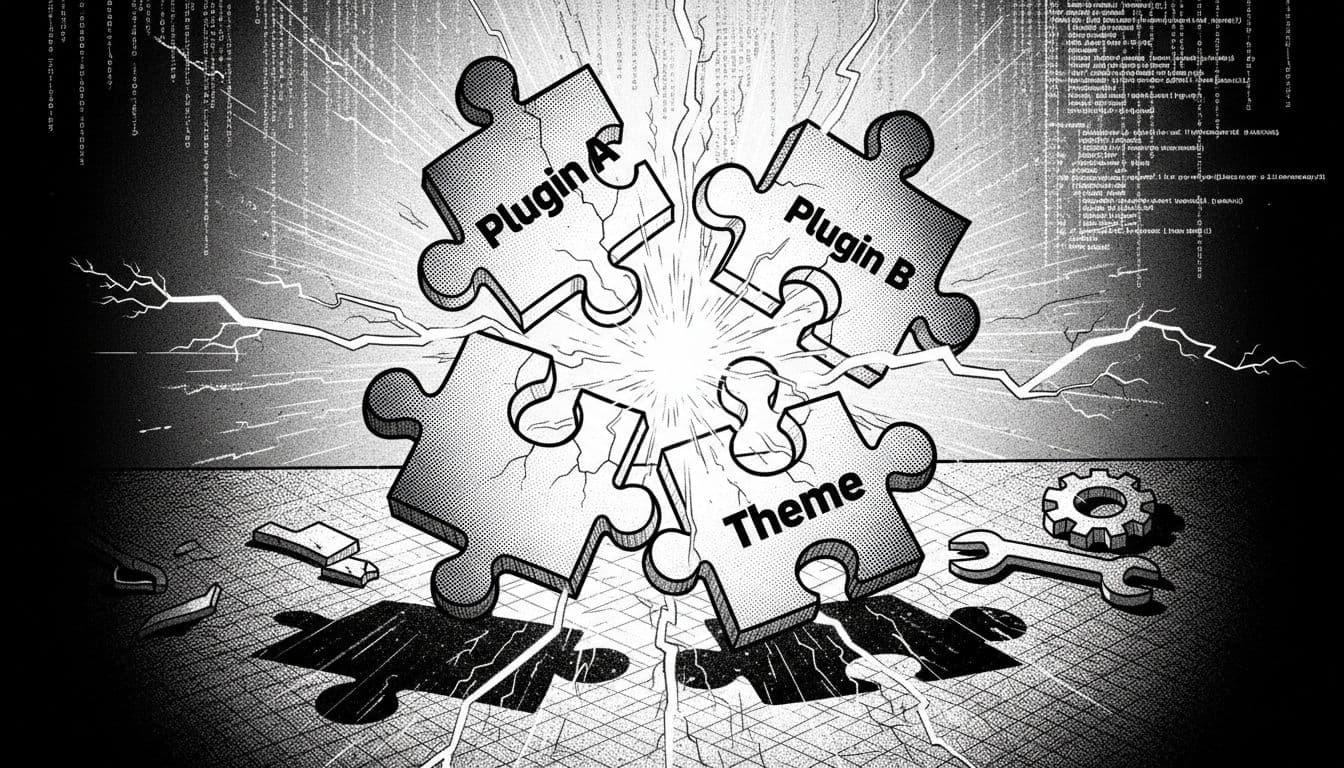
When this error shows up right after a plugin install, update, migration, or security hardening, I treat plugins like suspects in a lineup. One of them is often removing capabilities, blocking admin screens, or breaking current_user_can() checks (a security plugin is a common culprit).
Here’s my quickest isolation routine:
- Disable all plugins at once (without wp-admin).
- With WP-CLI:
wp plugin deactivate --all - With FTP or SFTP: navigate the wp-content folder and rename
/wp-content/plugins/to/wp-content/plugins.off/
Expected outcome: wp-admin loads, and the error disappears.
Rollback note: rename the folder back, or re-enable plugins later in controlled steps.
If plugins aren’t the issue, switch to a default theme to rule out theme-related permission bugs.
- With WP-CLI:
- If you can get in, use “safe mode” behavior. The Health Check approach (troubleshooting mode) can disable plugins only for your session, which is perfect when you can’t break a live store. I use it when clients are awake and watching sales.
- Re-enable plugins one at a time. Activate, refresh the blocked screen, repeat. The moment the door slams shut, you’ve got your culprit.
Expected outcome: a single plugin (or combo) reproduces the lockout.
Rollback note: leave the culprit disabled, then restore access first, debug second. - Check for “two-plugin collisions”. Cache + security plugins, membership + page builder, or role editor + SEO plugins can clash. If Plugin A and Plugin B behave alone but fail together, you’re dealing with an interaction bug.
If you build custom code, it helps to detect dependencies cleanly, especially when your plugin only adds admin menus if another plugin is active. I’ve used this approach before: using is_plugin_active() for compatibility checks.
Repair WordPress user roles and capabilities (when your badge doesn’t open the door)
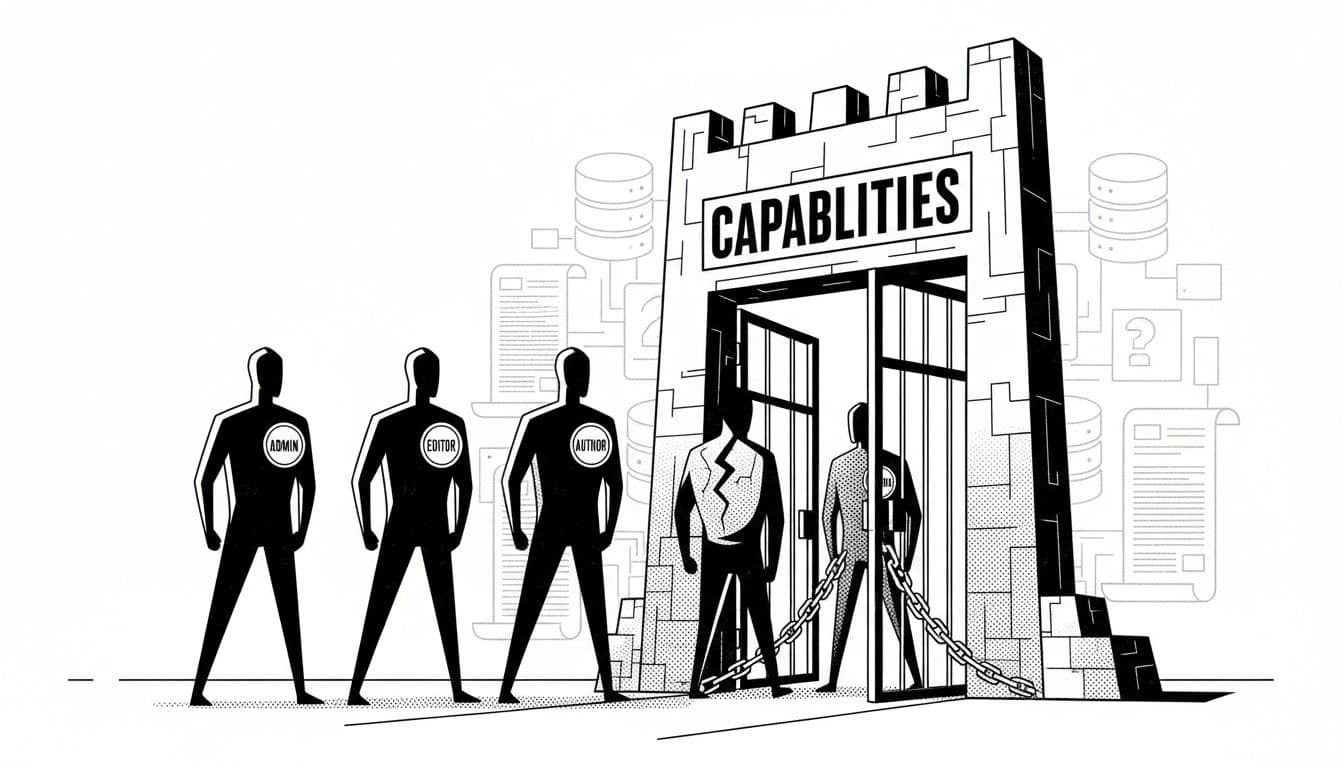
If disabling plugins doesn’t change a thing, I start checking credentials like a detective checking IDs under a streetlamp. WordPress access control is basically two layers of permissions settings: user roles and capabilities (named bundles and the actual permissions).
A quick clue table I keep in my head:
| Symptom | Usually means |
|---|---|
| WordPress dashboard loads, but Plugins/Settings are blocked | Missing activate_plugins or manage_options |
| Only one plugin’s admin page is blocked | Missing a plugin-specific capability |
| Only one user is blocked, other admins fine | User meta or role got altered |
The fixes I reach for:
- Confirm the user’s administrator role. In WordPress, “feels like an admin” is not the same as being one. If you need a refresher on what each role can do, I keep this handy: Understanding WordPress user roles and permissions.
- Reset the administrator role using WP-CLI (fastest clean fix).
I run:wp user set-role yourusername administrator
Expected outcome: wp-admin pages that require admin caps start working again. - Repair a specific missing capability (surgical fix).
Example:wp user add-cap yourusername manage_options
Rollback note: later, remove it withwp user remove-cap yourusername manage_optionsif you only needed it temporarily. - Last-resort capability repair via a temporary snippet.
If a role has been mangled, I’ll briefly add a must-have cap to administrators with a one-liner like:if ($r = get_role('administrator')) { $r->add_cap('manage_options'); }
Safety note: remove this right after you regain access (leaving it behind is how “quick fixes” become permanent mystery meat).
Don’t forget multisite and migrations (the hidden locks behind the lock)
In a multisite network, “admin” can still mean “not allowed.” I’ve seen site admins who can edit posts all day, but can’t touch network settings because only a Super Admin holds that badge.
In a multisite network, I check permissions settings in plain steps:
Step 1: Make sure I’m in the right admin area. Network settings live under /wp-admin/network/. A regular site admin will get blocked there, and that’s normal. Also verify server configuration, including the .htaccess file for restrictive rules and file permissions on the server.
Step 2: Confirm Super Admin status. With WP-CLI, I use wp super-admin list and, if needed, wp super-admin add yourusername.
Expected outcome: network pages stop throwing the “not allowed” message.
Step 3: Watch for migration table prefix issues. If the wp-config.php file has the wrong $table_prefix (the database prefix), WordPress can read the wrong usermeta table in the WordPress database, and your role looks empty. To verify user metadata, use phpMyAdmin or cPanel access to check the wp_users table. That’s a classic Sorry, You Are Not Allowed to Access This Page moment because WordPress can’t find your capabilities where it expects them.
Rollback note: don’t guess on prefixes in production. Confirm in the database, fix on staging first, then apply.
Conclusion
When I hit “Sorry, You Are Not Allowed to Access This Page,” I treat it like a locked office door: first I protect the evidence (backups, logs), then I remove the most common lock (plugin conflicts), then I fix the ID badge (roles and capabilities), check whether I’m in a multisite building with different keys, or verify the PHP version for compatibility. This approach restores smooth access to your WordPress dashboard and wp-admin area.
If you want, tell me which wp-admin screen is blocked (Plugins, Settings, a specific plugin page, or Network Admin), what changed right before it happened, or details about your administrator role; I’ll help you narrow it down to the one fix that matters. If all else fails, restore a previous version from a backup or, as an extreme measure, reset WordPress site settings.