
How to Fix Allowed Memory Size Exhausted in WordPress (PHP Limits, Plugin Culprits, Safe Increases)
Table of Contents
How to Fix Allowed Memory Size Exhausted in WordPress (PHP Limits, Plugin Culprits, Safe Increases)
The first time I saw “Allowed memory size exhausted” on a WordPress site, it felt like walking into my office and finding the lights on, the door cracked open, and papers everywhere. Nothing “looked” broken, but something clearly went off the rails.
This error usually shows up at the worst moment, often resulting in the White Screen of Death or a specific memory exhaustion error during common tasks like plugin updates or product imports; you open the editor, or a traffic spike hits and your site faceplants. The good news is it’s fixable. The better news is you can fix it without blindly cranking numbers up until your server taps out.
Treat it like a crime scene: what this error really means
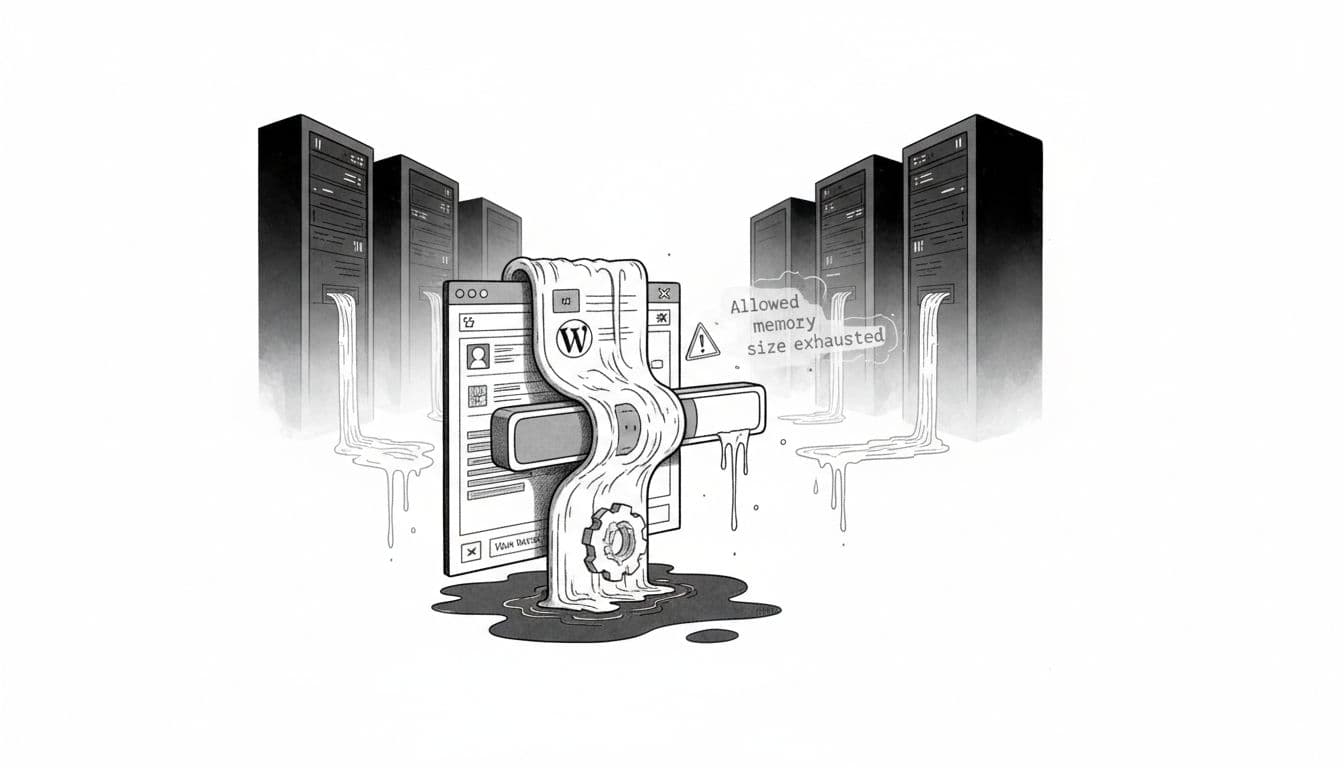
When WordPress throws an “Allowed memory size exhausted” fatal error, it means your PHP scripts tried to consume more server resources than allowed. That “allowed” part matters, because it’s not always your site being huge; it’s often your site being limited. Addressing this fatal error is vital for maintaining WordPress site health.
Here’s the trap: there are two ceilings.
- PHP memory limit (set by your server or host)
- WordPress memory limit (what WordPress requests inside that PHP ceiling)
Note that the WordPress memory limit is distinct from the PHP memory limit. If either one is too low, you can hit a wall. If you raise both and the error goes away, that’s not always a victory. Sometimes you’ve just covered up an infinite loop, a memory leak, or a plugin doing something wildly expensive on every page load.
Before I touch limits, I do two safety moves:
- I take a backup (or snapshot).
- I reproduce the issue on staging if I can.
That way, if the “fix” turns into a bigger mess, I’m not doing surgery in the lobby.
Get a clean error trail with WP_DEBUG (so you’re not guessing)
When this Fatal error pops, the screen message rarely tells the whole story. I want the exact file and action that triggered the memory spike.
Enable WP_DEBUG and write to debug.log
In your site’s wp-config.php file (the target file for debugging, typically located in the public_html folder), which you can access using an FTP client or the file manager provided by your host, set these values just above the line that mentions “Happy publishing”.
define('WP_DEBUG', true);define('WP_DEBUG_LOG', true);define('WP_DEBUG_DISPLAY', false);
That last line is personal preference. I’d rather not show raw errors to visitors.
Now repeat the action that caused the crash (open the editor, load the page, run the import, whatever caused the problem).
Check debug.log and capture the smoking gun
Look for the log at:
wp-content/debug.log
If you have SSH access, I’ll often tail it while reproducing the issue so I can watch the moment it blows up. What I’m hunting for is a line that points to a plugin, theme, or a specific PHP file that keeps showing up right before the Fatal error.
If you want a broader explanation of how the WordPress memory limit ties into these fatal errors, this WordPress memory limit guide gives solid context without getting lost in fluff.
When you’re done collecting evidence, flip debugging back off:
define('WP_DEBUG', false);
Leaving debug on long-term can create noisy logs and leak details you don’t want public.
Raise the WordPress memory limit safely (and match PHP’s memory limit ceiling)
This is the part most people jump to first. I do it too, but I do it with limits that make sense and with a plan to roll back if the site starts acting weird.
If you want an extra set of methods and screenshots, SmartWP also has a walkthrough on how to increase WordPress memory limit.
Increase WP_MEMORY_LIMIT and WP_MAX_MEMORY_LIMIT
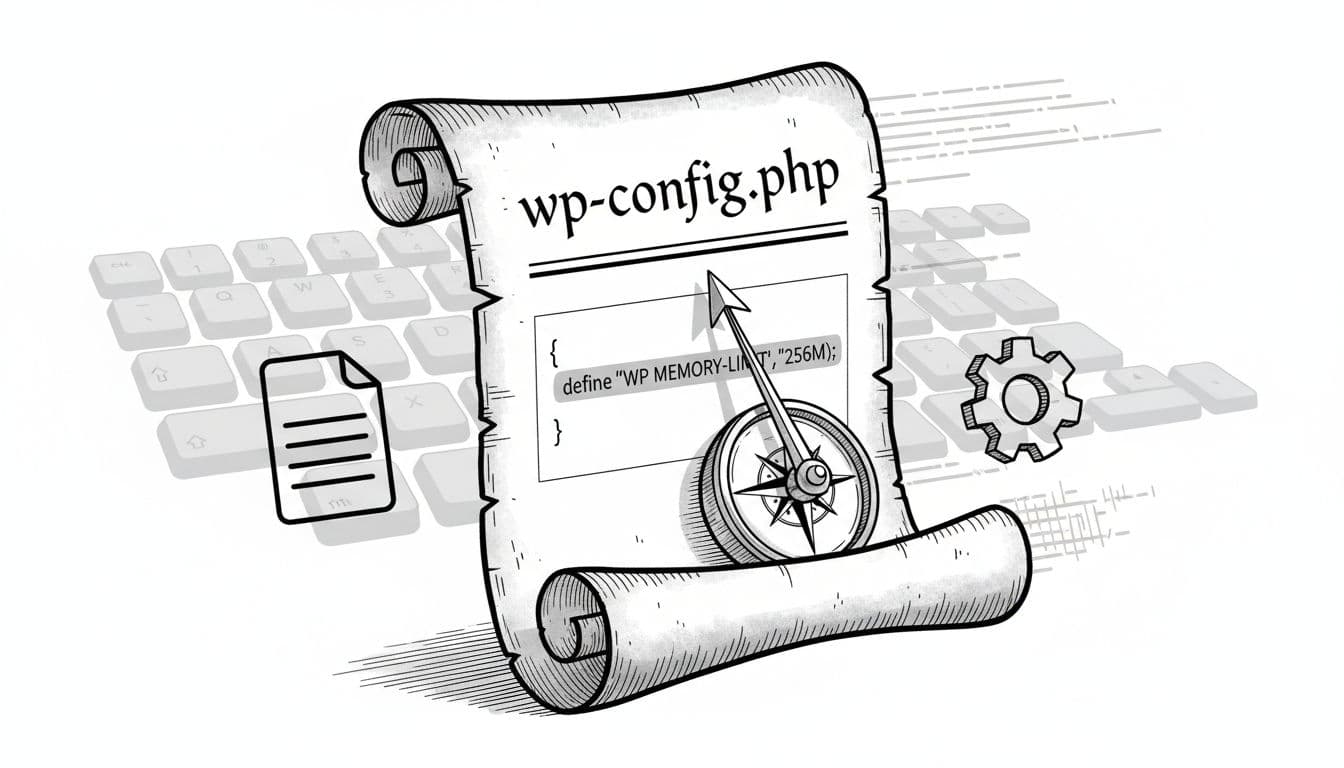
In wp-config.php, add (or adjust) these to set your WordPress memory limit:
define('WP_MEMORY_LIMIT', '256M');define('WP_MAX_MEMORY_LIMIT', '512M');
A quick translation:
WP_MEMORY_LIMITis mainly for the front-end.WP_MAX_MEMORY_LIMITis mainly for admin and heavier tasks (updates, imports, the block editor, etc.).
If your host’s PHP memory limit is lower than the WordPress memory limit you set here, WordPress can’t magically exceed PHP. WordPress can ask, PHP can say no.
Increase PHP memory limit (host panel, php.ini, .user.ini, .htaccess)
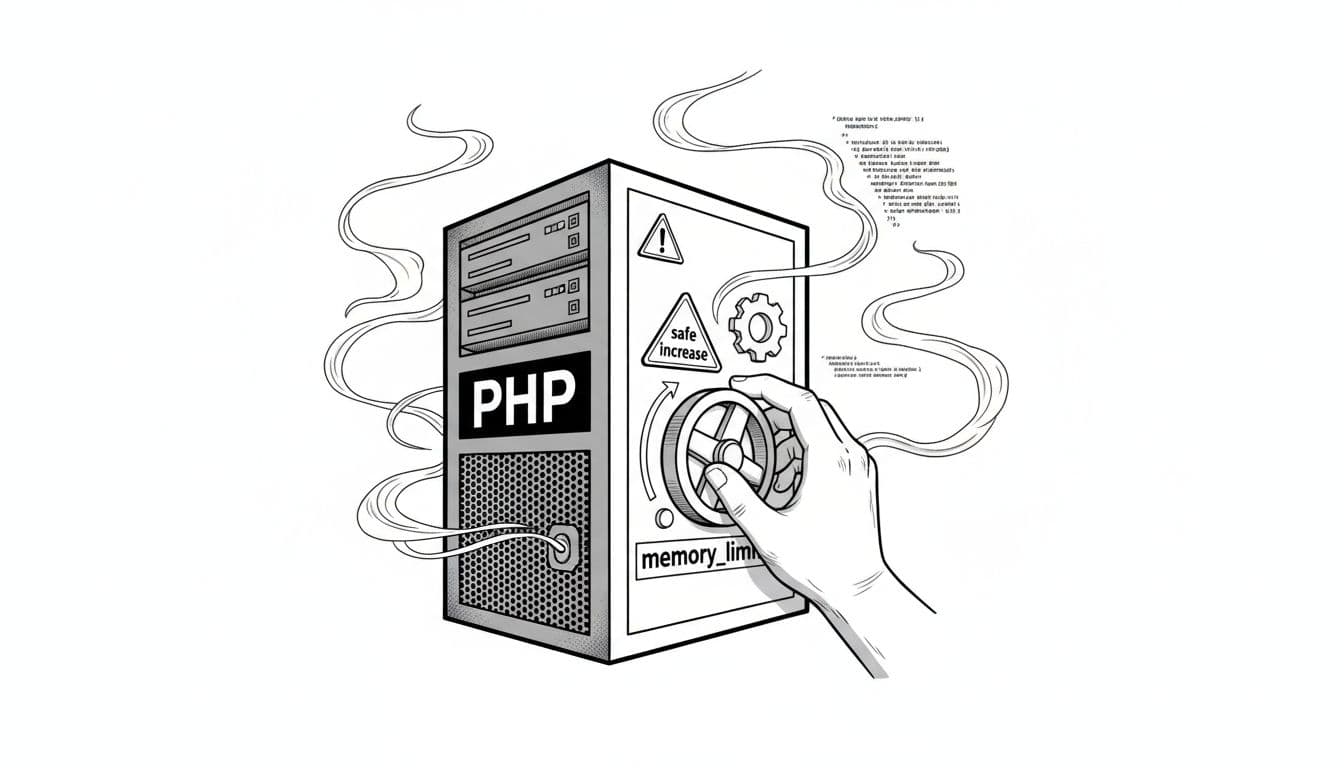
How you increase PHP memory limit depends on your hosting stack.
If your host has a control panel (cPanel, Plesk, a custom dashboard), look for a PHP settings page and raise memory_limit there first. It’s usually the cleanest method, especially on managed WordPress hosting.
On shared hosting, if you’re editing files directly, these are common options:
- php.ini (server-level or account-level)
memory_limit = 256M - .user.ini (common on shared hosting)
memory_limit=256M
After editing, it can take a few minutes to apply. - .htaccess file (Apache only, and not always allowed)
php_value memory_limit 256M
If you’re on Nginx with PHP-FPM (common on VPS and managed WordPress hosting), .htaccess file won’t help.
Restart PHP-FPM when it matters
On a VPS, changes may not apply until PHP-FPM reloads. Example commands:
sudo systemctl reload php-fpmsudo systemctl reload php8.2-fpm
The exact service name varies by distro and PHP version. If you don’t have server access, contact your hosting provider to raise the PHP memory limit for the domain.
Find the plugin culprit with a quick binary search
Raising the WordPress memory limit can get your site back online, but I still want to know who caused the spike. Resource-intensive plugins are the usual suspects, especially anything that builds pages, runs reports, imports data, or hooks into every request.
Use plugin “binary search” to identify the offender
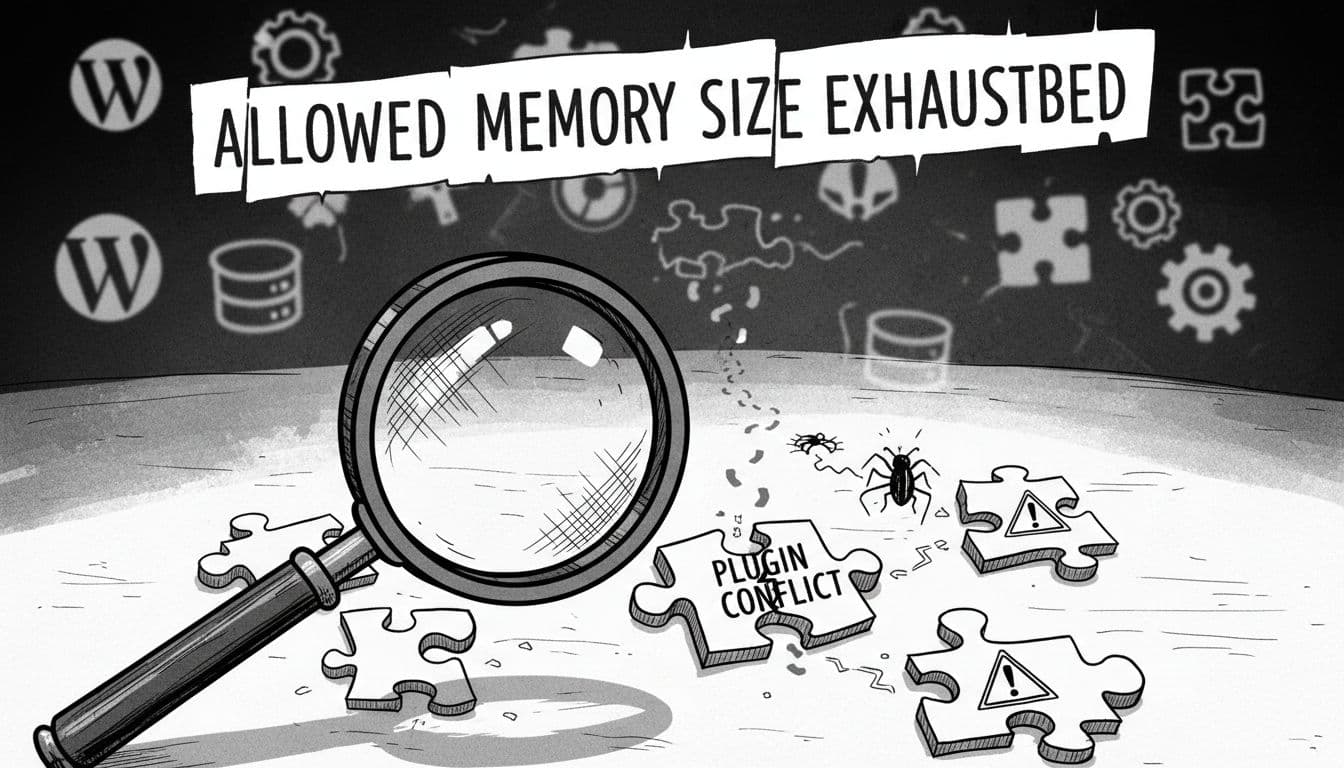
If I can access wp-admin:
- Deactivate all plugins.
- Confirm the error is gone.
- Reactivate half the plugins.
- Test again.
- If the error returns, the culprit is in that half.
- Keep halving the group until you find the one plugin that flips the error on.
This “halve the suspects” method saves time. With 32 plugins, you can usually find the problem in about 5 rounds.
If wp-admin is down, locking you out of the dashboard due to the error, use an FTP client or file manager and rename:
wp-content/pluginstowp-content/plugins.off
WordPress will disable plugins automatically. Then rename it back and do the binary search by renaming individual plugin folders (or small groups).
If you build custom code and need to handle plugin-dependent behavior, this SmartWP snippet on how to check if a WordPress plugin is active is handy for guarding features and reducing surprise conflicts.
Prevent the next memory crash (so you’re not back here next week)
Once the site is stable, I treat memory errors like a fever. The fever broke, but I still want to address what caused it.
A few fixes that genuinely reduce memory pressure:
- Optimize images before upload, and convert old media to modern formats when practical. Huge images don’t just slow pages, they can spike memory during resize and regeneration.
- Add caching (page cache, browser cache). A cached page means fewer PHP executions, which usually means less memory risk. SmartWP’s WordPress speed optimization tips cover the biggest wins without turning it into a science project.
- Use an object cache (Redis or Memcached) if your host supports it. It can cut repeated database work.
- Profile slow queries and hooks, database queries, and large amounts of autoloaded data with a tool like Query Monitor (on staging first if your site is fragile).
- Update PHP to a supported version on your host. Newer versions often run more efficiently, and better efficiency usually means less memory wasted.
One more warning I keep in mind: raising limits can hide bugs. If a plugin has a memory leak or your theme triggers an infinite loop, giving it 1024M just lets it run longer before it crashes. A higher memory_limit can sometimes mask a memory leak or inefficient PHP scripts that need optimization rather than just more server resources. If you keep seeing memory exhaustion after reasonable increases, I treat it as a code problem, not a settings problem. This article on fixing PHP memory issues the right way aligns with that mindset.
Conclusion
When I fix the “Allowed memory size exhausted” memory exhaustion error, I don’t try to be a hero with one magic setting. I collect logs, raise limits carefully, and then track down the real culprit so it doesn’t come back. If you do those three things, your site usually ends up faster and more stable than it was before the crash.
While increasing the WordPress memory limit provides immediate relief, the goal is to stop the memory exhaustion error from recurring. If you’ve bumped the WordPress memory limit and a Fatal error still returns despite high limits, I’d treat that as your clue to dig deeper, because it indicates a deeper code issue chewing memory that shouldn’t be.