
How to Fix the WordPress White Screen of Death (Log Files, Debug Mode, and Common Culprits)
Table of Contents
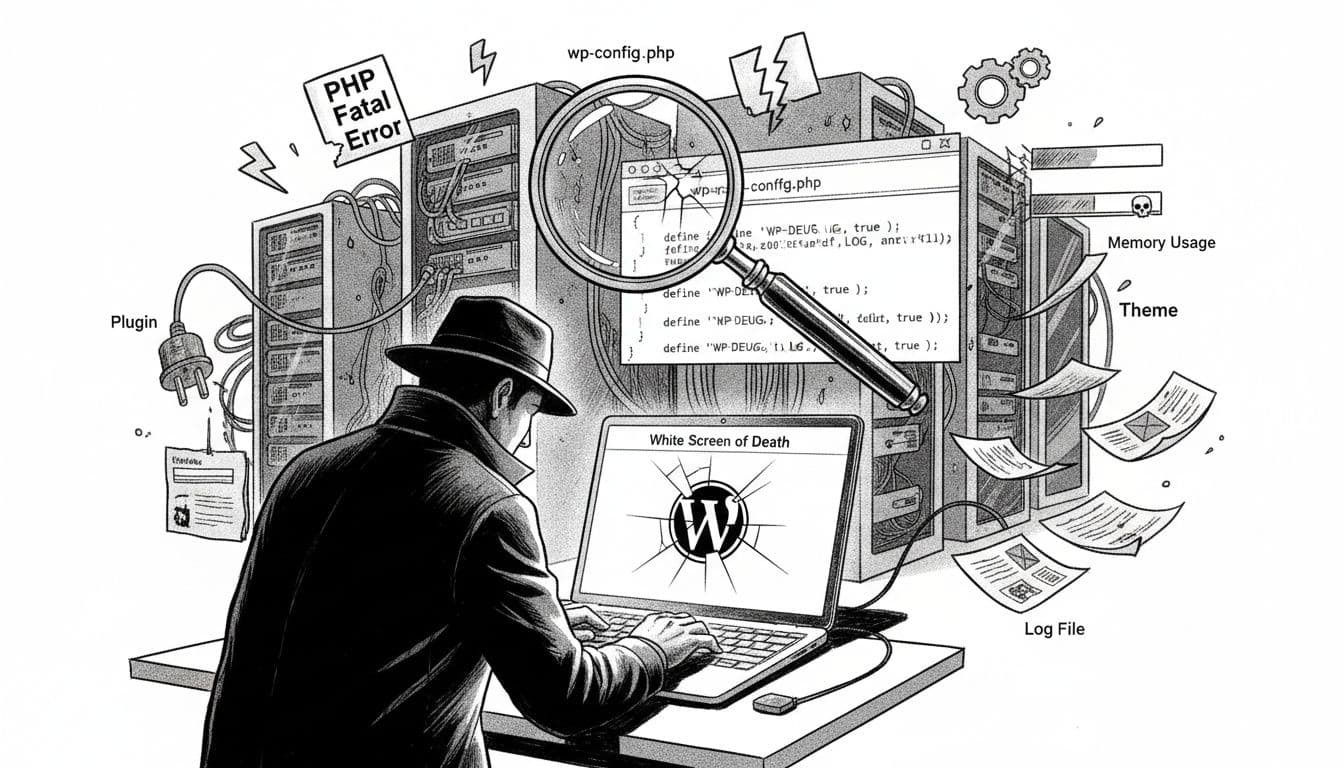
The wordpress white screen doesn’t crash with fireworks. It just goes quiet, like a streetlight dying mid-block. One minute your site’s fine, the next you’re staring at a blank page with no error, no hint, no alibi.
When I get called in on this case, I treat it like any other: secure access first, then pull the records (log files), then interrogate the usual suspects (plugins, themes, memory, PHP mismatches). Let’s do it the clean way, with as little panic as possible.
First, get back inside (fast SFTP/SSH fixes that work)
A white screen often means a fatal PHP error. WordPress hides it by default because showing it publicly can leak paths, keys, or other sensitive info. That’s smart, but it leaves you blind.
Before I start flipping debug switches, I try to restore access using the quickest moves available. You’ll need SFTP or SSH access (your host dashboard usually provides credentials).
- Confirm where it happens: Load the home page and
/wp-admin/. If only wp-admin is white, it can point to an admin-only plugin or a permissions issue. - Rename the plugins folder (the fastest reset):
Inwp-content/, renamepluginstoplugins.off.
WordPress will treat all plugins as disabled. If the site comes back, you’ve got a plugin conflict. Rename it back toplugins, then disable plugins one-by-one in wp-admin until the culprit shows. - Switch themes by folder rename:
Inwp-content/themes/, rename your active theme folder (for examplemythemetomytheme.off).
WordPress will fall back to a default theme (like Twenty Twenty-Four or similar) if present. If there’s no default theme installed, you may need to upload one. - Clear caches that can “hold the crime scene in place”:
In 2026 setups, OPcache and object caching (Redis, Memcached) can keep broken code “sticky.” Purge your host cache, plugin cache, and CDN cache. If you can, restart PHP or clear OPcache in the hosting panel.
If one of those steps brings your site back, don’t celebrate yet. We still need the evidence trail so it doesn’t happen again.
Flip on Debug Mode without exposing your site
Now I turn on the desk lamp. I want errors written to a file, not broadcast to visitors.
Open wp-config.php (in your site root). Add or edit these lines above the line that says /* That's all, stop editing! */:
define('WP_DEBUG', true);define('WP_DEBUG_LOG', true);define('WP_DEBUG_DISPLAY', false);
If you already have WP_DEBUG set, update it rather than duplicating it.
Here’s what each one does, in plain terms:
- WP_DEBUG: tells WordPress to collect debugging info.
- WP_DEBUG_LOG: writes errors to
wp-content/debug.log. - WP_DEBUG_DISPLAY: keeps errors off the screen, which is what you want on production.
Safety note: If this is a live business site, keep WP_DEBUG_DISPLAY set to false. Error output on public pages can expose file paths and environment details. For a deeper walkthrough of the settings and related tools, see Kinsta’s guide to WordPress debugging.
If debug.log doesn’t appear after you refresh the page that triggers the white screen, check permissions on wp-content/, and also check your host’s log viewer (many managed hosts show PHP errors in their dashboard).
Follow the logs and nail the usual suspects
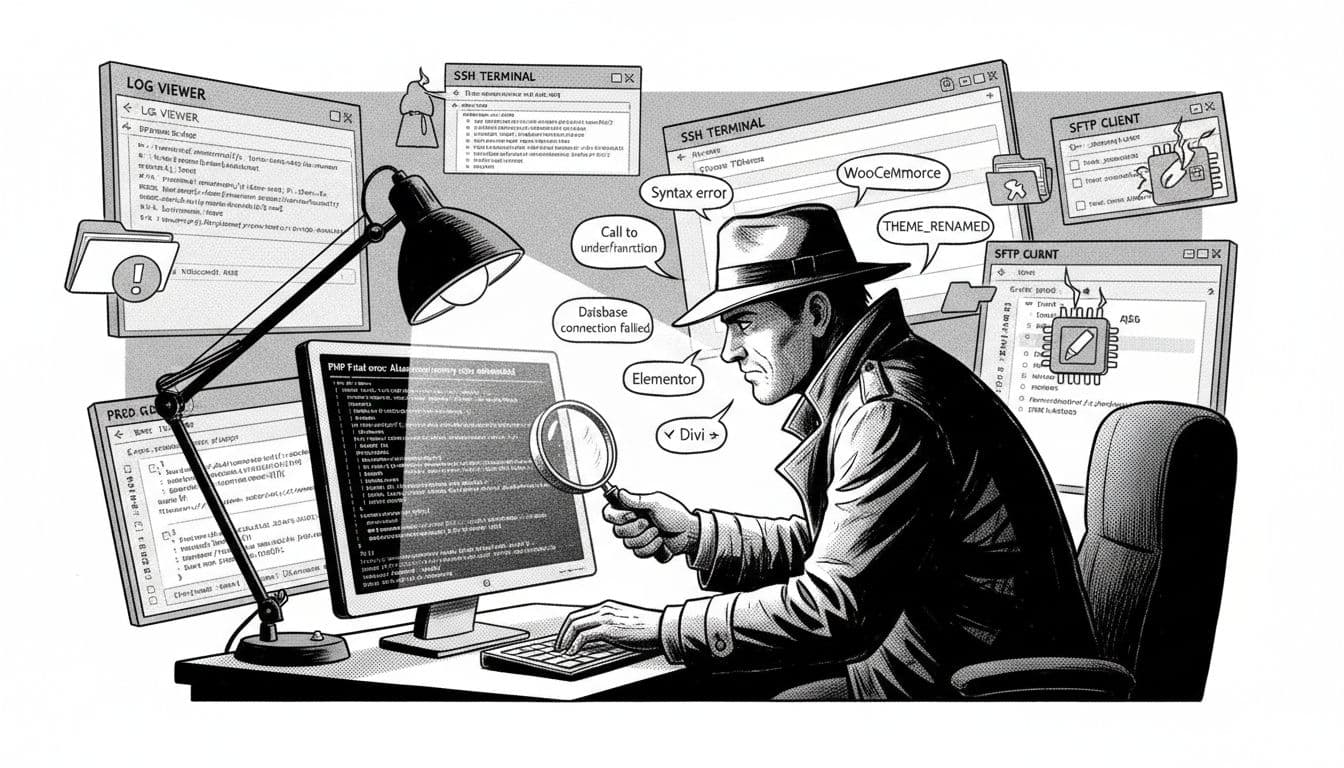
Where to find the right log file (and what I check first)
Once debug logging is on, I reproduce the problem (reload the page that goes white), then I check:
wp-content/debug.log(WordPress debug log)- Your host dashboard’s PHP error logs (common in managed hosting panels)
- Server logs if you have SSH access (paths vary):
- PHP-FPM logs (often under
/var/log/) - Web server logs (Apache or Nginx error logs)
- PHP-FPM logs (often under
If you need a second opinion on the general approach to WSOD and why WordPress hides fatal errors, SpinupWP has a solid reference on debugging the WordPress white screen.
One more 2026-era gotcha: PHP versions are less forgiving now. Many hosts default to PHP 8.2 or 8.3. Code that “worked fine for years” can crash on stricter type checks. If your logs mention TypeError, that’s a strong hint you’re hitting a PHP 8+ compatibility issue.
Common WordPress white screen errors, and what they usually mean
When the log talks, I listen for familiar lines. Here are the ones I see most, and what I do next.
| Log message (example) | What it usually means | What I do next |
|---|---|---|
PHP Fatal error: Allowed memory size of X bytes exhausted | Memory limit hit (plugin, page builder, import, or heavy query) | Temporarily raise WP memory, disable the heavy plugin, reduce workload |
Parse error: syntax error, unexpected... | A broken edit, bad snippet, or corrupted file | Undo the change, re-upload the file from a clean source |
Call to undefined function some_function() | A plugin or theme expects code that isn’t loaded | Disable the plugin or switch theme, then update or replace it |
Uncaught Error: Class 'Something' not found | Autoloader missing, plugin partial update, dependency issue | Reinstall the plugin, update via SFTP, check for incomplete deployments |
Uncaught TypeError: (PHP 8+) | Old code passing the wrong types | Update the plugin/theme, or change PHP version temporarily while you patch |
If the log points to a plugin file, I disable that plugin first. If it points to your theme’s functions.php, I switch themes and then fix the theme offline.
If you maintain custom code, it’s also handy to detect plugin state programmatically once the site is stable again. SmartWP has a practical reference on how to check if a specific plugin is active with PHP.
When you need more WSOD-specific fixes (including cache and PHP version angles), I keep this one bookmarked: Kinsta’s WordPress white screen troubleshooting.
After the fix, I close the case properly: set WP_DEBUG back to false, keep the log file for your notes, and purge caches again so old code doesn’t linger in OPcache.
Conclusion
The wordpress white screen is scary because it’s silent, not because it’s unbeatable. I get access back first (folder renames via SFTP/SSH), then I turn on safe logging, then I trust the logs to point at the real cause. Once you’ve found the guilty file, the fix is usually simple: update, replace, roll back, or give PHP the memory it needs. If you want, paste your top error line from debug.log into a note and keep it for the next time the lights go out.